Antimalware Service Slows Your PC? Fix It
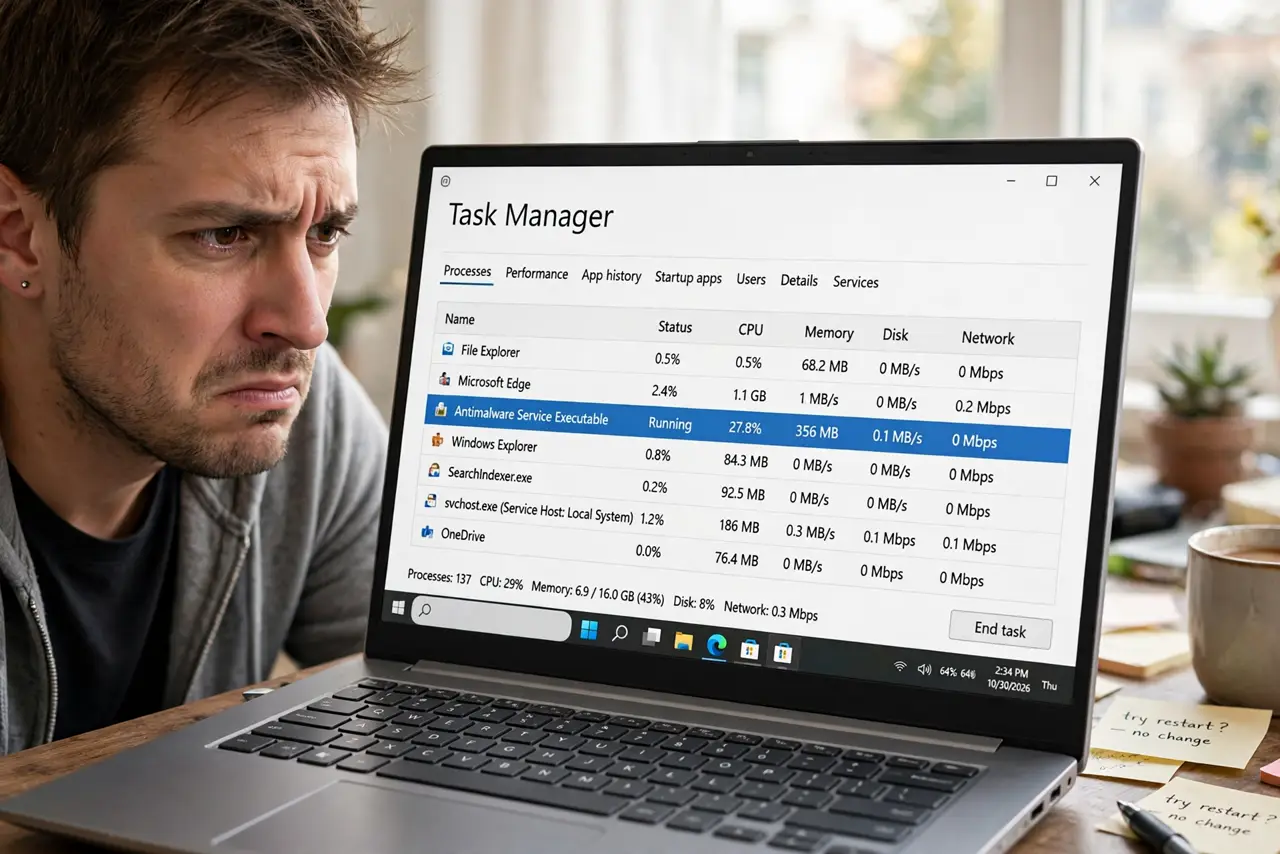
Antimalware Service Executable is eating 30, 50, even 80% of your CPU in Task Manager, and the PC feels sluggish. This is Windows Security's real-time engine doing its job — usually a full scan, a big download being checked, or a stuck definition update. This guide shows how to calm it without turning your protection off.
TL;DR / Quick Fix
Quick fix: let any active scan finish, then install pending Windows Security definition updates — a stuck update often causes the loop. Schedule full scans for idle hours and keep real-time protection on. Exclude only folders you fully trust, and never disable protection entirely.
Follow these steps
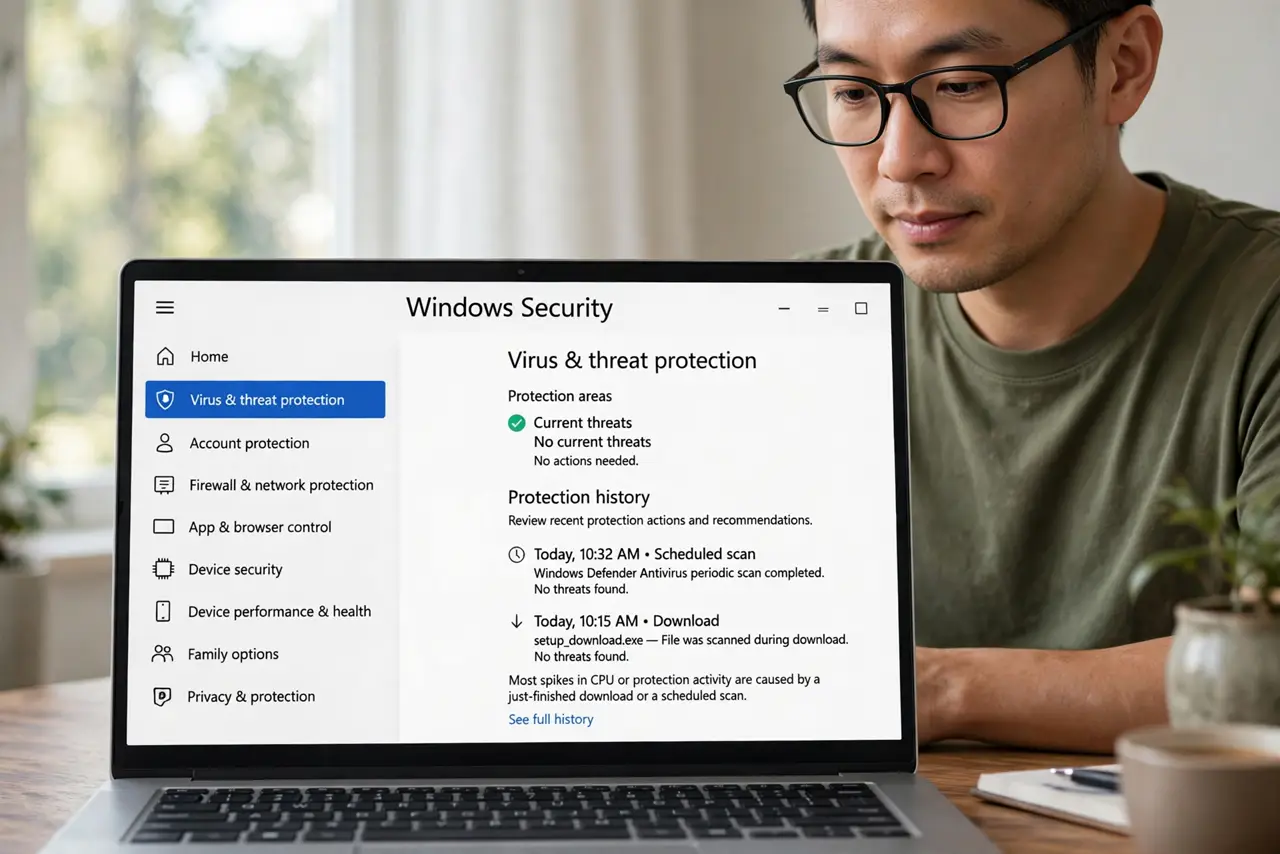
- Identify what triggered the spike. Open Windows Security > Virus & threat protection and check Protection history. A just-finished download, a plugged-in USB drive, or a scheduled scan explains most spikes — and spikes with a cause need no fix.
- Install pending definition updates. In Windows Security > Virus & threat protection > Protection updates, choose Check for updates. A stuck definition update can leave the engine scanning in a loop.
- Let the scan finish before judging. A first full scan on a big drive takes a long time and heavy CPU. Let it complete once; later scans are incremental and far lighter.
- Schedule full scans for idle time. In Task Scheduler, find the Windows Defender scheduled scan and set it for hours you do not use the PC. The scan still runs, just not while you are working.
- Exclude only what you truly trust. Add an exclusion for a folder only if you know every file in it is safe — like a game install folder with constant false positives. Exclusions are holes in your armor, so keep them few.
- Check for a second antivirus fighting it. Two real-time antiviruses scan each other's files in an endless loop. Keep one, uninstall the other properly, and let Windows Security settle.
What NOT to do
- Do not disable real-time protection permanently. Guides that tell you to kill it leave you exposed to the next malicious download.
- Do not exclude your Downloads folder. That is exactly where threats land, so excluding it blinds the scanner where it matters most.
- Do not end the Antimalware Service task in Task Manager. Windows restarts it immediately, and fighting it wastes more CPU than the scan.
- Do not install a second antivirus 'for extra safety.' Two real-time engines slow the PC more than one ever could.
Frequently asked questions
Is Antimalware Service Executable a virus?
No. It is the real name of Windows Security's protection engine. Malware sometimes imitates the name, so check it runs from the Windows system folder.
Why is it always using CPU on my PC?
It may be stuck on a definition update, scanning a huge folder on every access, or fighting a second antivirus. Work through the steps above.
Can I limit how much CPU it uses?
Not directly, but scheduling scans for idle hours and trimming exclusions keeps it out of your way during work.