Disk at 100% in Task Manager? Fix It
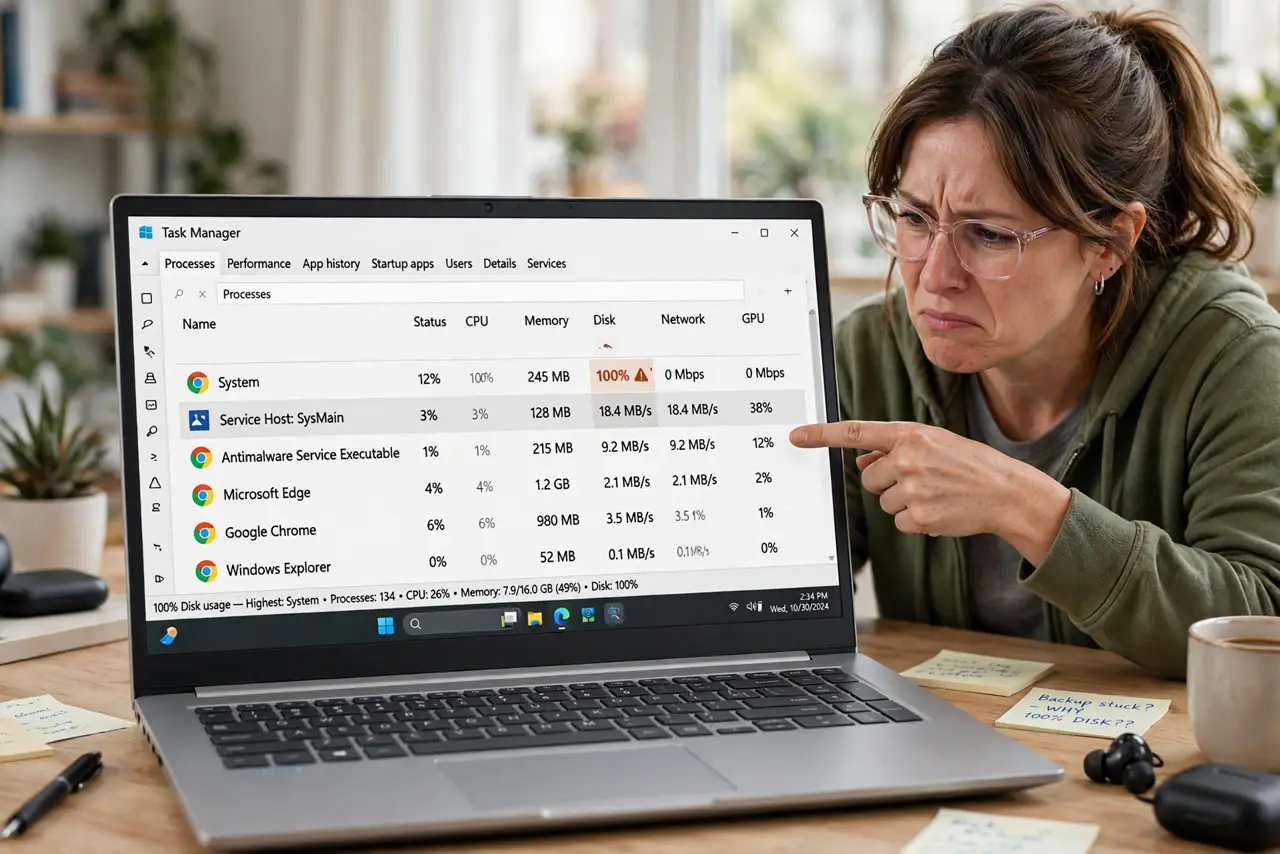
Task Manager shows the disk pinned at 100% while the PC crawls, even though you are barely doing anything. On modern PCs this is rarely a dying drive — it is usually one hungry process, a stuck update, or a background scan. This guide shows how to find the hog and calm the disk down.
TL;DR / Quick Fix
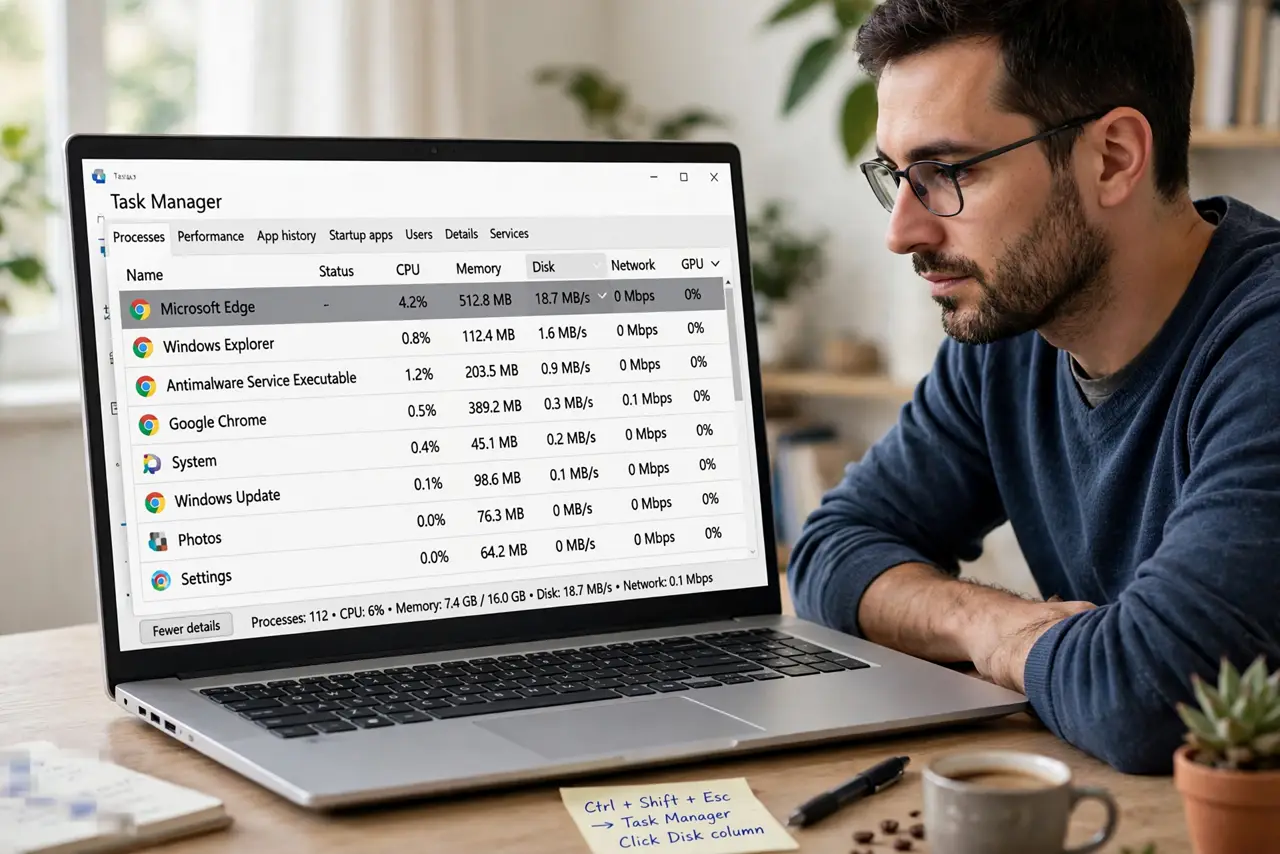
Quick fix: in Task Manager, sort the Disk column to find the hungriest process, then let any update or scan finish. Disable unneeded startup apps and check the drive's health. A 100% disk with no clear process deserves a health check.
Follow these steps
- Sort Task Manager by disk usage. Open Task Manager with Ctrl + Shift + Esc, click the Disk column header, and see which process sits at the top. The name at the top is your prime suspect, not the disk itself.
- Let updates and scans finish. If the top process is Windows Update, the indexer, or antivirus, let it finish. A stuck update or a first full scan hammers the disk temporarily and then stops.
- Trim startup programs. In Task Manager's Startup apps tab, disable programs you do not need at boot. Fewer programs fighting for the disk at startup means the 100% spike ends sooner.
- Check the drive's health. If the disk stays at 100% with no clear process, the drive itself may be struggling. Back up your files first, then check the drive's health status before anything else.
- Run a malware scan. A hidden miner or malware can pin the disk while hiding its name. Run a full scan with Windows Security to rule out an infection driving the usage.
- Consider the drive type. If this is an old mechanical hard drive, 100% spikes are partly its nature. Moving Windows to an SSD is the lasting fix when the drive is simply too slow for modern Windows.
What NOT to do
- Do not disable Windows Update to stop the spikes. Updates are the price of a secure PC; fix the stuck update instead of killing updates.
- Do not follow guides that tell you to disable SysMain blindly. It sometimes helps on old hard drives, but on SSDs it does nothing and removes a useful cache.
- Do not defrag an SSD. Defragmenting only helps mechanical drives and wears an SSD for no benefit.
- Do not ignore a 100% disk with clicking sounds. Clicking from a hard drive means back up immediately — that sound is a dying drive.
Frequently asked questions
Is 100% disk usage bad for my drive?
Brief spikes are normal. Hours at 100% with a slow PC point to a process problem or a failing drive worth checking.
Why is disk at 100% when I am doing nothing?
Background work: updates, indexing, antivirus scans, or malware. Task Manager sorted by disk shows which one.
Will more RAM fix 100% disk usage?
Sometimes, if the PC pages to disk for lack of memory. But check the top process first — RAM only helps a memory shortage.