Turn On Auto HDR for Games
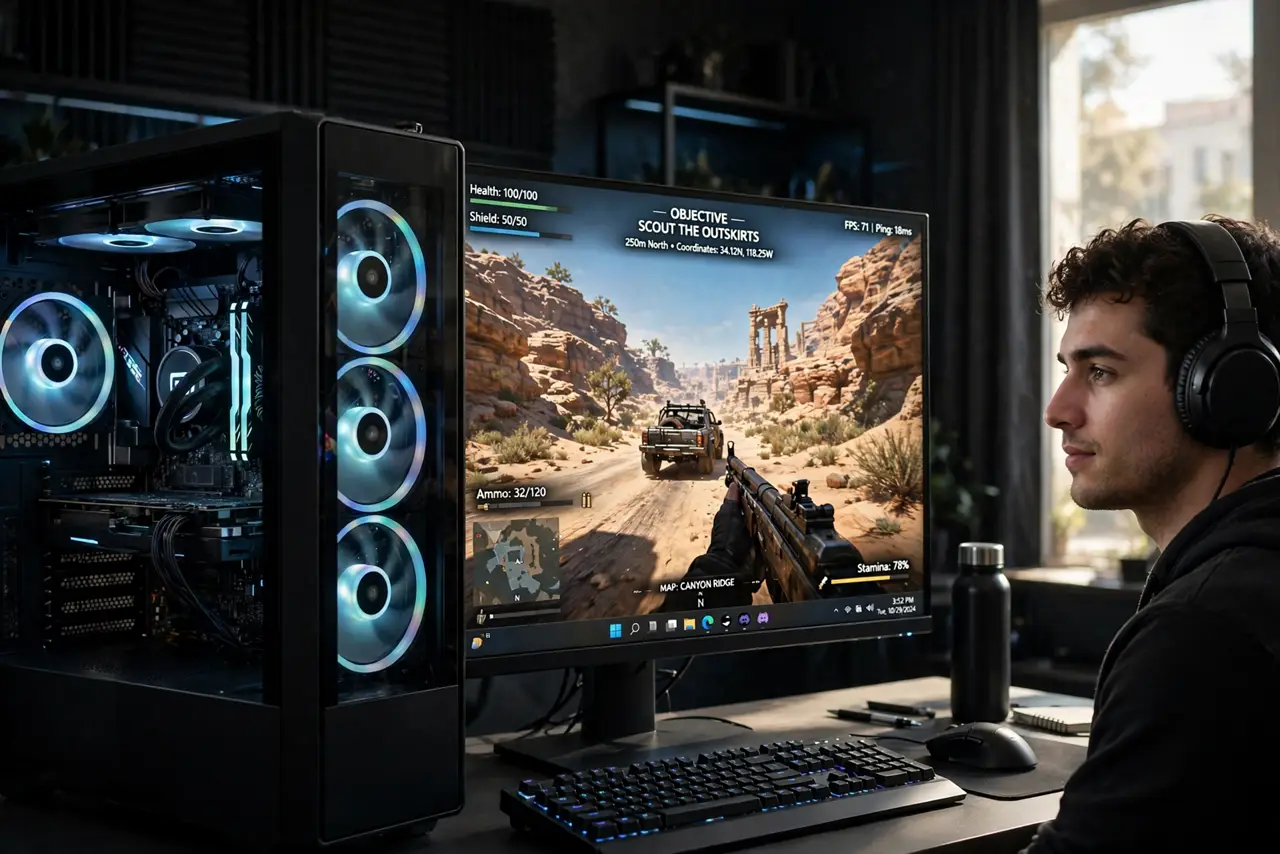
Your HDR monitor is on, the game looks oddly flat, and the colors feel washed next to the desktop. Many older games were built before HDR existed — Windows' Auto HDR bridges the gap by intelligently expanding standard games into HDR. Here is how to enable it and when it actually helps.
TL;DR / Quick Fix
Quick fix: Auto HDR upgrades older DirectX 11 and 12 games to HDR — enable it in Settings, System, Display, HDR. Your display must support HDR with it enabled in Windows first. If a game looks worse, disable Auto HDR for that specific game in the Graphics settings.
Follow these steps
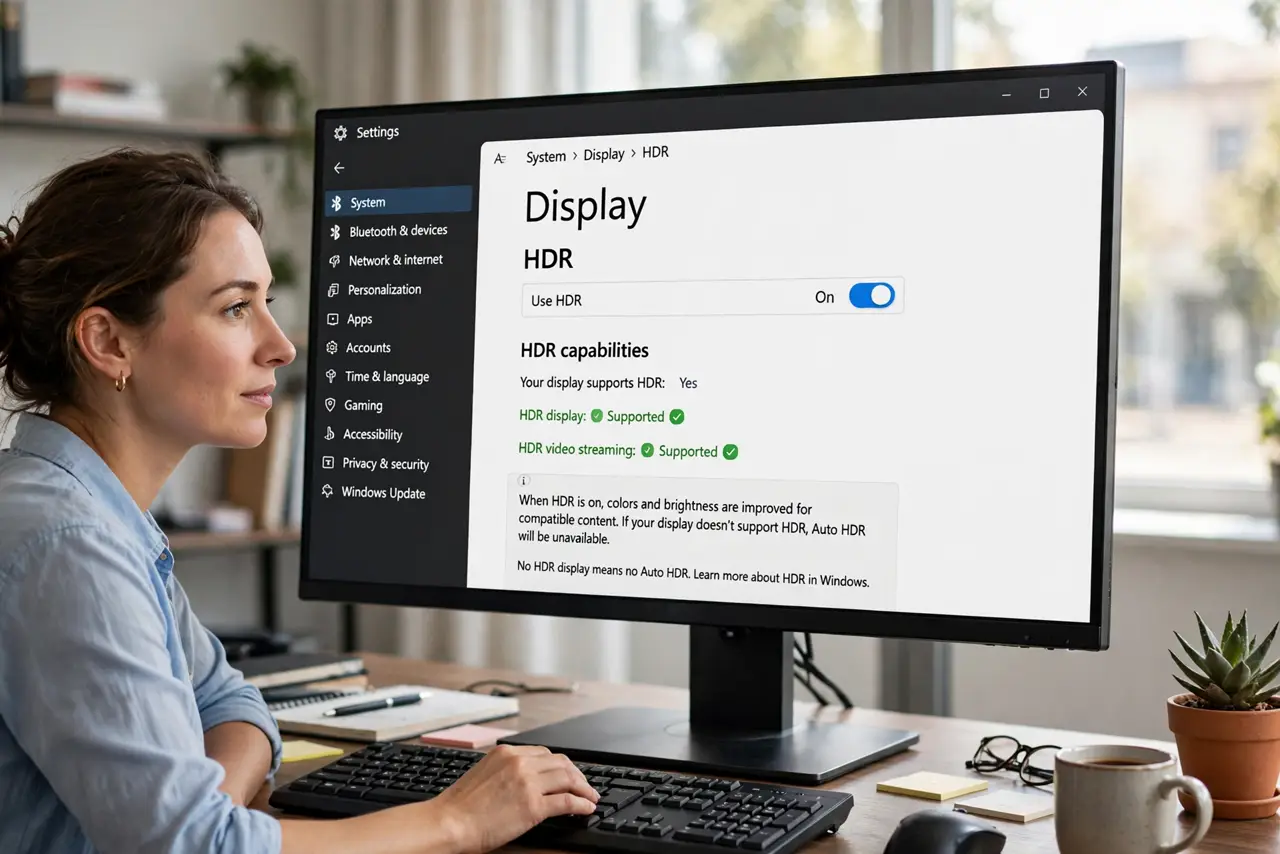
- Confirm your display does HDR. Check Settings, System, Display, HDR — Windows reports your display's HDR capabilities there. No HDR display means no Auto HDR; see the washed-out HDR guide if HDR looks wrong already.
- Enable HDR in Windows first. Toggle 'Use HDR' on in the same HDR settings page. Auto HDR builds on system HDR — without it, the option stays greyed out, as the greyed-out toggle guide explains.
- Turn on Auto HDR. In the HDR settings, enable Auto HDR. Windows now automatically enhances supported DirectX 11 and 12 games — no per-game setup needed for the default behavior.
- Test with a supported game. Launch an older SDR game and compare. The improvement ranges from subtle to striking depending on the title — some games transform, others barely change.
- Disable it per game when it hurts. In Settings, System, Display, Graphics, select the game and turn off Auto HDR for it specifically. A few titles look worse enhanced — per-game control is the answer, not abandoning the feature.
- Calibrate for the best result. Auto HDR is only as good as your HDR calibration — run the HDR calibration so the expanded range actually looks right instead of just brighter.
What to avoid
- Do not enable Auto HDR without system HDR on. The toggle depends on it — greyed out means the foundation is missing, not broken.
- Do not judge it on one game. Auto HDR quality varies wildly by title — test three or four before deciding it is useless.
- Do not leave it on for games with native HDR. Native HDR plus Auto HDR can double-process — let natively supported games use their own implementation.
- Do not confuse Auto HDR with fake-HDR monitors. On a display with weak HDR hardware, enhancement cannot conjure what the panel lacks — see real vs fake HDR.
Frequently asked questions
Which games support Auto HDR?
DirectX 11 and 12 games generally — a large back catalog. Very old DirectX 9 titles and some with custom engines are excluded.
Does Auto HDR hurt performance?
Minimally — the conversion runs on the GPU with small overhead. Frame rates stay essentially the same.
Why does everything look washed out instead?
Usually the display's HDR mode or Windows' SDR brightness slider needs adjusting — Auto HDR is not the culprit, the base HDR setup is.