A Battery Report? Basics
Windows keeps a detailed diary of your laptop's battery -- capacity then versus now, drain per session, the works -- and almost nobody knows it exists. The battery report is an HTML file generated by one command, and it answers the big questions: is my battery worn out, and what is eating it? Here is how to make it and read it.
TL;DR / Quick Fix
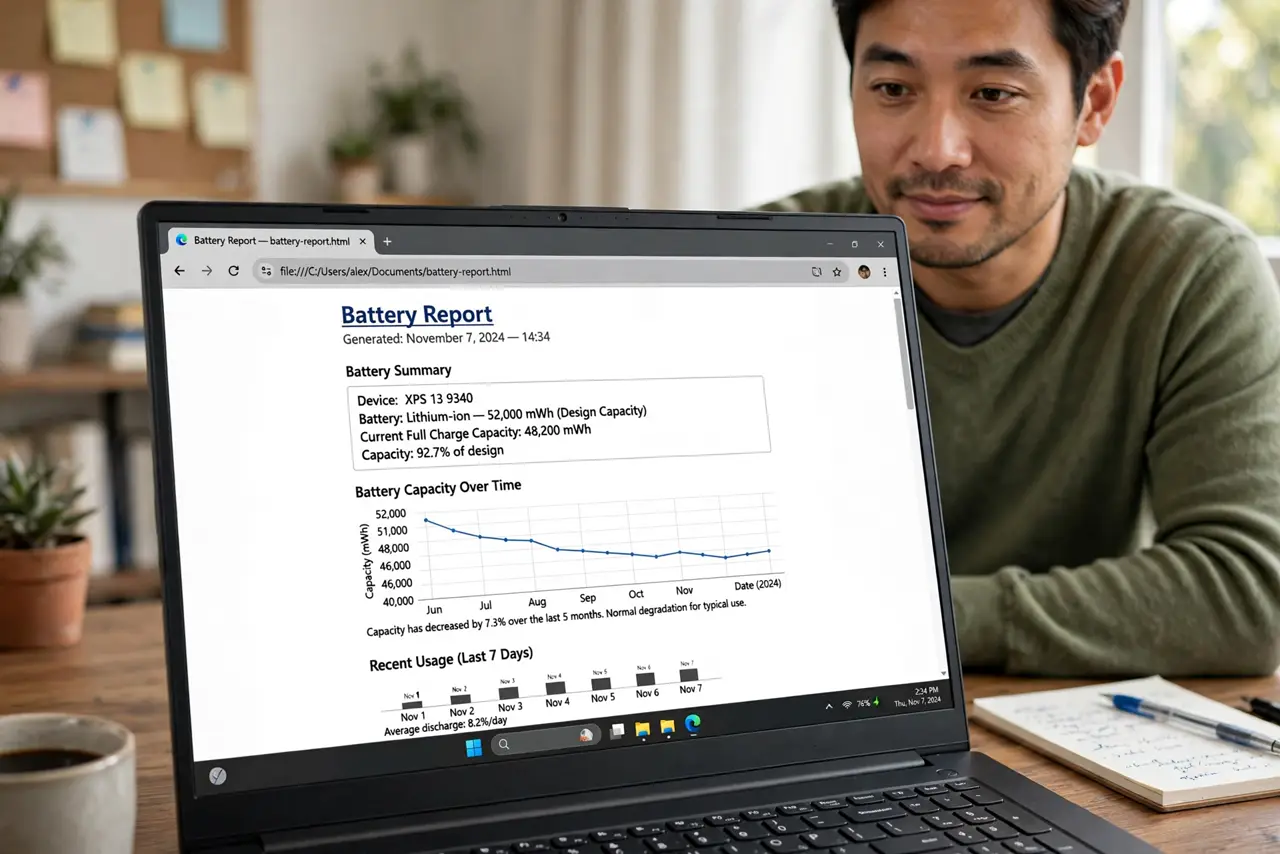
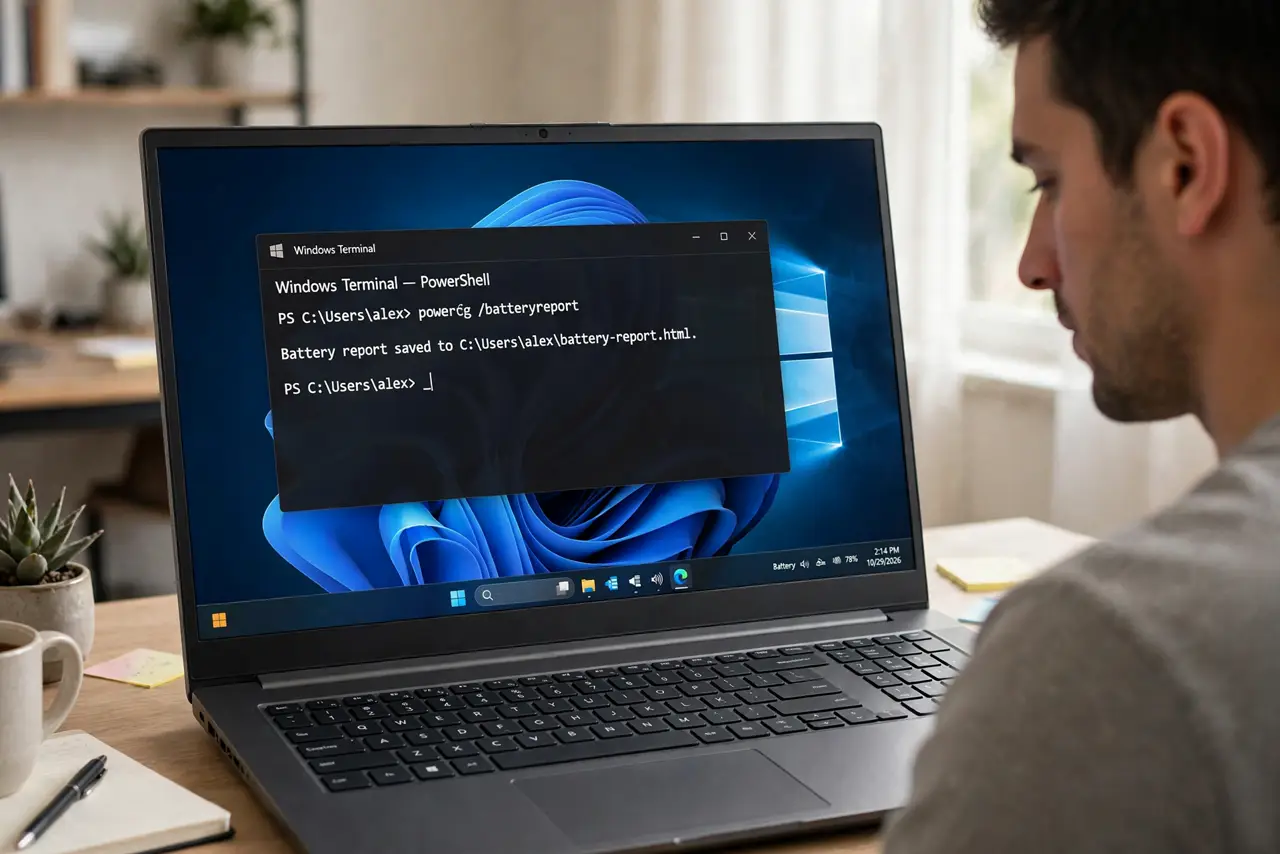
Quick fix: open Terminal or Command Prompt and run powercfg /batteryreport, then open the generated HTML file from the shown folder. Compare Design Capacity to Full Charge Capacity -- a big gap means a worn battery. The recent-usage section shows what drained it session by session.
Follow these steps
- Generate the report. Open Terminal (or Command Prompt) and type powercfg /batteryreport, then Enter. Windows saves an HTML file and tells you exactly where -- usually your user folder.
- Open the HTML file. Double-click the file path or navigate to it in File Explorer -- it opens in your browser as a formatted report with sections and graphs.
- Compare design vs full charge capacity. The top section lists Design Capacity (factory-new) and Full Charge Capacity (today). Divide the second by the first: 90%+ is healthy, 70-80% is tired, below 70% is replacement territory.
- Read the recent usage section. It logs each session's drain -- screen-on time, sleep drain, active use. A laptop losing 20% overnight in sleep has a wakefulness problem worth investigating.
- Check the battery capacity history. The history table shows capacity over weeks and months. A steady decline is normal aging; a sudden cliff suggests a failing cell, not wear.
- Act on what you find. Healthy but draining fast? Check the power mode and background apps. Worn capacity? A calibration rarely restores worn cells -- plan a replacement instead.
What NOT to do
- Do not run the report once and panic. One reading is a snapshot -- compare over weeks to separate noise from a real trend.
- Do not expect calibration to fix wear. Recalibrating helps the gauge's accuracy, not the battery's actual capacity.
- Do not ignore sudden capacity cliffs. Gradual decline is aging; a sharp drop means a failing cell -- back up and plan service.
- Do not confuse the report with a fix. It diagnoses; the fixes are settings, apps, or a new battery -- the report just tells you which.
Frequently asked questions
How do I know if my battery needs replacing?
Full Charge Capacity below 70-80% of Design Capacity, or the laptop dying at 30% -- both say the cells are worn out.
Why does my laptop lose charge while asleep?
Something is waking it -- check the report's sleep sessions, then look at wake timers and connected devices in settings.
Is the battery report accurate?
For capacity trends, yes -- it reads the battery's own fuel gauge. Individual session numbers are approximate but useful.