Automate Battery Saver
You remember battery saver exists when the laptop hits 9% — every single time. Windows can turn it on automatically at whatever percentage you choose, stretching the last of the charge without you thinking about it. Here is the one-time setup that ends manual toggling forever.
TL;DR / Quick Fix
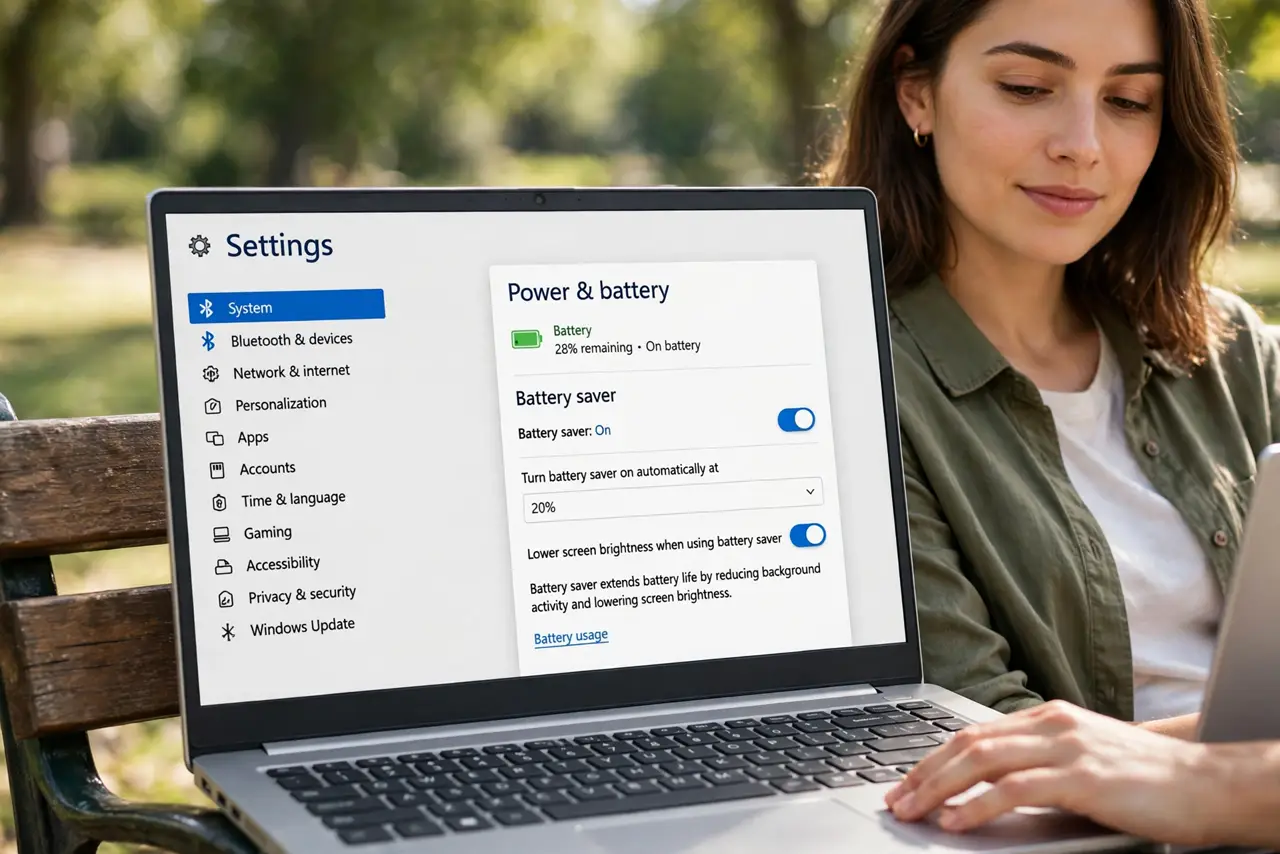
Quick fix: open Settings, System, Power and battery, and set Battery saver to turn on automatically at 20 or 30 percent — no more manual toggling. It dims the screen and trims background activity to stretch the last of the charge. Adjust the threshold to taste.
Follow these steps
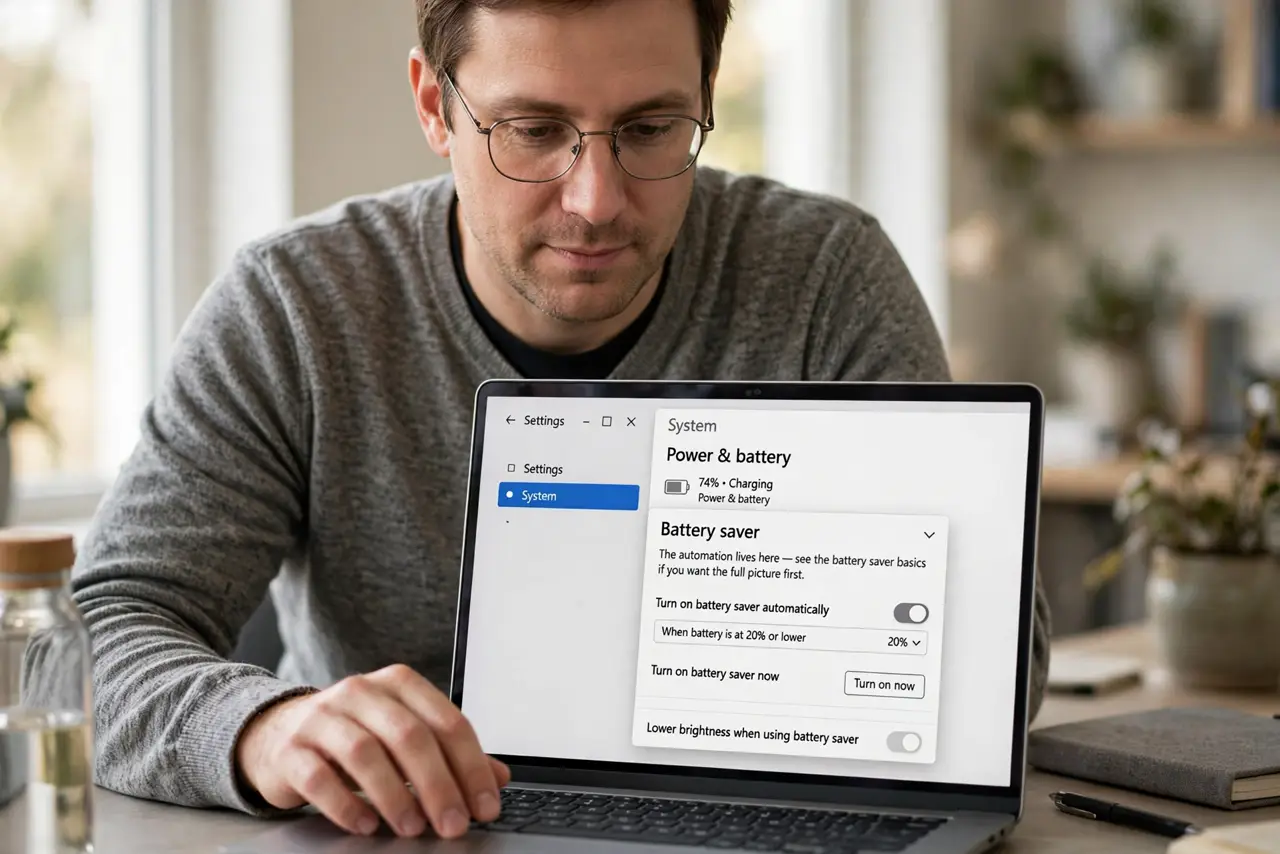
- Open Power and battery. Go to Settings, System, Power and battery, then expand Battery saver. The automation lives here — see the battery saver basics if you want the full picture first.
- Set the automatic threshold. Choose Turn battery saver on automatically at, and pick your percentage — 20 is the classic, 30 if you are cautious. Below the line, saver kicks in on its own.
- Understand what it does. Battery saver lowers brightness, trims background activity, and pauses some sync. Your work continues; the extras quiet down.
- Tune the brightness behavior. Decide whether saver also lowers screen brightness — the biggest single saving. Most people leave it on.
- Know when it turns off. Plug in the charger and battery saver disengages automatically. It is a low-battery mode, not a permanent state — if it turns on too early, adjust the threshold.
- Pair it with energy tips. Automatic saver plus the energy recommendations applied is the full battery-stretching combo. Set both once, benefit daily.
What NOT to do
- Do not set the threshold to 90 percent. Battery saver at high charge just dims your laptop all day — 20 to 30 is the sensible range.
- Do not expect it to save a dying battery. Saver stretches healthy batteries; a worn battery that dies in an hour needs replacing.
- Do not forget it pauses background sync. Email and cloud sync may delay on saver — check manually if you are waiting on something.
- Do not toggle it manually anymore. That is the point of automation — set the threshold and let Windows handle it.
Frequently asked questions
What percentage should trigger it?
20 percent suits most people; 30 if you are often far from a charger. Below 10 is living dangerously.
Does battery saver hurt performance?
Slightly — background tasks throttle and brightness drops. Foreground work stays smooth on modern laptops.
Why is it on when I'm plugged in?
It should disengage on AC power. If it sticks, toggle it off manually once — then check the threshold setting.