BitLocker On or Off? Basics
Windows offers to encrypt your entire drive with BitLocker, and the word 'encryption' makes it sound both essential and scary. In plain terms: it scrambles everything on the drive so a thief who steals the PC gets nothing readable. For laptops that leave the house, that is genuinely worth having — with one non-negotiable condition.
TL;DR / Quick Fix
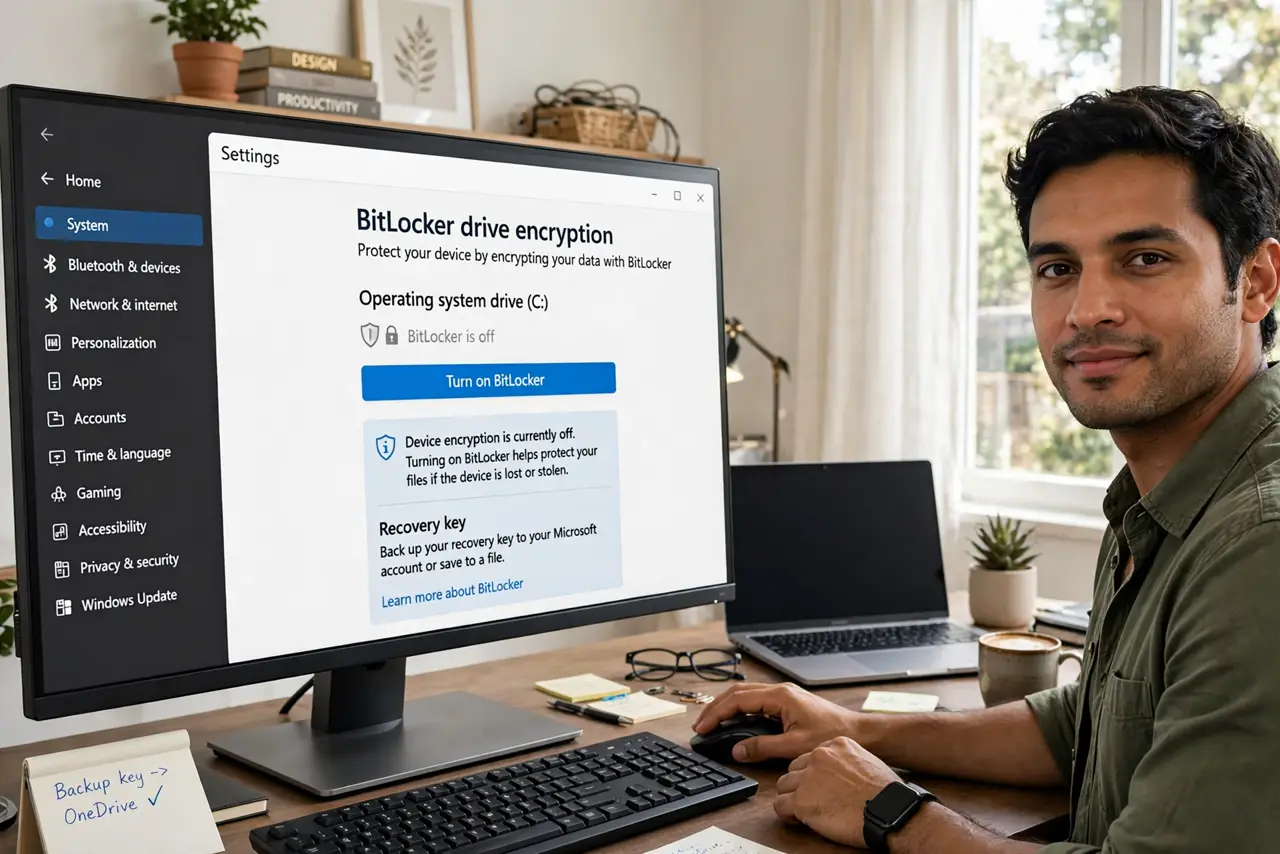
Quick fix: turn BitLocker on for laptops and portable drives — it encrypts the whole drive so thieves get nothing readable. The non-negotiable part: save the 48-digit recovery key somewhere findable first, like your Microsoft account. Without that key, even you cannot get back in after certain changes.
Follow these steps
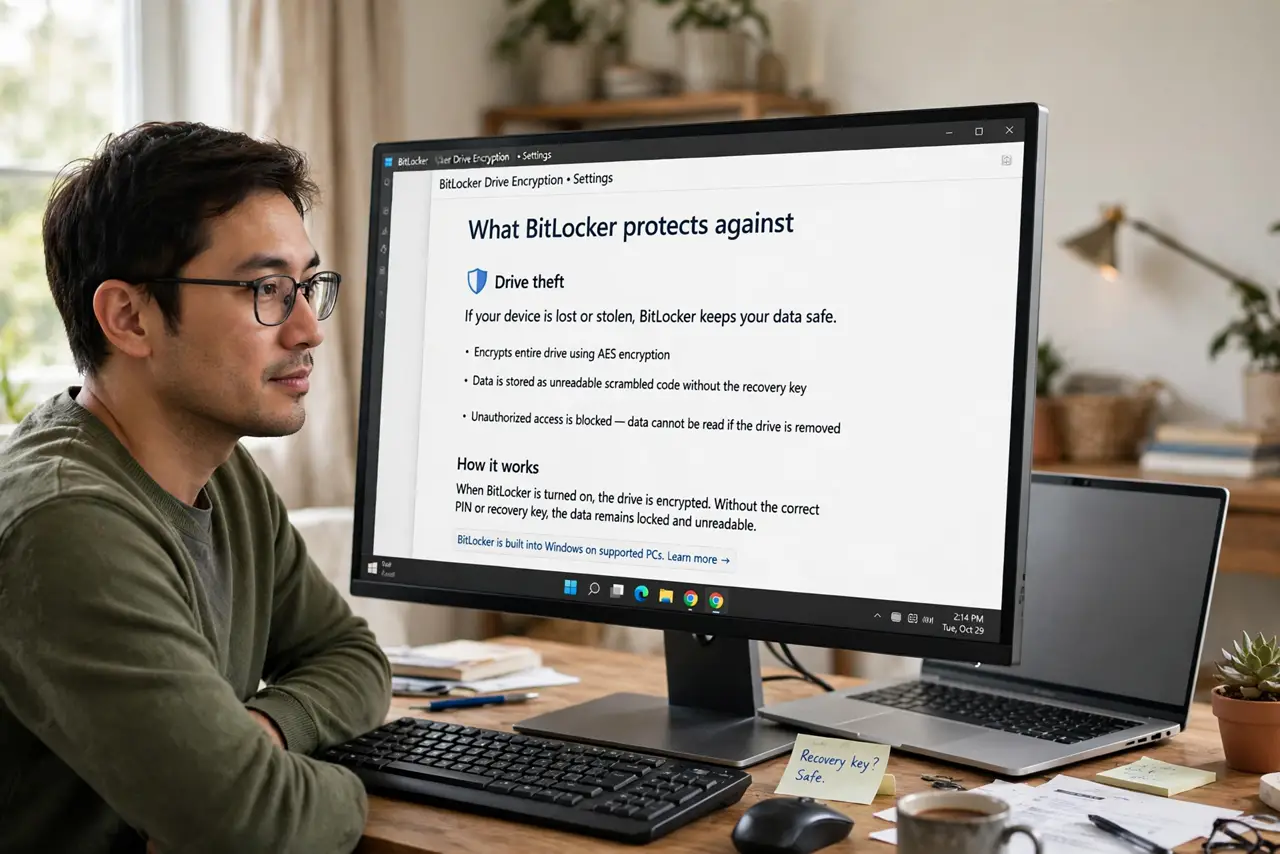
- Understand what it protects against. BitLocker defeats drive theft: remove the drive or steal the laptop and the data is unreadable scramble. It does not protect against malware or phishing while you are logged in.
- Save the recovery key FIRST. Before enabling, make sure the 48-digit key lands somewhere findable — Microsoft account, printout, or USB. This step is the entire safety story; see finding your key.
- Turn it on from Manage BitLocker. Search Manage BitLocker, click Turn on BitLocker for the drive, choose how to unlock it, and let encryption run — it works in the background.
- Encrypt portable drives too. BitLocker To Go covers USB sticks. A lost unencrypted stick is a data breach in your pocket; an encrypted one is a minor annoyance.
- Know when to leave it off. On a desktop that never moves in a trusted home, the benefit is smaller. Some also turn it off briefly for certain firmware updates, then re-enable.
- Suspend before big hardware changes. Swapping major components can trigger the recovery prompt. Suspend BitLocker first, change the hardware, then resume protection.
What NOT to do
- Do not enable BitLocker without saving the recovery key. An encrypted drive with no key is a brick with your files inside.
- Do not save the key only on the encrypted drive. It must live somewhere independent — account, paper, separate USB.
- Do not confuse BitLocker with a backup. Encryption protects against theft; it does nothing against drive failure or ransomware.
- Do not turn it off and on casually. Each cycle decrypts and re-encrypts the whole drive — hours of churning for no benefit.
Frequently asked questions
Does BitLocker slow down my PC?
On modern PCs with hardware encryption support, the impact is negligible — you will not feel it in daily use.
What is the difference from device encryption?
Device encryption is the automatic, simpler version on many new PCs. BitLocker is its full-featured sibling with more management options.
I forgot my key and it is asking — am I locked out?
Check every location in the key-finding guide before concluding anything. Without the key, the data is unrecoverable by design.
What to read next
- Find Your BitLocker Recovery Key
- NTFS vs exFAT? Plain Difference