BitLocker Keeps Asking for Key?
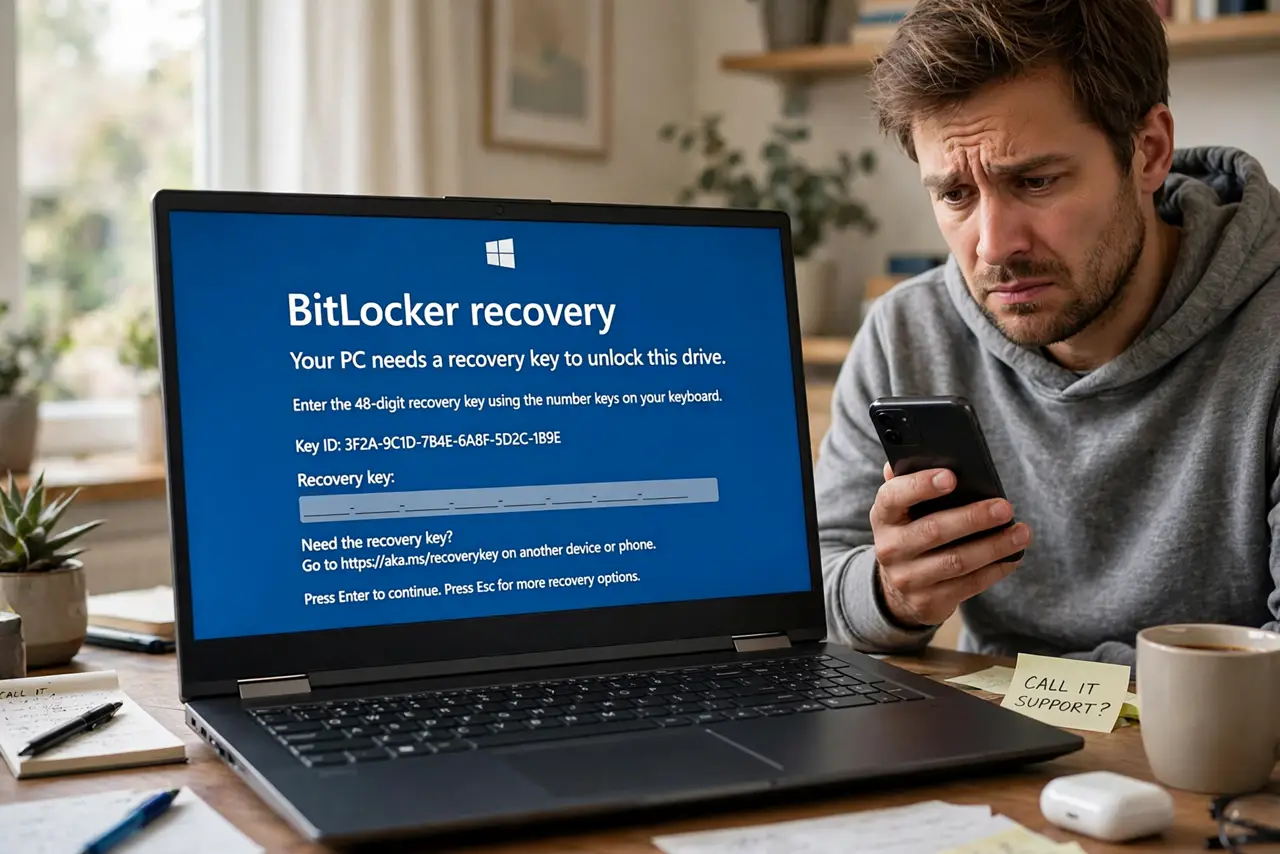
Every boot lands on a blue screen demanding the BitLocker recovery key — even after you enter it correctly. The loop usually started with a BIOS update or hardware change that made the TPM measurements mismatch. You can boot today with the key, then re-seal BitLocker so it stops asking.
TL;DR / Quick Fix
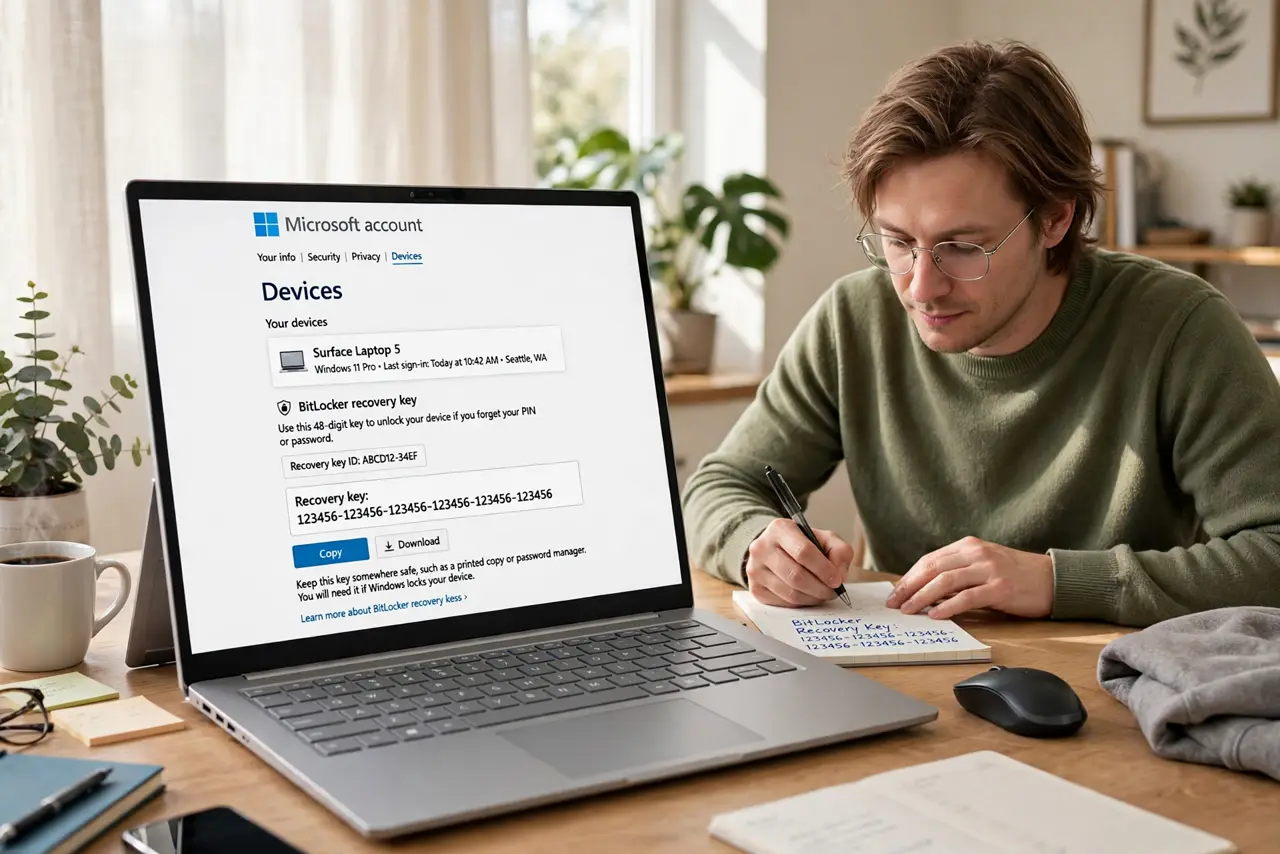
Quick fix: find your recovery key in your Microsoft Account under Devices — enter the 48-digit key once and Windows boots. The loop usually follows a BIOS update or hardware change. After booting, suspend and re-enable BitLocker so it re-seals to the new configuration.
Follow these steps
- Find your recovery key. Sign into your Microsoft Account on another device and check Devices for the 48-digit key — or wherever you saved it. Learn all the key locations if it's not there.
- Enter it once to boot. Type the key carefully at the blue recovery screen. One correct entry boots Windows — the loop is about re-sealing afterward, not about the key being wrong.
- Identify what triggered it. A BIOS update, a new drive, or a firmware change alters what the TPM measures. Knowing the trigger tells you the fix is re-sealing, not a broken drive. Review the BitLocker basics for context.
- Suspend BitLocker, then re-enable it. In Windows, open Manage BitLocker, suspend protection, reboot once, then resume protection. This re-seals the encryption to the current hardware state — the actual cure for the loop.
- Update the BIOS carefully if one is pending. If a half-applied BIOS update caused this, finishing it properly (on AC power, uninterrupted) can resolve the mismatch. Don't start one on battery.
- Save the key somewhere you'll find again. Print it or store it in your password manager. The next loop — or a dead drive — is only a scare if the key is findable.
What NOT to do
- Do not guess the recovery key. Wrong attempts don't help and the key is findable — guessing wastes boots and raises panic.
- Do not turn off BitLocker in frustration without a backup. Disabling encryption mid-crisis risks the data you're trying to protect.
- Do not clear the TPM to stop the prompts. Without the recovery key handy, clearing the TPM can lock the drive permanently.
- Do not ignore repeated recovery prompts. Each one is the system telling you the seal is broken — re-seal it properly instead of keying in forever.
Frequently asked questions
Where is my recovery key?
Most often in your Microsoft Account under Devices, on a printout, or in your password manager — the key locations guide covers every spot.
Why did this start after a BIOS update?
The update changed firmware measurements the TPM checks. BitLocker correctly noticed 'something changed' — suspending and resuming re-baselines it.
Can I just turn BitLocker off?
You can, from Manage BitLocker once booted — but you lose encryption protection. Re-sealing keeps the protection and ends the loop.
What to read next
- BitLocker Recovery Key
- BitLocker Basics