Toggle Bluetooth Fast
You need Bluetooth on for the headphones and off for the flight, and digging through Settings every time is silly. Windows has three fast ways to toggle Bluetooth — Quick Settings, a keyboard shortcut path, and airplane-mode-adjacent tricks — and one of them takes two seconds.
TL;DR / Quick Fix
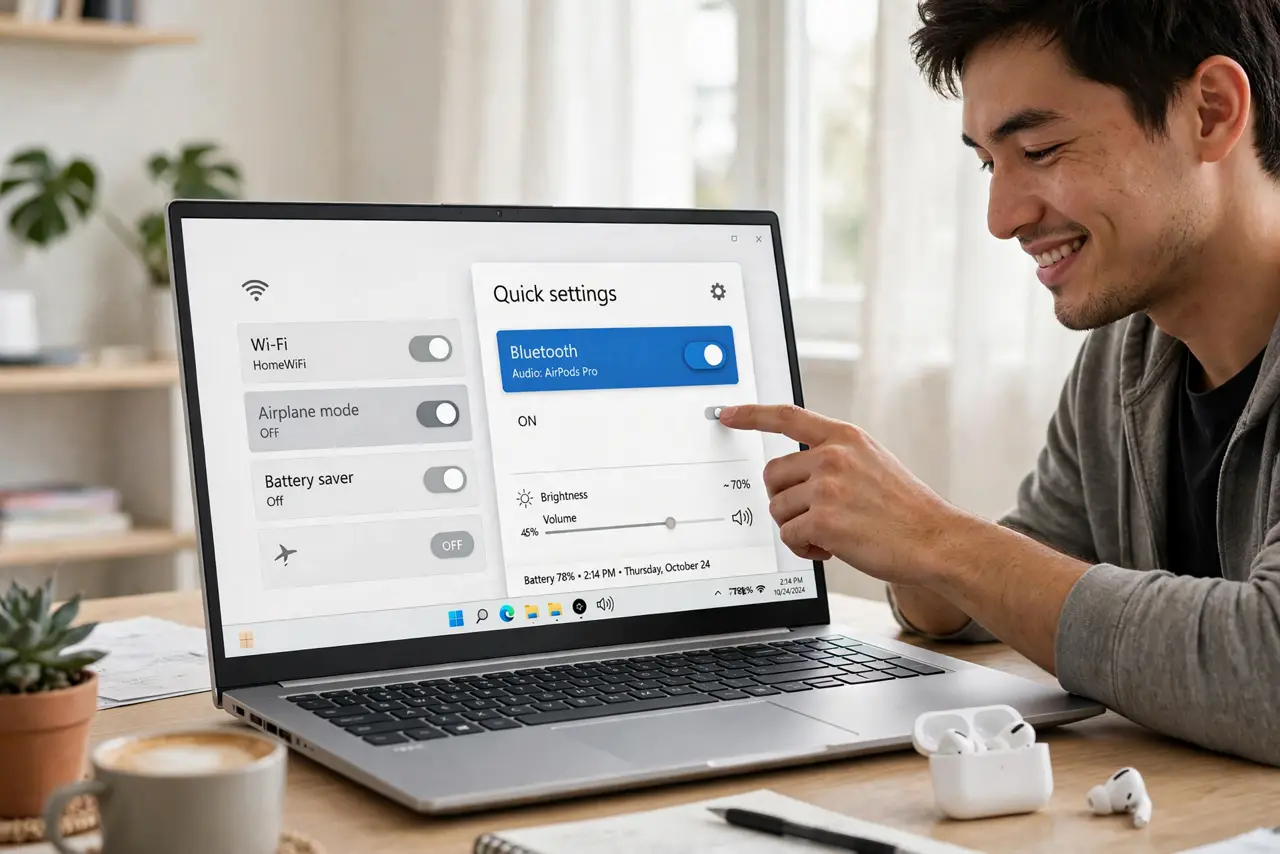
Quick fix: press Win+A to open Quick Settings and tap the Bluetooth tile — two seconds, no Settings maze. For the full device list, use Win+R, type ms-settings:bluetooth, and hit Enter. If the tile is missing, Bluetooth may be off at the hardware level or the driver needs attention.
Follow these steps
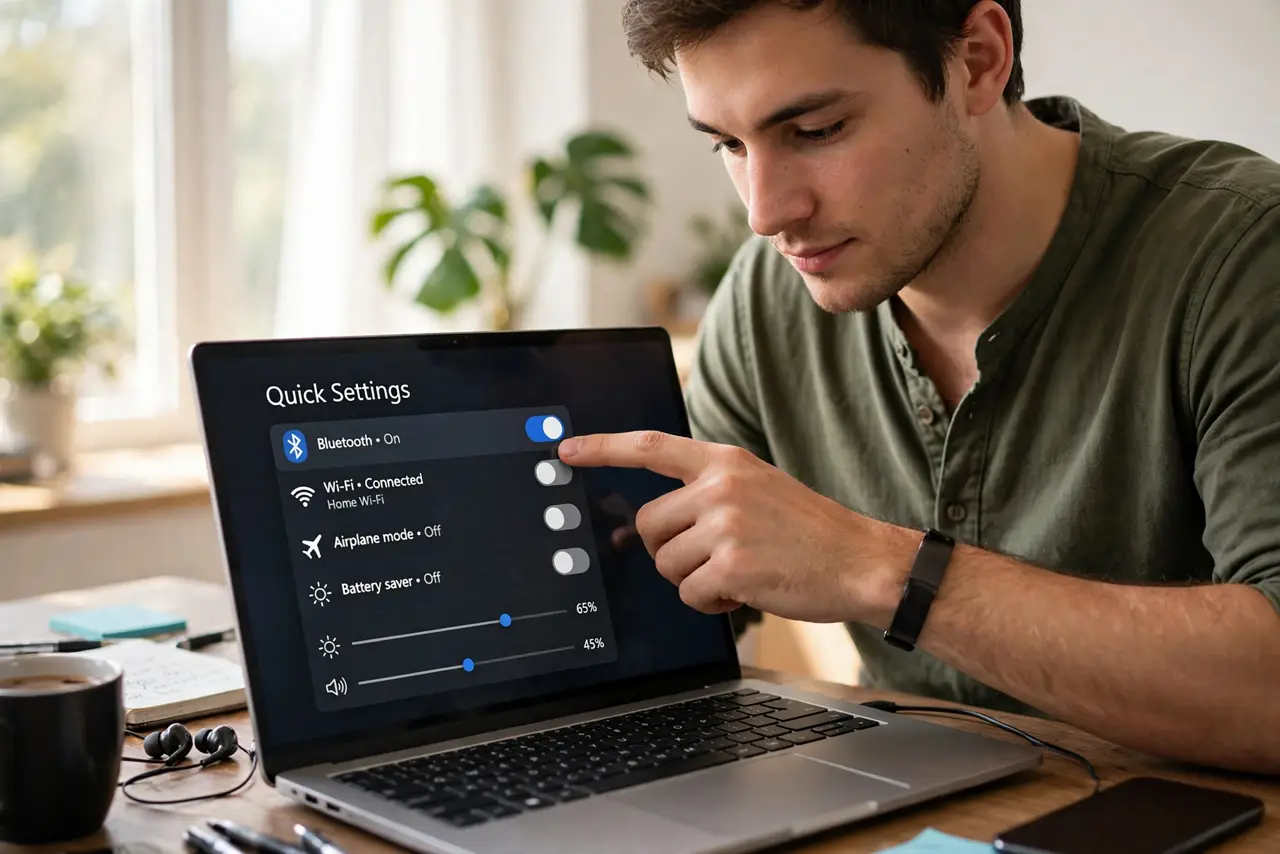
- Toggle with Win+A. Press Win+A to open Quick Settings, then tap the Bluetooth tile. This is the fastest toggle — on, off, done in two seconds.
- Jump to Bluetooth settings fast. Press Win+R, type ms-settings:bluetooth, and press Enter. You land directly on the Bluetooth page without clicking through Settings.
- Pair from the Quick Settings tile. Right-click or long-press the Bluetooth tile to jump to device settings, then add your headphones or speaker. For the full walkthrough see pair a Bluetooth device.
- Check the tile is actually there. If Quick Settings lacks the Bluetooth tile, click the pencil icon and add it. A missing tile sometimes means Bluetooth is disabled in BIOS or the driver failed.
- Mind Wi-Fi interference. Bluetooth shares radio space with Wi-Fi. If audio stutters when Wi-Fi is busy, move closer or switch the Wi-Fi band.
- Use airplane mode wisely. Airplane mode kills Bluetooth too — but you can re-enable Bluetooth while staying in airplane mode for flights.
What NOT to do
- Do not toggle Bluetooth from Device Manager daily. Disabling the adapter there is a troubleshooting step, not a daily switch — use Win+A.
- Do not leave Bluetooth on in crowds unnecessarily. It is a minor battery and privacy cost; toggle it off when you are done.
- Do not pair in a room full of devices. Twenty discoverable gadgets make pairing a guessing game — pair somewhere quiet.
- Do not ignore a missing Bluetooth tile. It signals a driver or hardware problem, not a settings preference — investigate.
Frequently asked questions
Why is there no Bluetooth tile in Quick Settings?
Either the tile was removed (re-add it with the pencil icon) or Windows cannot see the adapter — check Device Manager for driver errors.
Can I toggle Bluetooth with a keyboard shortcut?
There is no single built-in key, but Win+A then Tab and Space reaches the tile fast. Some laptops have a function key for wireless.
Does turning Bluetooth off save battery?
A little, on laptops especially. The bigger win is privacy — a silent radio cannot be probed.