Open the Boot Menu
The boot menu lets you choose which drive or device your PC starts from — handy for installing Windows, running a recovery USB, or booting a second system. The catch: the key that opens it differs by brand and flashes by in a second. This guide shows the reliable way to reach the boot menu on the first try.
TL;DR / Quick Fix
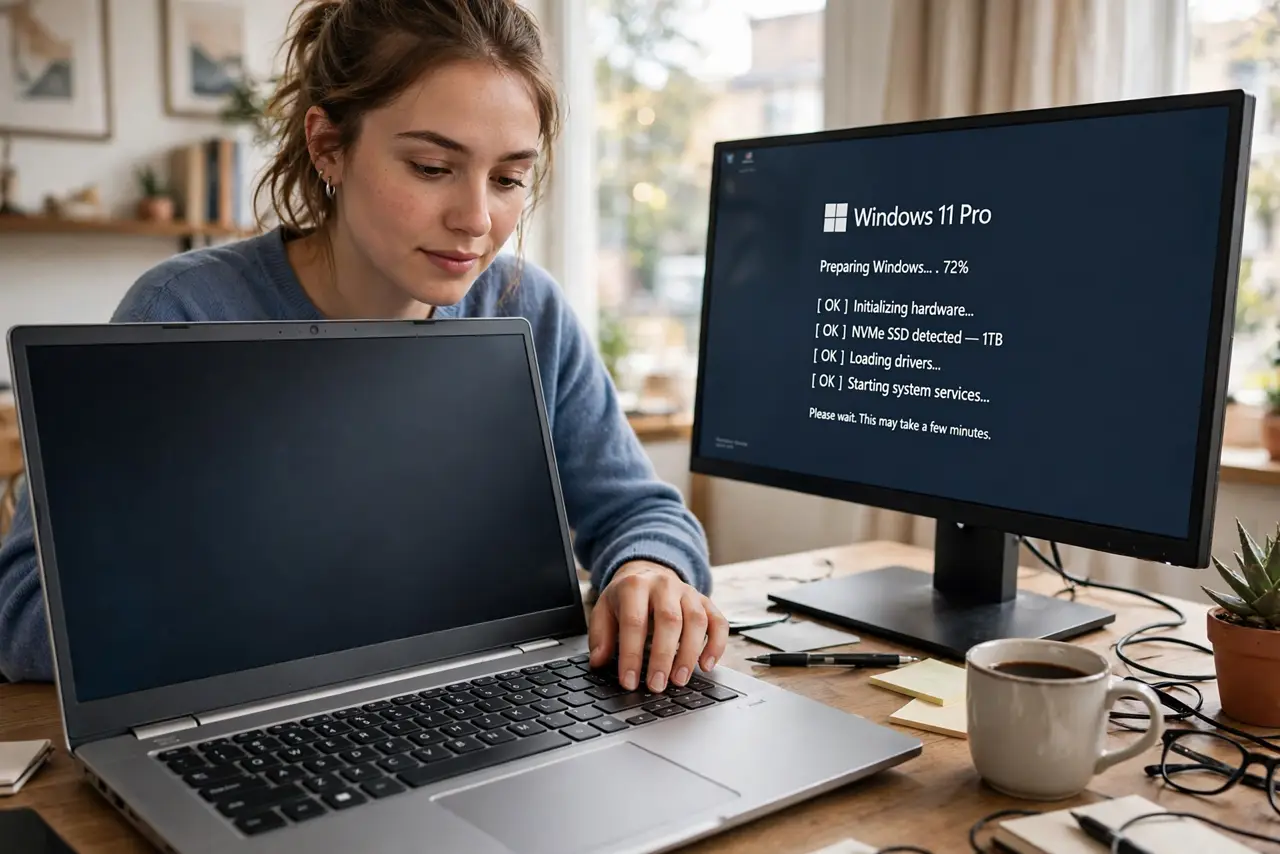
Quick fix: restart your PC and tap the boot-menu key repeatedly during startup — often F12, F8, or Esc depending on the brand. If Windows loads normally, you pressed too late; try again and start tapping earlier. The right key flashes on the first screen for a second or two.
Follow these steps
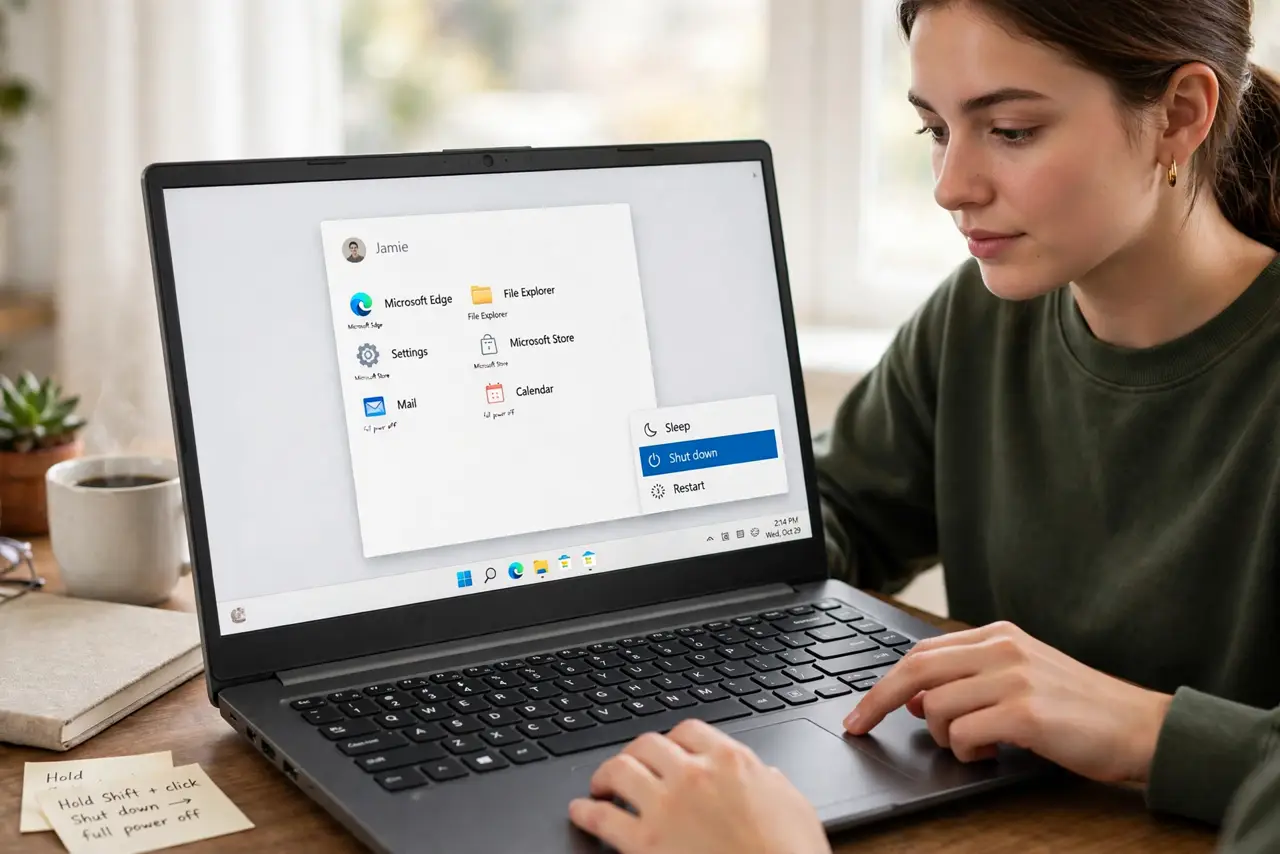
- Shut down fully first. Do a full shutdown, not sleep or hibernate — fast startup can skip the key window entirely. Hold Shift while clicking Shut down to force a complete power-off.
- Learn your brand's likely key. F12 is common on Dell and Lenovo, F8 or Esc on others, and some brands use F9. The right key is printed on the first screen for a second — watch closely on your next restart.
- Start tapping immediately at power-on. Press the power button, then tap the key about twice per second until the menu appears. Tapping once is not enough — the window is short and easy to miss.
- If Windows loads, try again earlier. Missing the window just means you started tapping too late. Shut down fully and start tapping the instant you press the power button.
- Use the menu to pick your device. The menu lists detected drives and USB devices. Use the arrow keys to highlight your choice and Enter to boot from it — nothing is installed or changed by selecting.
- Know the UEFI route as a backup. If the key never works, enter UEFI settings from Windows and change the boot order there — it reaches the same result without the timing game.
What NOT to do
- Do not hold the key down — rapid tapping works better than one long press.
- Do not change other boot settings while you are in there. One wrong toggle can stop the PC booting normally.
- Do not assume the key from a video matches your machine. Brands and even models differ.
- Do not panic if the menu looks plain or text-only. That is normal — it is a firmware screen, not Windows.
Frequently asked questions
What is the difference between the boot menu and UEFI/BIOS?
The boot menu is a one-time choice of which device to start from. UEFI/BIOS settings change the permanent boot order and hardware options — a deeper menu for a different job.
My USB drive does not appear in the menu. Why?
The drive may not be bootable, or the port may not be initialized yet — try a rear USB port on desktops. Also confirm the drive was created as a bootable device, not just copied onto.
Can I damage anything from the boot menu?
Selecting a device only chooses what boots this once. As long as you do not change saved settings, the boot menu itself is read-only and safe.