The Calendar Flyout? Basics
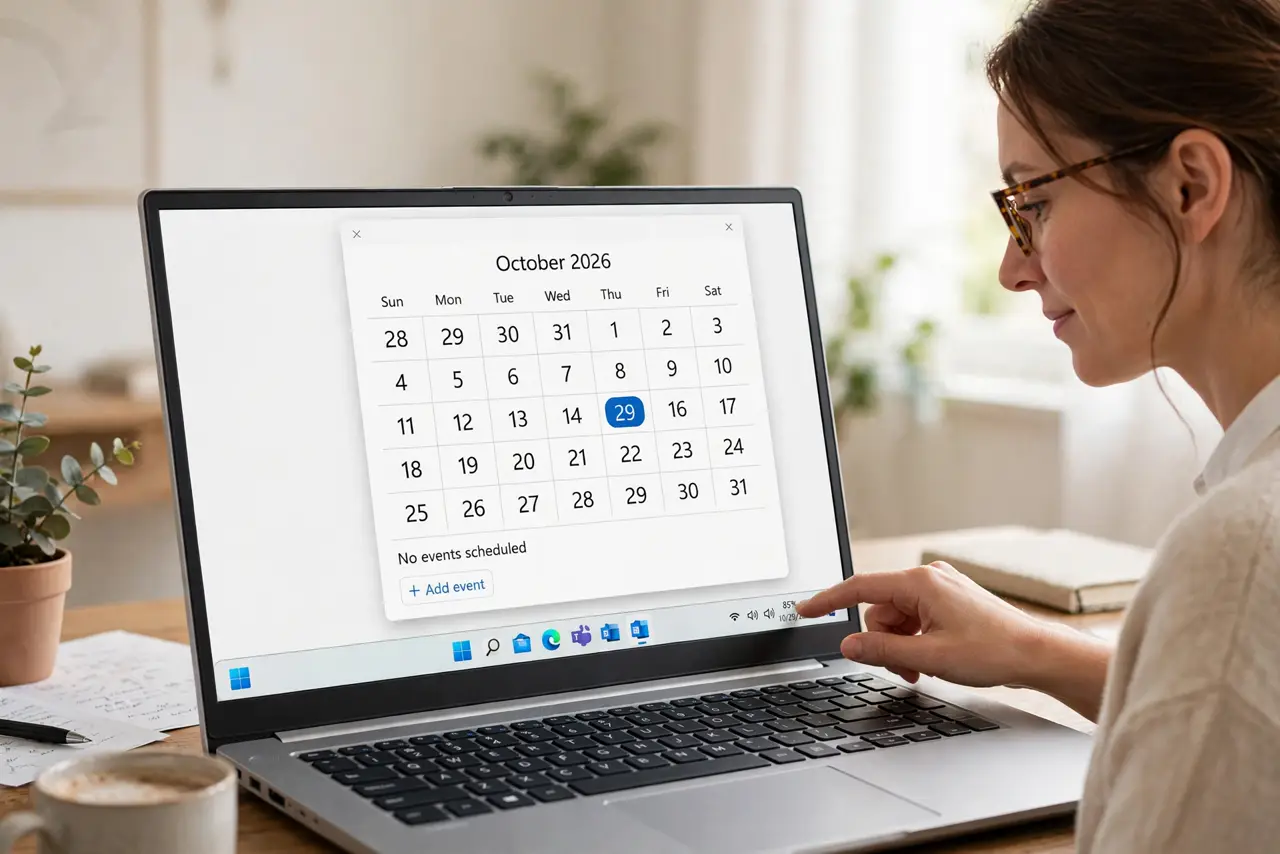
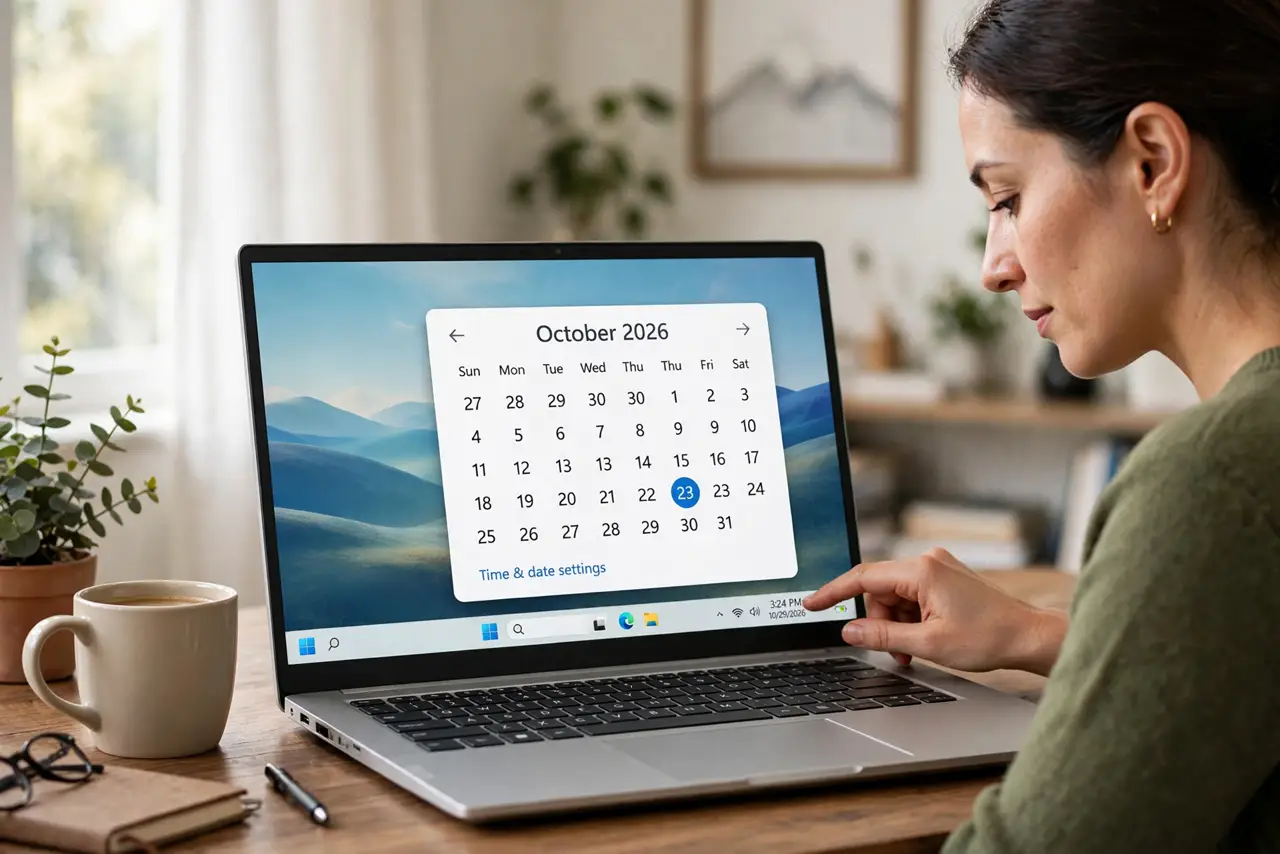
Click the clock in the Windows taskbar and a little calendar panel pops up — that is the calendar flyout. It shows the month, lets you add events, and (if you are signed in) pulls in your agenda. Most people ignore it, but it is the fastest way to glance at your schedule without opening an app. Here is how to use it and fix it when it misbehaves.
TL;DR / Quick Fix
Quick fix: the calendar flyout is the mini-calendar that opens when you click the taskbar clock in Windows. Click the date to add events, sign in to sync your agenda, and if it will not open, restart Windows Explorer from Task Manager. It is the fastest schedule glance you have.
Follow these steps
- Open it with a click. Click the date and time at the bottom-right of the taskbar. The flyout shows the current month and any events from your connected calendar. Click a day to see or add events for it.
- Add an event from the flyout. Select a date, then use the add-event option to create an entry. It saves to your default calendar app. This is genuinely faster than opening the full Calendar app for quick entries.
- Connect your calendar account. If the flyout shows no events, open the Calendar app and add your Google or Microsoft account there. The flyout mirrors whatever the Calendar app knows — fix it there, and the flyout follows.
- Fix a flyout that will not open. Open Task Manager, find Windows Explorer, and restart it. This refreshes the taskbar and fixes most flyout glitches without a reboot. If it still fails, sign out and back in.
- Check the notification settings. The flyout's agenda reminders obey your notification settings. If events show but never remind you, check that notifications are on for the Calendar app in Settings.
- Know its limits. The flyout is a glance tool, not a planner — no week view, no complex scheduling. For real planning, open the full calendar app; use the flyout for the thirty-second check.
What NOT to do
- Do not reinstall Windows because the flyout glitches. A Windows Explorer restart fixes it in seconds — the nuclear option is never needed here.
- Do not expect your phone's calendar to appear by magic. The flyout only shows accounts connected in the Windows Calendar app.
- Do not confuse the flyout with the Widgets panel. The calendar is the clock click; widgets are the weather icon — different panels, different fixes.
- Do not disable system notifications to silence one calendar. That kills every reminder — mute the specific calendar instead.
Frequently asked questions
The flyout opens but shows no events. Why?
Your calendar account is not connected in the Windows Calendar app. Add your account there first; the flyout only mirrors what the app knows.
Can I see multiple calendars in the flyout?
Yes — every calendar enabled in the Calendar app appears. Toggle calendars on or off in the app's settings to control what the flyout shows.
The time in the flyout is wrong. What now?
Check Settings > Time & language and make sure 'Set time automatically' is on. A wrong system clock breaks the flyout's date logic.