Calibrate Your Display Colors
Whites look yellow, photos print darker than the screen, or everything has a weird tint. Monitors drift from accurate color over time, and most ship with punchy-but-wrong defaults. Windows includes a free calibration wizard that walks your eyes through gamma, brightness, contrast, and color balance — no hardware needed.
TL;DR / Quick Fix
Quick fix: search for 'Calibrate display color' and run the built-in wizard — it guides you through gamma, brightness, contrast, and color balance using your eyes. Do it in your normal room lighting. For photo or design work where accuracy is money, a hardware calibrator is the real upgrade.
Follow these steps
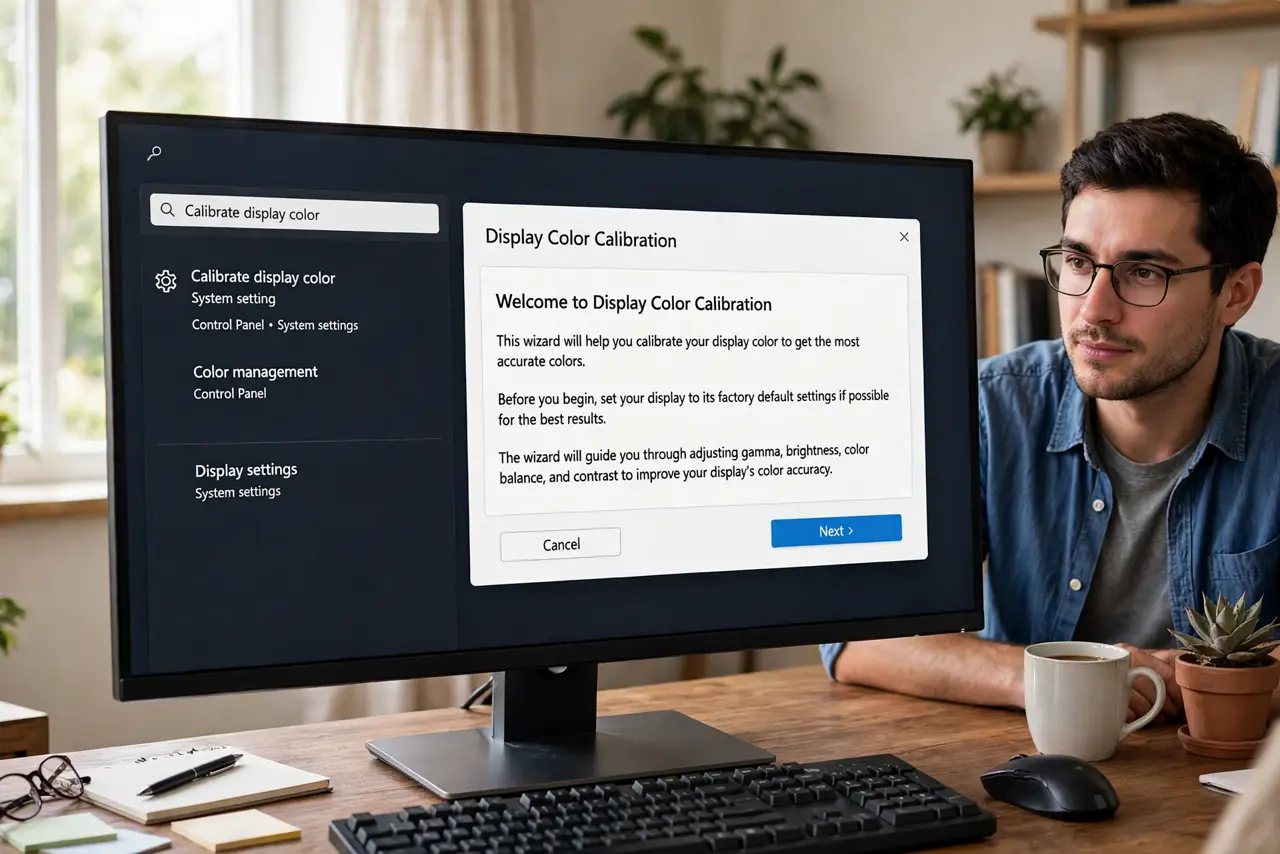
- Open the calibration wizard. Search Calibrate display color in Start and open it. The wizard explains each step before asking you to adjust — read, then tweak.
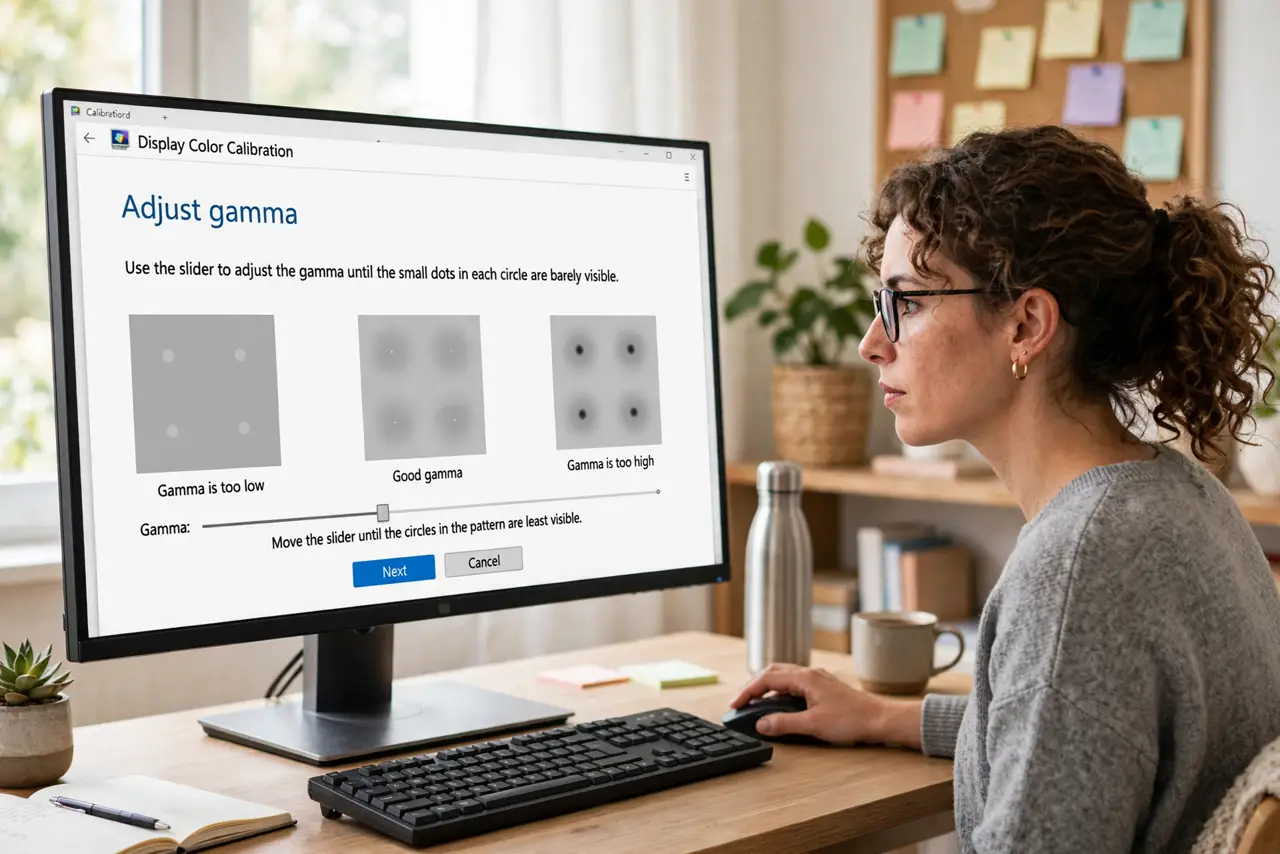
- Set gamma first. The wizard shows a test image and a slider. Adjust until the dots fade into the background as instructed — this is the foundation of accurate tone.
- Adjust brightness and contrast. Using the reference images, set brightness so dark details stay visible and contrast so whites do not blow out. Small moves, check the image.
- Balance the colors. The final screens ask you to remove color tints by sliding red, green, and blue. Neutral grays with no tint is the target.
- Calibrate in your real lighting. Do this in the light you actually work in. Calibrating in a dark room then working in sunlight undoes the point.
- Know when hardware beats eyes. The wizard gets you close. If color accuracy is your livelihood, a hardware calibrator measures the screen objectively — eyes adapt and lie.
What NOT to do
- Do not calibrate with Night light or HDR oddities active. Turn off color filters first or you will calibrate around a tint.
- Do not expect miracles on a cheap TN panel. Calibration improves any screen, but it cannot give a budget panel wide color range.
- Do not calibrate once and forget for years. Panels drift; recalibrate yearly, or after any big lighting change in the room.
- Do not copy someone else's calibration numbers. Every panel differs — their perfect settings are wrong for your screen.
Frequently asked questions
Will calibration fix my yellow whites?
Usually yes — a color balance pass removes the tint. If whites stay yellow at full cool settings, the panel may be aging.
Why do prints look darker than my screen?
Screens glow; paper reflects. Calibration narrows the gap, but screens will always look brighter than prints.
Does calibration affect gaming?
It changes color accuracy, not speed. Games look more natural; competitive players often prefer vivid over accurate anyway.