Set Up Multiple Monitors
A second monitor is the cheapest productivity upgrade in computing — but the moment you plug it in, questions appear: which side is it on, why is the mouse jumping wrong, why does everything look huge on one screen? Windows' display settings answer all of it in one page, once you know where to look.
TL;DR / Quick Fix
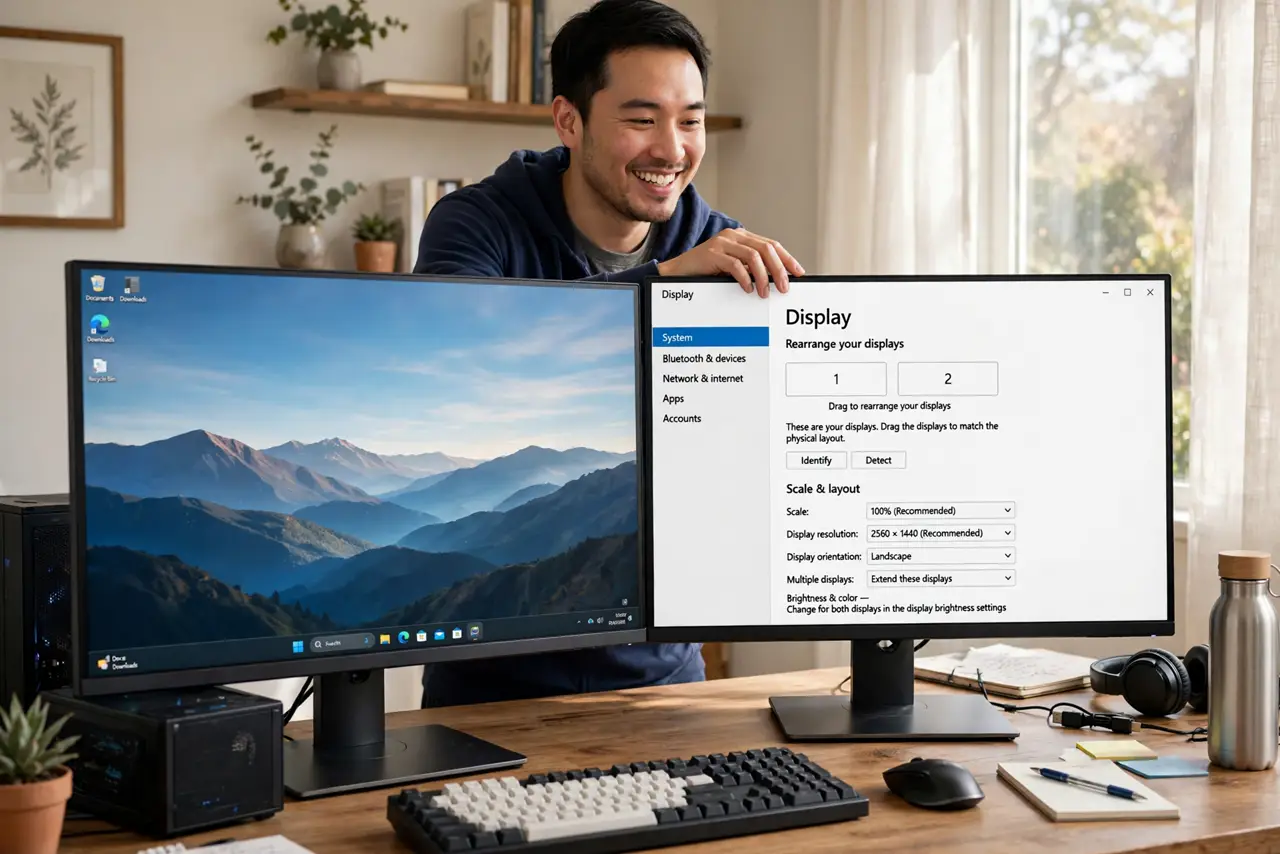
Quick fix: plug in the second monitor, then open Settings, go to System, then Display — drag the numbered rectangles to match your physical layout, choose Extend these displays, and set each screen's resolution. If the mouse jumps to the wrong side, the rectangles are in the wrong order.
Follow these steps
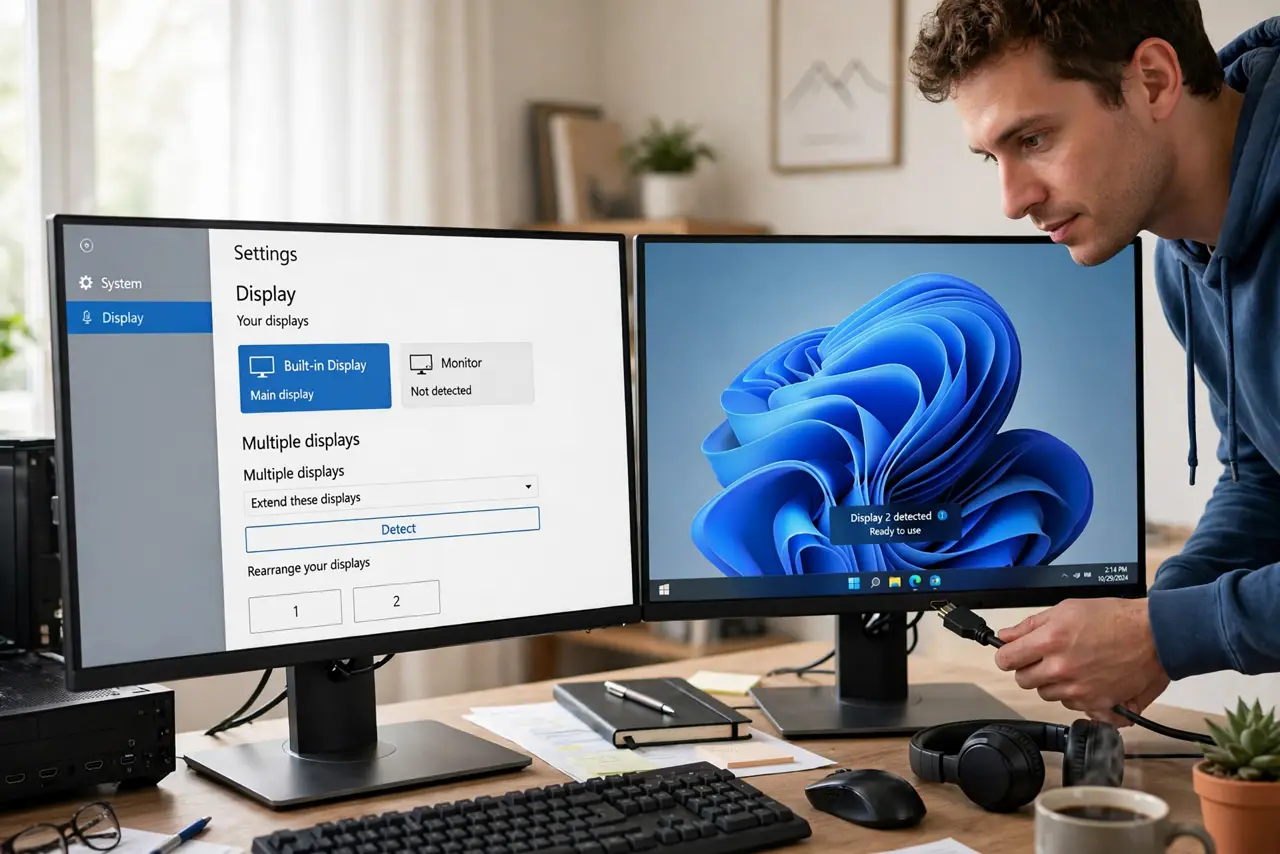
- Connect and detect. Plug in the monitor and click Detect in Display settings if it does not appear. Try a different cable or port if detection fails repeatedly.
- Arrange the rectangles. Drag the numbered boxes to mirror your desk: left monitor on the left. Click Identify to see which number is which screen.
- Choose Extend these displays. Extend gives each screen its own desktop — the point of two monitors. Duplicate vs Extend explains when mirroring makes sense instead.
- Set each screen's native resolution. Select each rectangle and pick its recommended resolution. A monitor running below native looks blurry — fix it here, not with squinting.
- Fix scaling mismatches. If text is huge on one screen and tiny on the other, adjust Scale per display. Mixed-DPI setups need a sign-out to apply cleanly.
- Set your primary monitor. Choose which screen holds the taskbar and new windows — see how to set it.
What NOT to do
- Do not leave the arrangement rectangles in the wrong order. Every 'the mouse goes the wrong way' complaint traces back to this diagram.
- Do not run both monitors below native resolution. Blurry text causes eye strain — always use each panel's recommended resolution.
- Do not mirror when you meant to extend. Duplicate shows the same image twice, which wastes the second screen for desk work.
- Do not daisy-chain adapters blindly. Adapter chains (USB-C to HDMI to VGA) are where 'no signal' mysteries are born — simplify the path.
Frequently asked questions
Why is my second monitor not detected?
Check the cable and input source first, then click Detect. Try the monitor on another PC to isolate whether it is the screen, cable, or port.
Can I use three monitors?
If your graphics card has the ports, yes — Windows arranges three rectangles the same way. Check your GPU's maximum before buying the third.
One monitor looks washed out — why?
Likely a limited color range over HDMI. Check the graphics driver settings for full RGB output range on that display.