Duplicate vs Extend Displays?
You press Win+P and Windows offers Duplicate, Extend, and Second screen only — and picking wrong turns your setup into a confusing mess. The choice is simple: mirroring shows the same image everywhere, extending gives each screen its own space. Different jobs, different modes, thirty seconds to switch.
TL;DR / Quick Fix
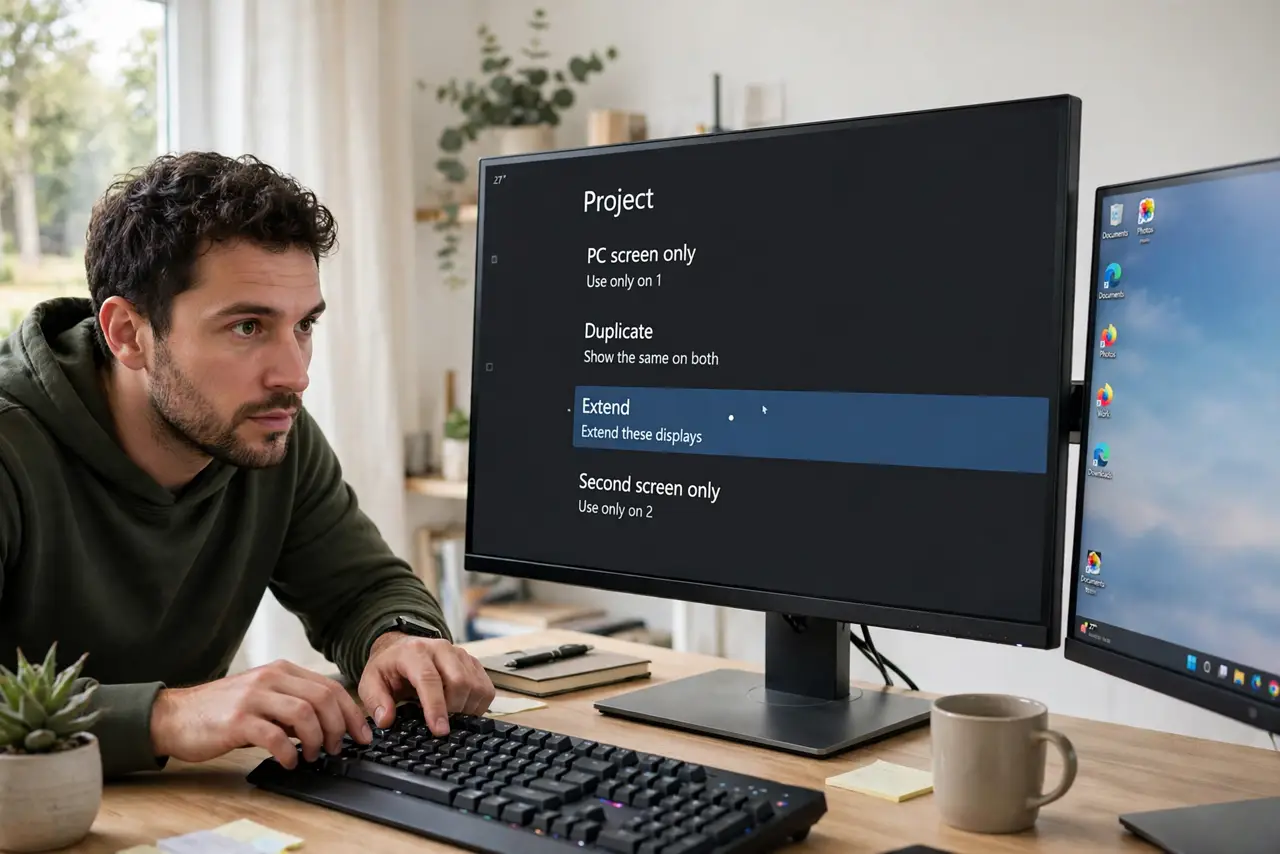
Quick fix: press Win+P to open the Project panel. Choose Extend when you want more workspace — each screen shows different windows. Choose Duplicate when presenting, so the audience sees exactly what you see. Second screen only turns the main display off for movies or focus.
Follow these steps
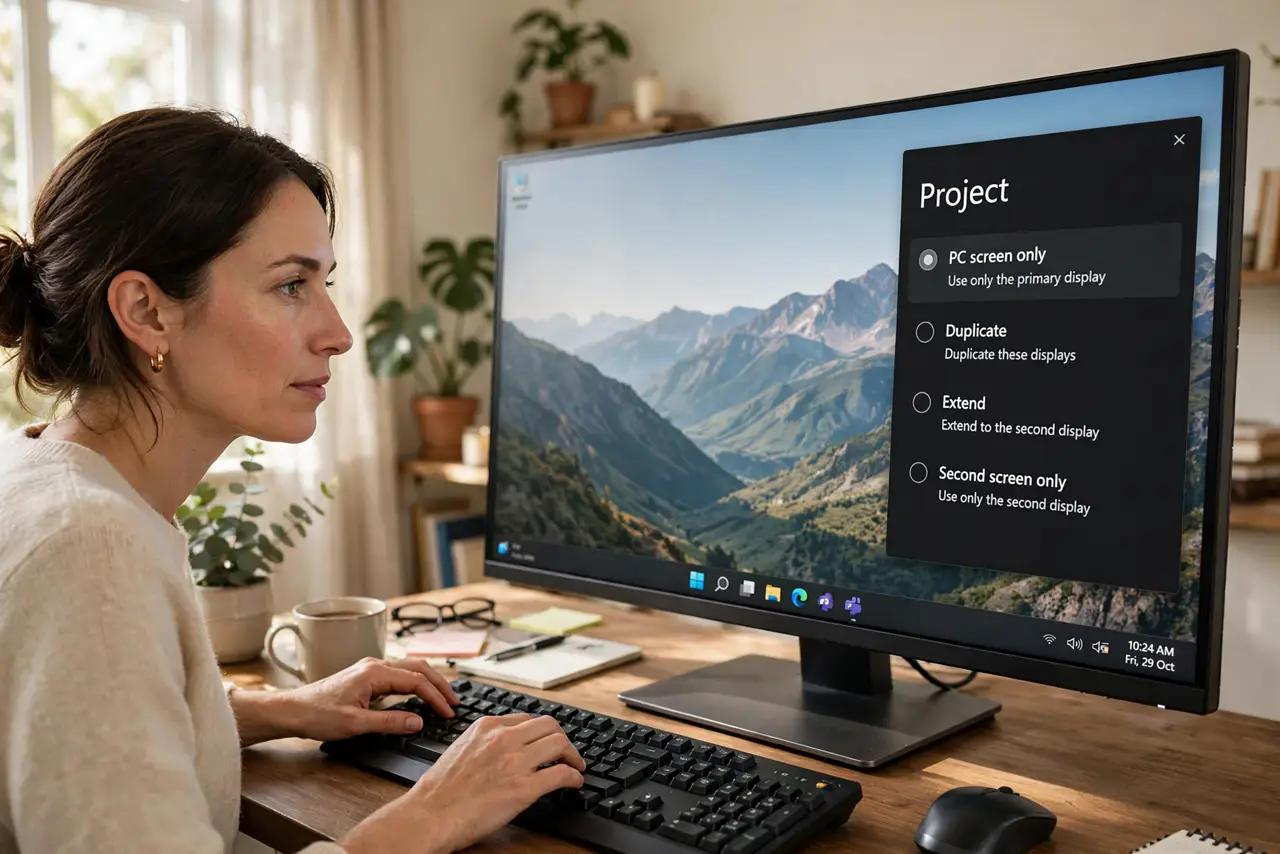
- Open the Project panel. Press Win+P. The sidebar offers PC screen only, Duplicate, Extend, and Second screen only — the four modes, no more mystery.
- Extend for desk work. Extend treats both screens as one wide desktop. Drag windows between them; the taskbar can span or stay put — your call.
- Duplicate for presenting. Duplicate mirrors your screen to the projector or TV. What you see is what they see — ideal for slides and demos.
- Use Second screen only for focus or film. This turns the laptop screen off and uses only the external display. Great for movies, and for forcing single-screen focus.
- Remember Win+P is a toggle, not a setting to fear. Switch modes freely — nothing breaks, nothing needs saving. Experiment until the setup feels right.
- Fix the fallout after switching. Changing modes can scramble your arrangement or primary monitor. Recheck those if windows land oddly.
What NOT to do
- Do not present in Extend mode by accident. The audience watches your notifications and tab-hunting — switch to Duplicate before sharing.
- Do not leave Duplicate on for desk work. Two screens showing the same thing wastes the entire point of the second monitor.
- Do not panic if resolutions change when duplicating. Mirroring forces a common resolution — it returns to normal when you switch back to Extend.
- Do not forget which mode you left. A 'broken' second monitor is often just Second screen only from last night's movie.
Frequently asked questions
Which mode is best for working from home?
Extend, always. The extra space for reference material beside your work is the whole productivity win.
Why does Duplicate look blurry?
Mirroring drops both screens to a shared resolution. For crisp presenting, match the projector's native resolution in Display settings.
Can I extend to a TV wirelessly?
Yes — Miracast and similar let you extend or duplicate to a smart TV without cables, with some latency.