Camera Not Working?
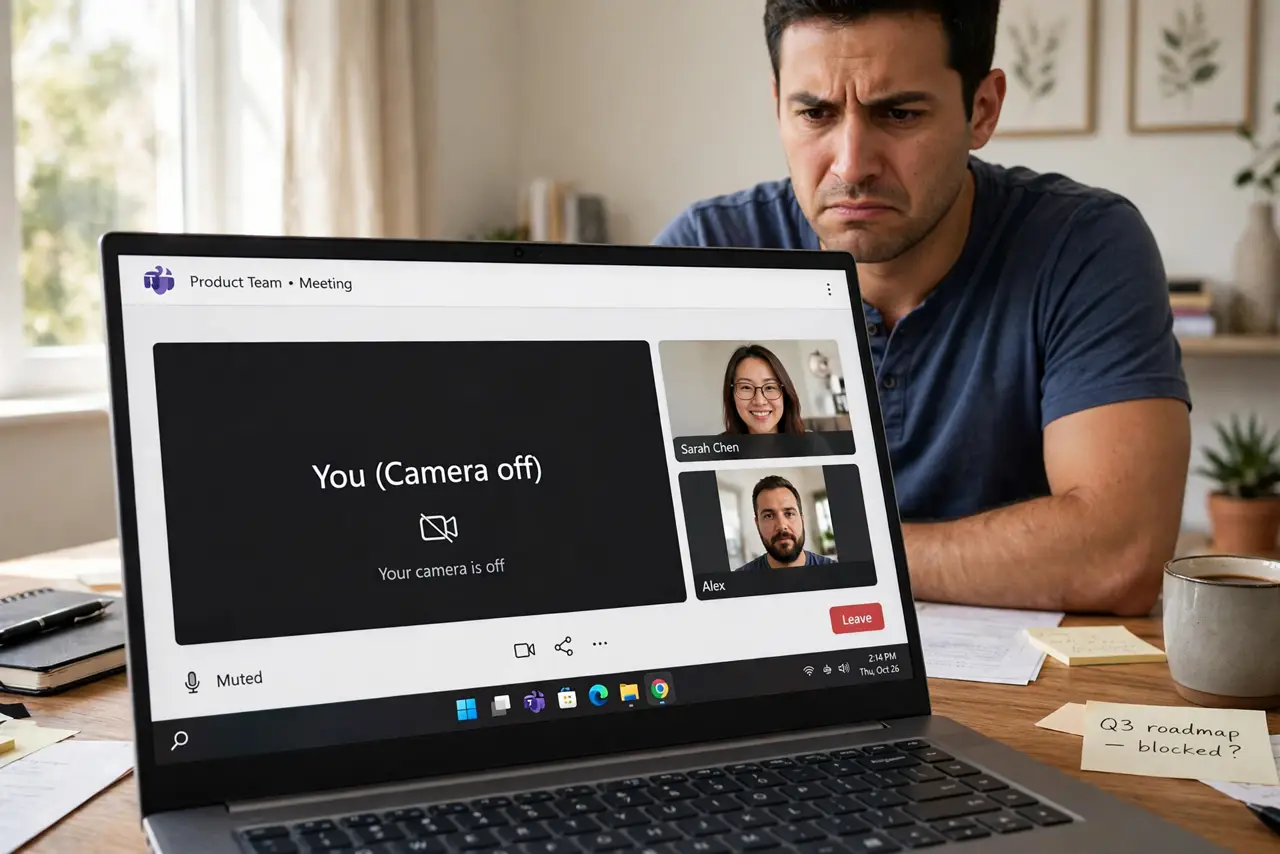
Your camera shows black in Zoom, Teams says no device found, or the Camera app just stares back at you. On Windows this is usually one of four things: a physical shutter, a privacy toggle, another app holding the camera, or a driver hiccup. This guide walks them in order, quickest first.
TL;DR / Quick Fix
Quick fix: if your Windows camera shows black, check the privacy shutter and the camera toggle first — Settings, Privacy and security, Camera. Close apps that may hold the camera, then update the driver in Device Manager. A full restart fixes most leftover cases. Test in the Camera app.
Follow these steps
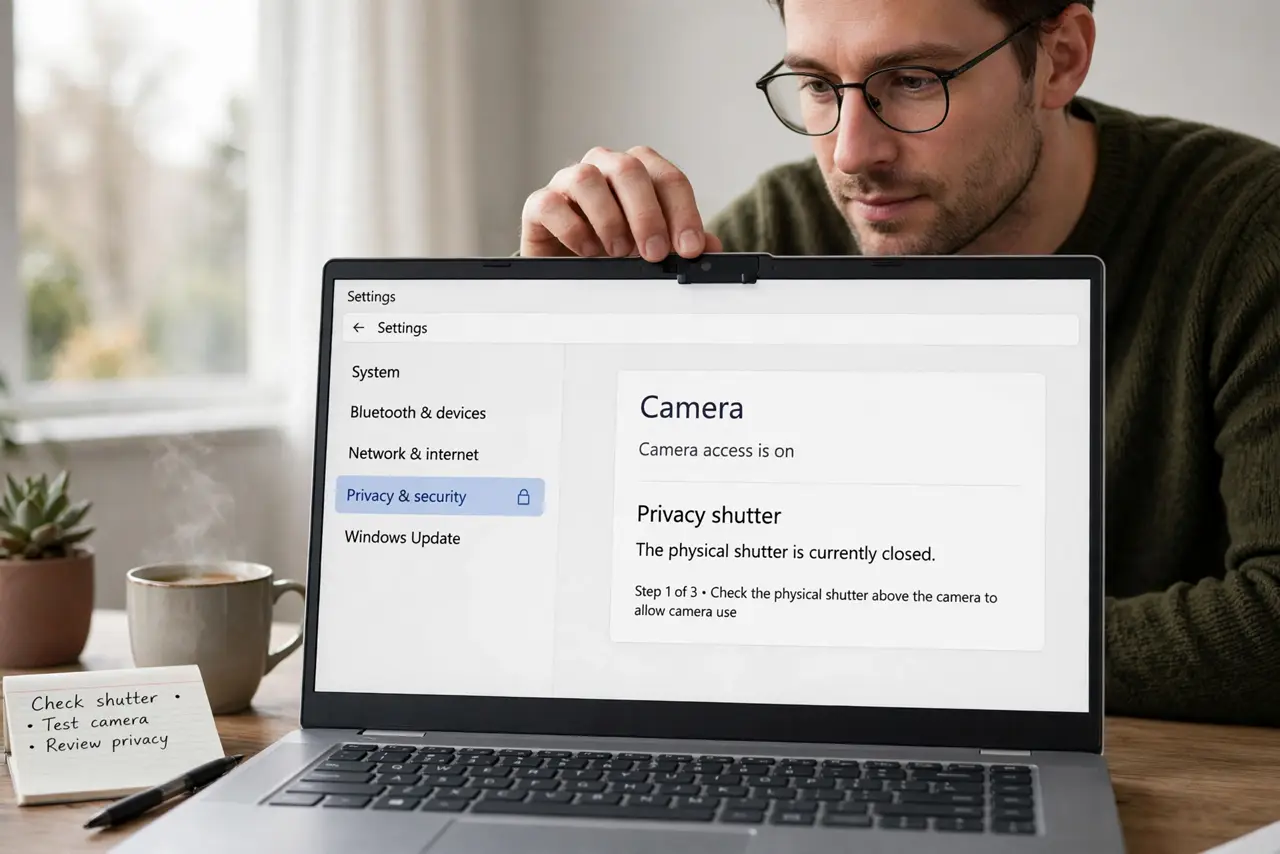
- Check the physical shutter. Many laptops have a sliding privacy shutter over the lens, or a function key (often F8/F10) that kills the camera. Look for the tiny slider — this alone solves a shocking number of 'broken' cameras.
- Check the privacy toggle. Go to Settings, Privacy and security, Camera, and confirm camera access is on — plus per-app permissions for Zoom, Teams, or your browser. Windows updates sometimes flip these off.
- Close other apps. Only one app can use the camera at a time. If Zoom is running in the background holding it, Teams sees nothing — close the app you are not using.
- Update or re-enable the driver. Open Device Manager, find Cameras, right-click your camera, and try Disable then Enable. If that fails, Update driver — a corrupted driver is the classic post-update cause.
- Restart the computer. A full restart (not just sleep) clears stuck camera processes and re-enumerates the hardware. It fixes more camera issues than any setting.
- Test in the Camera app. Open Windows' built-in Camera app. If it works there, the hardware is fine and the problem is the other app's permissions — if it fails there too, suspect hardware or drivers.
What NOT to do
- Do not reinstall Windows for a camera issue. The cause is nearly always shutter, privacy, app conflict, or driver — a reinstall is a sledgehammer for a thumbtack.
- Do not download 'camera driver' tools from random sites. Get drivers from Windows Update or the laptop maker's site — third-party driver tools are a malware classic.
- Do not ignore the function key. The camera kill-switch key looks like every other F-key; check it before assuming hardware failure.
- Do not test only in the broken app. The Camera app is the ground truth — if it works there, chase app permissions, not hardware.
Frequently asked questions
Why does my camera work in one app but not another?
The working app proves the hardware is fine. The broken app lacks permission — check Settings, Privacy and security, Camera, and enable it for that app specifically.
My camera light is on but the image is black — why?
Usually a privacy shutter closed, or another app holding the feed. Close everything camera-related and check the physical shutter first.
Should I buy an external webcam?
If the built-in camera is truly dead and the laptop is old, a USB webcam is cheaper than a repair — and usually better quality anyway.