Cast Windows to Your TV
A video on your laptop deserves the big screen, and you do not need an HDMI cable snaking across the room. Windows can cast its display wirelessly to a Miracast-capable TV or streaming stick. Setup takes two minutes once you know where the button hides.
TL;DR / Quick Fix
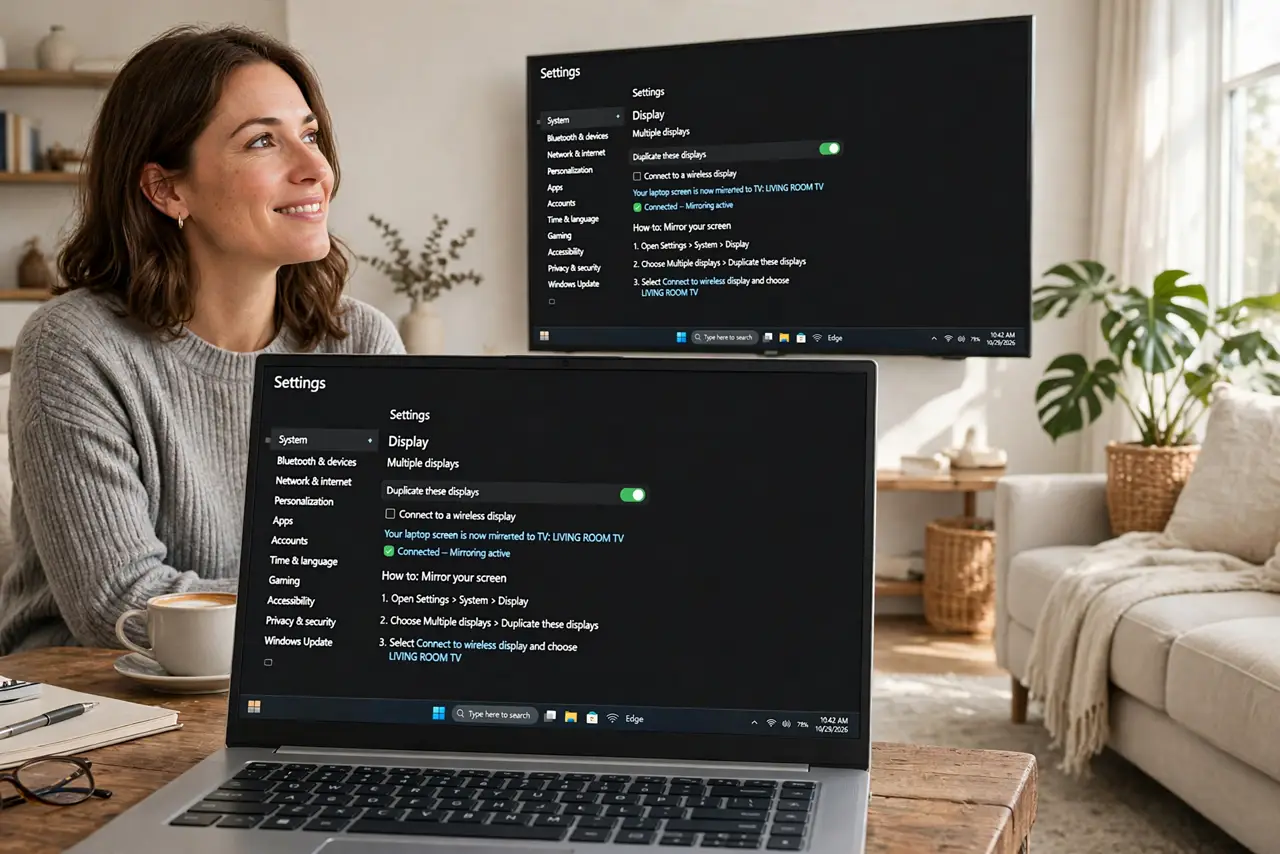
Quick fix: press Win+K on your PC to open the Cast panel, and pick your TV from the list. Both devices must be on the same Wi-Fi network. For video, use Duplicate mode; for presenting while working, use Extend. If your TV is not listed, check it supports Miracast.
Follow these steps
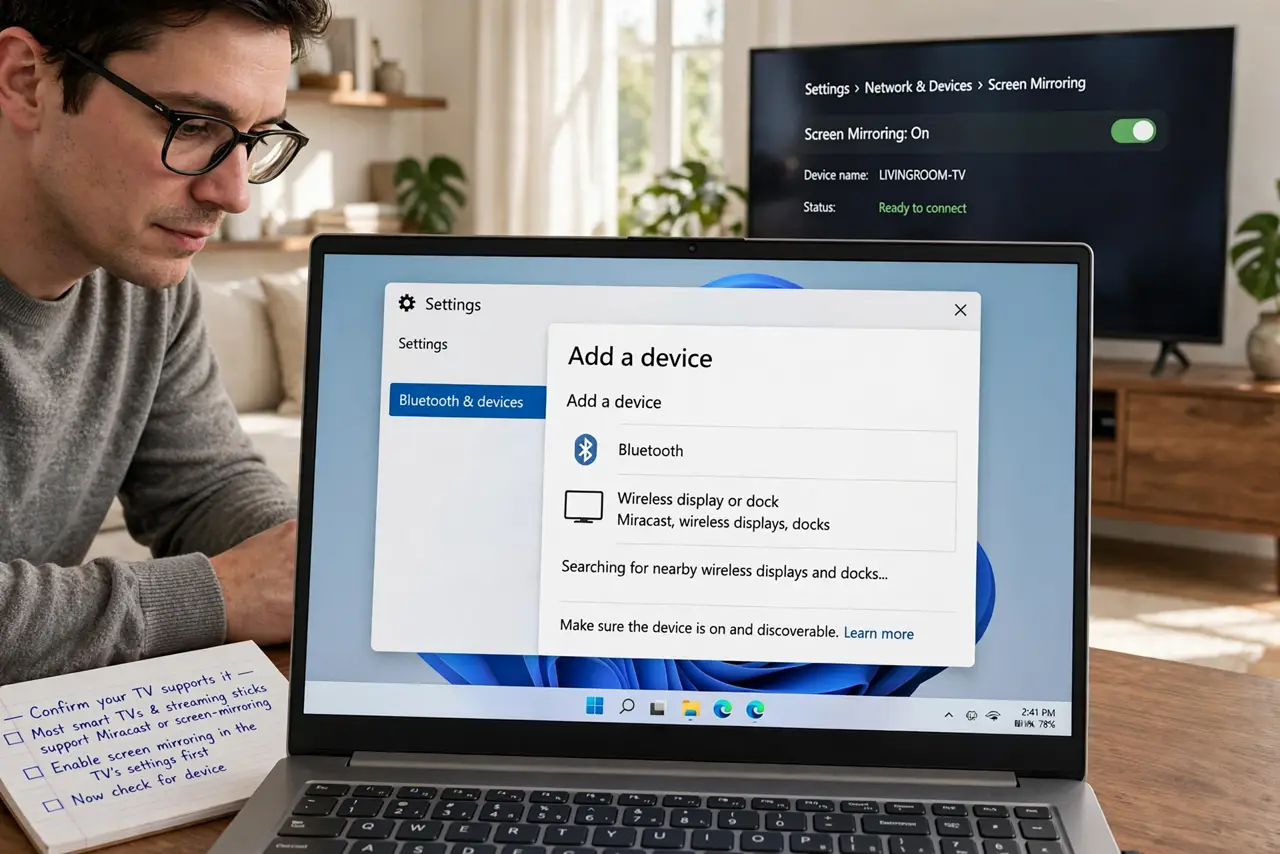
- Confirm your TV supports it. Most smart TVs and streaming sticks support Miracast or have a screen-mirroring mode. Enable screen mirroring in the TV's settings first.
- Put both on the same Wi-Fi. Phone-hotspot-style separation breaks casting. PC and TV must share the same network — see the Miracast basics if the TV never appears.
- Press Win+K. The Cast quick panel lists available wireless displays. This shortcut is the whole trick — the setting also lives in Display settings.
- Pick your TV and connect. Select the TV and accept any PIN prompt shown on the TV screen. First pairing takes a few seconds.
- Choose Duplicate or Extend. Duplicate mirrors your screen for videos; Extend treats the TV as a second monitor — handy with a laptop as second screen mindset for presentations.
- Adjust for lag. Wireless casting has slight delay — fine for video and slides, bad for gaming. For lag-free, an HDMI cable still wins.
What NOT to do
- Do not expect gaming performance. The wireless delay makes fast games unplayable — this is for video and presentations.
- Do not cast over a weak Wi-Fi signal. Stuttering video usually means the network, not the TV.
- Do not forget to disconnect. A forgotten cast session keeps the TV awake and your screen visible.
- Do not assume every TV works. Older or Apple-only TVs may lack Miracast — check before promising the family movie night.
Frequently asked questions
Why doesn't my TV appear in the Cast list?
Different Wi-Fi networks is the top cause, followed by the TV's mirroring mode being off. Check both.
Is casting the same as Chromecast?
Similar idea, different tech. Windows Cast uses Miracast; Chromecast uses Google's protocol. Many TVs support both.
Can I cast just one app?
Browser tabs can cast individually from Edge or Chrome. Full-screen casting mirrors everything.