Do a Clean Boot on Windows
Your PC misbehaves, and you suspect some background program — but which one? A clean boot starts Windows with only Microsoft services and no startup programs, so you can tell whether the problem is Windows itself or something you installed. It is the single most useful software-conflict test on Windows, and it changes nothing permanently.
TL;DR / Quick Fix
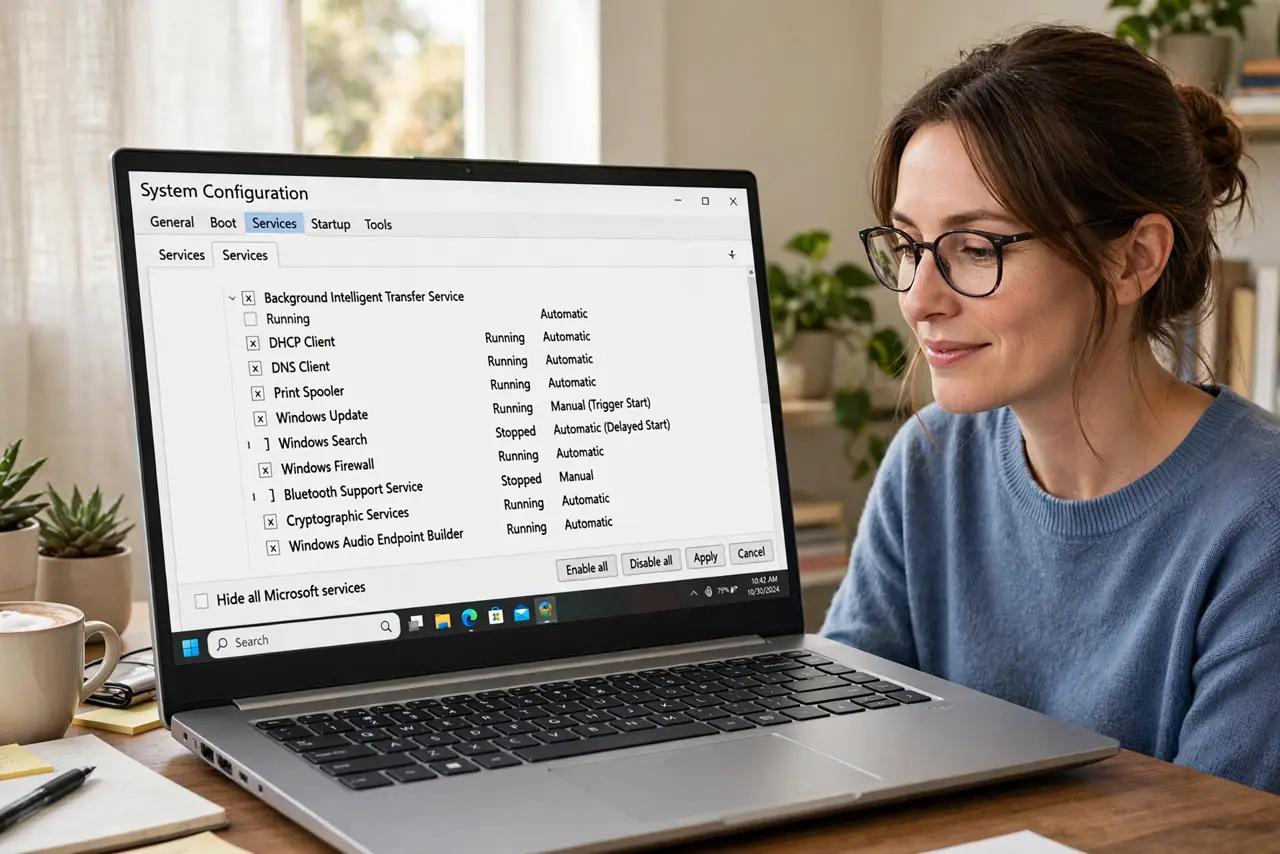
Quick fix: open System Configuration, go to Services, hide all Microsoft services, disable the rest, then disable startup items in Task Manager and restart. If the problem disappears, re-enable items in halves to find the culprit. Remember to re-enable everything — a clean boot is a test, not a setting.
Follow these steps
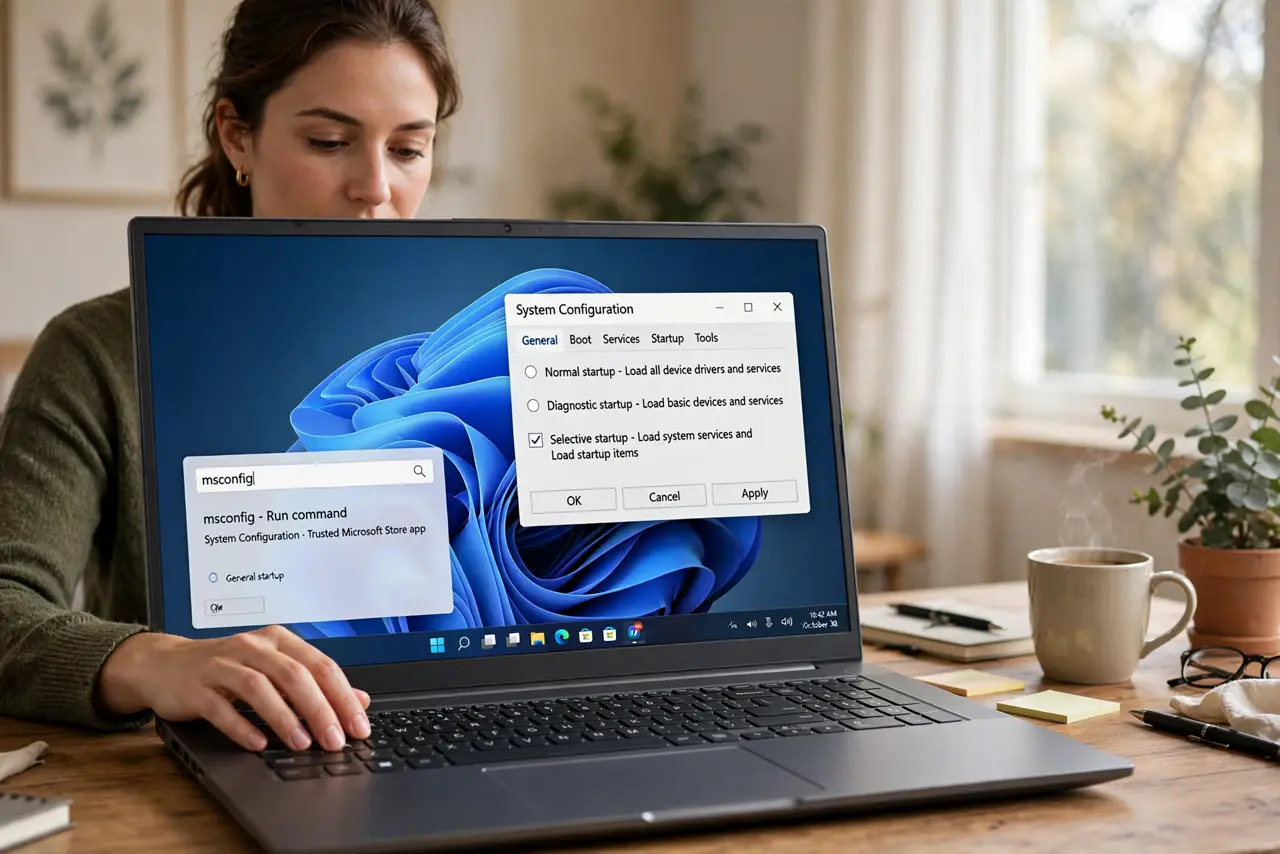
- Open System Configuration. Press the Windows key, type msconfig, and open System Configuration. This is the control panel for the test — you will reverse everything at the end.
- Hide Microsoft services first. Go to the Services tab and check Hide all Microsoft services. This protects Windows' own services from being disabled — skipping this step is the classic clean-boot mistake.
- Disable the remaining services. With Microsoft services hidden, click Disable all. These are third-party services — updaters, helpers, utilities — the usual suspects in software conflicts.
- Disable startup programs. Open Task Manager, go to Startup, and disable every item. These are the programs that launch at login — the startup list you may already know.
- Restart and test. Restart the PC. It now runs with a minimal set — test whether your problem still happens. If it is gone, a disabled item was the cause; if it remains, the issue is deeper than startup software.
- Find the culprit by halves. Re-enable half the disabled items, restart, and test. Keep halving until the problem returns — then you have found it. This binary search beats re-enabling one by one.
What NOT to do
- Do not forget to hide Microsoft services first. Disabling Windows' own services can leave the PC unbootable until fixed.
- Do not leave the PC in clean-boot state. It is a diagnostic mode — re-enable everything when the test is done, minus the culprit.
- Do not confuse clean boot with Safe Mode. Clean boot keeps full Windows running minus third-party items; Safe Mode is a much more minimal environment.
- Do not delete the culprit program blindly. Disable it first and live without it for a few days — you may discover you needed it.
Frequently asked questions
Will a clean boot delete my files?
No — it only stops programs from launching automatically. Your files, settings, and installed programs are untouched.
How is this different from Safe Mode?
Safe Mode loads a minimal Windows with basic drivers. Clean boot loads normal Windows but blocks third-party startup items — better for hunting software conflicts.
What if the problem persists in a clean boot?
Then it is likely Windows itself, a driver, or hardware — not a startup program. Move on to driver and system diagnostics.