Roll Back a Bad Driver
Everything worked yesterday; today the Wi-Fi drops, the sound crackles, or the screen flickers — right after a driver update. Bad driver updates are a classic Windows headache. The fix is rolling back: telling Windows to forget the new driver and restore the previous one. It takes two minutes when the button is available.
TL;DR / Quick Fix
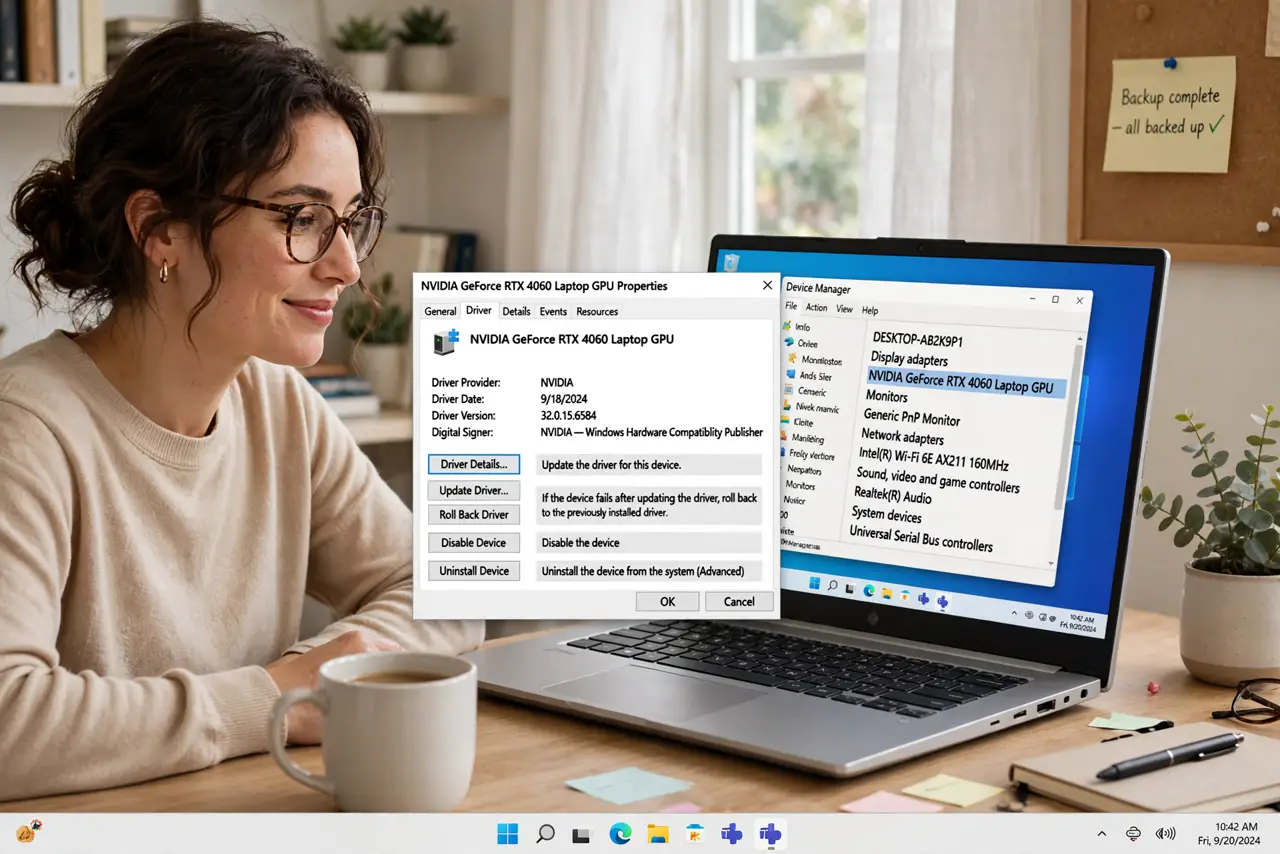
Quick fix: in Device Manager, right-click the broken device, open Properties, go to the Driver tab, and click Roll Back Driver. If the button is greyed out, no older driver is saved — uninstall the device and let Windows reinstall it, or fetch the older driver from the maker.
Follow these steps
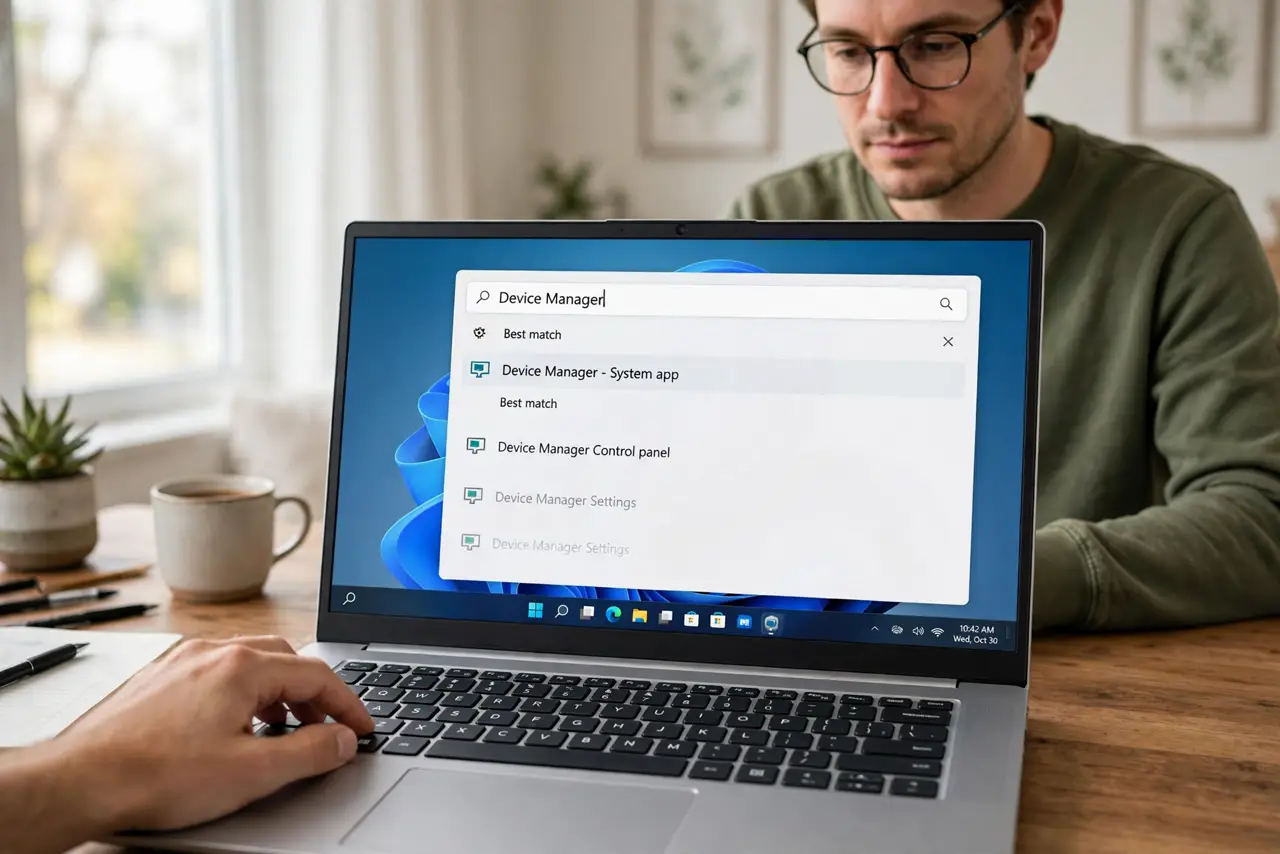
- Open Device Manager. Press the Windows key, type Device Manager, and open it. Find the misbehaving device — network adapter, sound card, display — in the list.
- Open the Driver tab. Right-click the device, choose Properties, and go to the Driver tab. Check the driver date: if it matches when trouble started, you have found your suspect.
- Click Roll Back Driver. If the button is active, click it, pick a reason, and confirm. Windows restores the previous driver and usually asks for a restart — the misbehavior should vanish.
- Handle the greyed-out button. A greyed-out button means Windows kept no older driver. See the greyed-out explainer — the fallback is uninstalling the device and letting Windows reinstall on reboot.
- Do a clean install for stubborn cases. For graphics drivers especially, a clean driver install wipes all traces before reinstalling — the nuclear option that fixes what rollback cannot.
- Pause the bad update. After rolling back, pause Windows updates briefly or hide the driver update, or Windows will cheerfully reinstall the bad driver overnight.
What NOT to do
- Do not roll back drivers that are working fine. If it is not broken, the update is not your problem — look elsewhere.
- Do not download drivers from random sites. Get them from the hardware maker or Windows Update only — driver downloads are a malware classic.
- Do not skip the restart. A rolled-back driver often needs the reboot to actually take effect.
- Do not ignore a pattern. If every update breaks the same device, the hardware may be failing — drivers get blamed for dying hardware constantly.
Frequently asked questions
What if Roll Back Driver is greyed out?
Windows only keeps one previous driver. If none was saved — fresh install, or too many updates ago — uninstall the device instead and reboot, or install the older driver manually.
Will rolling back delete my files?
No. Drivers are just software that talks to hardware; your files are completely unaffected.
How do I stop Windows reinstalling the bad driver?
Pause updates for a week or use the show-hide updates tool to block that specific driver version while the maker fixes it.