ClearType Settings Reset on Windows
You tune ClearType until text looks crisp, and days later the fuzziness is back — Windows seems to forget your tuning. Display driver updates, resolution changes, and remote desktop sessions can all reset or override it. This guide shows how to retune it and make the setting stick.
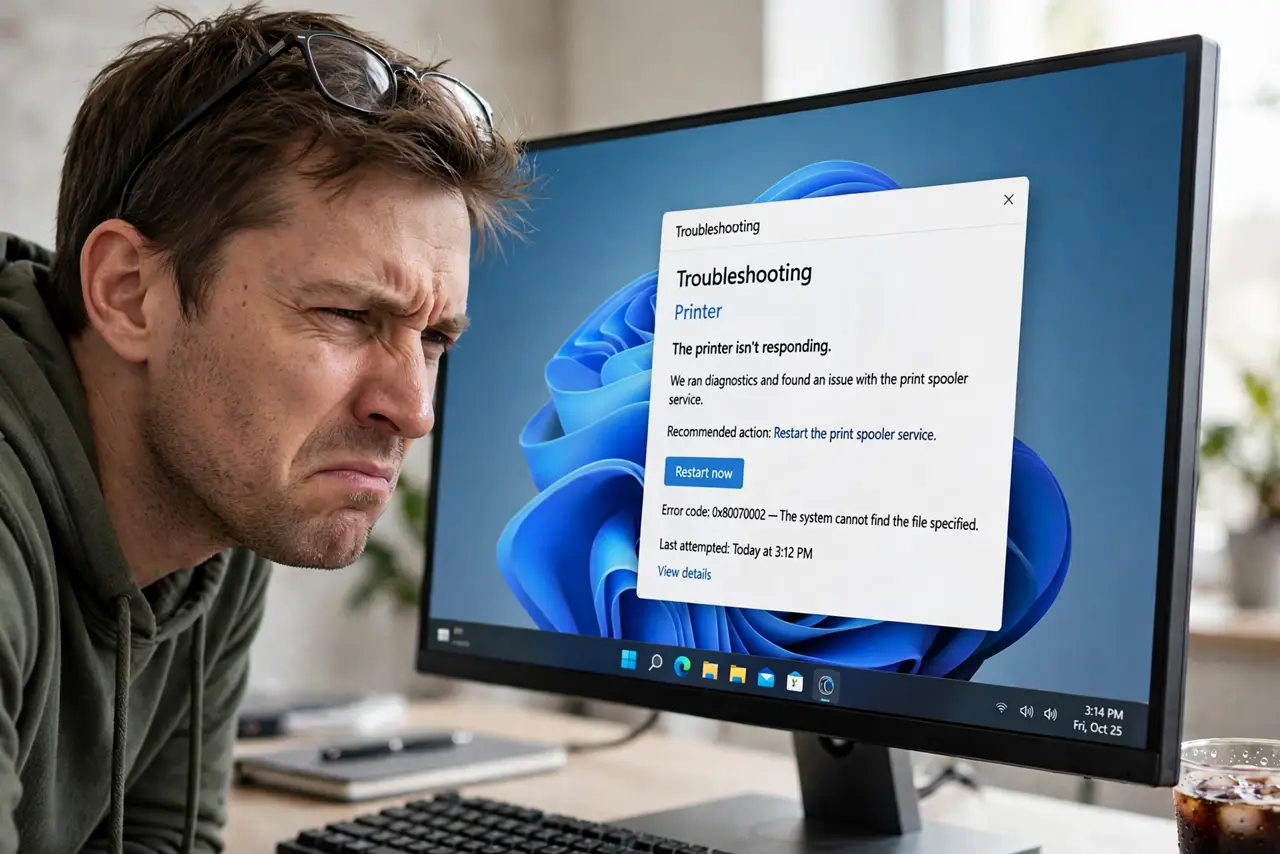
TL;DR / Quick Fix
Quick fix: rerun the ClearType Text Tuner and step through all five sample screens carefully — rushing is why tunings look bad. Set display scaling to 100%, 125%, or 150%, since odd values like 110% fight ClearType. Recheck after driver updates.
Follow these steps
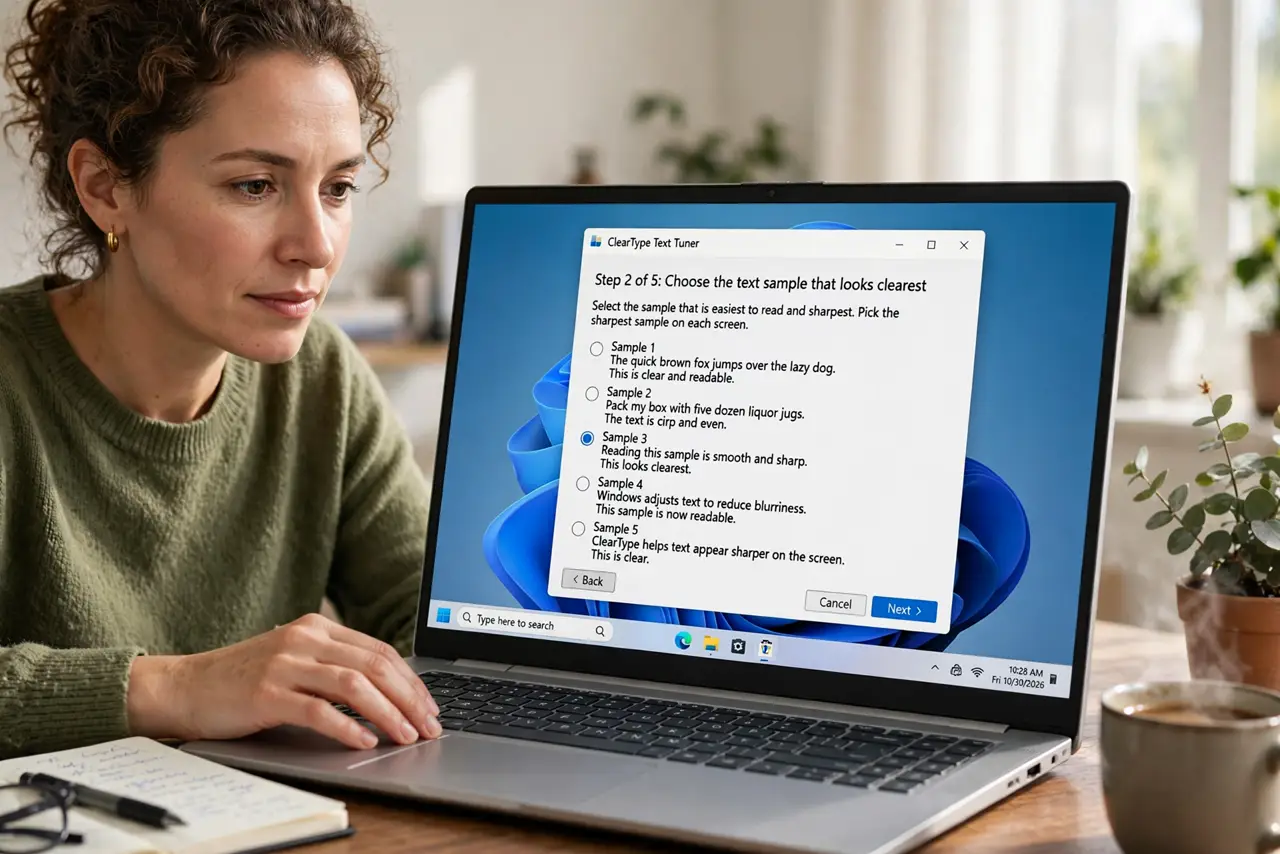
- Rerun the ClearType Text Tuner. Search for 'Adjust ClearType text' in the Start menu and step through all five sample screens. Pick the sharpest sample on each — rushing this step is why tunings look bad.
- Set scaling to a clean value. Go to Settings > System > Display and use 100%, 125%, or 150%. Odd values like 110% force fractional rendering that fights ClearType no matter how well you tune it.
- Check after driver updates. Graphics driver updates can reset display tuning. After any driver update, glance at text sharpness and rerun the tuner if fuzz returns.
- Disable remote session overrides. If you use remote desktop, the remote session can impose its own font smoothing. Check the remote client's display settings for a font smoothing option.
- Tune per monitor. With multiple monitors, run the tuner while each display is the focus in turn. ClearType tuning is per-display, and one monitor's best setting blurs another.
- Confirm it survives a restart. Restart the PC and check text sharpness before changing anything else. A tuning that survives a restart is a tuning that stuck.
What NOT to do
- Do not crank monitor sharpness to fix fuzzy text. The monitor's sharpness control adds halos around letters and makes ClearType tuning impossible.
- Do not use odd scaling like 110% and expect crisp text. Fractional scaling blurs text at the rendering level, above what ClearType can fix.
- Do not skip tuner screens. Each screen tunes a different aspect, and skipping leaves half the job undone.
- Do not blame the monitor first. If text was crisp last week, a setting changed — the panel did not degrade overnight.
Frequently asked questions
What does ClearType actually do?
It tunes how Windows renders text on LCD screens at the subpixel level, making letters look sharper than plain grayscale rendering.
Why does my tuning keep resetting?
Driver updates, resolution or scaling changes, and remote sessions can override it. Retune after any of those events.
Does ClearType matter on a 4K monitor?
Less — high pixel density hides rendering flaws. On 1080p screens the difference is dramatic.