Tune ClearType Text
Text on your Windows screen looks fuzzy, thin, or fringed with color — especially on an external monitor — while everything else seems fine. That is a font-smoothing problem, not a failing screen. Windows includes a built-in tuner that matches text rendering to your exact display, and running it takes about a minute.
TL;DR / Quick Fix
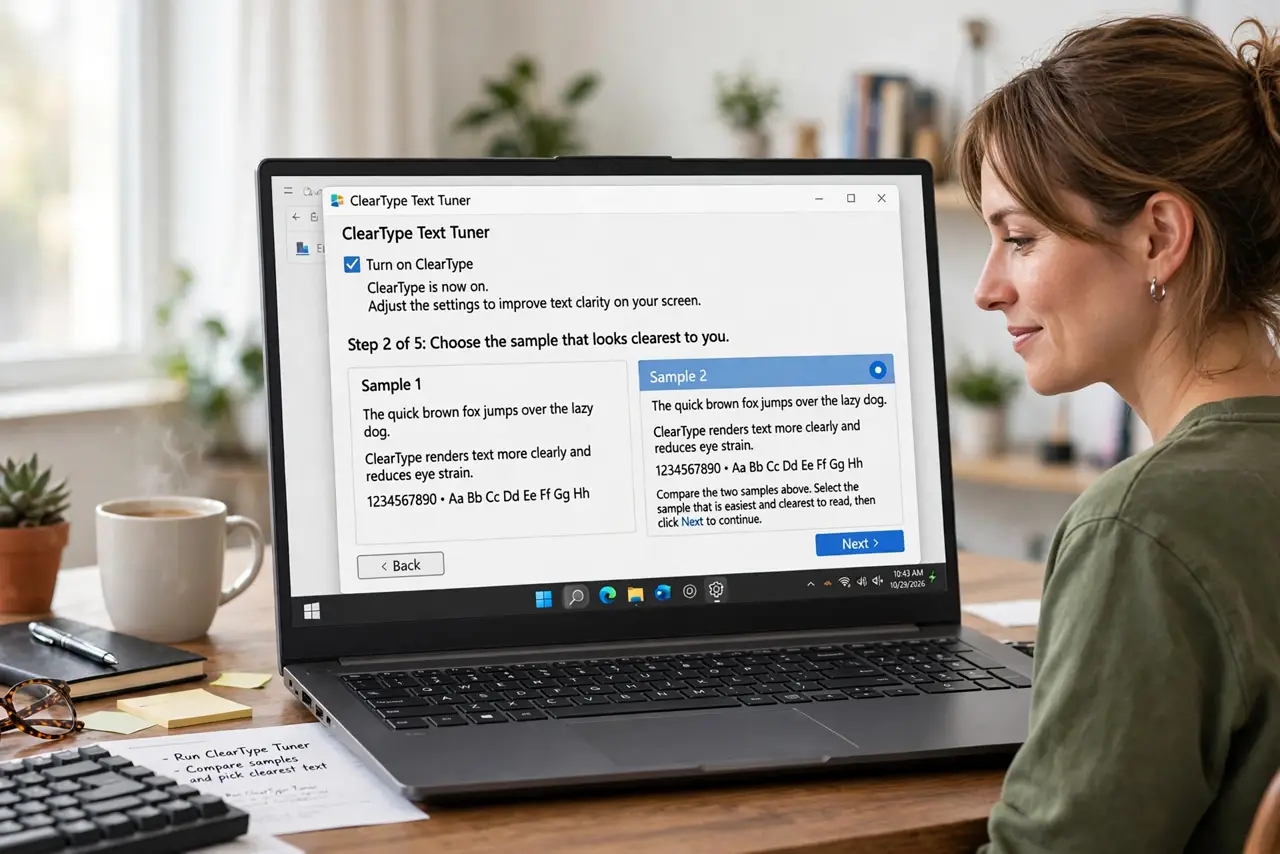
Quick fix: type ClearType in Windows search, open the tuner, and click through the five text samples choosing the sharpest each time. If text still looks blurry, check your display scaling and make sure the monitor runs at its native resolution. A mis-set resolution blurs everything no tuner can fix.
Follow these steps
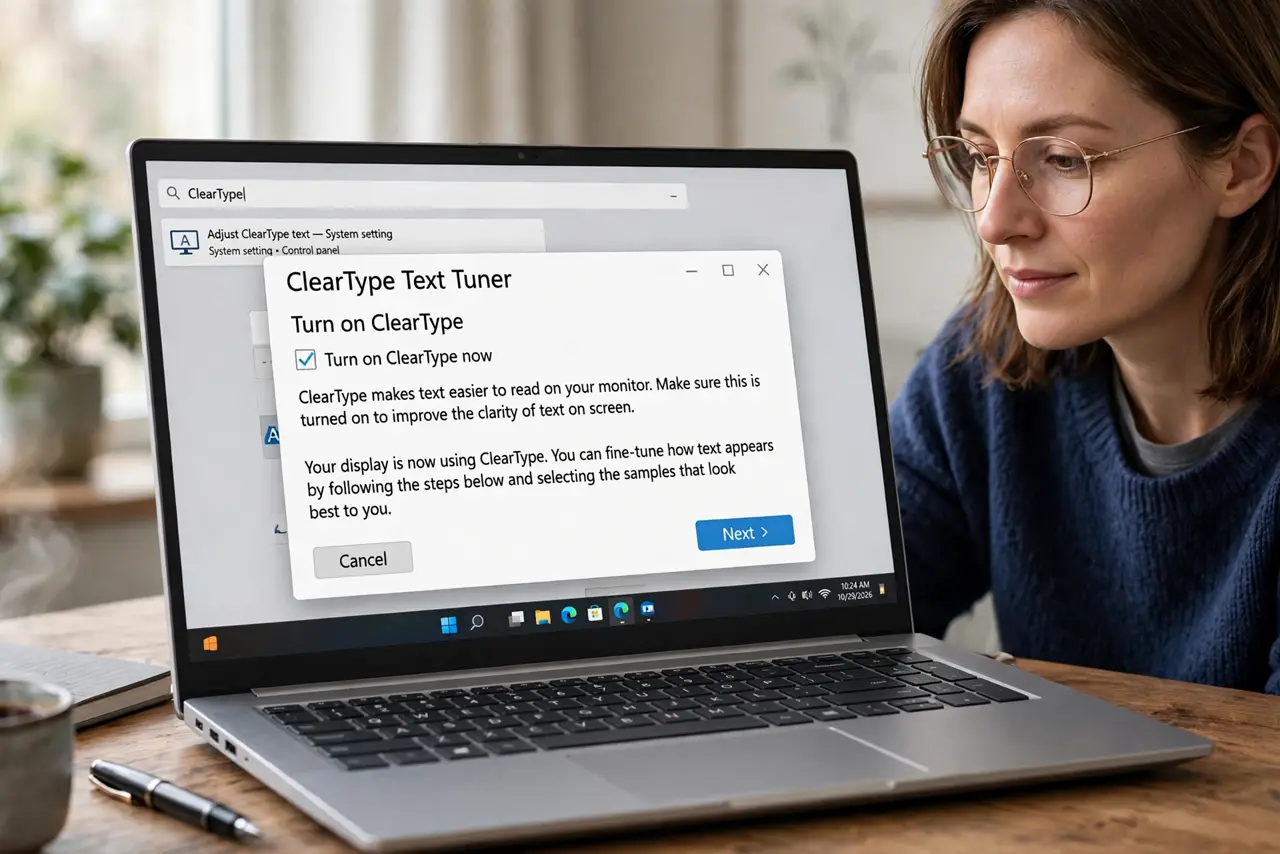
- Open the ClearType tuner. Type ClearType into Windows search and open 'Adjust ClearType text.' Make sure the 'Turn on ClearType' box is checked — it occasionally gets disabled by updates.
- Click through the samples. The tuner shows five screens of text samples. Pick the sharpest-looking one on each page. There are no wrong answers — it is calibrating to your eyes and your panel.
- Check your display scaling. Right-click the desktop, open Display settings, and confirm scaling is at the recommended percentage. Non-standard scaling blurs text no matter how good the tuning — and see ClearType keeps resetting if your choices will not stick.
- Set the native resolution. In the same Display settings, set resolution to the monitor's native value (marked Recommended). Running below native resolution blurs everything, text most visibly.
- Try a different cable or port. A loose or low-quality cable can soften the whole image. Reseat the cable, or try another port — digital connections either work or show obvious artifacts.
- Test on another monitor if possible. If text is blurry on every display, the issue is software. If only one monitor, that panel or cable is the suspect — tuning cannot fix hardware.
What NOT to do
- Do not crank sharpness on the monitor to fix text. Monitor sharpness adds halos around letters and makes font rendering worse.
- Do not disable ClearType hoping for 'cleaner' text. Without subpixel smoothing, text on LCDs looks jagged and tiring.
- Do not tune with night-light or color filters on. They shift how text samples look and produce a calibration for the wrong conditions.
- Do not assume a new monitor is defective over fuzzy text. Run the tuner and check resolution first — most 'bad panels' are just untuned.
Frequently asked questions
Why does text look fine on my laptop but blurry on my monitor?
Different panels render subpixels differently. Run the ClearType tuner while the external monitor is the active display.
ClearType made text worse. How do I undo it?
Reopen the tuner and pick the samples that look best, or uncheck 'Turn on ClearType' to return to grayscale smoothing.
Does ClearType work on 4K monitors?
Yes, though the improvement is subtler — at high pixel density, text is already sharp and smoothing matters less.