Pin Items in Clipboard History
You type the same address, the same reply, the same tracking number — over and over, because each copy vanishes when you copy the next thing. Windows clipboard history keeps a stack of everything you copy, and pinning locks your greatest hits at the top forever. Stop retyping; start pinning.
TL;DR / Quick Fix
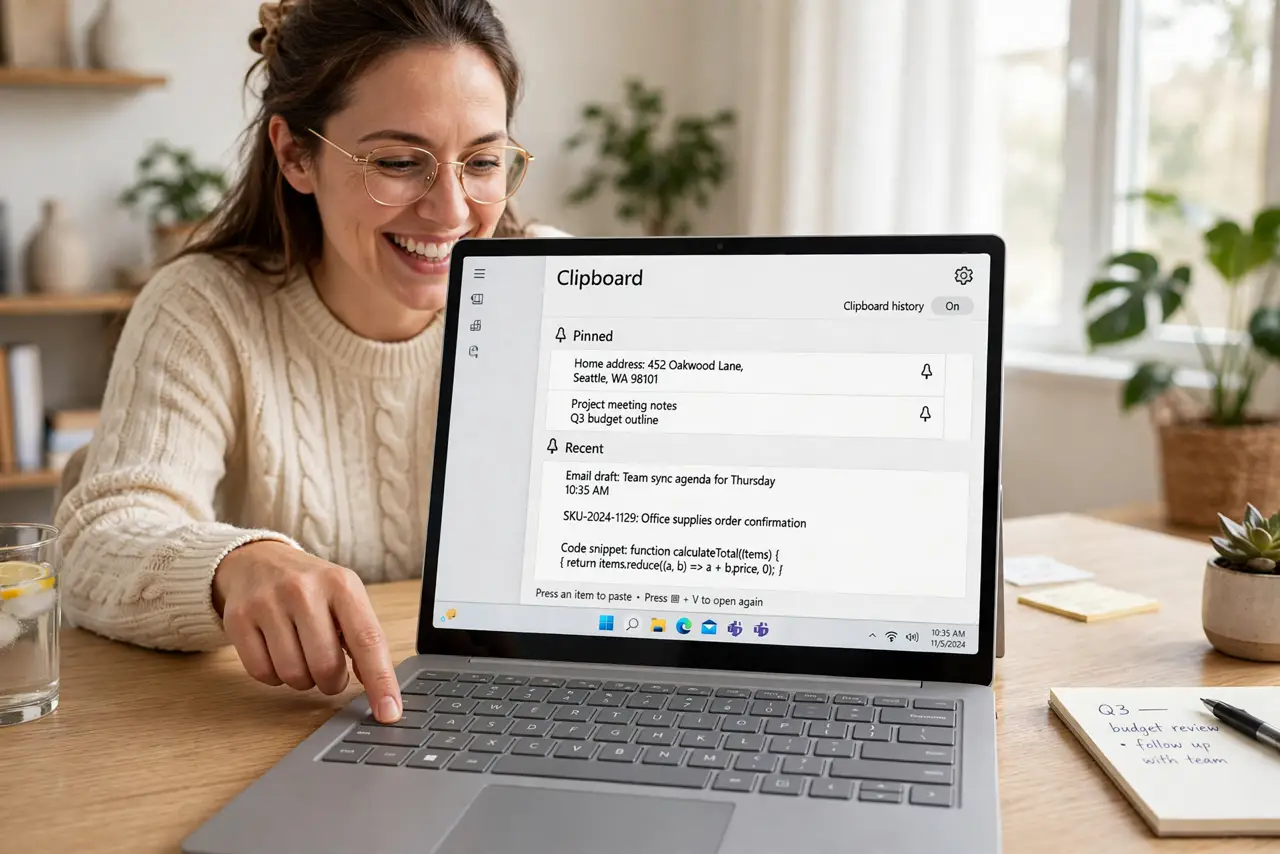
Quick fix: press Windows+V to open clipboard history and turn it on. Click the pin icon on items you reuse — addresses, replies, numbers. Pinned items survive reboots and stay at the top. Unpin or clear history anytime; nothing is permanent.
Follow these steps
- Open clipboard history. Press Windows+V. The first time, Windows asks you to turn history on — accept. From then on, every copy joins the stack, newest at the top.
- Copy as usual. Ctrl+C works exactly as before — the difference is that history now remembers the last couple dozen items instead of just the latest one.
- Pin your greatest hits. In the history panel, click the pin icon on items you reuse constantly — your address, email signature, a standard reply. Pinned items lock to the top of the list.
- Paste from history. Press Windows+V, click the item you want, and it pastes. No more copying the address, pasting, then re-copying what you were working on — the stack holds it all.
- Know what survives. Pinned items persist across reboots; unpinned history clears on restart. Pins are your permanent toolkit; the rest is a rolling buffer.
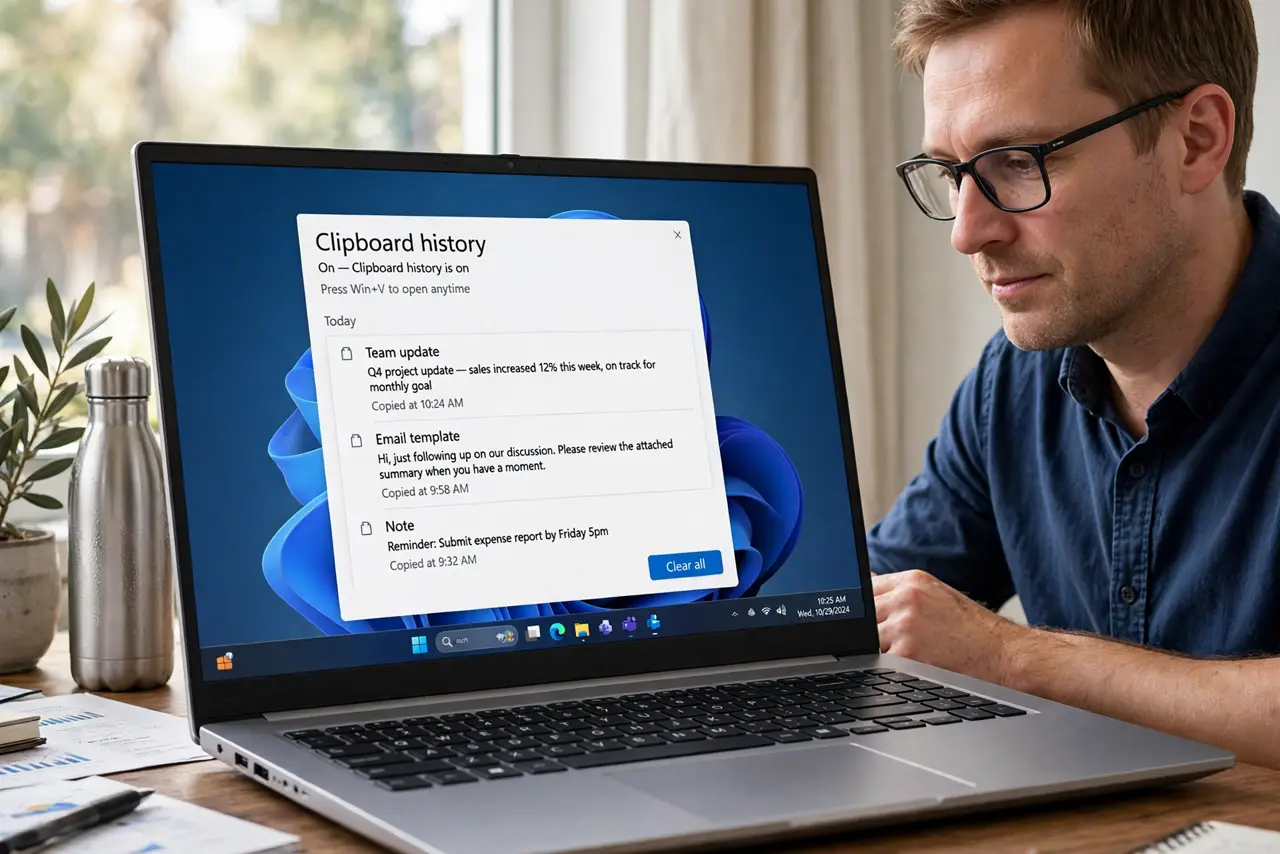
- Clear when needed. Use Clear all in the history panel to wipe unpinned items — handy on a shared PC. Pins stay put until you unpin them deliberately.
What NOT to do
- Do not pin passwords or sensitive codes. Clipboard history is convenient, not a vault — type secrets, do not pin them.
- Do not forget history is per-user. On a shared PC, your history is yours — but clear it anyway before handing the machine over.
- Do not expect images to pin well. Text pins beautifully; large images eat the history limit fast — pin text, not screenshots.
- Do not leave history on if it worries you. The toggle is right in the panel — convenience is a choice, not a mandate.
Frequently asked questions
How many items does history keep?
Around two dozen recent items plus your pins. Old unpinned items roll off as new copies arrive — pins never roll off.
Does clipboard history sync between PCs?
It can, with sync enabled in clipboard settings on the same Microsoft account. Handy across devices; disable it if the idea bothers you.
Why is Windows+V doing nothing?
History is off. Press Windows+V once and click Turn on — the hotkey both opens the panel and offers the toggle.