Block Ransomware with Controlled Folders
Ransomware encrypts your documents and demands payment — and it is one of the few threats where prevention beats cure completely. Windows has a built-in shield for exactly this: Controlled folder access, which blocks untrusted apps from touching your personal folders. It sits turned off on many PCs. Turning it on takes a minute and costs nothing.
TL;DR / Quick Fix
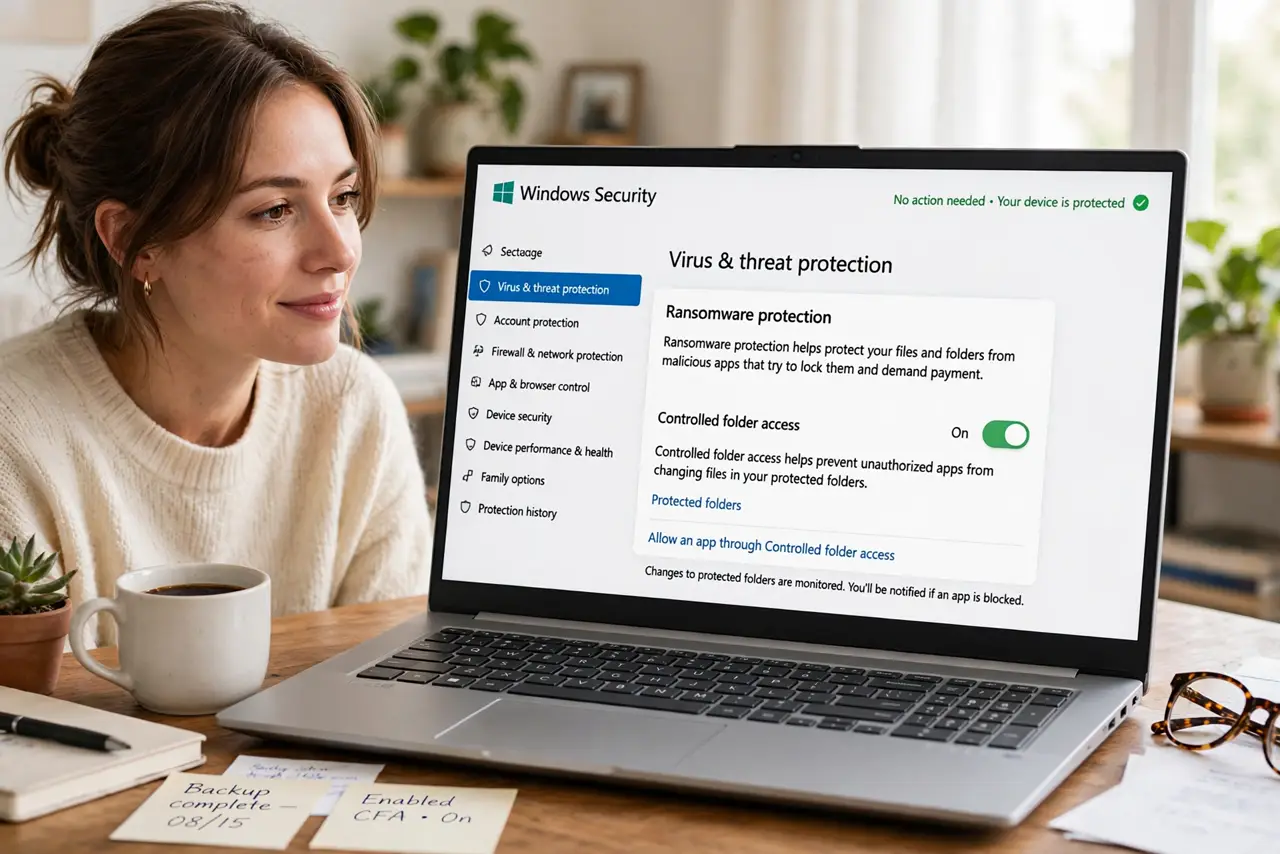
Quick fix: Controlled folder access is Windows' ransomware shield — it blocks untrusted apps from changing your Documents and Desktop. Turn it on under Windows Security > Virus & threat protection > Ransomware protection. Expect a few prompts for apps you trust; allow them once and the shield stays quiet.
Follow these steps
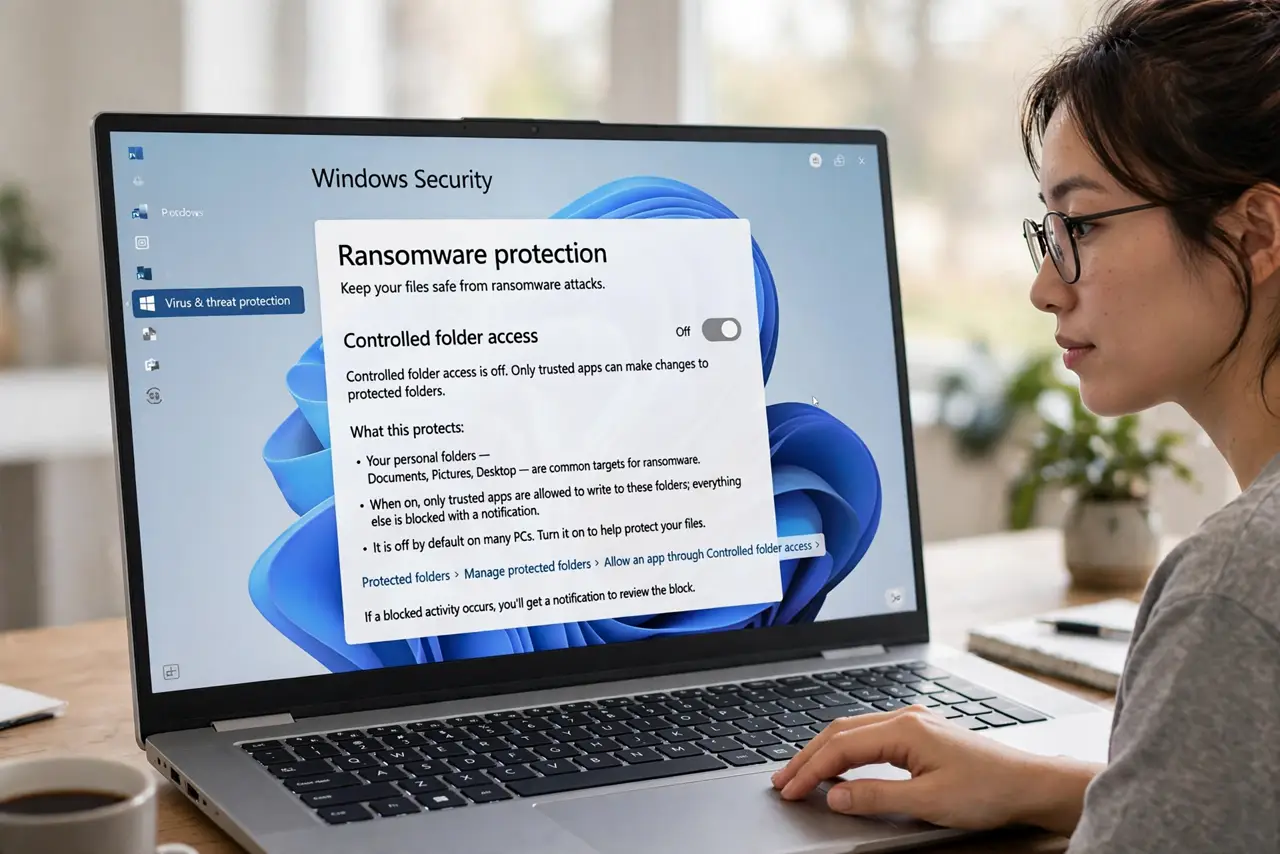
- Understand what it protects. Your personal folders — Documents, Pictures, Desktop — are where ransomware strikes. Controlled folder access lets only trusted apps write there; everything else gets blocked with a notification. It is off by default on many PCs.
- Turn it on. Open Windows Security > Virus & threat protection > Ransomware protection > Manage ransomware protection, and toggle Controlled folder access On. One switch, no restart.
- Run your normal apps once. Open the programs you use daily — your editor, your backup tool, your game. Each untrusted one triggers a single prompt; allowing it whitelists the app permanently.
- Allow a blocked app properly. If a trusted app gets blocked, go to the same Ransomware protection screen > Allow an app through Controlled folder access > Add an allowed app. Do not turn the whole shield off for one app.
- Add extra folders to protect. By default it guards the standard user folders. Add your external drive's backup folder or a work folder via Protected folders — ransomware cannot tell a backup from a document.
- Pair it with real backups. This shield stops encryption in its tracks, but no protection is perfect. Keep offline backups too — and see the blocked-app troubleshooting if something misbehaves.
What NOT to do
- Do not turn it off permanently because of one blocked app. Allow that app through instead — disabling the shield for convenience defeats its purpose.
- Do not allow apps you do not recognize. A blocked notification for a program you never installed is the shield doing its job — investigate, do not allow.
- Do not assume it replaces antivirus. It is a complement to Defender's real-time protection, not a substitute — keep both on.
- Do not protect folders on a drive you constantly unplug. Protected folders on removable drives can cause confusing blocks when the drive letter changes.
Frequently asked questions
Will it block my games or legitimate software?
Sometimes at first — any app Microsoft has not seen gets one prompt. Allow it once and it is whitelisted. False positives are a minor setup cost, not a recurring tax.
Is it enough protection against ransomware?
It is a strong layer, not a complete strategy. Pair it with backups, updates, and phishing awareness — ransomware also arrives via email attachments this shield cannot vet.
Why was it off by default?
Microsoft enables it cautiously because early versions blocked too many legitimate apps. It has matured — turning it on now is safe for most users.