Copilot on Windows? Basics
Copilot is Microsoft's AI assistant built into Windows — a sidebar that answers questions, drafts text, changes settings, and summarizes documents. It is genuinely useful once you know what to ask, and genuinely in the way if you never asked for it. Here is what it does, how to use it well, and how to quiet it.
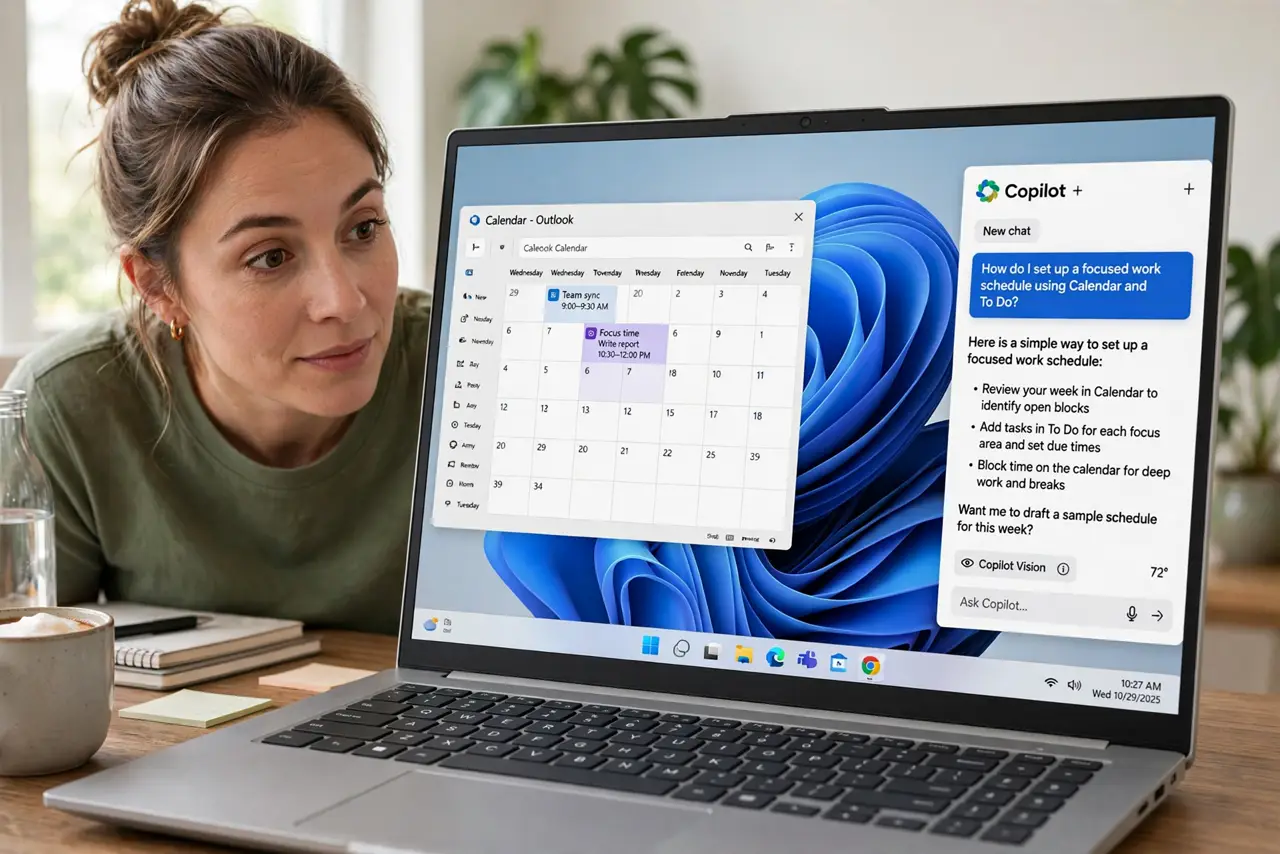
TL;DR / Quick Fix
Quick fix: press the Copilot key or Win+C to open Microsoft's AI assistant in Windows — ask questions, draft text, or have it change settings for you. It works best with specific, detailed prompts. If you find it intrusive, remove its taskbar icon or disable it in Settings.
Follow these steps
- Open it and try a real task. Press Win+C or the Copilot key and ask something concrete — 'summarize this document' or 'turn on dark mode'. Concrete tasks reveal its strengths faster than small talk.
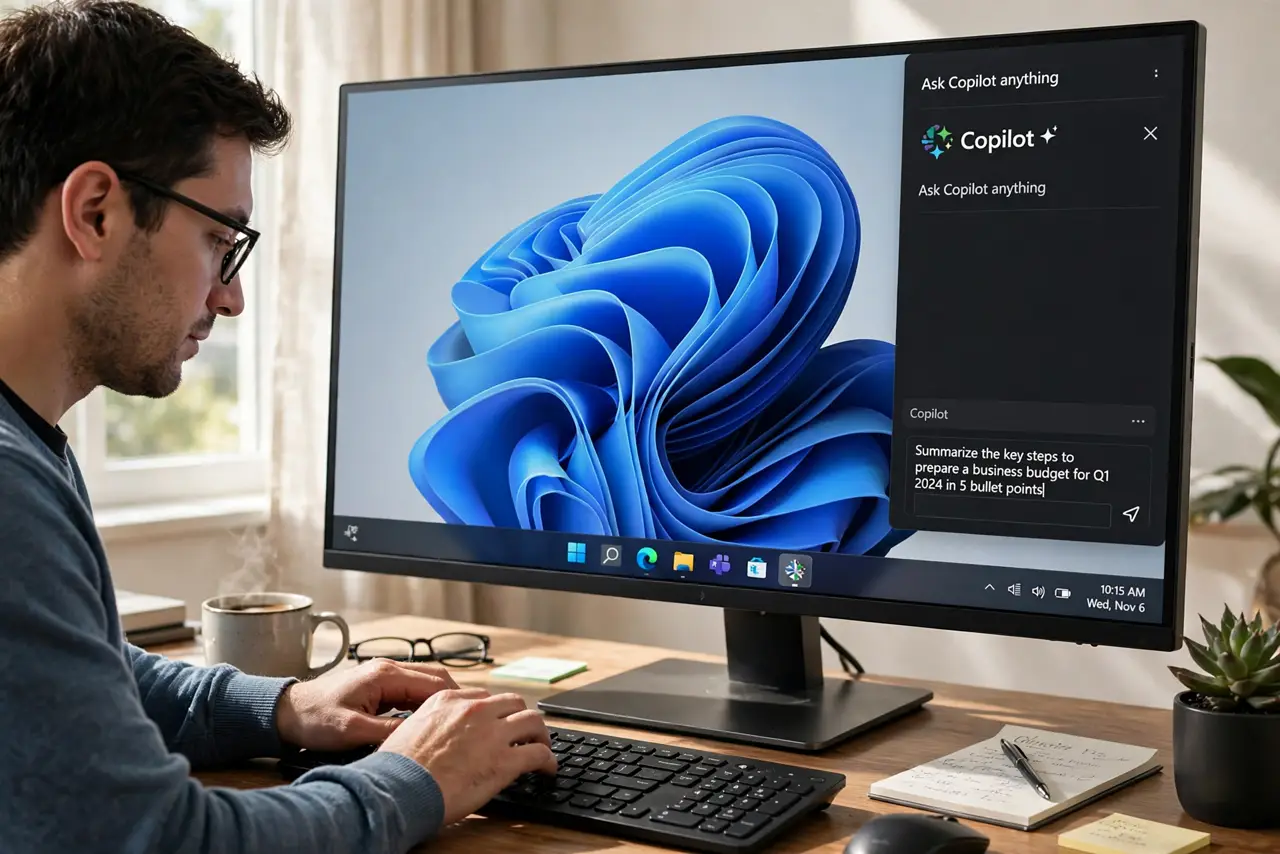
- Write specific prompts. 'Draft a polite email declining a meeting' beats 'write an email'. Copilot, like all AI assistants, is only as good as the detail you give it.
- Let it drive Windows settings. Ask it to change system settings directly — 'turn on Do Not Disturb' or 'open Bluetooth settings'. This is its genuinely unique trick versus a browser chatbot.
- Know what it sees. Copilot can read the active window's content when you ask. That is powerful for summarizing — and worth knowing before pasting sensitive material. See the Recall privacy guide for the related feature to understand.
- Quiet it if it annoys you. Remove the taskbar icon in Settings > Personalization > Taskbar, or disable it per your edition's policy. An assistant you did not ask for should not demand attention.
- Fix the common glitches. If Copilot will not open or the button vanished, check for Windows updates — its availability shifts by region and version. The missing-button fixes track the moving target.
What NOT to do
- Do not paste passwords or sensitive data into Copilot. Treat it like any cloud service — assume prompts may be retained.
- Do not trust its answers blindly. AI assistants confidently invent facts — verify anything important independently.
- Do not assume it is available everywhere. Copilot's rollout varies by region and Windows version — absence is not a bug.
- Do not let it replace learning the basics. An assistant is a shortcut, not a substitute for understanding your own PC.
Frequently asked questions
Is Copilot free?
The basic version in Windows is free with a Microsoft account. A paid Copilot Pro tier adds priority access and deeper Office integration.
Does Copilot work offline?
No — it needs an internet connection to reach Microsoft's AI services. Offline, the button just sits there.
Can I remove Copilot completely?
You can hide it and disable it depending on your Windows edition; full removal options vary by version — hiding satisfies most people.