Manage Saved Credentials
Windows keeps asking for a password you know you saved, or you want to delete an old login stuck in the system. Those saved logins live in Credential Manager — Windows' built-in vault for network, app, and website passwords. Here is how to view, update, and remove them safely.
TL;DR / Quick Fix
Quick fix: open Credential Manager from the Windows search bar to view, edit, or remove saved logins for networks, apps, and sites. Update entries when you change a password elsewhere. Never share exported credentials, and keep your Windows sign-in protected.
Follow these steps
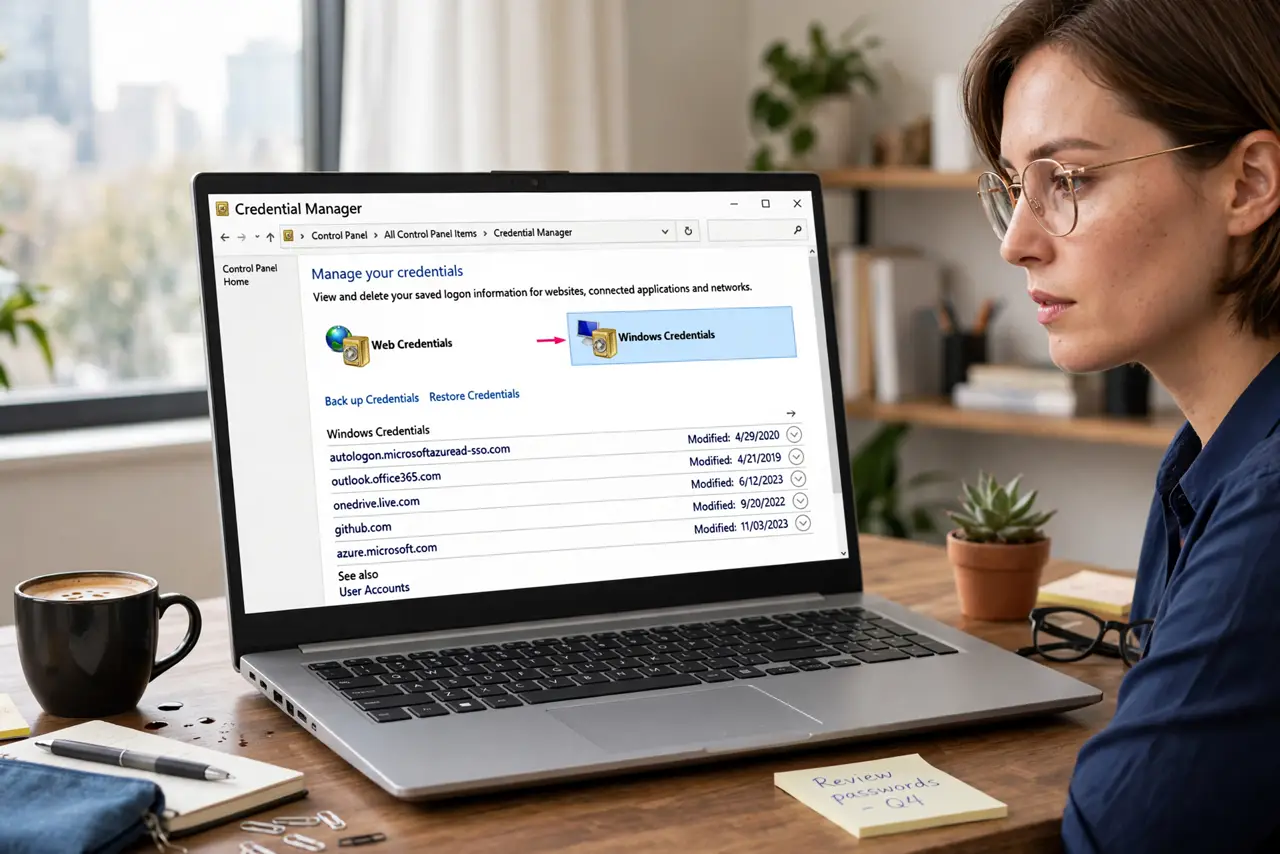
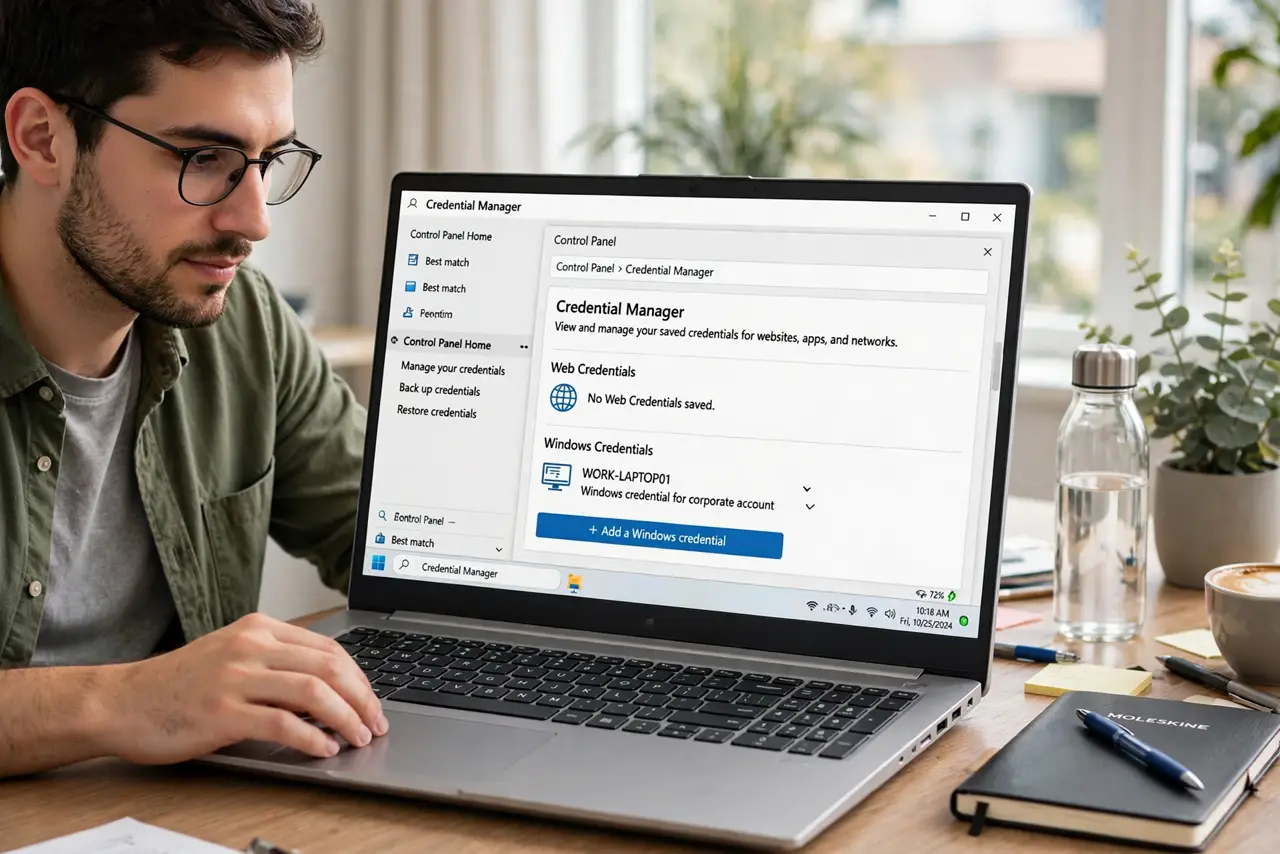
- Open Credential Manager. Press the Windows key, type Credential Manager, and open it. You will see two sections: Web Credentials and Windows Credentials.
- Understand the two vaults. Web Credentials holds browser-saved site logins; Windows Credentials holds network shares, mapped drives, and app logins. Most confusion lives in the second one.
- Update a stale entry. Changed a password on another device? Find the entry, click Edit, and update it. Stale entries are why Windows keeps prompting for a password you 'already saved.'
- Remove entries you no longer need. Old job's network share still listed? Remove it. Dead entries cause confusing prompts and, worse, lockouts from too many bad attempts.
- Back up before big changes. Use 'Back up vault' to save a copy before editing many entries. Restoring beats retyping twenty logins.
- Protect the vault with your sign-in. Anyone signed in as you can open Credential Manager. A strong Windows password or PIN — and locking the PC when you walk away — is the real security.
What NOT to do
- Do not delete entries blindly. Removing a working network login means retyping it next time — check what it is for first.
- Do not store credentials on a shared account. Everyone on the account can read the vault.
- Do not ignore repeated password prompts. They signal a stale entry — fix it in Credential Manager instead of typing the password for the tenth time.
- Do not confuse this with browser password managers. Those live in the browser; Credential Manager is the Windows-level vault — related but separate.
Frequently asked questions
Where are my saved Wi-Fi passwords?
They are not in Credential Manager's visible list — use the network settings or command line to reveal a Wi-Fi key.
Is Credential Manager safe?
Reasonably — entries are encrypted with your Windows sign-in. Its safety equals your sign-in's safety.
What is credential stuffing?
Attackers replaying leaked username-password pairs against other sites — see credential stuffing explained. Unique passwords per site defeat it.