Run a Defender Offline Scan
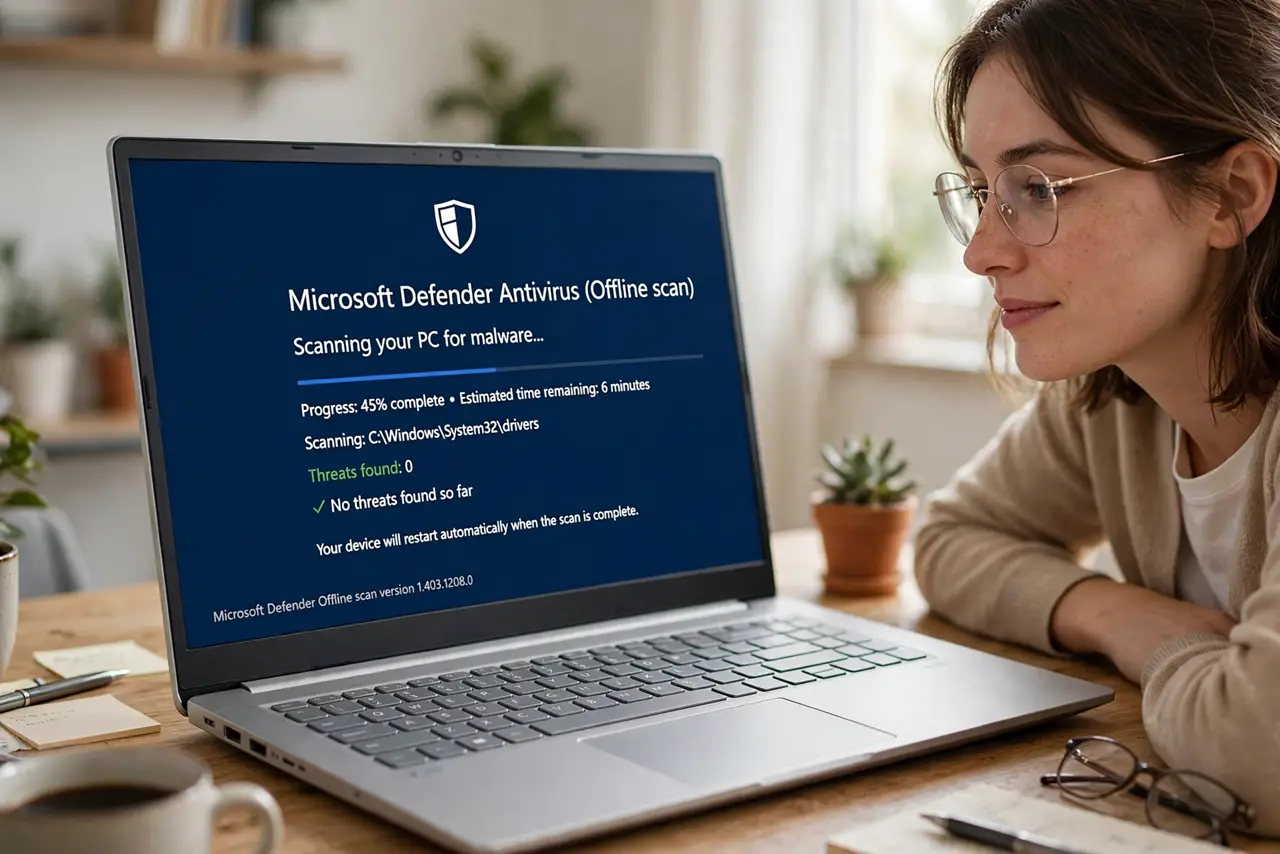
Some malware digs in so deep that it fights back while Windows is running — blocking the very scan trying to remove it. Microsoft Defender Offline reboots the PC into a minimal environment before Windows loads, so the malware never gets a chance to defend itself. It is the escalation step when normal scans come back clean but the PC still misbehaves.
TL;DR / Quick Fix
When normal scans find nothing but the PC still misbehaves, Defender Offline reboots into a minimal pre-Windows environment where stubborn malware cannot fight back. Open Windows Security, Virus and threat protection, Scan options, then Microsoft Defender Offline scan. Save work first — it reboots automatically.
Follow these steps
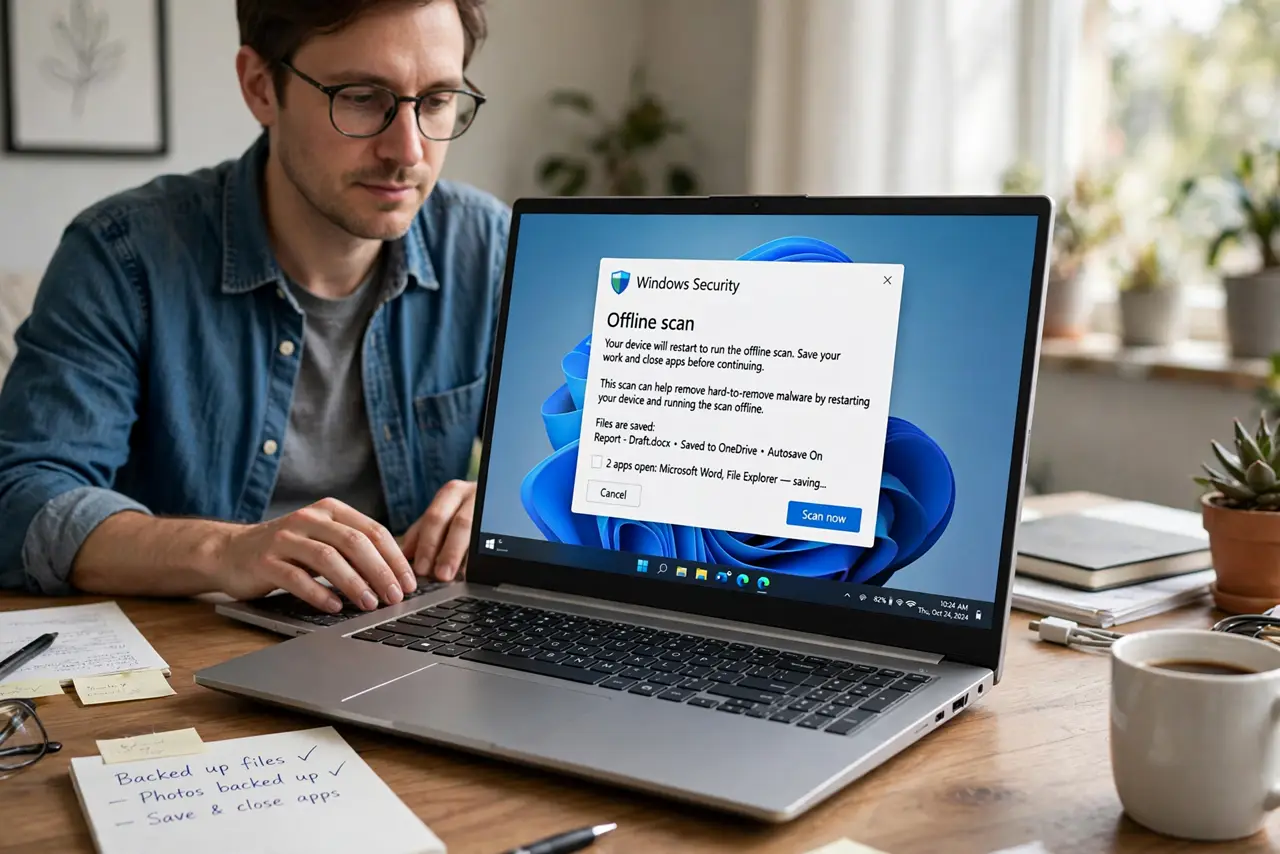
- Save everything and close your apps. The offline scan reboots the PC without asking twice. Save open documents and close programs so nothing is lost to the forced restart.
- Open Windows Security. Search for Windows Security in the Start menu, then go to Virus and threat protection. This is the built-in dashboard — no downloads needed.
- Choose Scan options. Under the Quick scan button, click Scan options to reveal the full list. The scan types guide explains what each option does.
- Select Microsoft Defender Offline scan. Pick the offline option and click Scan now. Windows will confirm the reboot — accept it and let the machine restart itself.
- Let the scan run undisturbed. The PC boots into a minimal environment and scans for roughly 15 minutes. Do not power it off mid-scan; interrupting it can leave things half-cleaned.
- Review the results after reboot. Windows restarts normally when done. Open Windows Security again and check Protection history for what was found and removed — then change passwords if anything serious turned up.
What NOT to do
- Do not run an offline scan on a dying battery. A power loss mid-scan in the pre-boot environment is worse than the malware — plug in first.
- Do not panic at the strange boot screen. The minimal offline environment looks unfamiliar by design; it is still Microsoft's own tool.
- Do not skip the follow-up. If the scan removed something nasty, change important passwords from a clean device and watch accounts for odd activity.
- Do not treat one clean scan as a full bill of health. Persistent weirdness after a clean offline scan deserves a second opinion from another reputable scanner.
Frequently asked questions
How is this different from a full scan?
A full scan checks everything while Windows runs — malware can hide from it. The offline scan runs before Windows loads, so hiding spots do not exist yet.
How long does it take?
Typically around 15 minutes, depending on drive size and speed. SSDs finish faster; large spinning drives take longer.
Will it delete my personal files?
No — it targets malware. Legitimate personal files are untouched; only confirmed threats get quarantined or removed.