Defender Scan Types, Explained
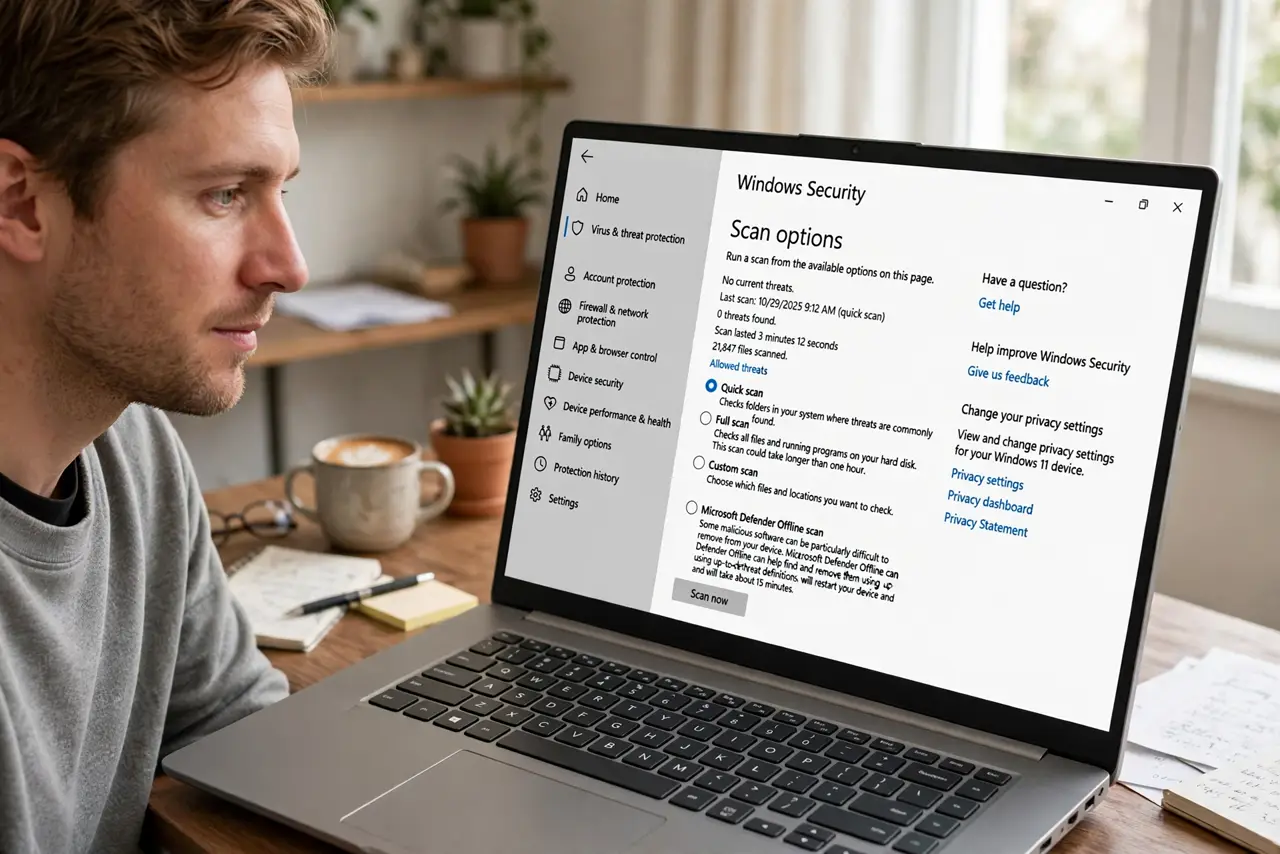
Windows Security offers you Quick scan, Full scan, Custom scan, and Offline scan — and it's not obvious which one you actually need. Picking the wrong one either wastes an hour or misses the threat you're worried about. Each type exists for a specific situation. Here's what each does and when to run it.
TL;DR / Quick Fix
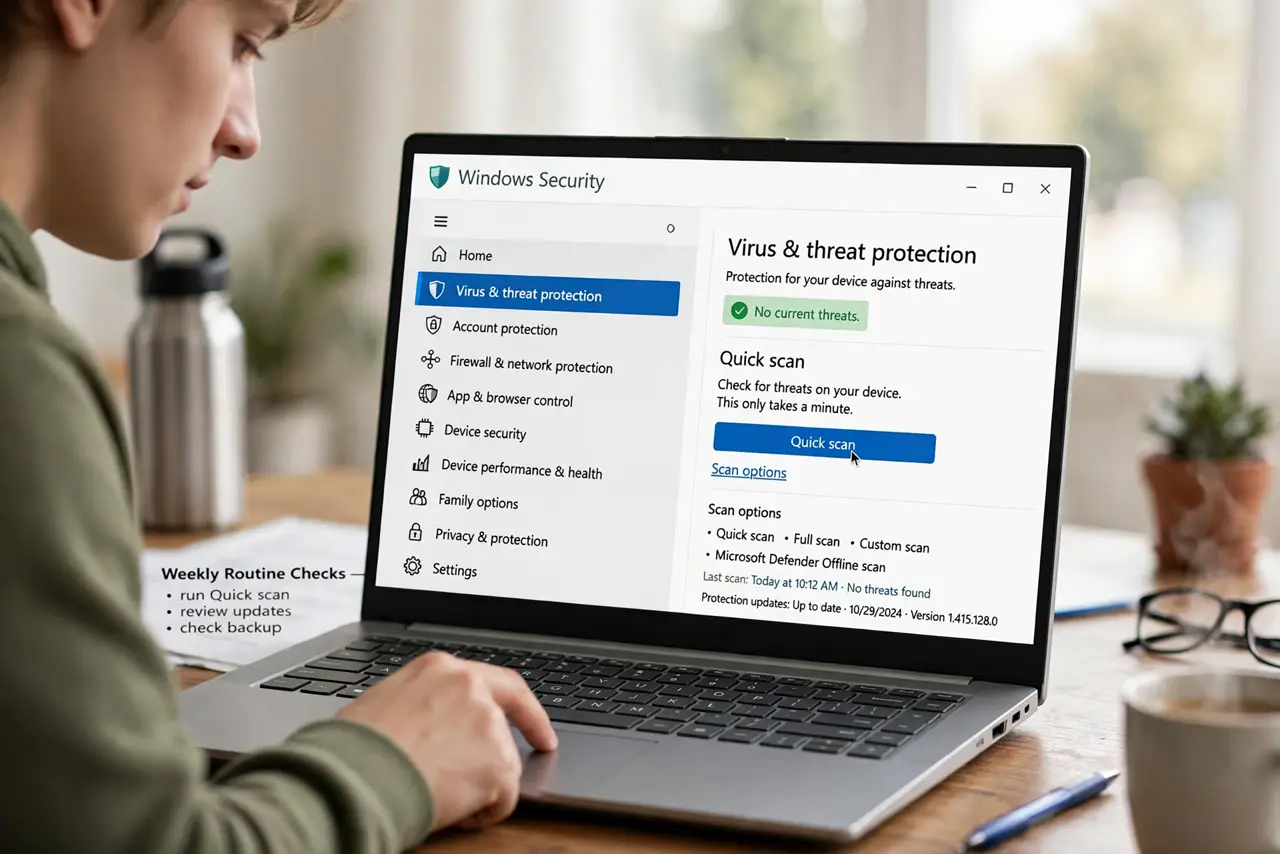
Quick fix: run a Quick scan weekly — it checks the common hiding spots in minutes. Use Full scan when you suspect an infection, Custom scan for a specific folder or USB drive, and Offline scan when malware resists normal removal. Quick scans handle routine safety.
Follow these steps
- Run a Quick scan for routine checks. Open Windows Security, go to Virus & threat protection, and run a Quick scan. It checks memory, startup items, and common malware locations — done in a few minutes, and it's all most people need regularly.
- Use Full scan when something feels wrong. A Full scan checks every file on every drive, which takes an hour or more. Run it when you suspect an infection — strange popups, slowdowns — or after plugging in an untrusted USB drive.
- Use Custom scan for one spot. Got a single suspicious download or an external drive? Custom scan lets you point Defender at just that folder or drive. Faster than a full scan and focused on the actual risk.
- Use Offline scan for stubborn malware. Some malware hides while Windows runs. Microsoft Defender Offline reboots into a minimal environment and scans before the malware can load — the right tool when normal scans find nothing but problems persist.
- Schedule Quick scans automatically. Defender already runs background protection, but a scheduled weekly Quick scan adds routine hygiene. Set it for a time the PC is on but you're not using it.
- Don't stack a second antivirus. Running two real-time antiviruses causes conflicts and slowdowns — the classic two-antivirus problem. Defender plus your own caution is enough for most users.
What NOT to do
- Do not run Full scans daily. They hammer your disk for hours with no benefit — weekly Quick scans plus real-time protection cover routine safety.
- Do not disable real-time protection to 'speed things up'. The scans are the backup; real-time protection is the actual shield. Turning it off for performance is a bad trade.
- Do not panic over every detection. Defender occasionally flags legitimate tools — check false positives before deleting something you recognize.
- Do not trust popups claiming to be Defender. Browser popups screaming about viruses are scams — the real Defender lives in Windows Security, not in your browser. See fake antivirus popups.
Frequently asked questions
How long does a Full scan take?
Anywhere from 30 minutes to several hours depending on how many files you have and your drive speed. Run it when you won't need the PC — overnight works well — and let it finish uninterrupted.
Does Quick scan miss things?
It skips deep file-by-file checking in favor of common malware locations, so yes, it can miss a deeply buried threat. That's why Full and Offline scans exist — use the right tool when you have a real suspicion.
Should I use Offline scan regularly?
No — it's a troubleshooting tool, not routine maintenance. Use it when malware survives normal scans, since it catches threats that hide while Windows is running.