Fix Cramped Desktop Icon Spacing
Your desktop icons sit shoulder-to-shoulder, labels overlapping, and there is no slider anywhere to spread them out. Windows buries icon spacing in the registry — two values control horizontal and vertical gaps. It is a safe edit if you back up first and change the numbers in small steps.

TL;DR / Quick Fix
Windows has no slider for desktop icon spacing — it lives in the registry under HKEY_CURRENT_USER\Control Panel\Desktop\WindowMetrics, as IconSpacing and IconVerticalSpacing. Back up the registry first, change the values in small steps, then sign out and back in. Values around -1125 are the default; more negative means wider spacing.
Follow these steps
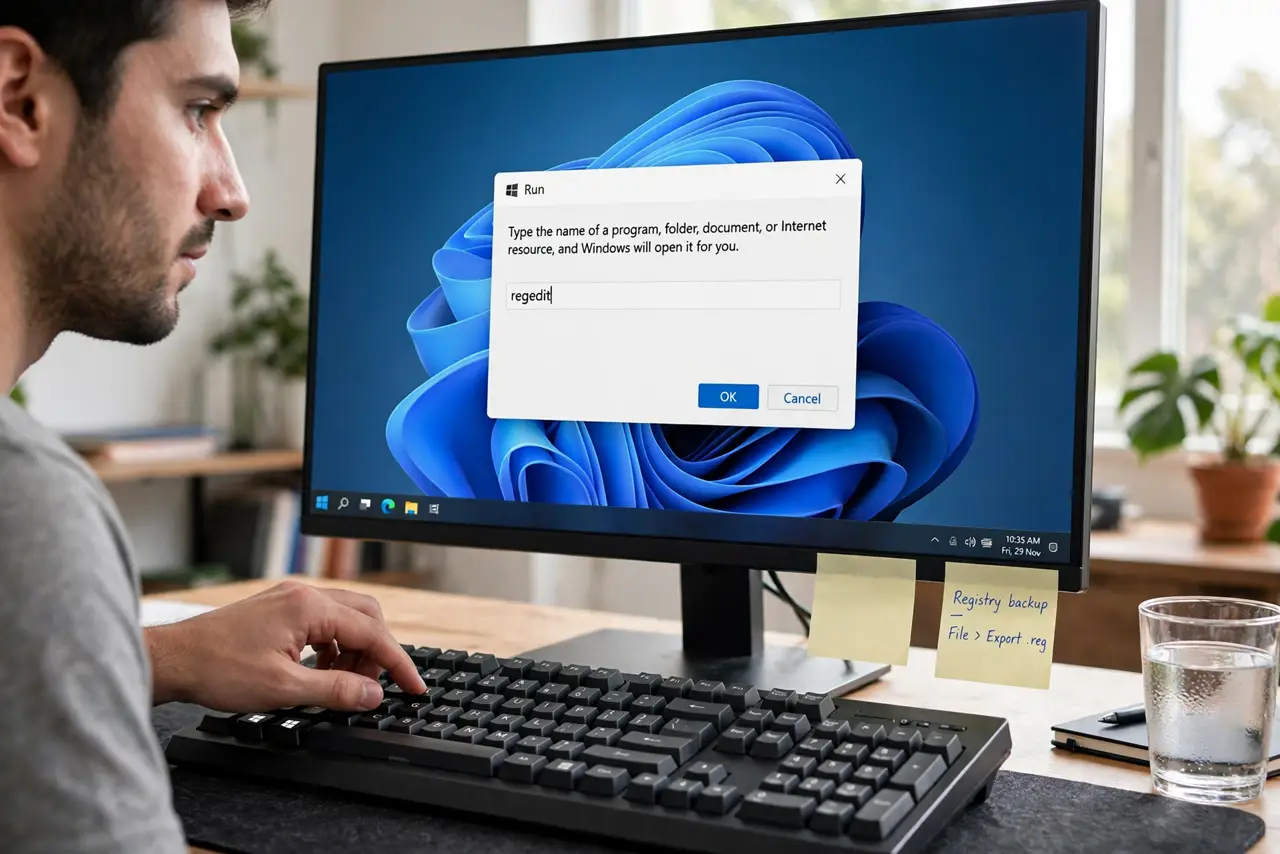
- Back up the registry first. Press Win + R, type regedit, and before touching anything choose File > Export to save a backup. Thirty seconds that can undo any mistake.
- Navigate to WindowMetrics. Go to HKEY_CURRENT_USER\Control Panel\Desktop\WindowMetrics. You will see IconSpacing and IconVerticalSpacing in the list.
- Edit IconSpacing for horizontal gaps. Double-click IconSpacing. The default is around -1125; try -1375 for noticeably wider columns. More negative means wider.
- Edit IconVerticalSpacing for vertical gaps. Double-click IconVerticalSpacing and set it to match. Keeping both equal gives a balanced grid.
- Sign out and back in. The new spacing applies at sign-in, not instantly. Sign out from the Start menu and sign back in to see the result.
- Adjust in small steps. If the gaps feel wrong, change by about 250 at a time. Extreme values can push icons off-screen — small steps stay safe.
What NOT to do
- Do not set extreme values like -5000. Icons can vanish off-screen and the desktop becomes unusable until you revert.
- Do not edit other keys in WindowMetrics. CaptionHeight and friends control window chrome — leave them alone.
- Do not skip the registry backup. It is the only undo button for registry edits — export before you change anything.
- Do not expect display scaling to leave spacing alone. Changing Settings > Display > Scale re-flows icons and can override your tuned gaps.
Frequently asked questions
What do the negative numbers mean?
They are pixel measurements in a legacy format — the more negative, the wider the gap. -1125 is roughly the default; -1375 is comfortably roomy.
Why didn't the spacing change immediately?
Icon spacing loads at sign-in. You must sign out and back in — a restart works too, but sign-out is faster.
Can I reset to the default spacing?
Yes — set both values back to -1125, or double-click your registry backup to restore everything.