Check If Your Drive Is Encrypted
If your laptop is stolen, is your data readable to whoever opens it? That depends on whether the drive is encrypted — and most people genuinely do not know. Windows offers encryption that scrambles everything on the drive, but it is not always on by default. Checking takes a minute, and the answer decides how worried you should be. For the full picture, see BitLocker basics.
TL;DR / Quick Fix
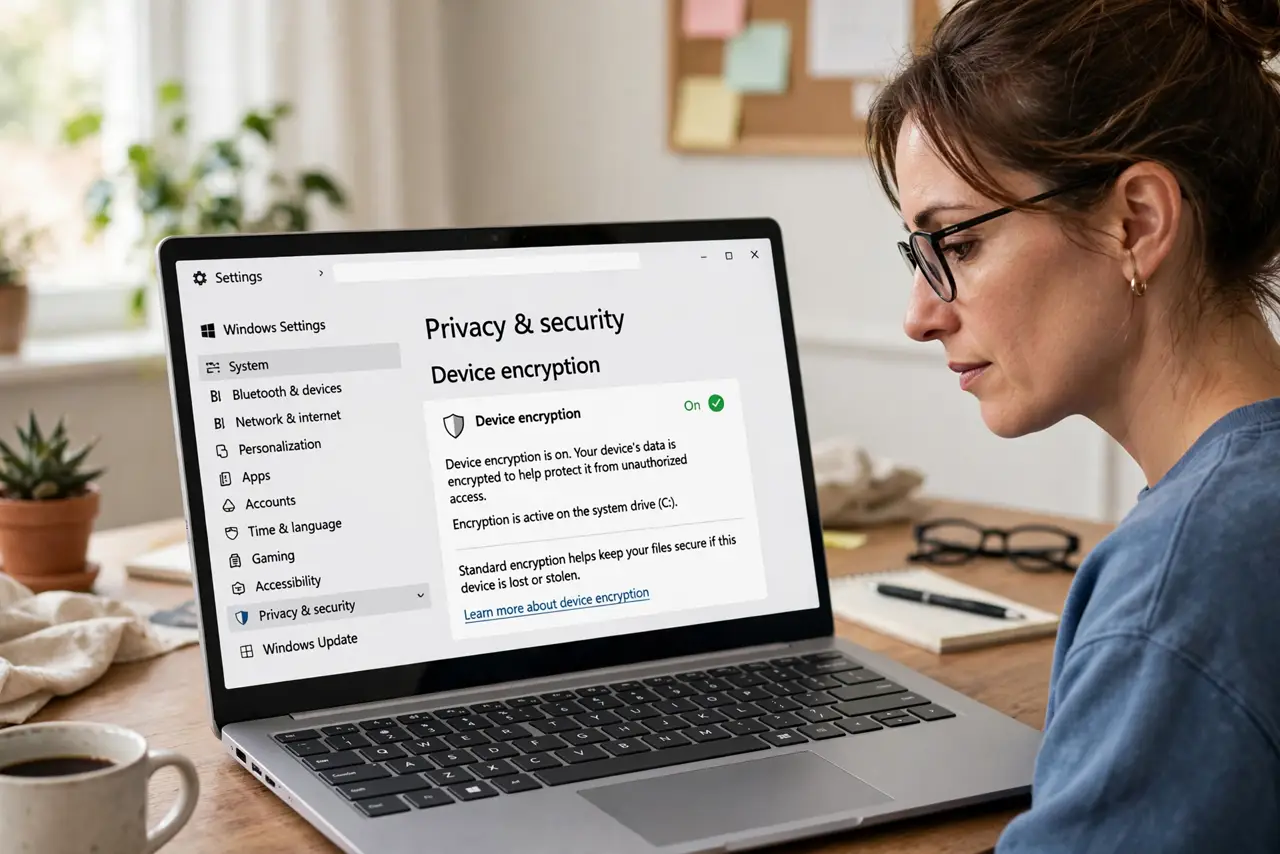
Quick fix: on Windows, open Settings, Privacy and security, then Device encryption — it will say on or off. If it is off and your edition supports it, turn it on and save the recovery key somewhere safe. Encryption protects your files if the laptop is lost or stolen.
Follow these steps
- Open Device encryption settings. Go to Settings, then Privacy and security, then Device encryption. The page states plainly whether encryption is on or off — no digging required.
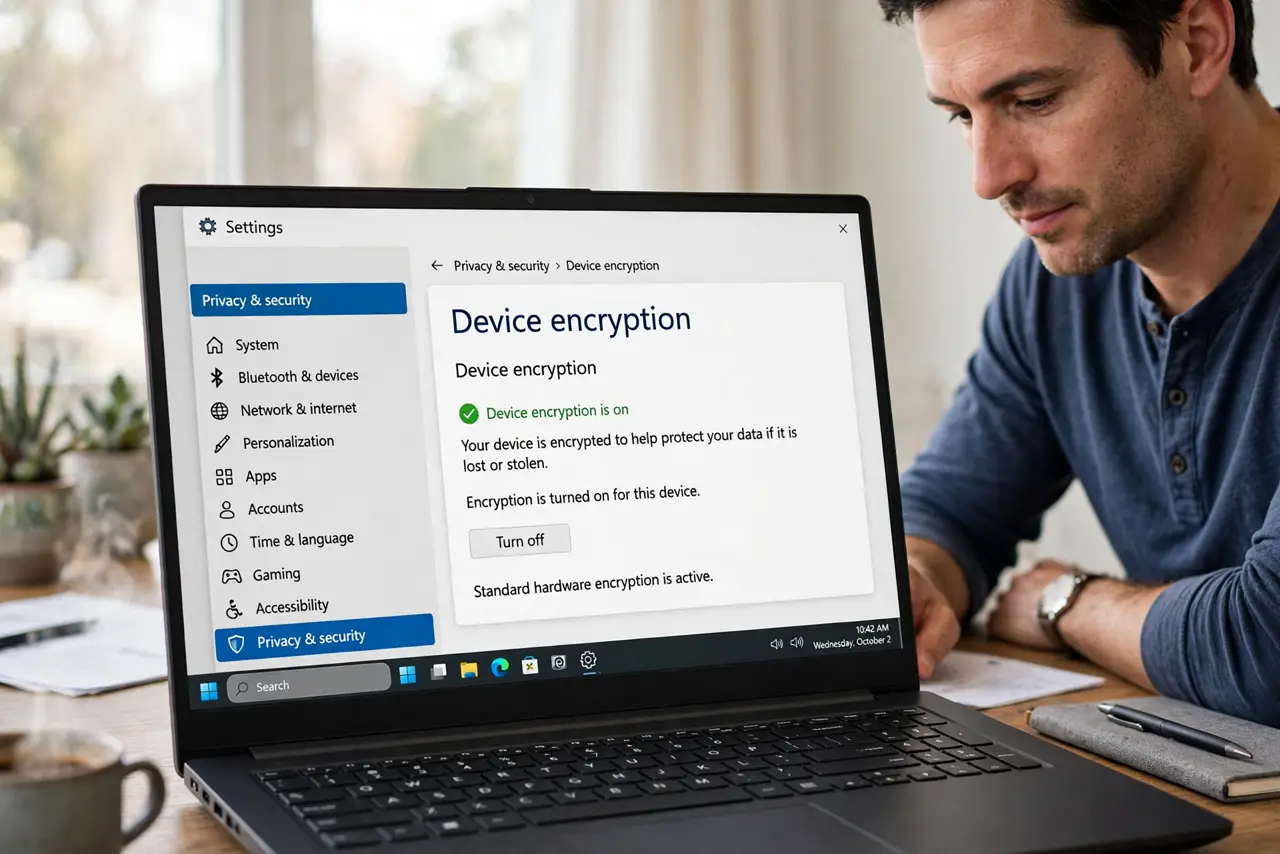
- Read the status. On means the drive is scrambled and needs your sign-in to read. Off means anyone who removes the drive can read your files with basic tools.
- Turn it on if available. If the toggle is there, switch it on. Windows encrypts in the background while you keep working — the first run takes a while, then it is invisible.
- Save the recovery key. Windows will prompt you to save a recovery key to your Microsoft account or a file. Do this — without the key, a damaged system can lock you out of your own data. See recovery key help if you need it later.
- Know your edition's limits. Full management tools vary by Windows edition; the basic device encryption on modern laptops covers most people. If the toggle is missing entirely, your hardware may not meet the requirements.
- Leave it on. There is no meaningful downside for daily use — no slowdown you will notice, no password to type beyond your normal sign-in. Off is never the better choice.
What NOT to do
- Do not skip saving the recovery key. Encryption without a saved key turns a future repair into permanent data loss.
- Do not assume it was on by default. Many laptops ship with it off — the one-minute check is the whole point of this guide.
- Do not confuse sign-in passwords with encryption. A Windows password blocks casual access; encryption blocks drive removal attacks. You want both.
- Do not turn it off to save battery. The impact is negligible on modern hardware — the protection is not.
Frequently asked questions
Will encryption slow my laptop?
No, not noticeably — modern processors handle it in hardware. You will not feel a difference in daily use.
What if I forget everything and need the key?
The recovery key saved to your Microsoft account or a USB file is the way back. Without it, the data is unrecoverable by design.
Does this protect against hackers online?
No — encryption protects the physical drive against theft. Online threats need updates, passwords, and caution, not encryption.