Find a Lost Windows Laptop
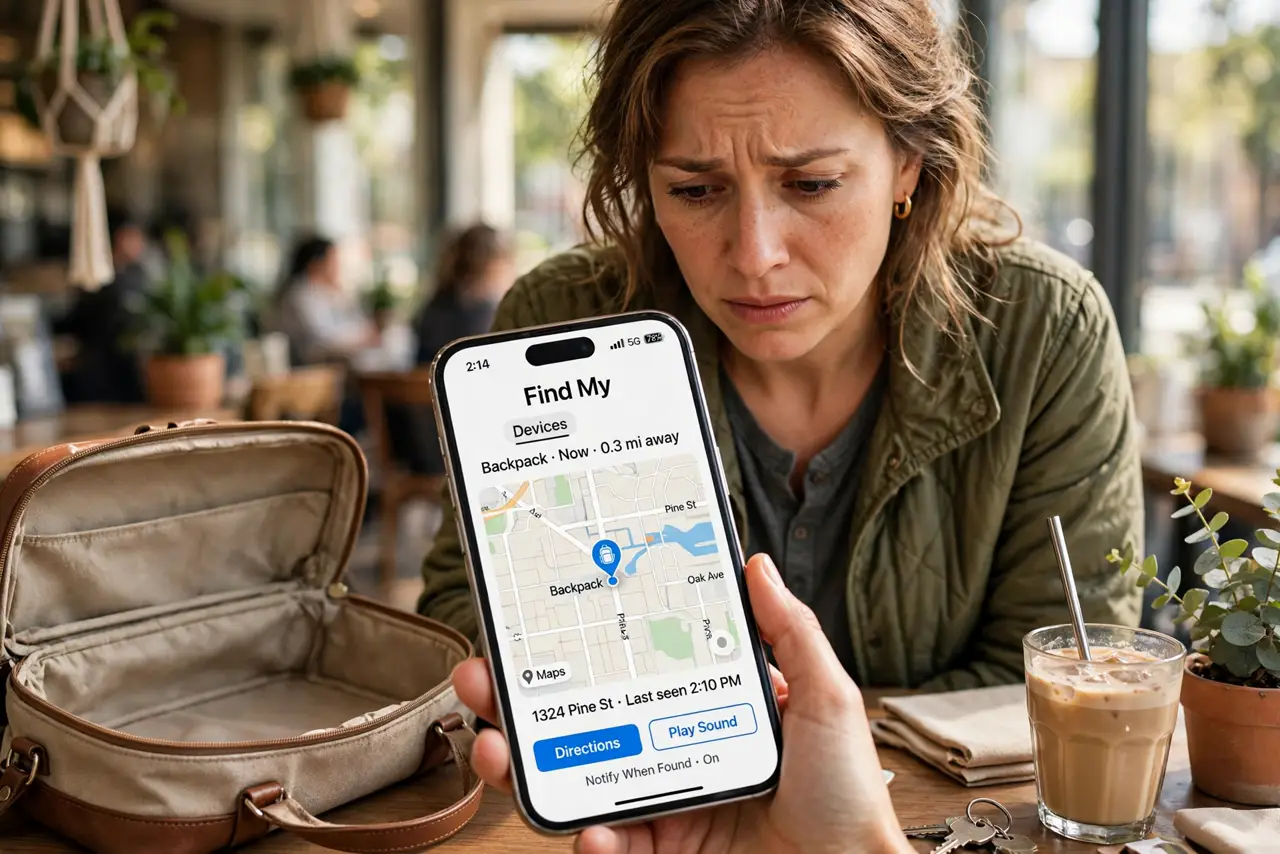
Your laptop is not where you left it — the cafe table, the office, a friend's car — and the panic is rising. Windows has a built-in Find My Device feature that can show the laptop's location on a map, provided you turned it on before it went missing. This guide covers the setup you should do today and the recovery steps for the day you need them. For Apple gear, Find My on Mac is the equivalent.
TL;DR / Quick Fix
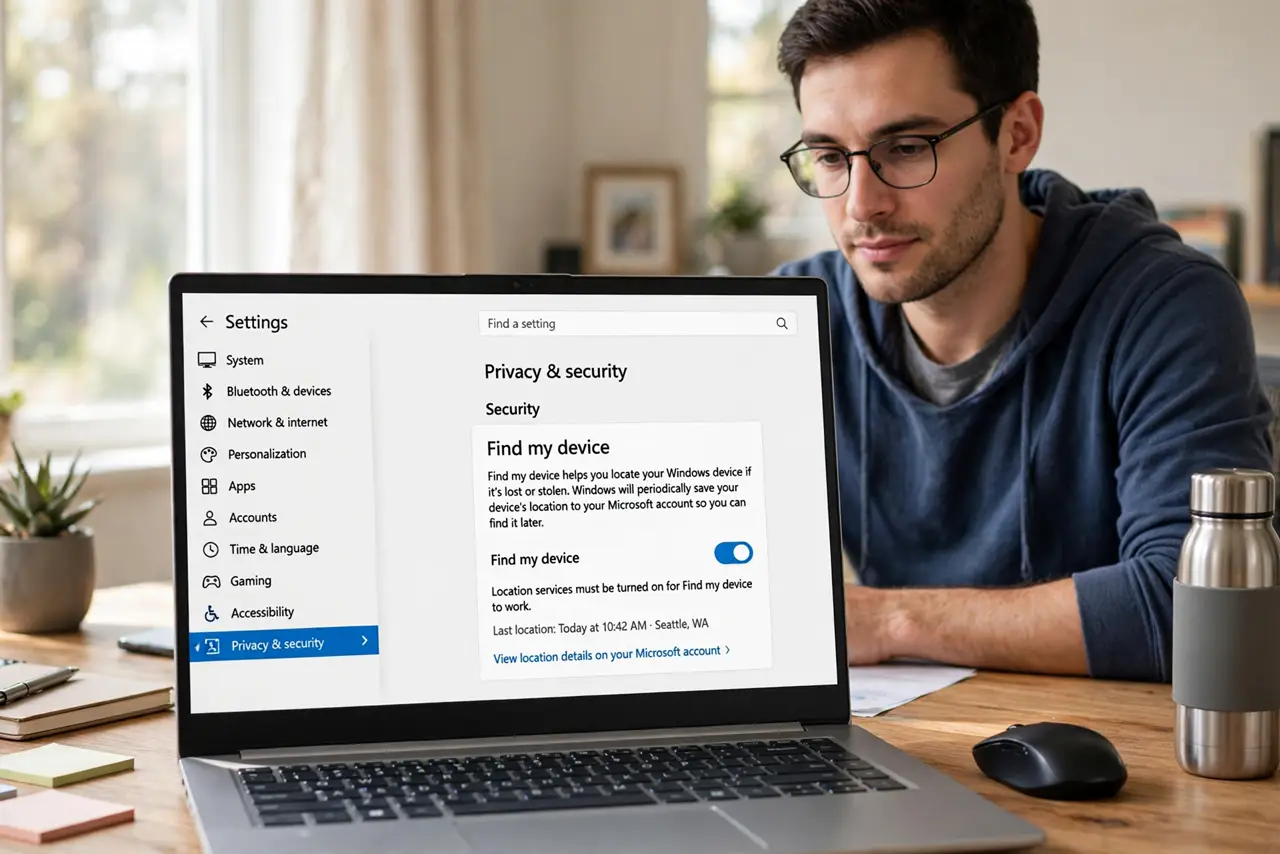
Quick fix: turn on Find My Device now under Settings, Privacy and security, so a map location exists if the laptop goes missing. If it is already lost, sign into your Microsoft account on another device, find it on the map, and lock it remotely.
Follow these steps
- Turn it on before you need it. Open Settings, Privacy and security, then Find My Device, and enable it. This is the step that matters — location history starts only after you opt in, and it cannot help retroactively.
- Know the requirements. The laptop needs to be signed into a Microsoft account, have location services on, and be powered with internet access. All three must hold for a location to report.
- Locate it from another device. Sign into your Microsoft account in any browser, open the Devices page, and select Find My Device. The map shows the last reported location with a timestamp.
- Lock it remotely. From the same page, lock the laptop with a message for anyone who finds it. Locking is instant protection for your files even before you recover the machine.
- Play it safe on recovery. If the map shows an unfamiliar address, do not go alone — contact local authorities. A laptop is replaceable; you are not.
- Prepare for the worst case. If recovery looks unlikely, change your important passwords and consider a remote wipe. Backups decide whether a lost laptop is an inconvenience or a disaster — see automated backups.
What NOT to do
- Do not wait until it is lost to enable Find My Device. It cannot track retroactively — this is a today task, not a someday task.
- Do not confront a stranger at the shown location alone. Let authorities handle recovery from unknown addresses.
- Do not delay the remote lock. Every minute unlocked is a minute someone could access your files — lock first, locate second.
- Do not skip backups because tracking exists. Find My Device finds laptops; only backups save your data when it stays lost.
Frequently asked questions
Does it work if the laptop is off?
No — a powered-off laptop cannot report. The map shows the last location from before it went dark, with the timestamp so you know how fresh it is.
Can I find it without a Microsoft account?
No. The feature is tied to the Microsoft account sign-in — a local-only account cannot be located this way.
Will the finder see my files?
Not if you lock it remotely. The lock screen blocks access; your files stay protected behind your sign-in.