Disk Cleanup Shows No System Files to Clean
Disk Cleanup that shows no system files usually ran without administrator rights, so it only sees your personal temporary files. Running it as administrator reveals Windows Update cleanup and other system categories. This guide gets those categories back. If automatic cleanup is deleting things you want, see Storage Sense deleting files from Downloads.
TL;DR / Quick Fix
Quick fix: Open Disk Cleanup as administrator. Click Clean up system files. Then work through the remaining steps in order, checking one change at a time, and stop for a technician if you see damage, swelling, or a burning smell.
Follow these steps
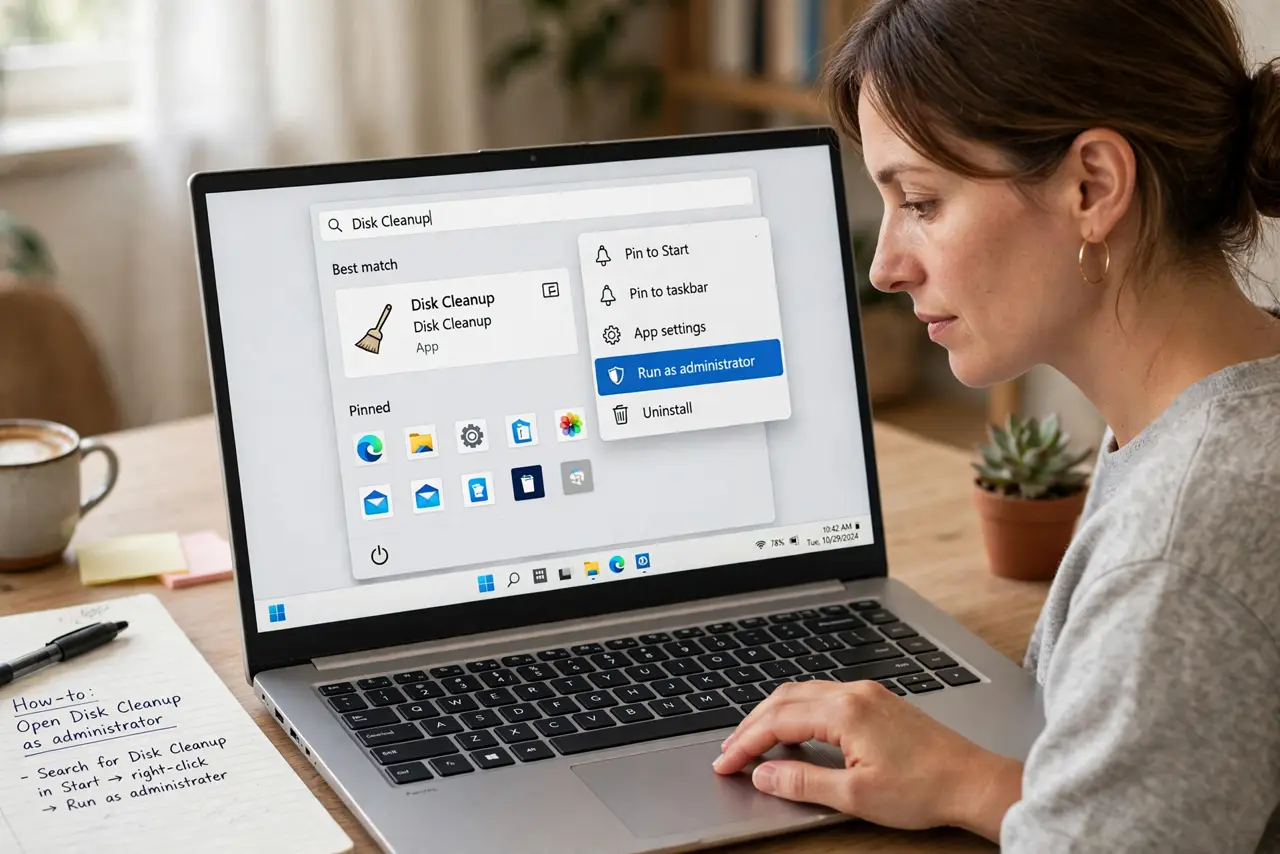
- Open Disk Cleanup as administrator. Search for Disk Cleanup in Start, right-click it, and choose Run as administrator. Only the administrator run can list and remove system files.
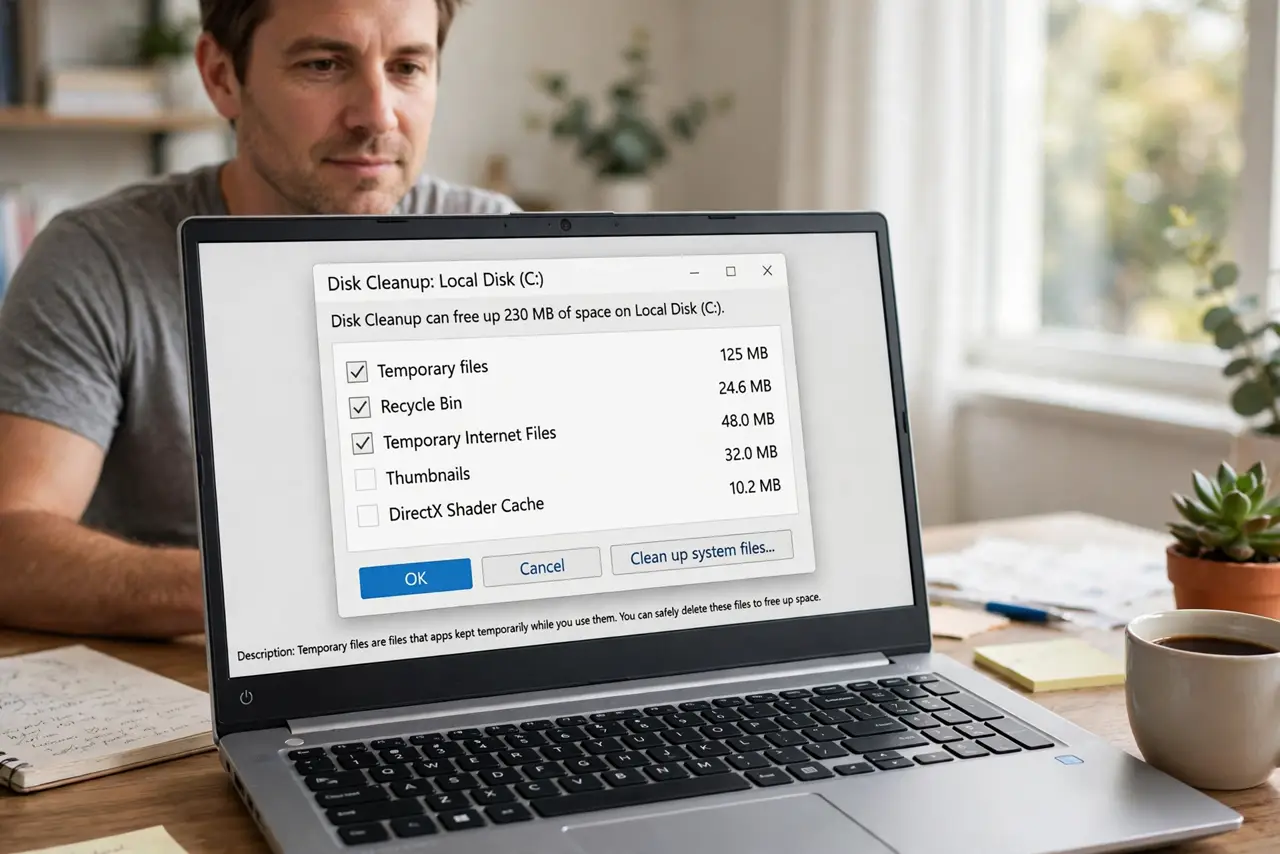
- Click Clean up system files. In the Disk Cleanup window, click Clean up system files and wait while it rescans. The second scan adds system categories, including Windows Update Cleanup, to the list.
- Check Windows Update Cleanup size. In the list, look for Windows Update Cleanup and note its size. A large size after a major update is normal, and it is usually the biggest safe system cleanup.
- Tick only categories you understand. Tick Windows Update Cleanup and Temporary files, and leave categories you do not recognize unticked. Disk Cleanup lists are safe when you tick known items only.
- Check free space before and after. Open Settings, then System, then Storage, and note free space before cleanup and after. A real increase proves the system cleanup worked.
- Restart and recheck Disk Cleanup. Restart Windows, then run Disk Cleanup as administrator again. If system files now appear regularly, the administrator run was the missing step.
What NOT to do
- Do not run Disk Cleanup from a random downloaded copy. Use the built-in Windows tool, since copies can delete far more than they claim.
- Do not tick every category blindly. Some categories, such as Downloads in some versions, can remove files you meant to keep.
- Do not delete system files by hand from Windows folders. Disk Cleanup knows what is safe to remove, while manual deletion can break updates.
- Do not expect huge gains every time. After a first system cleanup, later runs find little, which is normal, not a fault.
Frequently asked questions
Is Windows Update Cleanup safe to delete?
Yes. It removes old update files Windows no longer needs, though you cannot uninstall those updates afterwards.
Why does the first scan show nothing?
The first scan runs as a normal user and cannot see system files, so the administrator rescan is the key step.
Does Disk Cleanup replace Storage Sense?
No. Disk Cleanup is a manual deep clean, while Storage Sense runs automatically for routine temporary files.