Schedule Do Not Disturb
You silence notifications manually every night — and forget half the time, so Slack dings through dinner. Do Not Disturb can run itself on a schedule: quiet hours every night, banners off, alarms still working. Set it once and stop thinking about it.

TL;DR / Quick Fix
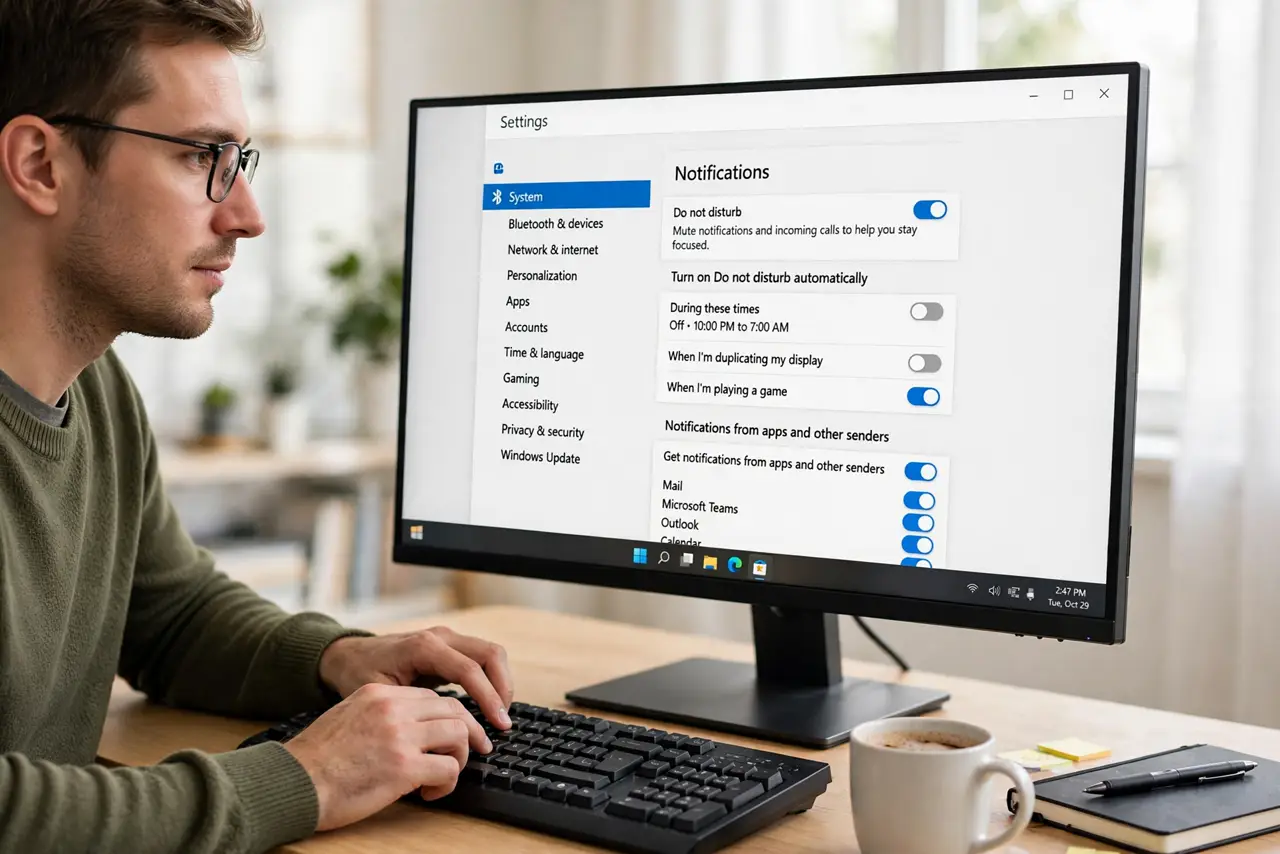
Open Settings > System > Notifications, turn on Do not disturb, and set 'Turn on do not disturb automatically' with your quiet hours — 10 PM to 7 AM, say. Scheduled quiet hours silence banners while alarms sound. Priority notifications from chosen contacts can break through if you allow them.
Follow these steps
- Open Notifications settings. Press Win + I, go to System > Notifications. Do Not Disturb lives at the top.
- Turn on Do not disturb. Flip the main switch to see immediate quiet — then make it automatic below so you never toggle manually again.
- Set the automatic schedule. Expand 'Turn on do not disturb automatically' and set your hours — 10 PM to 7 AM covers most sleepers.
- Confirm alarms still work. Alarms and timers bypass Do Not Disturb by design. Set a test alarm to prove it to yourself — see the alarms blocked check.
- Allow priority contacts. Under priority notifications, let calls from starred contacts through. Emergencies beat quiet hours.
- Check it actually engaged. The bell icon in the taskbar shows a small mark when Do Not Disturb is active. Glance at bedtime the first few nights.
What NOT to do
- Do not confuse Do Not Disturb with Focus sessions. Focus is a timed work sprint with its own rules; DND is the notification gate — related but separate.
- Do not schedule it and forget priority contacts. A schedule that blocks your kid's school calling is worse than the dings.
- Do not expect it to mute media. DND silences notifications, not your music or videos — that's the volume mixer.
- Do not leave it on 24/7 by accident. If notifications never arrive, check whether the schedule — or a stuck toggle like turns on by itself — is the cause.
Frequently asked questions
Will I miss my morning alarm?
No. Alarms and timers always bypass Do Not Disturb — Microsoft carved them out deliberately.
Do scheduled quiet hours work when the PC sleeps?
Sleeping PCs don't deliver notifications anyway. The schedule matters for awake-but-quiet hours — evenings at the desk.
Can different days have different hours?
Not natively — one schedule covers every day. For weekend differences, toggle manually or use Focus sessions.