Drive Letter Changes After Every Reboot? Fix It
When a drive letter changes after every reboot, shortcuts break and programs cannot find their files. The drive itself is usually fine. Windows simply assigns the first free letter at startup, so the fix is to give that drive a stable letter it can keep.
TL;DR / Quick Fix
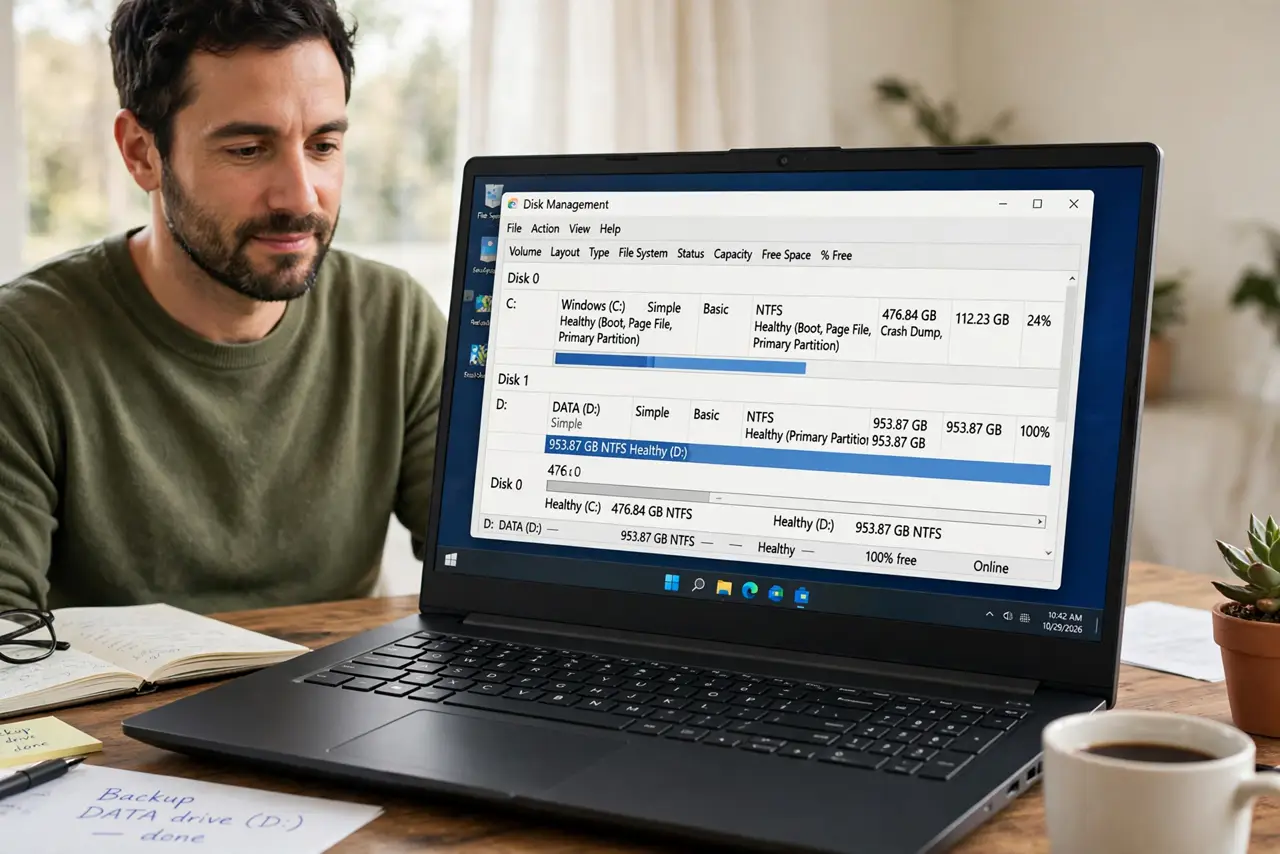
Quick fix: open Disk Management, right-click the drive, choose Change Drive Letter and Paths, and assign a letter high in the alphabet, such as M or S. Restart once and check that the same letter is still there before you rebuild any shortcuts.
Follow these steps
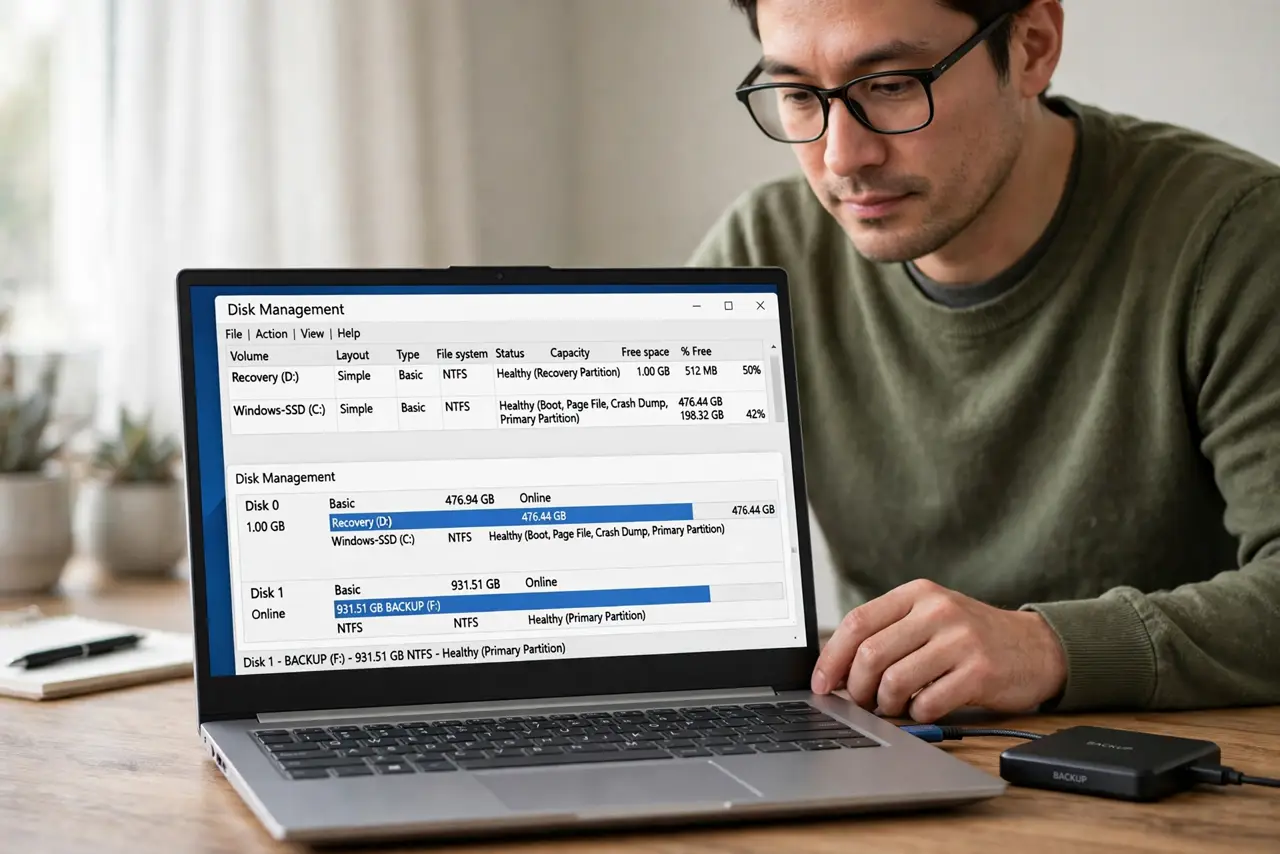
- Open Disk Management. Right-click Start and choose Disk Management. Find your external drive or second drive in the list and confirm it by its size and label before you change anything.
- Assign a high, unused letter. Right-click the drive, choose Change Drive Letter and Paths, then Assign a new letter. Pick a letter high in the alphabet, such as M or S, because low letters are more likely to be claimed by other devices.
- Restart and check the letter. Restart the computer, then open File Explorer and check that the drive still shows the letter you assigned. If it does, the assignment held.
- Fix broken shortcuts. If a shortcut still points to the old letter, right-click it, open Properties, and update the target path to the new letter. Delete shortcuts you no longer need instead of guessing.
- Keep the drive connected at startup. If the drive is external, connect it before you turn the computer on when you need a stable letter. A drive that appears late can still be assigned a different letter after a Windows Update restart.
- Check for a second drive claiming the letter. If the letter still changes, look in Disk Management for another drive using the letter you wanted. Give each drive its own distinct letter so they never compete.
What NOT to do
- Do not reformat the drive to fix a letter problem. Formatting erases everything on the drive, and a letter change never requires it.
- Do not assign the same letter to two drives. Windows cannot show both clearly, and one of them will keep disappearing from File Explorer.
- Do not edit drive settings in tools you found in a random forum post. Disk Management already does this job safely, without extra software.
- Do not ignore the problem and keep remaking shortcuts. Shortcuts will break again on the next reboot until the letter itself is stable.
Frequently asked questions
Why does the letter change at all?
Windows assigns letters in order at startup, so a drive that appears later can get a different free letter than it had before.
Is it safe to change a drive letter?
Yes, if you pick an unused letter and then update shortcuts. Your files stay untouched, because only the label Windows uses to find the drive changes.
What if the drive is missing, not just renamed?
Open Disk Management and look for the drive by size. If it is not listed at all, check the cable and port first, because a missing drive is a connection problem, not a letter problem.