Rearrange Displays? How To
The mouse hits an invisible wall between your monitors, or it exits left and enters on the wrong screen. Windows does not know your monitors' physical positions until you tell it — the arrangement diagram is that telling. Two minutes of dragging rectangles fixes every 'the cursor goes the wrong way' complaint permanently.
TL;DR / Quick Fix
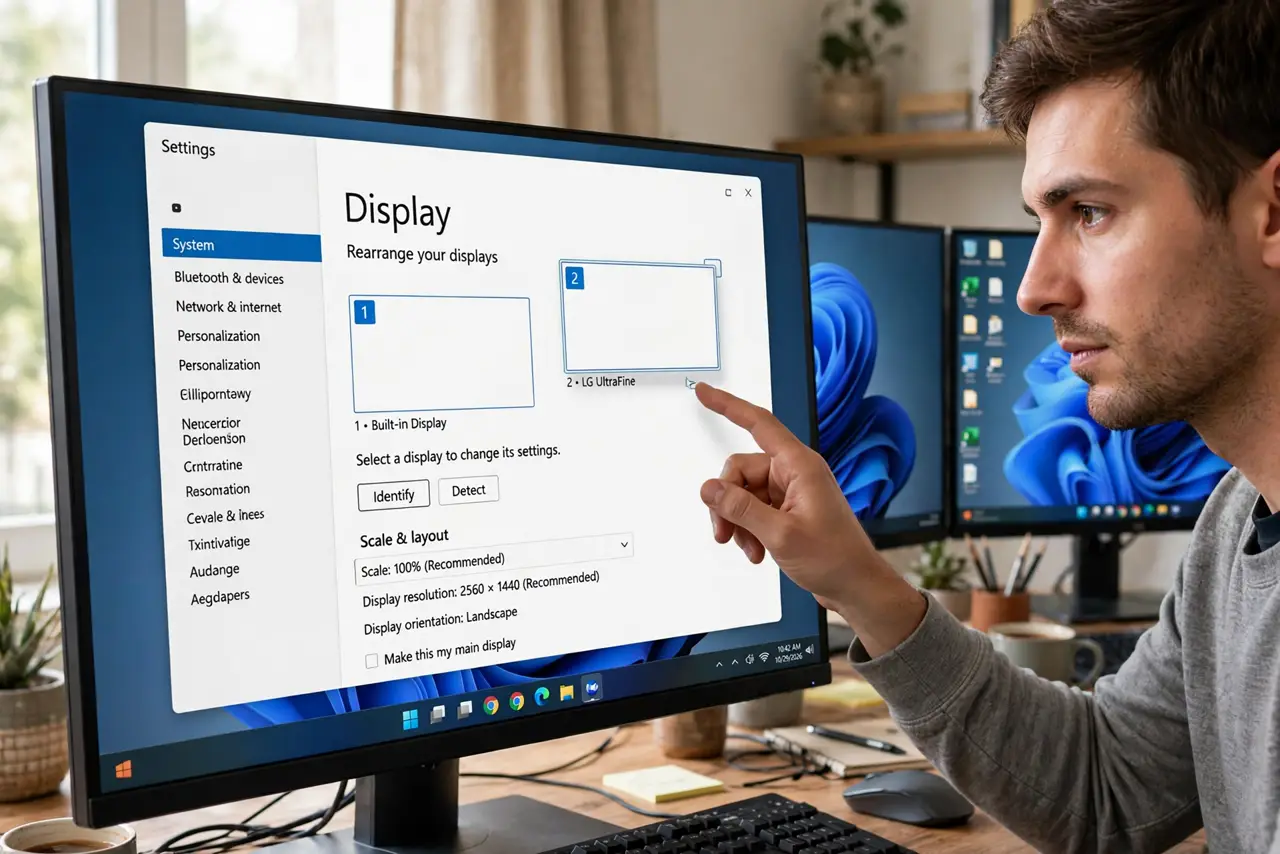
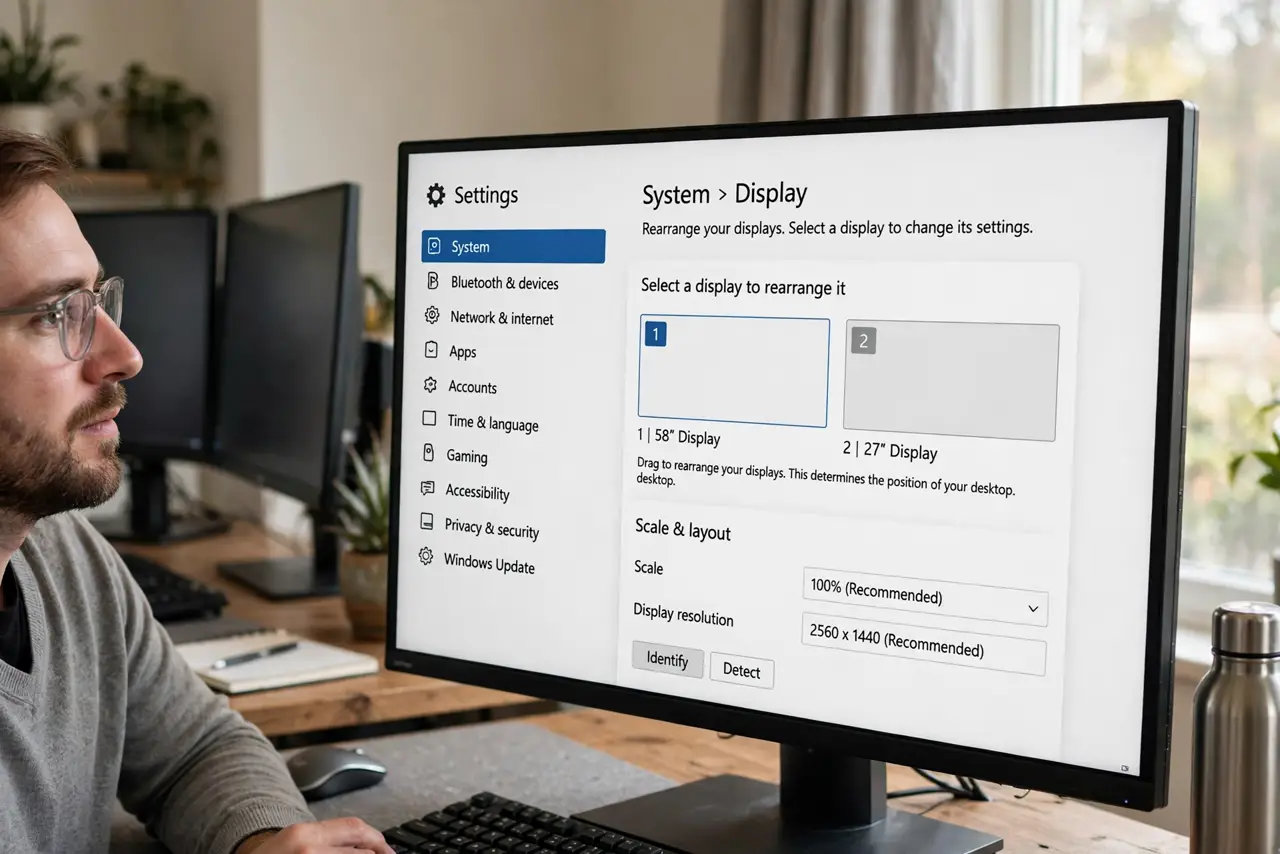
Quick fix: open Settings, go to System, then Display — drag the numbered rectangles until they match your physical desk layout, then click Apply. Click Identify first if you are unsure which number is which screen. When the diagram matches reality, the mouse glides between screens naturally.
Follow these steps
- Open the arrangement diagram. Go to Settings > System > Display. The top area shows your monitors as draggable numbered rectangles.
- Click Identify. Big numbers flash on each physical screen. Now you know which rectangle is which — no guessing.
- Drag to match your desk. Put the left monitor's rectangle on the left, align heights roughly if one screen is taller. The diagram is a map; make it accurate.
- Apply and test the mouse. Click Apply, then slide the cursor across the boundary. It should cross exactly where the screens physically meet.
- Align different sizes thoughtfully. With mismatched monitors, align the rectangles by the edge you use most — usually the bottom or the vertical center — to minimize cursor jumps.
- Recheck after mode changes. Switching between Duplicate and Extend or undocking a laptop can scramble the arrangement. Revisit the diagram when the mouse misbehaves.
What NOT to do
- Do not leave the diagram mirrored from reality. Every cursor complaint traces to rectangles that do not match the desk.
- Do not stack rectangles vertically unless the monitors are actually stacked. A vertical diagram with side-by-side screens makes the mouse teleport.
- Do not ignore the Identify step. 'I think 2 is the left one' is how arrangements end up backwards.
- Do not expect pixel-perfect cursor handoff with very different resolutions. Close alignment minimizes the jump; physics handles the rest.
Frequently asked questions
Why does the mouse get stuck between monitors?
The rectangles do not touch in the diagram, or one is offset vertically. Drag them so their edges meet where your screens meet.
Can I arrange three monitors?
Yes — drag all three rectangles into place. The same Identify-then-drag routine scales to any number of screens.
Does arrangement affect which is primary?
No. Arrangement controls mouse travel; the primary monitor controls the taskbar and new windows. Set both.