Try Dynamic Refresh Rate
Your laptop screen flickers between smooth and choppy, or the battery drains faster than it should — the refresh rate is probably locked at 60Hz or pinned at 120Hz with no middle ground. Dynamic refresh rate lets Windows shift between rates automatically: smooth when you scroll or game, frugal when you read. This guide enables it and sets expectations. Pair it with Game Mode for the full smoothness package.
TL;DR / Quick Fix
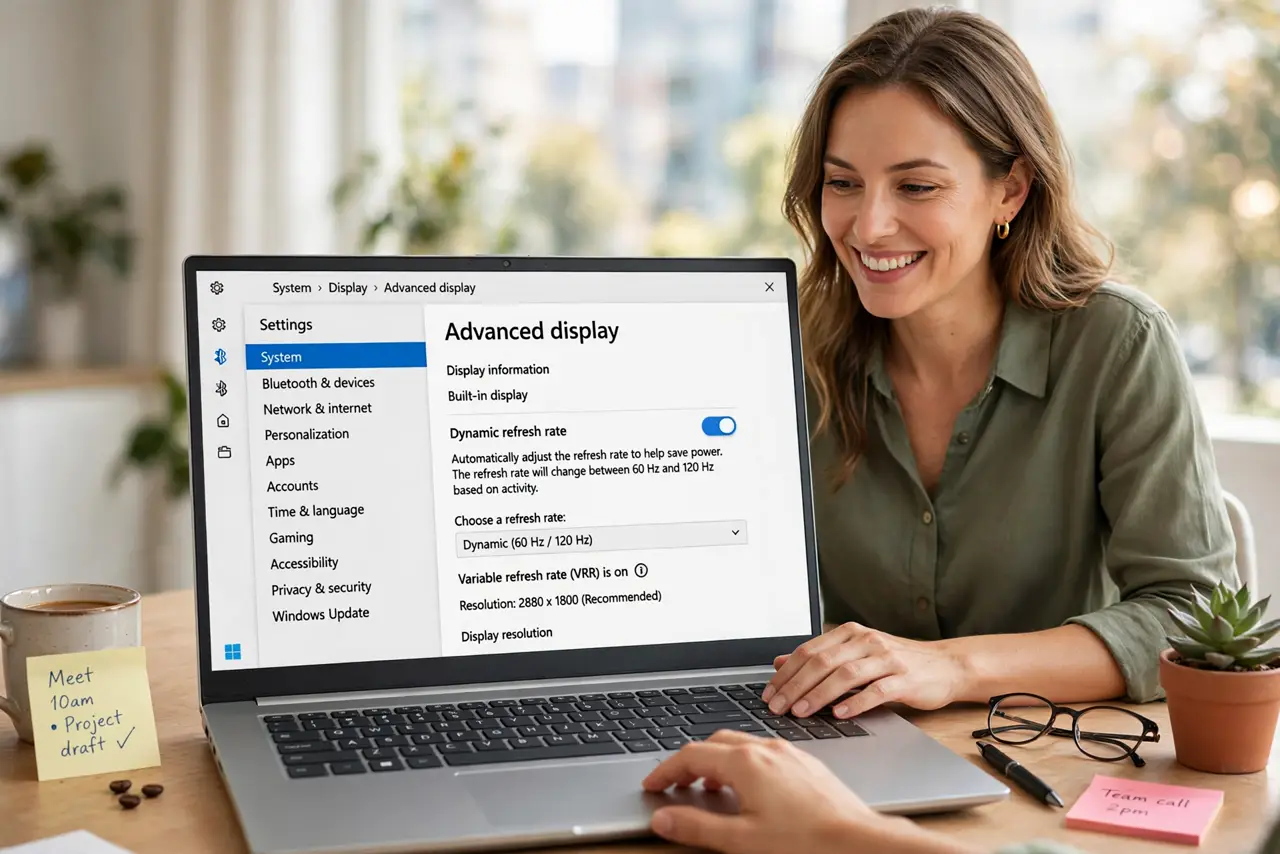
Quick fix: open Settings, go to System, then Display, then Advanced display, and set the refresh rate to Dynamic if your screen supports it. Windows then uses high refresh for motion and low for still content, saving battery. Unsupported displays simply will not show the option.
Follow these steps
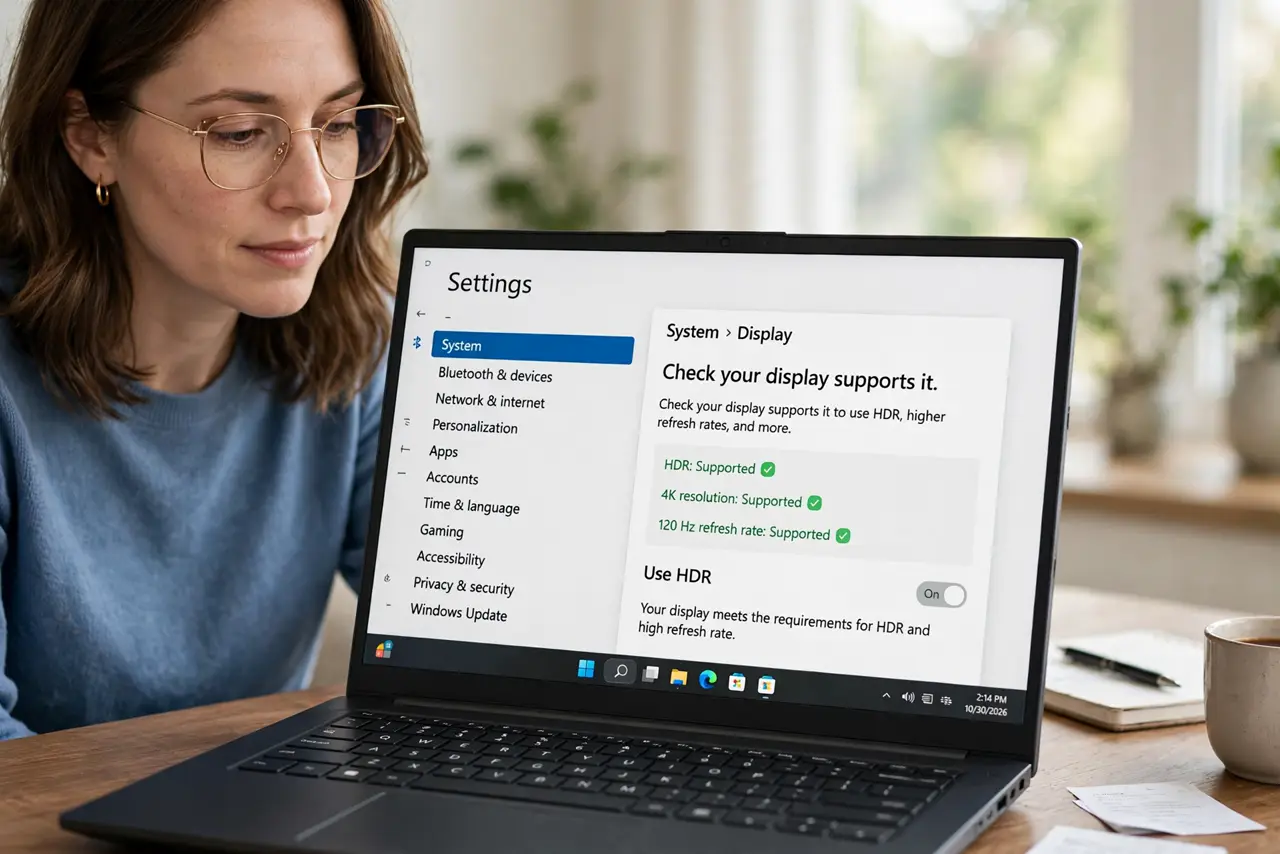
- Check your display supports it. Dynamic refresh needs a display with variable refresh support. Open Settings, then System, then Display, then Advanced display — if Dynamic is not listed, your panel does not support it.
- Enable Dynamic. In the refresh rate dropdown, choose Dynamic instead of a fixed number. Windows now shifts between rates based on what is on screen.
- Understand what it does. Scrolling, gaming, and video get the high rate for smoothness; static documents drop to low rates to save battery. You get both benefits without thinking about it.
- Pair it with Game Mode. Game Mode prioritizes the game; dynamic refresh smooths the display. Together they are the free performance combo — see the Game Mode guide.
- Watch for app quirks. A few older apps flicker or misbehave when the rate changes. If one app acts up, the per-app graphics settings can pin it to a fixed rate.
- Do not expect miracles on 60Hz panels. Dynamic refresh only helps on panels that go above 60Hz. On a standard 60Hz screen, the option does nothing — the hardware is the limit.
What NOT to do
- Do not force high refresh everywhere to 'feel smooth.' Fixed 120Hz on battery drains it fast — Dynamic is the smart setting.
- Do not blame Windows for a missing option. If Dynamic is not listed, the display hardware lacks support — no setting unlocks it.
- Do not expect it to fix game stutters. Refresh rate smooths the display; stutters from a weak GPU need different fixes.
- Do not toggle it constantly. Pick Dynamic and leave it — the point is that you never think about it again.
Frequently asked questions
Does dynamic refresh save battery?
Yes, noticeably on laptops — the screen is a major power draw, and dropping to low rates for static content adds real minutes.
Why does my screen flicker when it changes?
Some panels flicker slightly at rate transitions. If it bothers you, a fixed rate is the alternative — smoothness versus stillness.
Is it the same as adaptive sync?
Related but different. Adaptive sync (FreeSync/G-Sync) matches the display to the game's framerate; dynamic refresh adjusts for general content.