Try Game Mode
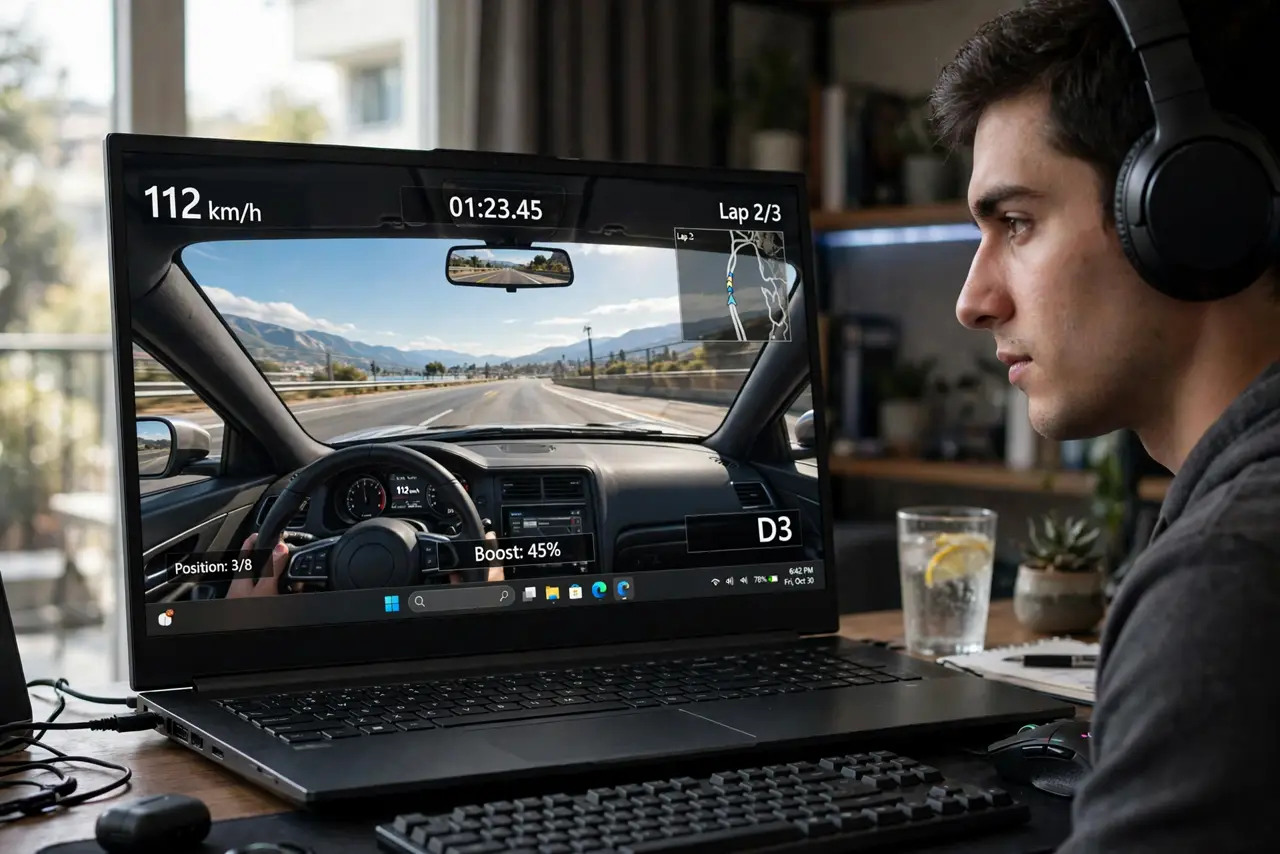
Your game stutters every time Windows decides to update, index files, or pop a notification mid-boss-fight. Game Mode is Windows' built-in answer: it prioritizes the game for CPU and GPU resources and quiets background activity while you play. It will not turn a weak PC into a gaming rig, but on the margins it smooths things out. This guide enables it, sets the supporting options, and knows its limits. For smoother visuals generally, try the dynamic refresh rate setting too.
TL;DR / Quick Fix
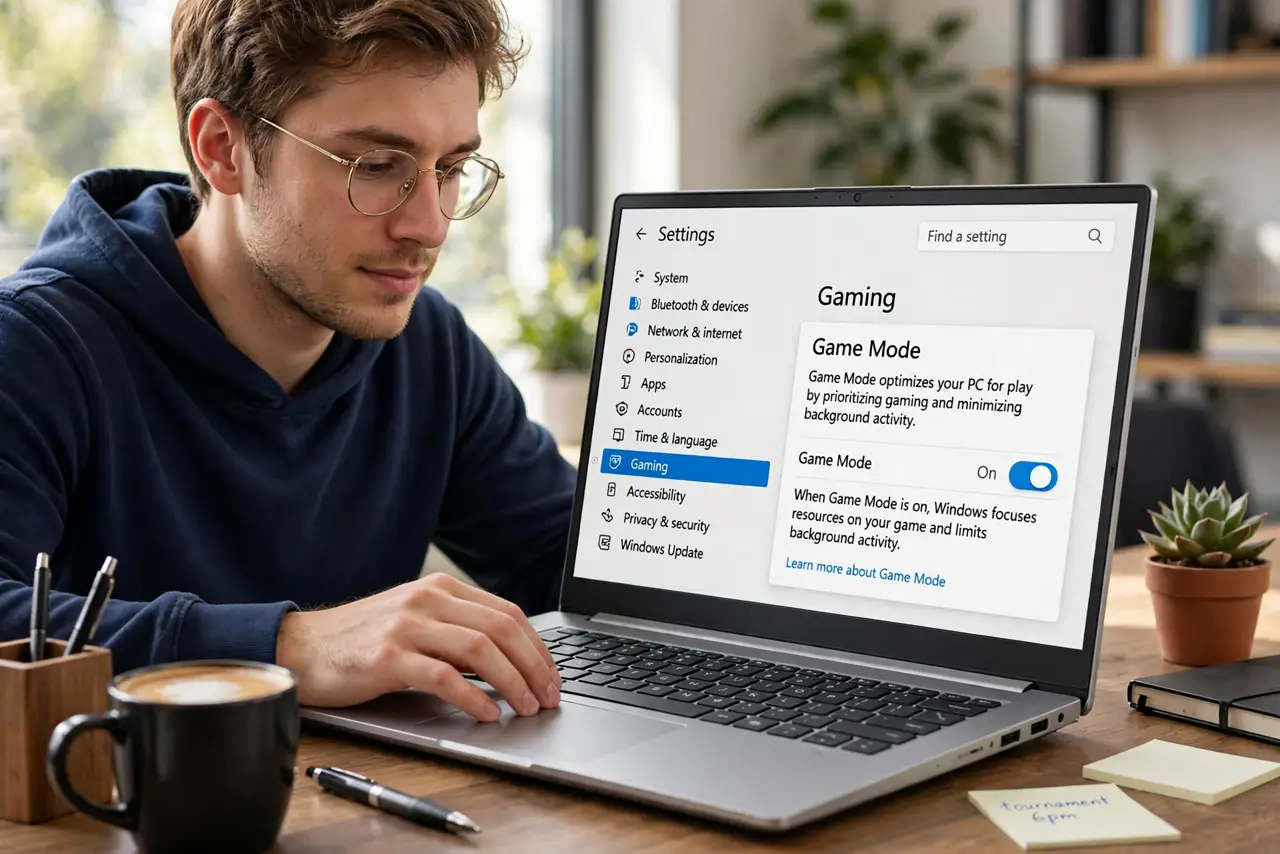
Quick fix: open Settings, go to Gaming, then Game Mode, and turn it on — Windows will prioritize games and suppress interruptions like updates and notifications while you play. Keep graphics drivers updated, since Game Mode cannot fix outdated drivers. Expect smoother frametimes, not miracles.
Follow these steps
- Turn on Game Mode. Go to Settings, then Gaming, then Game Mode, and switch it on. Windows now deprioritizes background tasks when a game is running and blocks most interruptions.
- Update your graphics drivers. Game Mode cannot compensate for ancient drivers. Update through the GPU maker's app or Windows Update — driver updates are the single biggest free performance win.
- Enable hardware-accelerated GPU scheduling. In Settings, then System, then Display, then Graphics, turn on hardware-accelerated GPU scheduling if available. It reduces latency slightly on supported hardware.
- Quiet notifications while playing. Turn on Do not disturb or set Focus to gaming hours. Game Mode suppresses many interruptions, but a manual quiet-hours rule catches the rest.
- Close heavy background apps. Game Mode helps, but a browser with forty tabs still eats RAM. Close the obvious hogs before launching — Task Manager shows the worst offenders.
- Measure, do not guess. Use the game's built-in FPS counter or the Xbox Game Bar overlay to check frametimes before and after. If nothing changed, your bottleneck is elsewhere.
What NOT to do
- Do not expect Game Mode to fix a weak GPU. It optimizes resource allocation; it cannot create performance that is not there.
- Do not disable Windows Security for gaming. The tiny performance cost is not worth the risk — Game Mode already minimizes its interference.
- Do not install 'game booster' utilities. They do what Game Mode does, plus ads and background services of their own.
- Do not game on a laptop without power. Battery power throttles performance hard — plug in for the full experience.
Frequently asked questions
Does Game Mode actually help?
Modestly — smoother frametimes and fewer interruptions. It is free and harmless, so there is no reason not to use it.
Why is Game Mode missing?
Very old Windows 10 builds predate it, and some managed work PCs disable it. Update Windows or check with your admin.
Should I use it for non-game apps?
It activates for recognized games. For heavy creative apps, the same principles apply manually: close background apps and silence notifications.