Disable Pointer Precision
Your aim in games feels floaty and inconsistent — the cursor travels different distances for the same hand movement depending on speed. That is 'Enhance pointer precision,' Windows' mouse acceleration, and gamers have disabled it for decades because consistent aim needs a 1:1 relationship between hand and cursor. This guide turns it off properly and sets a sensible sensitivity. For smoother visuals to match, try the dynamic refresh rate.
TL;DR / Quick Fix
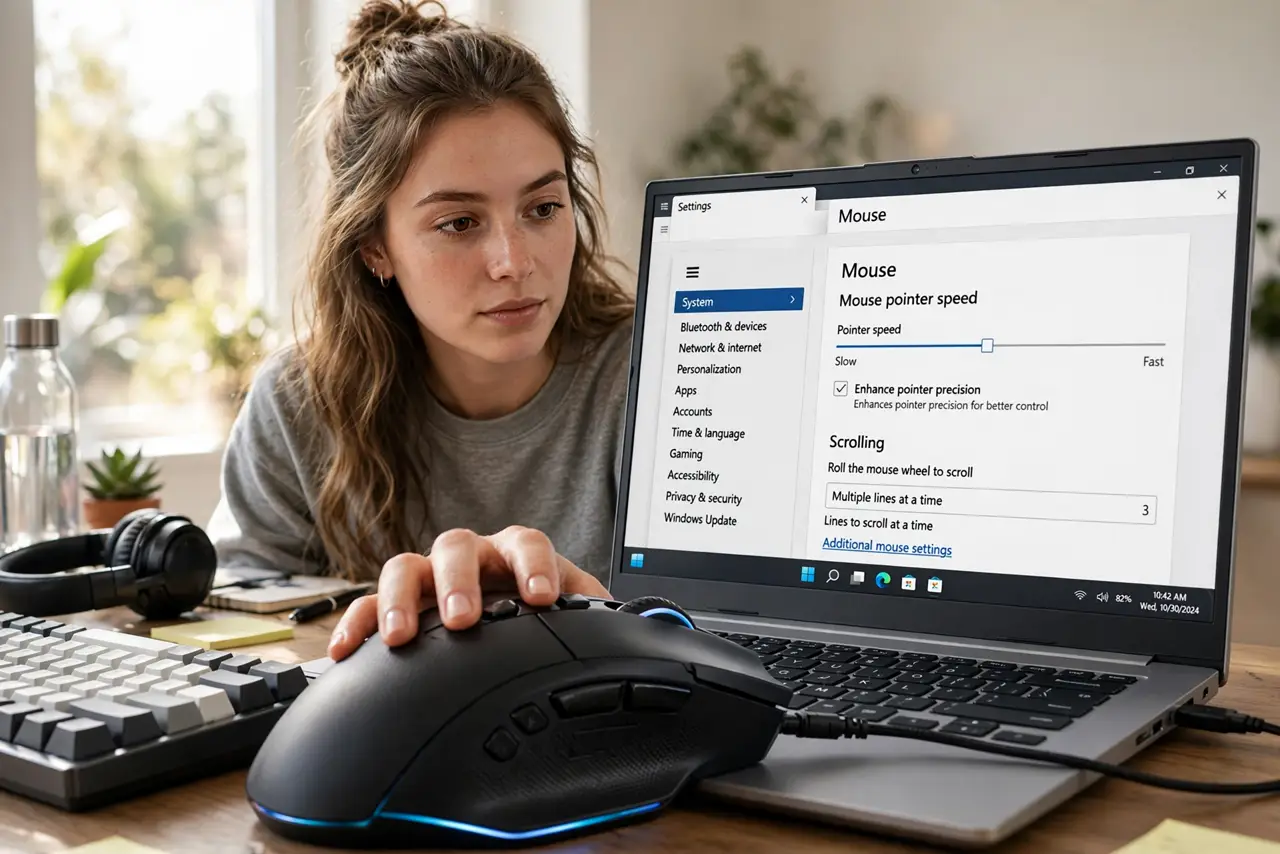
Quick fix: open Settings, go to Bluetooth and devices, then Mouse, then Additional mouse settings, and uncheck Enhance pointer precision on the Pointer Options tab. Set a comfortable pointer speed and leave it — consistency matters more than speed. Give your aim a few days to adjust.
Follow these steps
- Open the classic mouse settings. Go to Settings, then Bluetooth and devices, then Mouse, then Additional mouse settings. The old-school dialog holds the precision toggle Windows hides from the modern page.
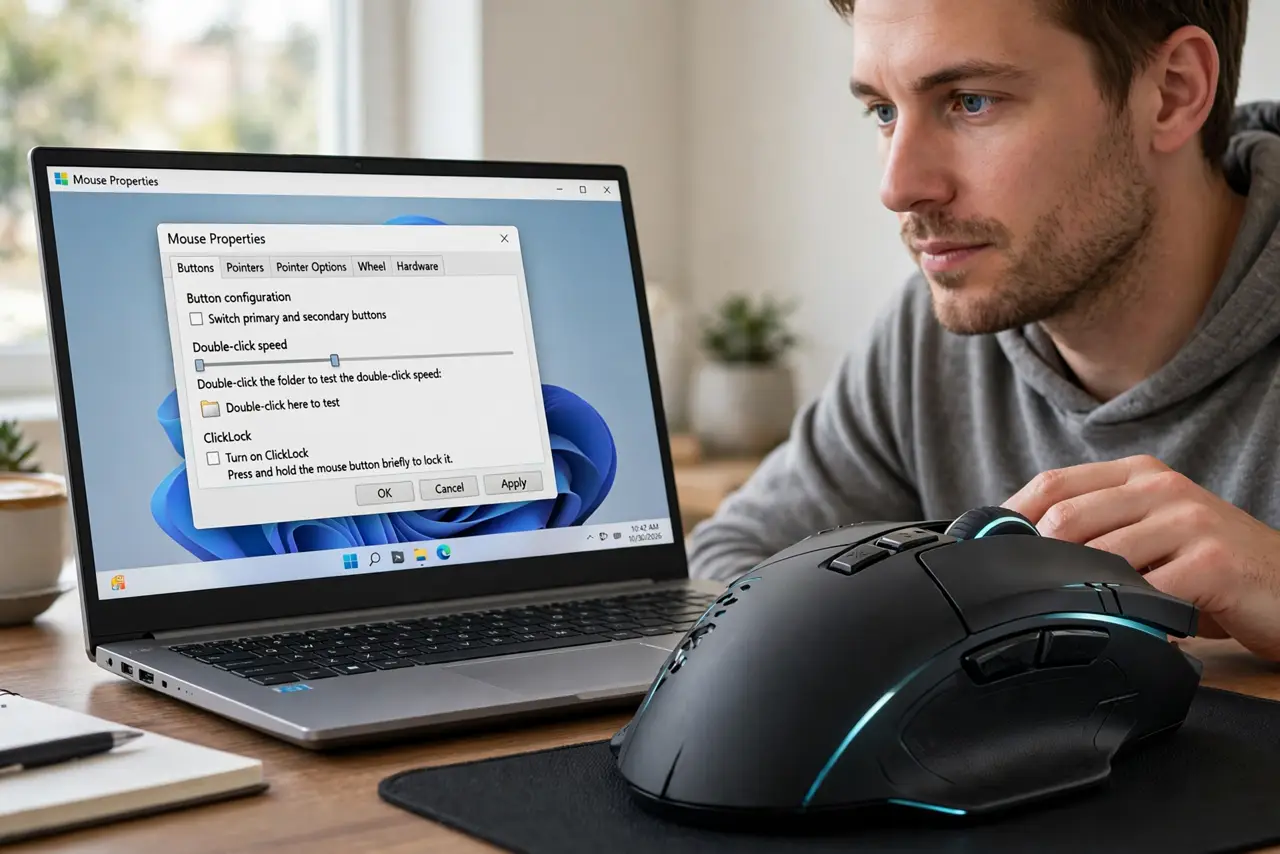
- Uncheck Enhance pointer precision. On the Pointer Options tab, uncheck Enhance pointer precision and click Apply. This disables mouse acceleration — the cursor now moves the same distance for the same hand movement, always.
- Set a sensible pointer speed. Pick a middle speed on the same tab. Very high speeds with acceleration off feel twitchy; very low speeds need huge mousepad sweeps — middle is the starting point.
- Adjust in-game sensitivity instead. With acceleration off, tune sensitivity inside each game rather than in Windows. In-game settings are designed for this; Windows speed is the coarse control.
- Give it a few days. Your muscle memory learned the acceleration curve over years. Expect a week of slightly-off aim while it relearns — then enjoy the consistency.
- Consider the mousepad too. A consistent surface matters as much as settings. A worn or tiny pad undermines the precision you just unlocked — size and condition count.
What NOT to do
- Do not crank pointer speed to maximum instead. High speed without acceleration is twitchy; the goal is consistency, not velocity.
- Do not toggle it per game. Pick one setting — off — and adapt; switching back and forth prevents muscle memory from forming.
- Do not install mouse 'fix' registry hacks from forums. The checkbox does the job officially — registry edits risk more than they fix.
- Do not forget this is per-PC. A new computer or a fresh Windows install resets it — recheck after setup.
Frequently asked questions
What does Enhance pointer precision actually do?
It accelerates the cursor based on how fast you move the mouse. Fine for office work, terrible for consistent aiming — the same flick travels different distances.
Will this help non-gamers?
For precise work like photo editing, yes — consistent cursor behavior helps. For casual browsing, most people never notice either way.
Why does my aim feel worse at first?
Years of muscle memory learned the old curve. A few days of play rebuilds it — the initial awkwardness is normal and temporary.