Organize Research with Collections
Researching a trip, a purchase, or a project leaves tabs scattered everywhere — and good luck finding that one page again tomorrow. Edge's Collections let you gather pages, images, and notes into named folders that live in the sidebar, synced across devices. This guide sets up your first collection in minutes.
TL;DR / Quick Fix
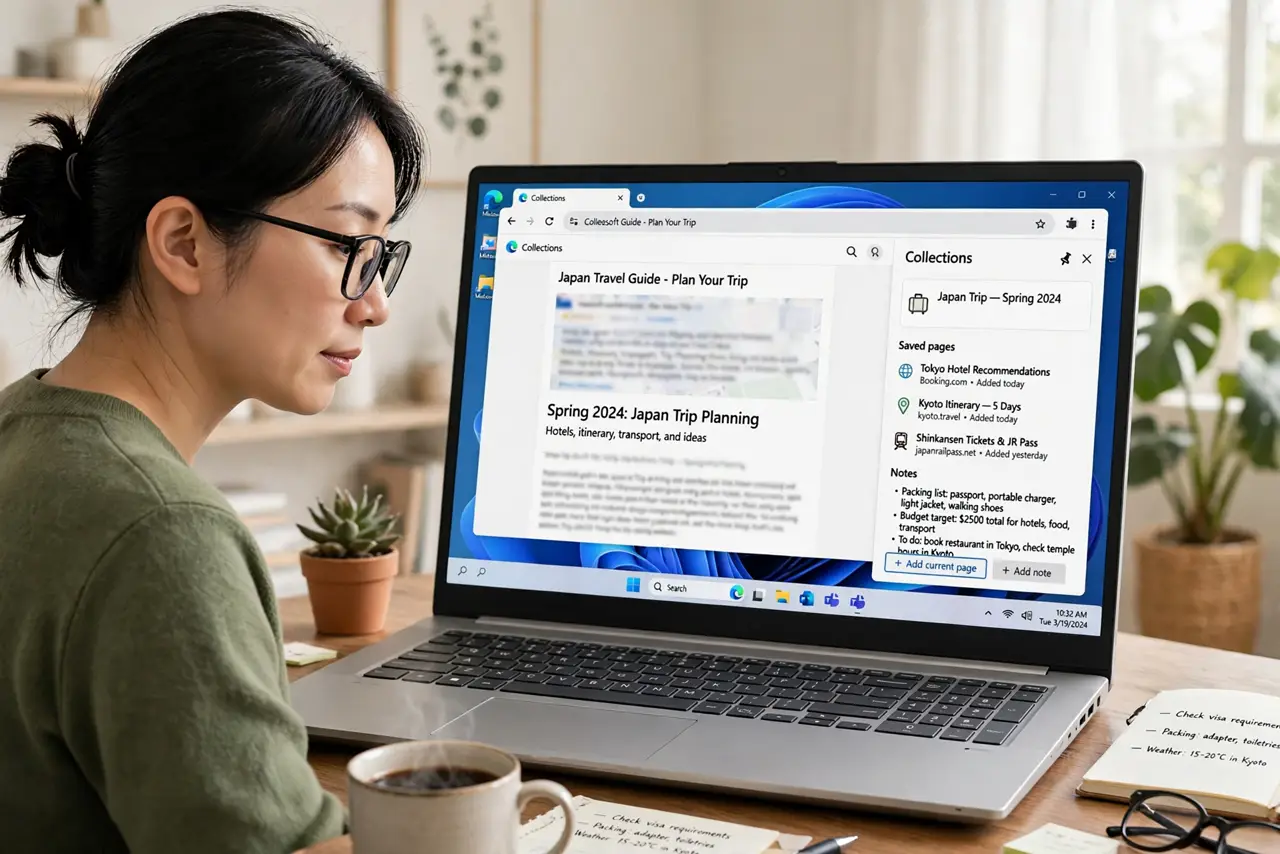
Quick fix: in Edge, click the Collections icon in the toolbar and start a new collection with a clear name. As you browse, right-click pages or drag them into the collection, and add notes at the top. Everything syncs to your other devices on the same account.
Follow these steps
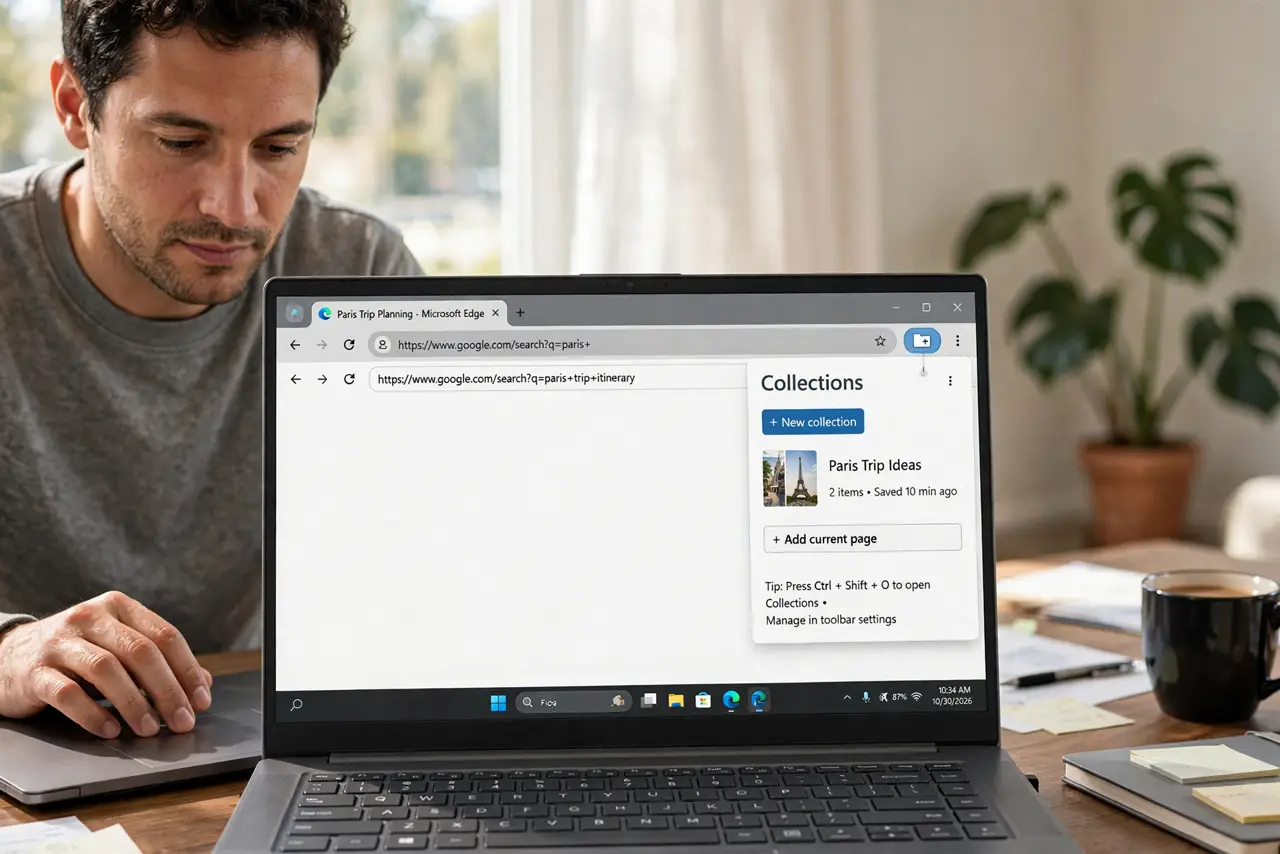
- Open the Collections panel. Click the Collections icon in the Edge toolbar — it looks like a folder with a plus. If you do not see it, press Ctrl+Shift+O or add it via the toolbar settings.
- Start a new collection. Click Start new collection and give it a clear name like 'Japan trip' or 'New laptop research.' One collection per project keeps things findable.
- Add pages as you browse. Right-click any page and choose Add page to Collections, or drag the tab straight into the panel. Add images by right-clicking them too.
- Add notes at the top. Click Add note to write reminders — prices to compare, questions to answer, the decision deadline. Notes turn a link pile into actual research.
- Reorder and tidy. Drag items to reorder, delete the duds, and rename the collection as the project sharpens. Five minutes of tidying beats an hour of re-searching.
- Access it on other devices. Collections sync through your Microsoft account. Your phone's Edge app shows the same collections — research on the couch, read on the laptop.
What NOT to do
- Do not use collections as a second bookmark bar. Collections are for active projects — finished research should be archived or deleted.
- Do not create one giant 'stuff' collection. A single dumping ground is just tabs again; one collection per project is the system.
- Do not forget notes. Links without context are mysteries in a week — the note explaining why you saved it is the valuable part.
- Do not skip the sync check. If collections do not appear on your phone, verify both devices sign into the same Microsoft account.
Frequently asked questions
Do collections work in other browsers?
Collections are an Edge feature. Chrome has a similar Reading List, but collections with notes are Edge-specific.
Can I share a collection with someone?
Yes — Edge lets you share a collection link or export it to Word, Excel, or Pinterest for trip planning with others.
Is there a limit to collection size?
Collections handle hundreds of items, but they work best curated. If one grows past fifty items, split it.