Read Pages Without the Clutter
Long articles buried under popups, autoplay videos, and sticky ads are miserable to read. Edge's Immersive Reader strips a page down to clean text on a calm background — no clutter, adjustable text size, even read-aloud. This guide shows how to open it and tune it for comfortable reading.
TL;DR / Quick Fix
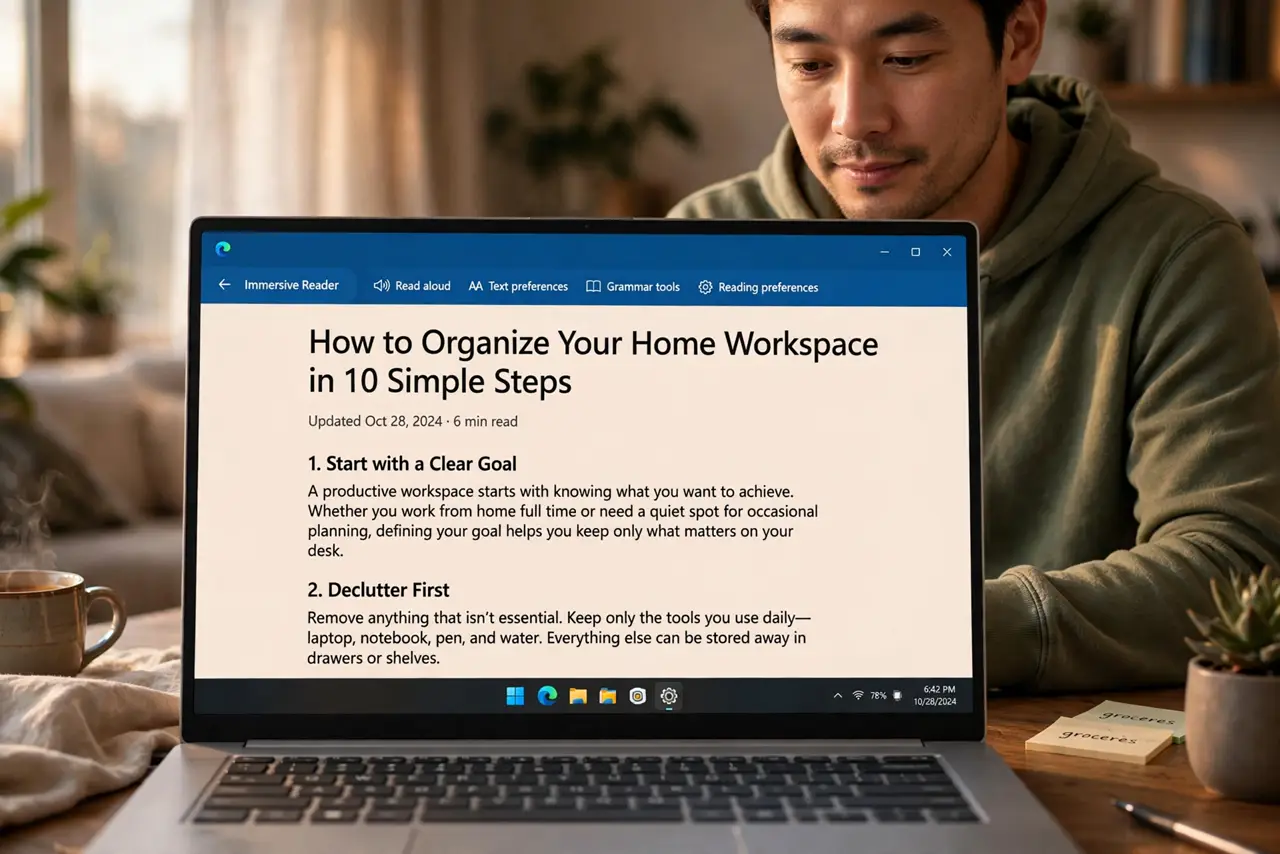
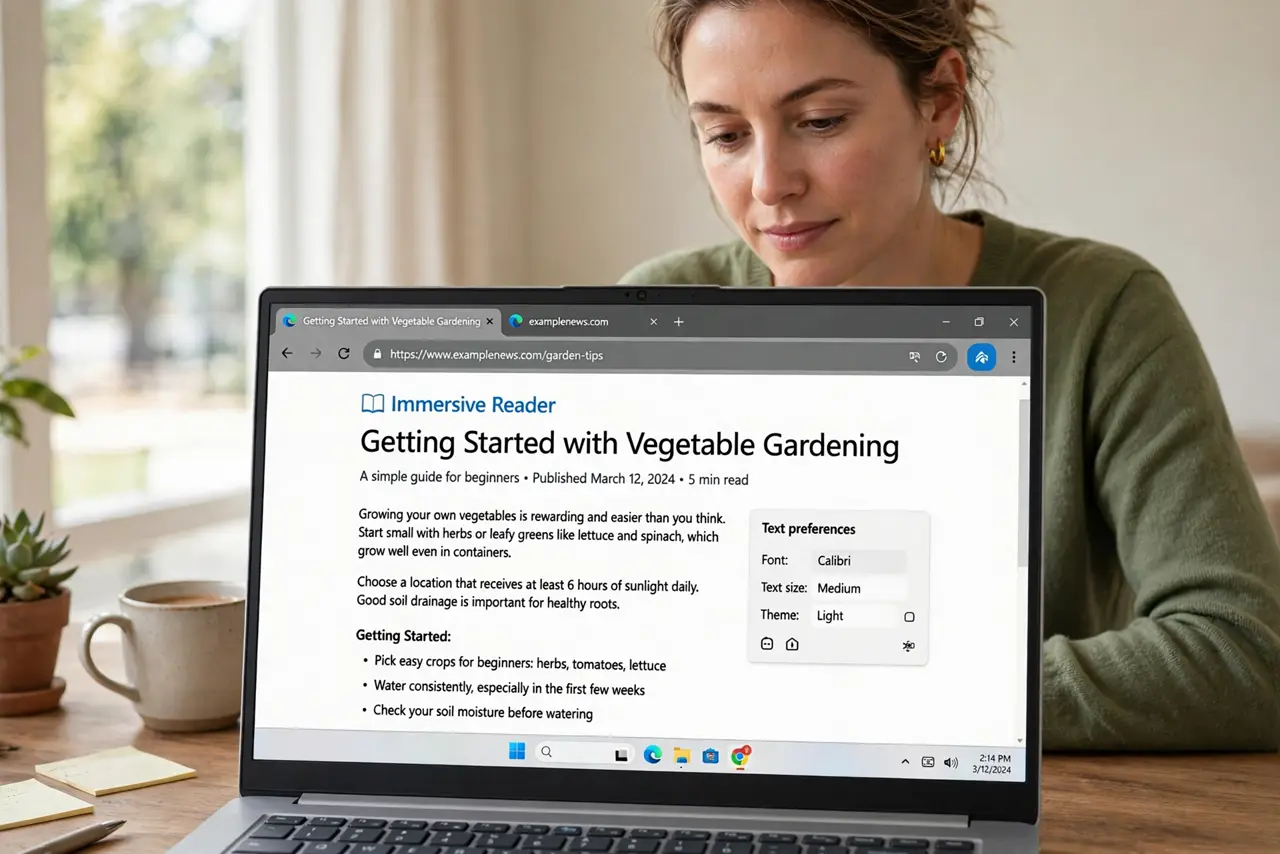
Quick fix: open the article in Edge and click the Immersive Reader icon in the address bar (the book with a speaker). The page reformats into clean, resizable text. Use the text preferences to adjust size, spacing, and theme, or press the read-aloud button to have it narrated.
Follow these steps
- Open the article in Edge. Navigate to the article you want to read. Immersive Reader works on article-style pages — news stories, blog posts, guides.
- Click the Immersive Reader icon. In the address bar, click the book-with-speaker icon. If the icon is grayed out, the page is not article-shaped — try the site's main story pages.
- Adjust text preferences. Click Text preferences to change text size, spacing, and page theme. Larger text with generous spacing is dramatically easier on the eyes for long reads.
- Try read-aloud. Click Read aloud and Edge narrates the article, highlighting each word as it goes. Great for skimming while doing something else — and for accessibility.
- Use the grammar tools if useful. Immersive Reader can split words into syllables and highlight parts of speech — surprisingly handy for language learners and young readers.
- Exit with the address bar. Click the Immersive Reader icon again or press Escape to return to the normal page. Your preference settings are remembered.
What NOT to do
- Do not expect it on every page. Homepages, galleries, and interactive pages are not article-shaped — the icon stays gray there.
- Do not use it to dodge paywalls. Stripping the clutter does not grant access to subscriber content, and trying looks shady.
- Do not forget Safari has its own version. On a Mac or iPhone, Reader mode does the same job.
- Do not leave the default tiny text. The whole point is comfortable reading — bump the size up until it feels easy.
Frequently asked questions
Why is the Immersive Reader icon grayed out?
The page is not recognized as an article — homepages, video pages, and shops do not qualify. Open an actual article page.
Can I print from Immersive Reader?
Yes — printing from the reader view gives you a clean, ad-free printout of just the article text.
Does read-aloud work offline?
The basic voices work offline; the most natural voices may need a connection to download first.