Have Edge Read Pages Aloud
That 4,000-word article is exactly what you need to read, but your eyes are done for the day. Microsoft Edge has a built-in read-aloud feature that narrates any web page in a natural voice — no extensions, no subscriptions, no setup. It is ideal for long reads, proofreading your own writing, and accessibility. This guide shows how to start it and tune it.
TL;DR / Quick Fix
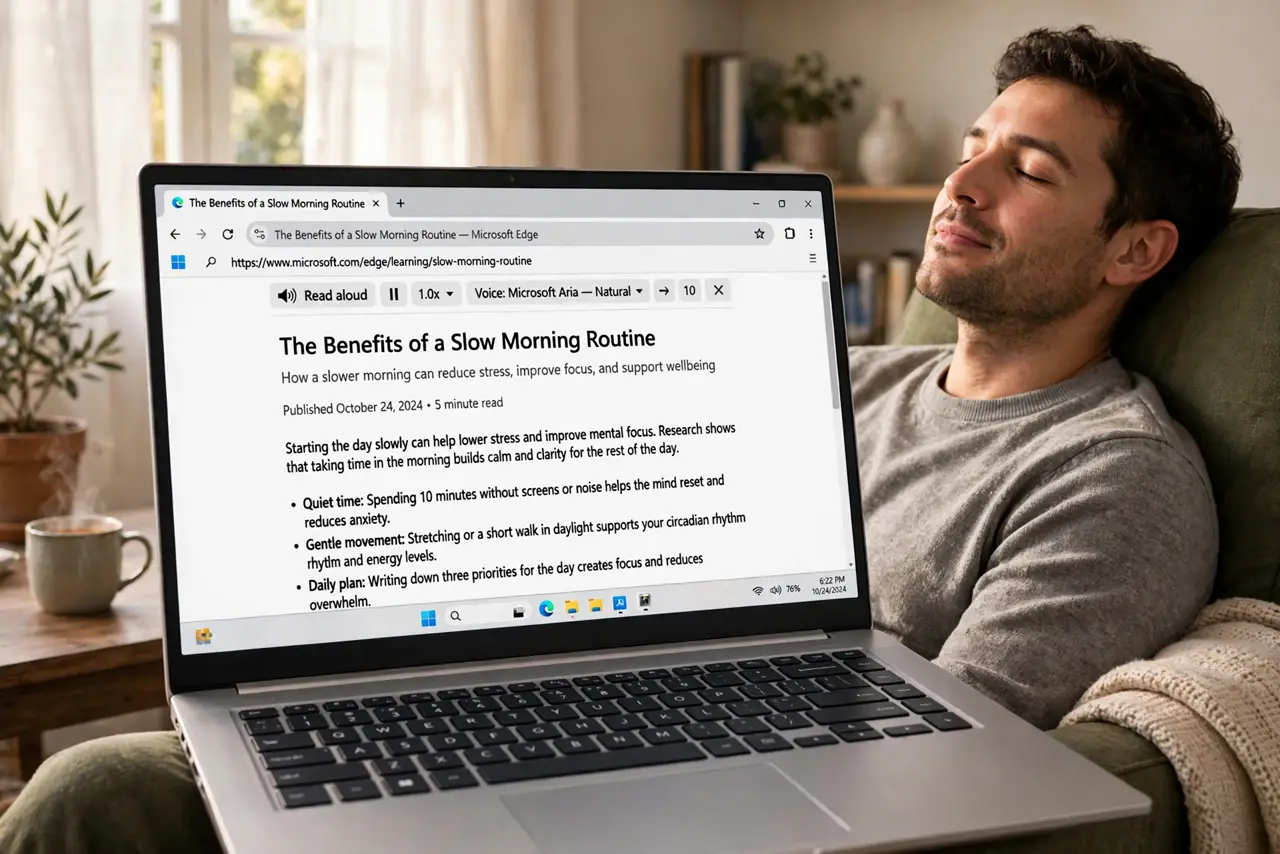
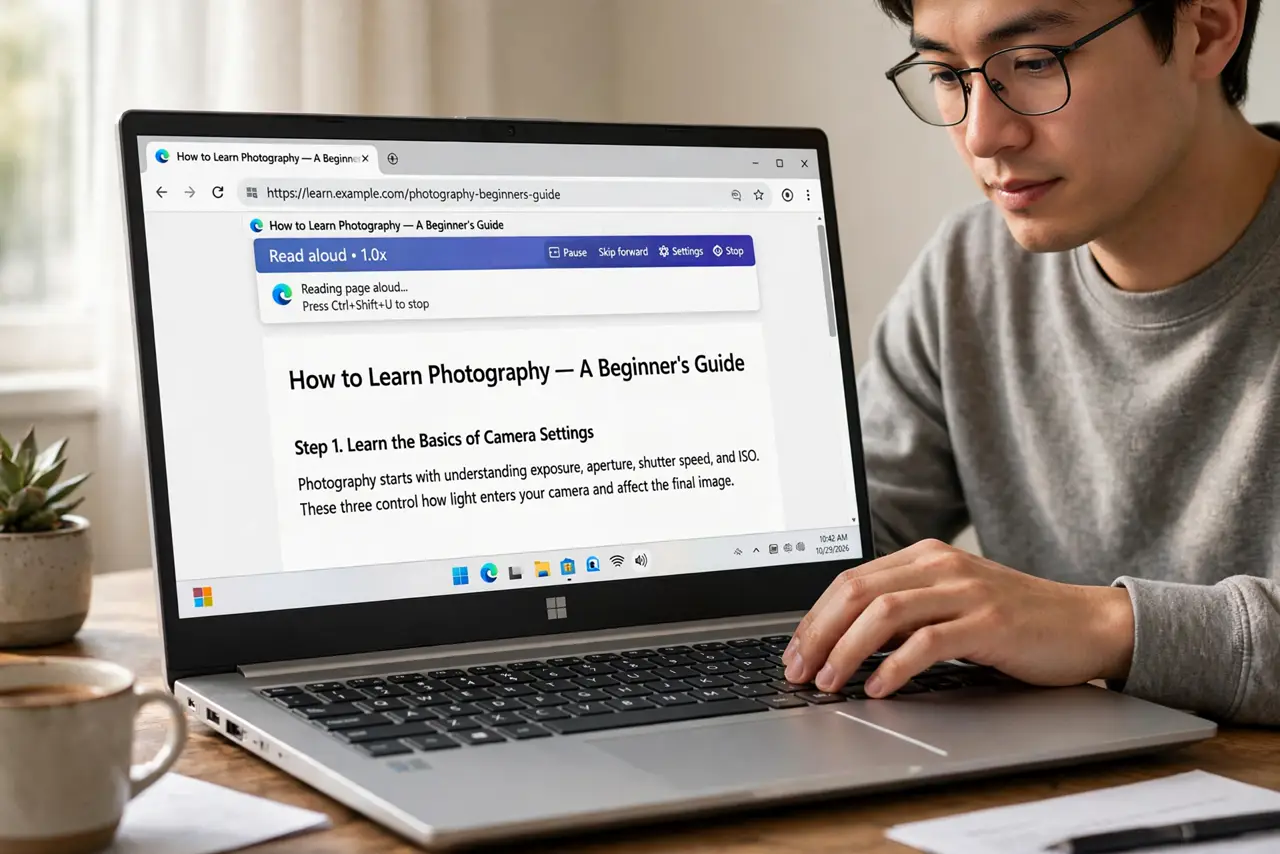
Quick fix: Microsoft Edge can read any article aloud — press Ctrl+Shift+U, or right-click and choose Read aloud. A toolbar appears with play, pause, speed, and voice options. Perfect for long reads when your eyes are tired, and it keeps going if you switch tabs.
Follow these steps
- Start it with the keyboard shortcut. Press Ctrl+Shift+U on any page and Edge begins reading immediately. This is the fastest way — one shortcut, no menus, works on articles, docs, and most text-heavy pages.
- Or start it from the right-click menu. Right-click anywhere on the page and choose Read aloud. Useful when you forget the shortcut, or when you want to start reading from a specific paragraph — right-click near where you want to begin.
- Pick a voice you can stand. Open the voice options in the read-aloud toolbar and try several. The natural neural voices are dramatically better than the old robotic ones — a voice you like is the difference between finishing the article and giving up.
- Adjust the speed. The toolbar has a speed control. Slightly faster than default (around 1.1x to 1.25x) suits most listeners for informational reading; slow it down for dense or technical material.
- Let it run in the background. Read aloud keeps narrating if you switch tabs or minimize Edge. Queue up the article, switch to your notes or email, and listen while you do light work — similar to how Word read aloud works for documents.
- Use it to proofread your own writing. Hearing your draft read back exposes awkward sentences and typos your eyes skip. Paste anything into an Edge tab — even a blank page with your text — and let it read.
What NOT to do
- Do not expect it on every page. Pages that are mostly images, or sites that block text selection, may give it nothing to read.
- Do not leave the default robotic voice on. The old voices are fatiguing; switching to a natural voice takes ten seconds and changes everything.
- Do not use it as a screen reader replacement. Read aloud is a convenience feature — people who need full accessibility should use a dedicated screen reader like Narrator.
- Do not crank the speed to maximum immediately. Comprehension collapses past your personal limit; nudge it up gradually over days.
Frequently asked questions
Does Read aloud work on PDFs?
Yes — open the PDF in Edge and start Read aloud the same way. It handles text-based PDFs well; scanned image PDFs need OCR first.
Can I use it on my phone?
Edge on mobile has a read-aloud option in the menu too, with the same voice choices. Handy for articles on the commute.
Why did it stop mid-page?
Usually the page lazy-loads content as you scroll, and the reader reached the end of what was loaded. Scroll down to load more text, then restart from that paragraph.