View Two Pages Side by Side
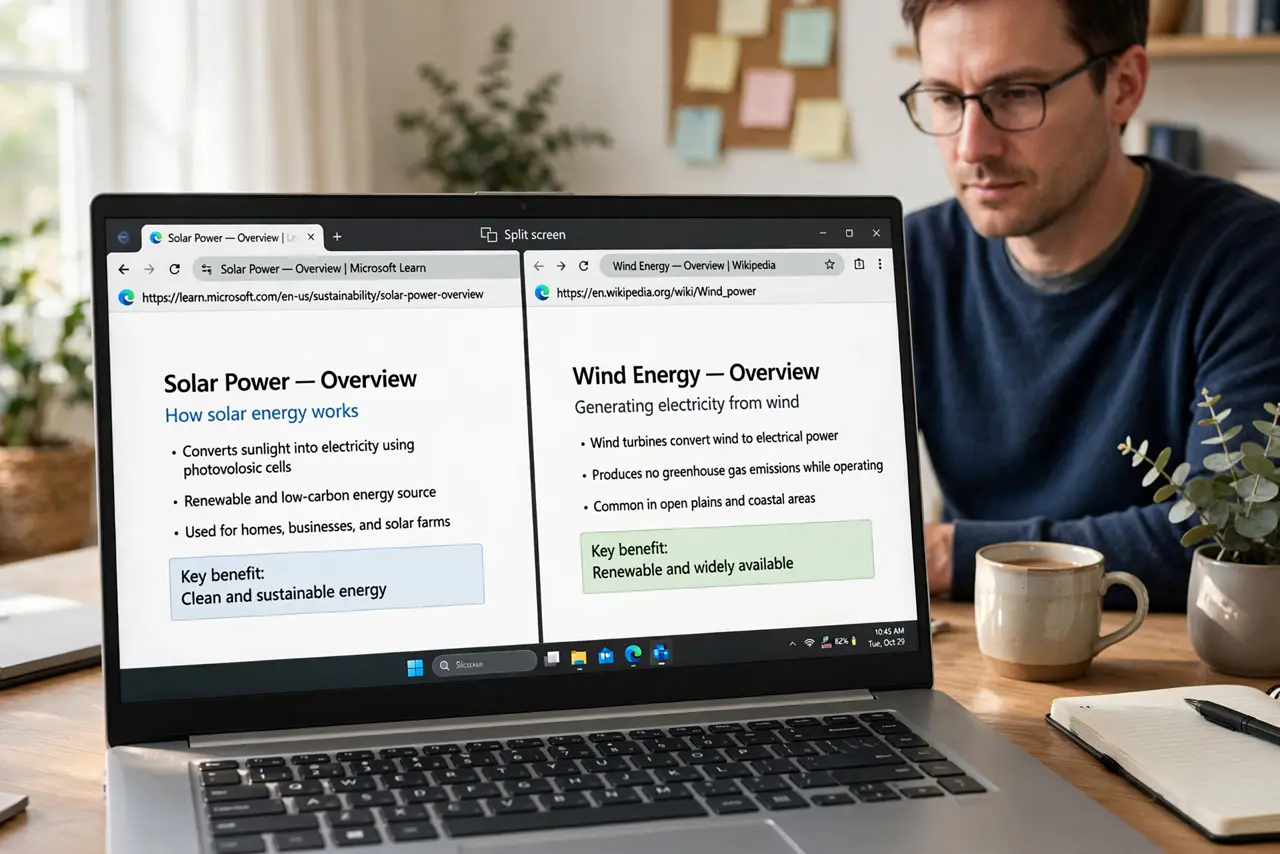
You are comparing two pages — prices, specs, drafts — and Alt-Tabbing between them is driving you mad. Edge has split screen built right in: two pages side by side in a single window, no window-juggling required. It is one of Edge's best underused features. This guide shows the two ways to split and how to manage it.
TL;DR / Quick Fix
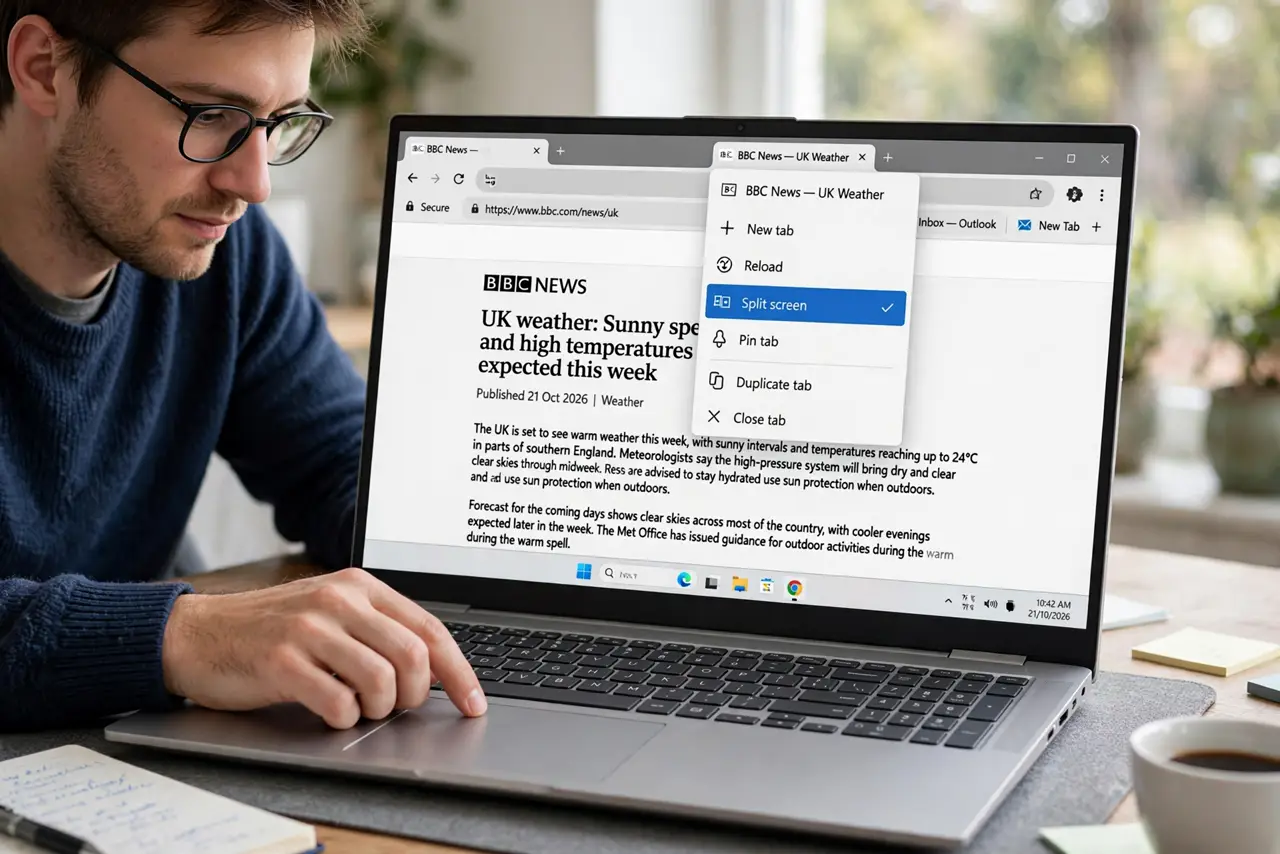
Quick fix: Edge has split-screen built in — right-click a tab to open a split window, or drag a tab to the screen edge. Two pages sit side by side in one window, perfect for comparing. Drag the divider to resize, and close the split from the address bar.
Follow these steps
- Split from the tab menu. Right-click any tab and choose the split-screen option. The current page takes one side; pick the second page from your open tabs or open a new one — you are comparing in seconds.
- Or drag a tab to the edge. Drag a tab toward the left or right edge of the window until the split indicator appears, then drop it. This is the fastest method once it becomes muscle memory.
- Drag the divider. The line between the pages resizes with a drag — give more room to the page you are reading closely. Each side scrolls and zooms independently.
- Use it inside Workspaces. Split screen shines within Edge Workspaces: a project workspace with a split comparison view is the organized-research setup that ends tab chaos for good.
- Close the split cleanly. Use the split controls in the address bar area to exit split view. Closing returns both pages to normal tabs — nothing is lost, the split was just a view.
- Learn the keyboard shortcut. Edge offers a shortcut to toggle split screen. For frequent comparers — shoppers, researchers, editors — the shortcut turns a feature into a reflex.
What NOT to do
- Do not split tiny windows. Split screen needs width — on a small laptop screen at low resolution, two cramped pages beat one readable one. Go fullscreen first.
- Do not forget each side is independent. Scrolling, zooming, and navigation on one side do not affect the other — that independence is the point.
- Do not use it for more than two pages. Split screen is a two-up tool; for three or more sources, use separate windows or a workspace.
- Do not confuse it with Windows Snap. Snap arranges windows; Edge split screen divides one window — similar result, but the Edge version keeps everything in one tab strip.
Frequently asked questions
Can I split vertically?
Edge's split is side-by-side. For top-and-bottom, use two Windows Snapped windows instead — different tool, same idea.
Does split screen work with vertical tabs?
Yes — split screen and vertical tabs combine fine. The tab strip stays vertical while the content area splits.
Why did my split disappear?
Navigating both sides to the same page or closing one side ends the split. Re-split from the tab menu — it takes two seconds.