Group Tabs with Workspaces
Your tabs are a war zone: the work project, the vacation planning, the rabbit hole from lunch — all jumbled in one window, and finding anything means scrolling through chaos. Edge Workspaces fix this by giving each project its own named window with its own tab set. Switch projects, not tab hunts. This guide sets them up.
TL;DR / Quick Fix
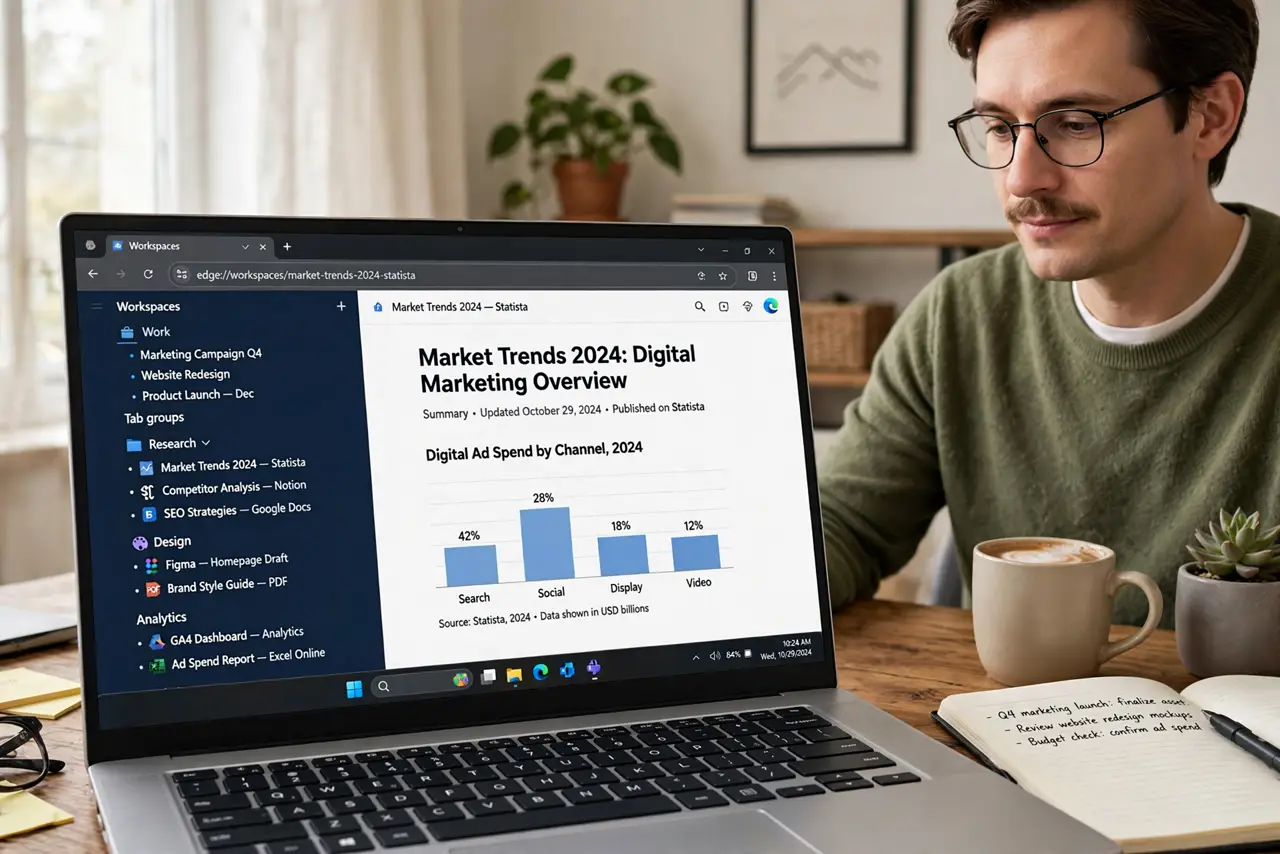
Quick fix: Edge Workspaces let you group tabs by project — work, trip planning, research — each in its own named window with its own tab set. Create one per project from the Workspaces menu, and switch contexts without tab chaos. It beats tab groups for separating whole projects cleanly.
Follow these steps
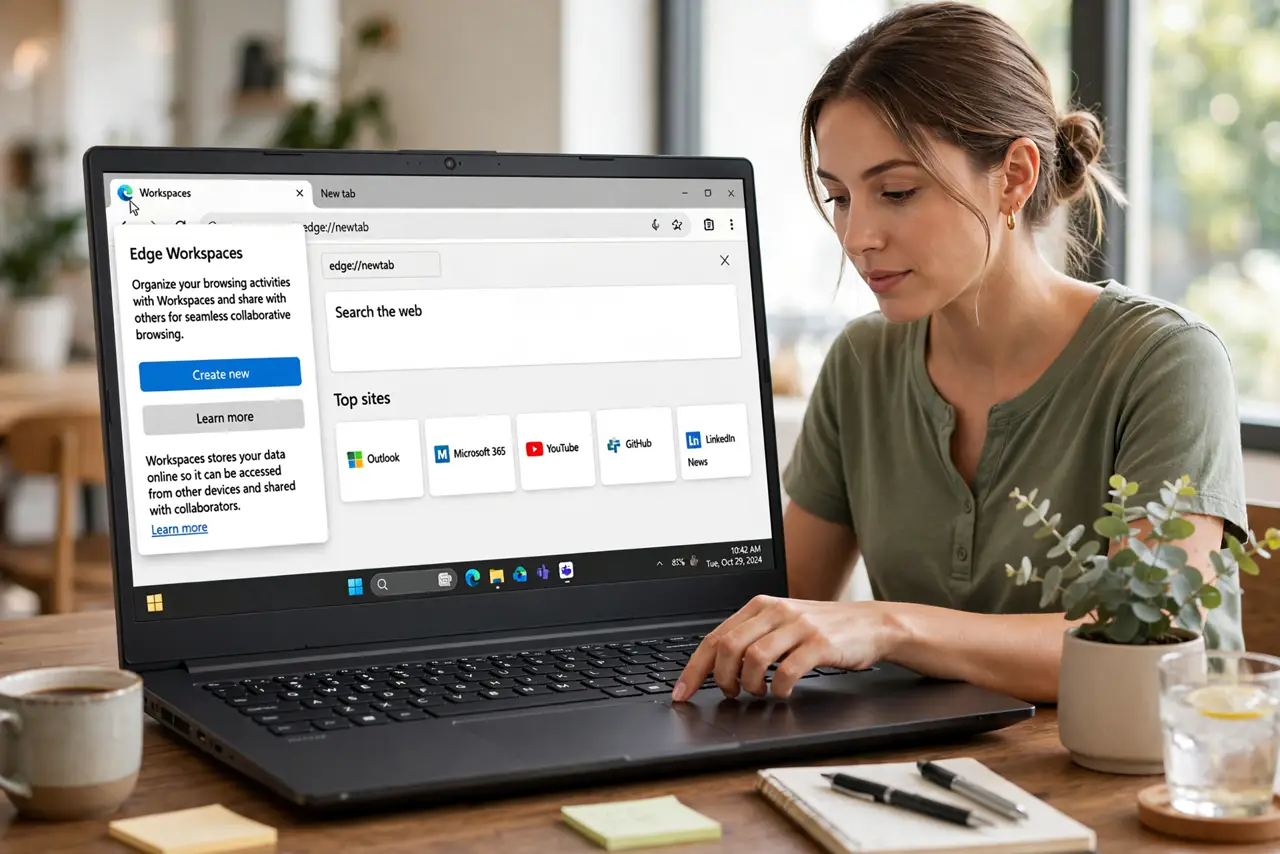
- Open the Workspaces menu. Click the Workspaces icon in the top-left of Edge (a small window-like icon). If you do not see it, enable it in Settings under Appearance — it is the gateway to the whole feature.
- Create a workspace per project. Name each workspace for its project: 'Q3 Report,' 'Japan Trip,' 'Kitchen Remodel.' Each gets its own window and tab set — projects stop bleeding into each other the moment they have separate homes.
- Add the relevant tabs. Open the tabs each project needs inside its workspace. Favorites and history stay shared, but the tab strips stay separate — that separation is the feature.
- Switch with the menu, not memory. Jump between projects from the Workspaces menu or its keyboard shortcut. No more hunting through forty tabs for the one you need — each context is one click away.
- Pair with split screen for comparisons. Inside a workspace, use split screen when a project needs two pages side by side. Workspaces organize projects; split screen organizes views within them.
- Close workspaces, not tabs. When a project pauses, close its workspace window — the tabs are saved with it. Reopen the workspace later and everything returns. This is how tab chaos stays dead.
What NOT to do
- Do not create a workspace per tab. Workspaces are for projects — a dozen single-tab workspaces is just chaos with extra steps.
- Do not forget which workspace you are in. Glance at the workspace name before opening personal tabs in the work window — contexts only stay clean if you respect them.
- Do not use workspaces as bookmarks. A finished project's tabs should be bookmarked or closed, not kept in a zombie workspace forever.
- Do not ignore the keyboard shortcut. Menu-clicking to switch gets old — learn the shortcut and switching becomes instant.
Frequently asked questions
How are Workspaces different from tab groups?
Tab groups organize tabs within one window; Workspaces give each project its own window with its own tab set. Workspaces are the bigger separation — better for distinct projects.
Do Workspaces sync across devices?
Workspace tabs can sync via your Microsoft account, so a project started on your desktop can continue on your laptop — check sync settings if it is not working.
Can I share a Workspace with someone?
Edge supports sharing workspaces with collaborators in some versions — handy for team projects where everyone needs the same tab set.