Block Trackers in Edge
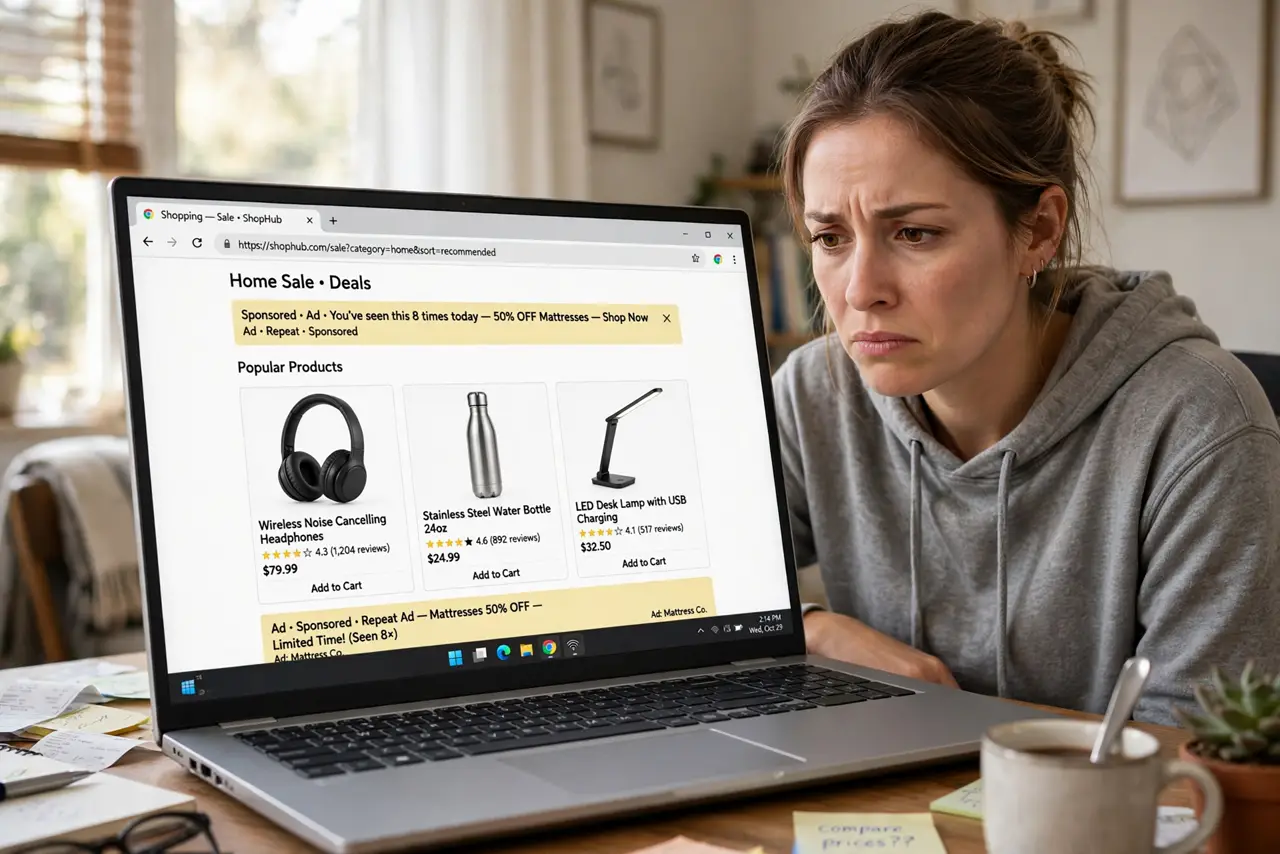
You look at one pair of shoes, and for the next month those shoes follow you across every website you visit. That is third-party tracking: ad networks building a profile of your browsing to target you. Microsoft Edge has built-in tracking prevention that blocks most of it with one setting — no extensions needed. This guide shows where it is and how strict to set it.
TL;DR / Quick Fix
Quick fix: Edge blocks most ad trackers out of the box with tracking prevention set to Balanced — check it under Settings, then Privacy. Switch to Strict for stronger blocking, though a few sites may misbehave. For trackers outside the browser, encrypted DNS adds another layer of privacy.
Follow these steps
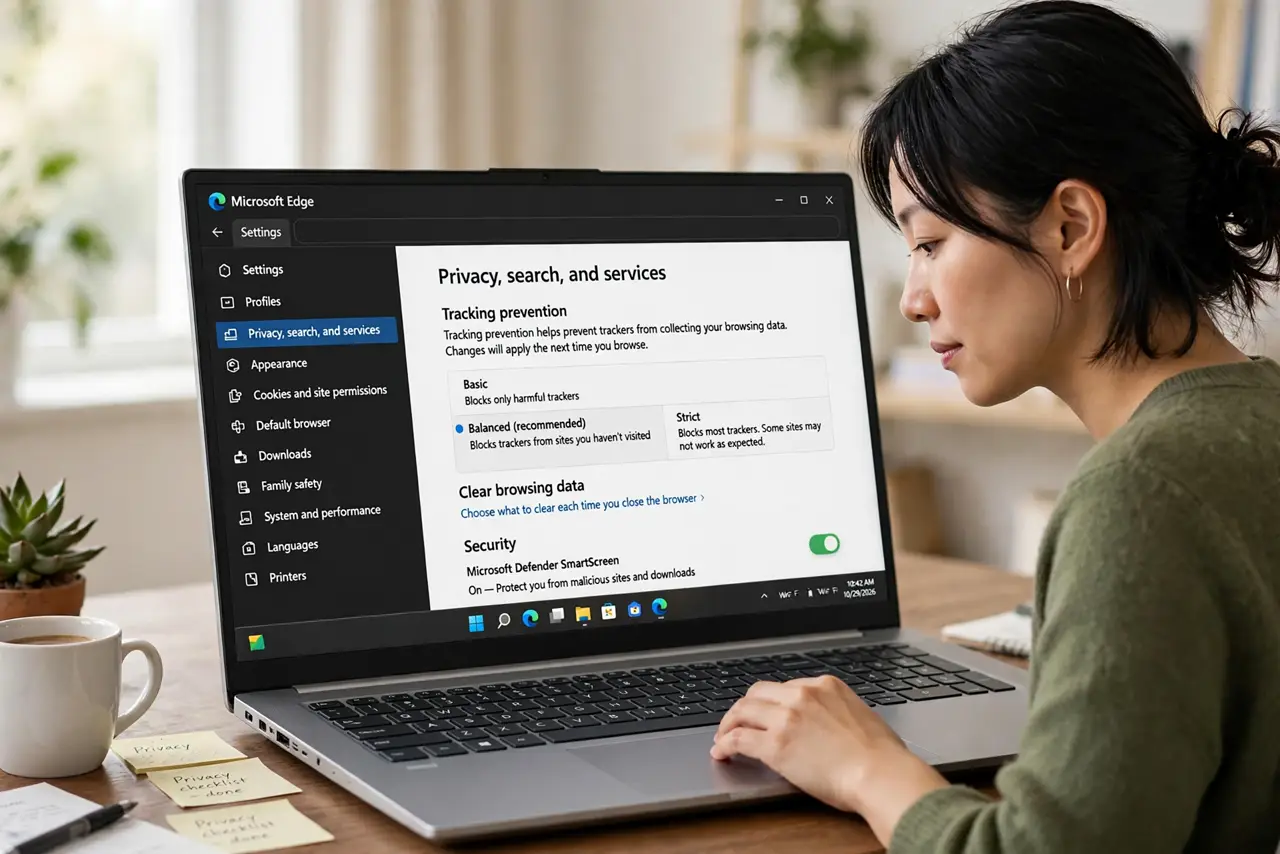
- Open Edge privacy settings. Click the three dots, go to Settings, then Privacy, search, and services. Tracking prevention sits near the top — this one page controls most of Edge's built-in privacy.
- Confirm Balanced is on. Balanced is the default and the right choice for most people: it blocks trackers from sites you have not visited while allowing the ones that keep sites working. If it was somehow off, turn it on now.
- Try Strict for maximum blocking. Strict blocks nearly all third-party trackers, including some that sites use for legitimate features. A few sites may show broken videos or login quirks — Edge lets you add exceptions per site when that happens.
- Use InPrivate for sensitive sessions. For banking, medical searches, or gift shopping, open an InPrivate window (Ctrl+Shift+N). It leaves no history or cookies behind — a different layer from tracking prevention, and they combine well.
- Remember the browser is only half the story. Tracking prevention stops browser trackers, but your internet provider still sees which sites you visit. Encrypted DNS closes that gap with one more setting.
- Clear the old data once. After turning prevention on, clear existing cookies and site data once so old trackers cannot keep profiling you. From then on, prevention keeps the new ones out.
What NOT to do
- Do not assume ad blockers are unnecessary. Tracking prevention blocks trackers, not all ads — an ad blocker is still the tool for a cleaner, faster web.
- Do not set Strict and forget exceptions. When a trusted site breaks, add it as an exception instead of turning protection off globally.
- Do not think this hides you from your ISP. The browser cannot stop your provider seeing your traffic — that needs encrypted DNS or a VPN.
- Do not stay signed into everything while blocking trackers. Tracking prevention fights third parties; the sites you are logged into still see you directly.
Frequently asked questions
Does tracking prevention block all ads?
No — it blocks the trackers behind targeted ads, not the ads themselves. You will still see ads, just less creepily personalized ones.
Will Strict break my banking site?
Possibly, if the bank relies on third-party services for login or fraud checks. Add your bank as an exception rather than lowering protection everywhere.
Is Edge tracking prevention as good as Firefox's?
Both are solid. Edge's Balanced default is gentler on site compatibility; Firefox leans stricter. Either beats leaving the default off.