Encrypt Files with EFS
Some files deserve more than a locked user account — tax returns, medical records, business contracts sitting in a shared folder. EFS, the Encrypting File System built into Windows, encrypts individual files and folders so only your user account can open them, even if someone else uses the PC. It is quiet, built in, and free. For whole-drive protection instead, check BitLocker; if files are already scrambled mysteriously, see encrypted file first steps.
TL;DR / Quick Fix
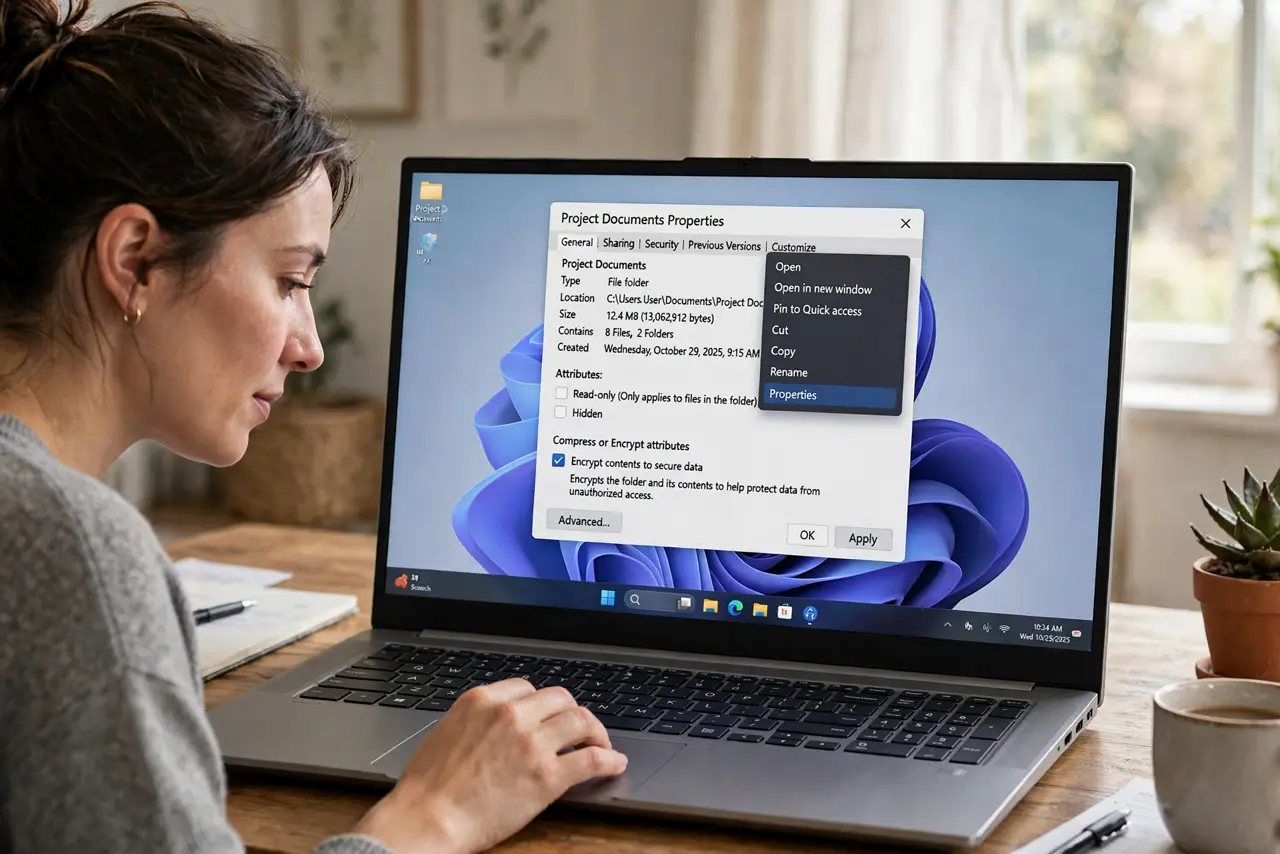
Quick fix: on a supported Windows edition, right-click the file or folder, open Properties, then Advanced, and check Encrypt contents to secure data. Only your user account can open it afterward. Back up your encryption certificate immediately — without it, a reinstall locks you out of your own files forever.
Follow these steps
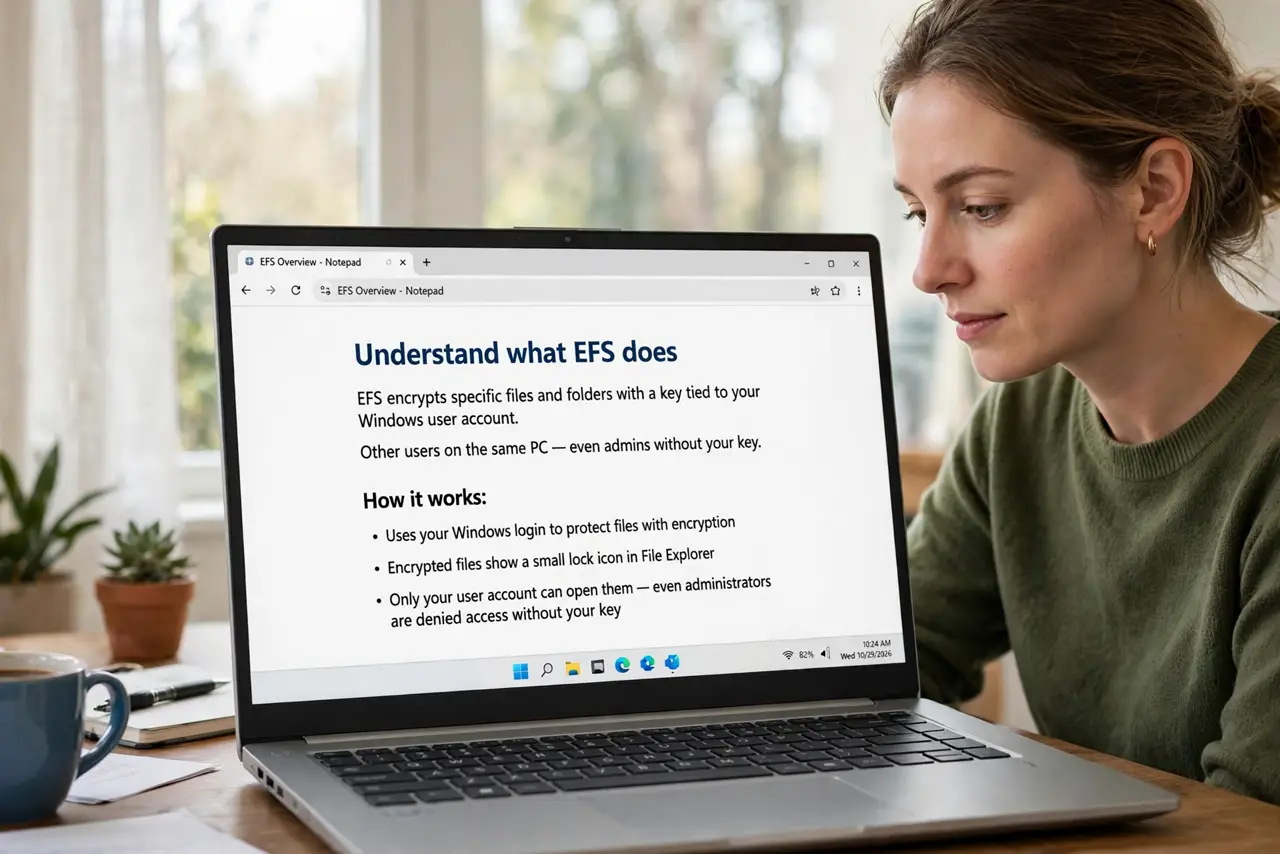
- Understand what EFS does. EFS encrypts specific files and folders with a key tied to your Windows user account. Other users on the same PC — even admins without your key — see only scrambled data.
- Check your edition supports it. EFS is available on Pro, Enterprise, and Education editions of Windows, not Home. Check your edition first so you do not hunt for a missing checkbox.
- Encrypt a file or folder. Right-click the item, choose Properties, then Advanced, and check Encrypt contents to secure data. Confirm, and Windows encrypts it — the icon may show a small lock overlay.
- Prefer folders over loose files. Encrypt the folder and everything inside — including future files — inherits protection automatically. Encrypting files one by one is how things get missed.
- Back up your encryption certificate. This is the critical step: export and save your EFS certificate to a USB drive or safe place. If your profile is ever damaged or Windows reinstalled, the certificate is the only way back into your files.
- Know the limits. EFS protects against other users and drive removal, not against malware running as you or someone watching you type the password. It is one layer — pair it with good account security.
What NOT to do
- Do not encrypt without backing up the certificate. A lost key plus a reinstall equals permanently unreadable files — the most common EFS disaster.
- Do not use EFS on the Home edition expecting it to appear. It is simply not included; whole-drive device encryption is the Home alternative.
- Do not encrypt everything blindly. System files and program folders can break things — encrypt your data folders, not Windows itself.
- Do not forget the password that guards the account. EFS keys unlock with your login — a weak account password undermines the whole scheme.
Frequently asked questions
What happens if I reinstall Windows?
Your encrypted files become unreadable unless you backed up the certificate and reimport it. This is why the backup step is non-negotiable.
Can an admin read my EFS files?
Not without your key — that is the point. An administrator can reset your password but still cannot decrypt files encrypted under your old key.
EFS or BitLocker — which one?
EFS for selected sensitive folders on a shared PC; BitLocker for the whole drive against theft. They solve different problems and can be used together.