Read Errors in Event Viewer
Something crashed, and a forum told you to check Event Viewer — so you opened it and drowned in thousands of cryptic warnings. Event Viewer is Windows' flight recorder: every crash, driver failure, and service hiccup gets logged with a timestamp. You do not need to understand all of it. You need to find the one error that matches your crash.
TL;DR / Quick Fix
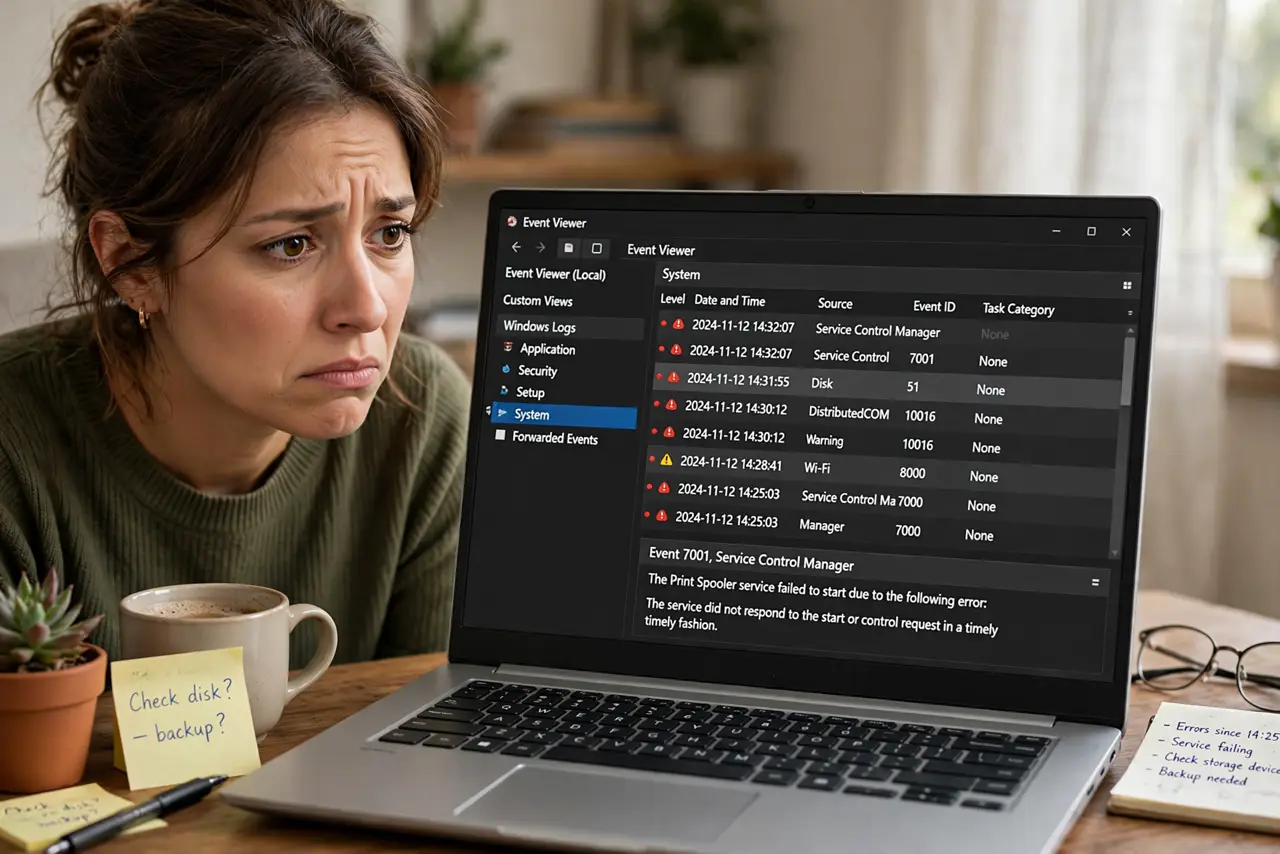
Quick fix: open Event Viewer, expand Windows Logs, and click System. Sort by date and look for red Error entries matching the time of your crash. Double-click one for details, note the source and event ID, and search those exact terms — they lead to real fixes.
Follow these steps
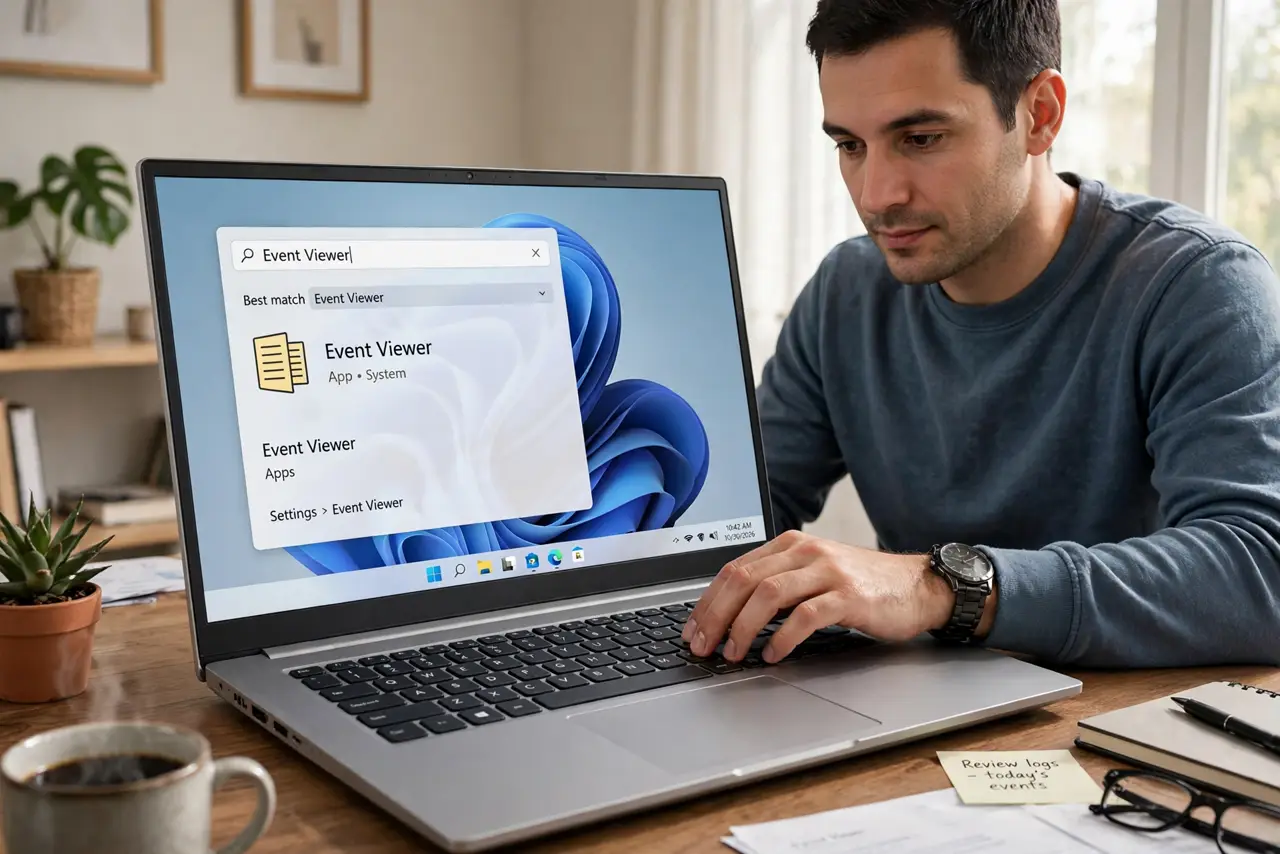
- Open Event Viewer. Press the Windows key, type Event Viewer, and open it. Ignore the overwhelming summary on the front page — you are heading for the logs.
- Go to Windows Logs, then System. Expand Windows Logs on the left and click System. This log holds hardware, driver, and service events — where crashes leave their footprints.
- Filter to the time of the crash. Note when the problem happened, then sort by date and time. Look for red Error icons clustered around that moment — yellow warnings are usually noise.
- Read one error's details. Double-click an error to see its source, event ID, and description. The source names the failing component; the event ID is the code forums use — together they are your search terms.
- Search the source plus event ID. Search the web for the exact source name and event ID together, like a driver crash pattern. Exact codes beat vague symptom descriptions every time.
- Check Application log for app crashes. If a specific program crashed rather than Windows itself, look in Windows Logs, then Application, for errors from that program's name around the same time.
What NOT to do
- Do not panic at the warning count. Healthy Windows logs show thousands of warnings — most are harmless noise, not problems to fix.
- Do not fix every error you find. Chasing old unrelated errors wastes hours; focus only on entries matching your actual problem's time.
- Do not delete the logs to clean up. You would erase the evidence you need, and Windows just starts new logs anyway.
- Do not run random Event Viewer fixer tools. They are a classic malware disguise — Event Viewer needs no third-party fixer.
Frequently asked questions
Is it normal to have lots of errors in Event Viewer?
Yes — even healthy systems log errors regularly. Only errors tied to a real symptom you are experiencing deserve attention.
What is the difference between Error and Warning?
Errors mark something that failed; warnings mark something unusual that might become a problem. Start with errors matching your crash time.
Can I clear the Event Viewer logs?
You can, via Clear Log, but there is rarely a reason to. Old entries do not slow anything down, and they are useful history.