Extend a Volume? How To
C: is nearly full but the drive has unallocated space sitting right there — or you deleted an old partition and want the space back. Extending a volume grows it into adjacent free space in seconds. The catch is one word: adjacent. The free space must sit directly after the volume, or Disk Management refuses.
TL;DR / Quick Fix
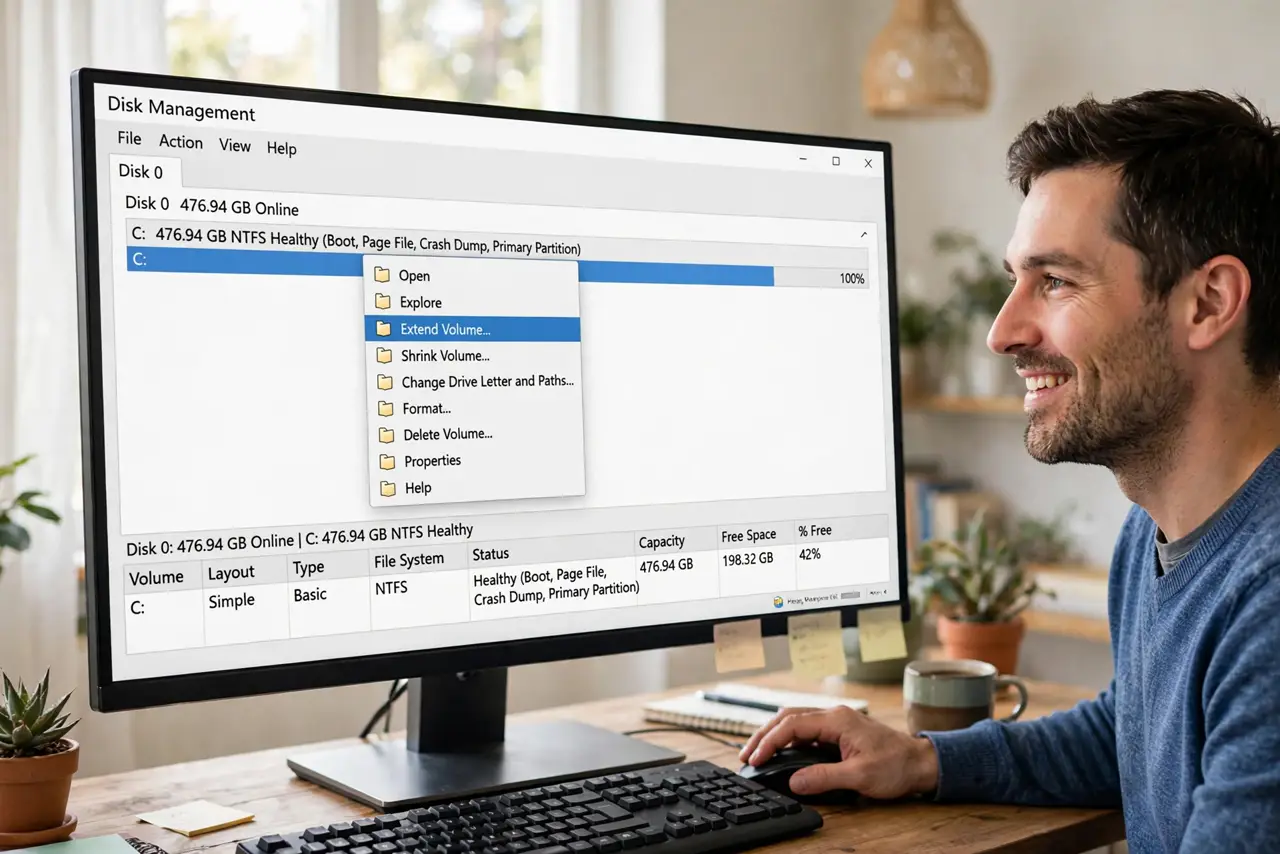
Quick fix: open Disk Management, right-click the volume, and choose Extend Volume — the wizard grows it into unallocated space sitting directly after it. If Extend is grayed out, the free space is not adjacent; you must move or delete the partition in between first. Back up before rearranging partitions.
Follow these steps
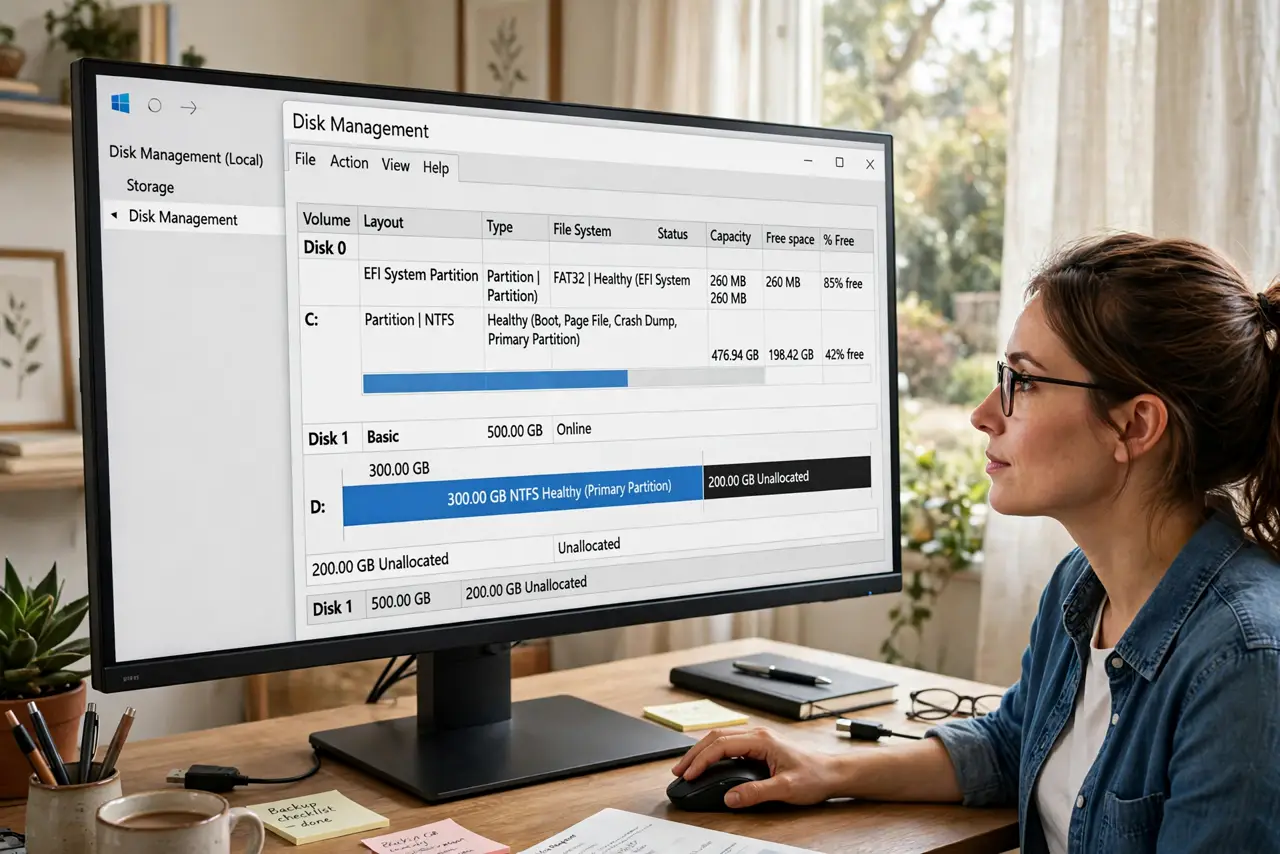
- Open Disk Management and survey the map. The graphical bars show exactly where unallocated space sits relative to your volume. Adjacent means touching, directly to the right.
- Extend when the space is adjacent. Right-click the volume, choose Extend Volume, accept the defaults, and finish. The volume grows instantly — no reboot needed.
- Understand the grayed-out Extend. If the option is unavailable, the free space is not directly after the volume. Something sits between them, and Windows will not jump over it.
- Free the in-between space carefully. To make space adjacent, you must delete or move the intervening partition — after moving its data elsewhere and backing up.
- Never delete mystery partitions. Recovery and EFI partitions often sit between volumes. Deleting them to make space adjacent breaks booting and repair — leave them be.
- Verify after extending. Open File Explorer and confirm the volume shows its new size. Then enjoy the breathing room.
What NOT to do
- Do not delete the recovery or EFI partitions to make space adjacent. Booting and repair live there — the space is not worth the sacrifice.
- Do not extend without a backup when partitions must move. Simple adjacent extends are safe; rearranging partitions is where risk enters.
- Do not expect extending to speed anything up. It adds capacity, not performance — a bigger C: is not a faster C:.
- Do not use sketchy free tools to force non-adjacent extends. If Disk Management refuses, there is a structural reason — respect it.
Frequently asked questions
Why is Extend Volume grayed out?
The unallocated space is not directly after the volume, or the volume is not NTFS. Both conditions must hold for the wizard to run.
Can I extend C: into space on another physical drive?
No. A volume can only extend into space on its own physical disk — drives do not merge in basic Disk Management.
How much should I extend C:?
Enough to keep 15 to 20 percent free after the extend. Merely escaping the red zone by a gigabyte just postpones the problem.