Partition a Drive? Basics
One giant C: drive for everything feels untidy — or you want a separate space for files that survives a Windows reinstall. Partitioning splits one physical drive into separate logical drives, each with its own letter. Windows' Disk Management does it without extra software, but shrinking a live system needs care.
TL;DR / Quick Fix
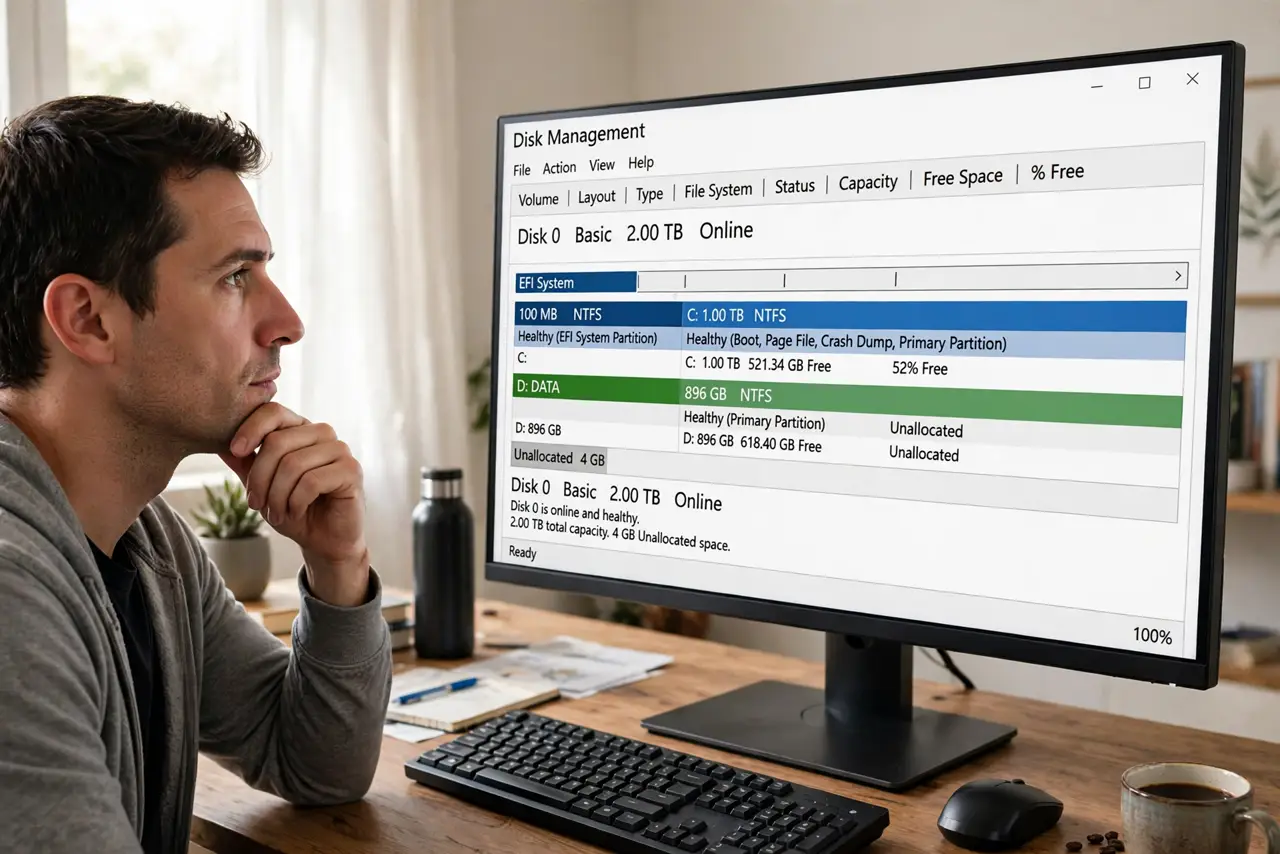
Quick fix: open Disk Management, right-click the volume to shrink, and enter how much space to free — then right-click the unallocated space and create a new simple volume. Back up first: shrinking is safe, not risk-free. Never shrink the system partition to the bone — Windows needs breathing room.
Follow these steps
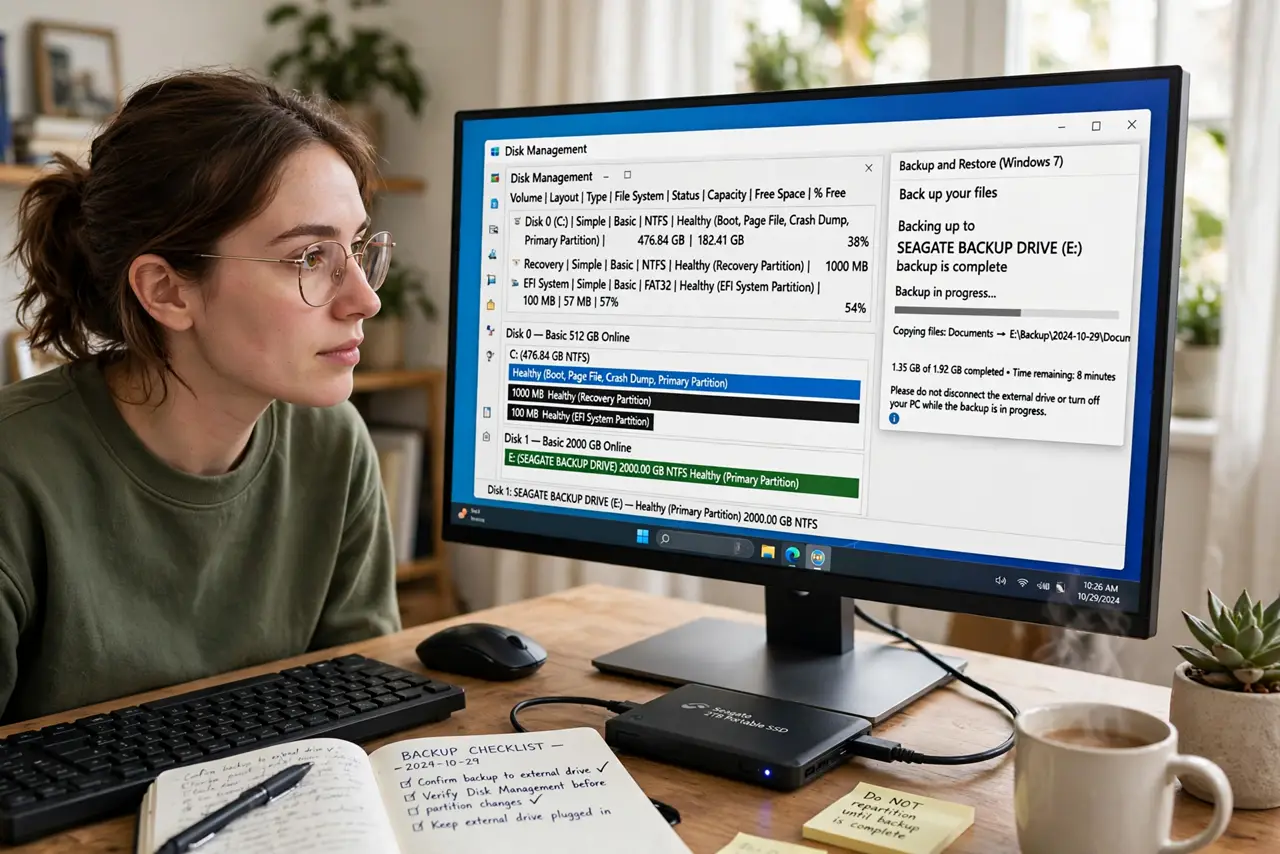
- Back up before touching partitions. Partition work is low-risk but high-consequence. A full backup first turns any mishap into an inconvenience.
- Open Disk Management. Search Disk Management and open it. The bottom pane shows every drive as a graphical bar — this is your map.
- Shrink the existing volume. Right-click the volume, choose Shrink Volume, and enter the space to free in megabytes. Windows calculates the safe maximum; stay comfortably under it.
- Create the new partition. Right-click the new unallocated space, choose New Simple Volume, and follow the wizard — assign a letter and pick NTFS for a Windows-only space.
- Name it clearly. Label the volume something meaningful like Data or Media. Future-you navigating File Explorer will be grateful.
- Leave the system partition room. Keep generous free space on C: — shrinking Windows down to fumes causes update failures and slowdowns.
What NOT to do
- Do not shrink C: to the absolute maximum Windows allows. Leave Windows at least 20 to 30 GB of breathing room beyond its current use.
- Do not delete partitions you do not recognize. Recovery and EFI partitions look small and useless; they are the PC's ability to repair and boot.
- Do not partition an SSD to 'make it faster.' Partitions organize; they do not speed up flash storage.
- Do not use random free partition tools from the web for basic jobs. Disk Management handles shrink and create safely and is already installed.
Frequently asked questions
Will partitioning erase my data?
Shrinking and creating volumes preserves existing data. Deleting or formatting partitions erases — the wizard warns you, so read each screen.
How many partitions should I make?
For most people, two: system and data. More partitions add management overhead without benefit on a home PC.
Can I undo a partition later?
Yes — delete the data volume and extend the original back into the freed space, after moving your files off first.