File Extensions Hidden on Windows? Show Them
When file extensions are hidden, a document and a renamed program can look identical, and a file called report.pdf.exe looks like a harmless PDF. Showing extensions removes that disguise and makes renaming files safer, because you can see exactly what you are changing. It also helps when you need to tell if an email attachment is safe.

TL;DR / Quick Fix
Quick fix: open File Explorer, click View, then Show, and tick File name extensions. Check any file you were unsure about: its true extension now appears after the dot. Leave the setting on, because hidden extensions only hide useful information.
Follow these steps
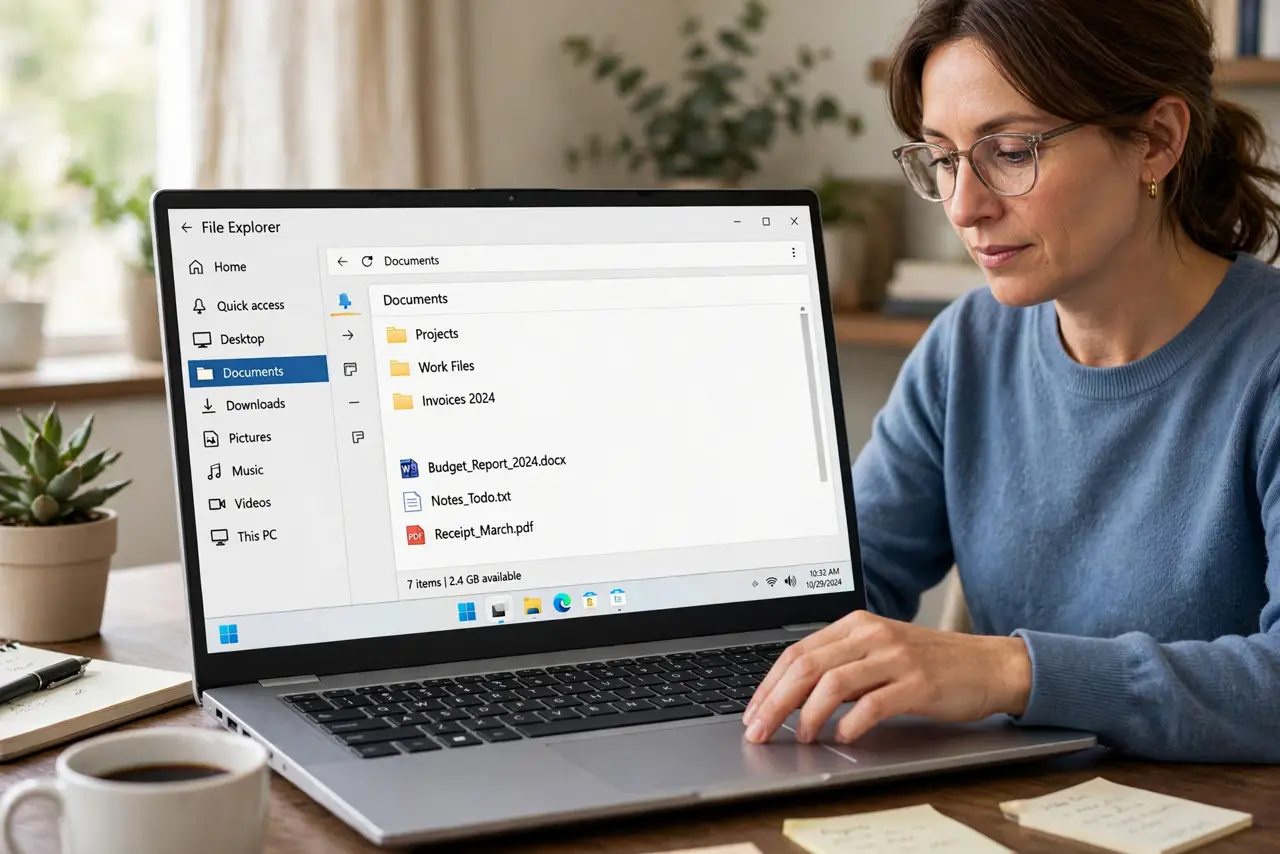
- Open File Explorer. Open any folder in File Explorer. You do not need a special folder for this change, because the setting applies everywhere once you turn it on.
- Open the View menu. Click View in the toolbar, then point to Show. This menu controls which details File Explorer displays for every file.
- Tick File name extensions. Tick File name extensions. Extensions now appear after the dot in every file name, such as .docx, .pdf, and .jpg.
- Check a file you were unsure about. Find the file that looked unclear before, and read its full extension now. A file ending in .exe is a program, even if its icon looks like a document.
- Rename carefully from now on. When you rename a file, keep its extension unchanged unless you mean to change the file type. Changing an extension by accident can stop the file from opening.
- Leave extensions visible. Keep the setting on for every account on the computer. Hidden extensions protect no one, and visible extensions help you spot a renamed file at a glance.
What NOT to do
- Do not rename a file and delete its extension by accident. If a file stops opening after a rename, add its original extension back and try again.
- Do not open a file just because its icon looks familiar. Check the extension first, because icons can be chosen to imitate documents.
- Do not turn extensions back off because file names look longer. The extra few characters are the information that keeps you from opening the wrong file.
- Do not change a file extension to convert it. Renaming a .jpg to .pdf does not convert the file, and it will not open correctly in a PDF reader.
Frequently asked questions
Why does Windows hide extensions by default?
It keeps file names short and tidy for beginners, but that tidiness hides the one detail that tells you what a file really is.
Will showing extensions change my files?
No. It only changes what File Explorer displays. Your files, their contents, and their programs stay exactly the same.
What if a file has no extension at all?
Some system and plain text files have none. That is normal, and showing extensions simply leaves those names unchanged.