Firewall Blocking an App?
Your new app cannot connect, sync, or be found on the network — and the culprit is often Windows Firewall silently blocking it. The firewall means well: it blocks unknown programs from network access by default. But its block list is invisible until you look, and legitimate apps land there regularly. Here is how to check and fix it safely.
TL;DR / Quick Fix
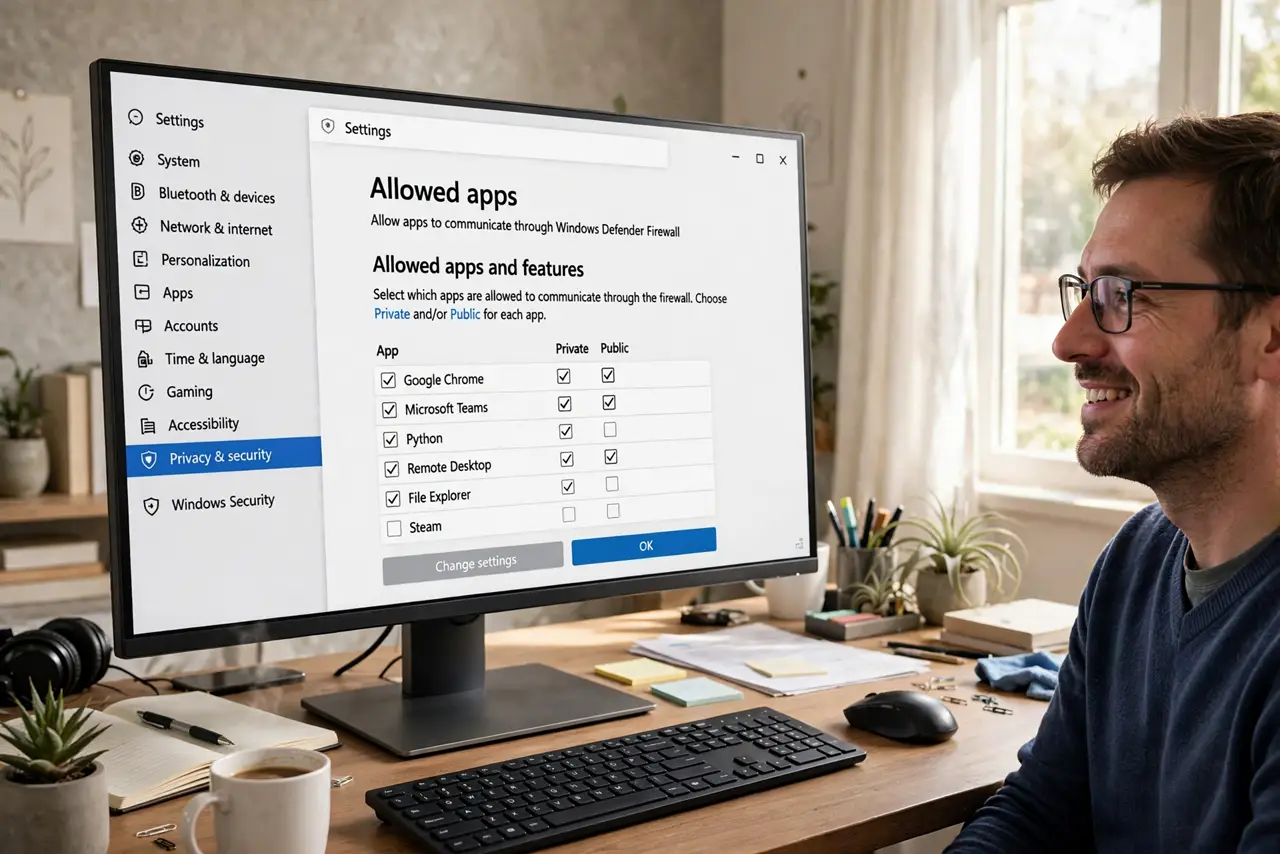
Quick fix: if an app cannot reach the network, check Windows Firewall's allowed-apps list — the app may be blocked. Open Windows Security, then Firewall, then 'Allow an app through firewall,' and tick the app for private networks. Keep the firewall on; only allow the specific app.
Follow these steps
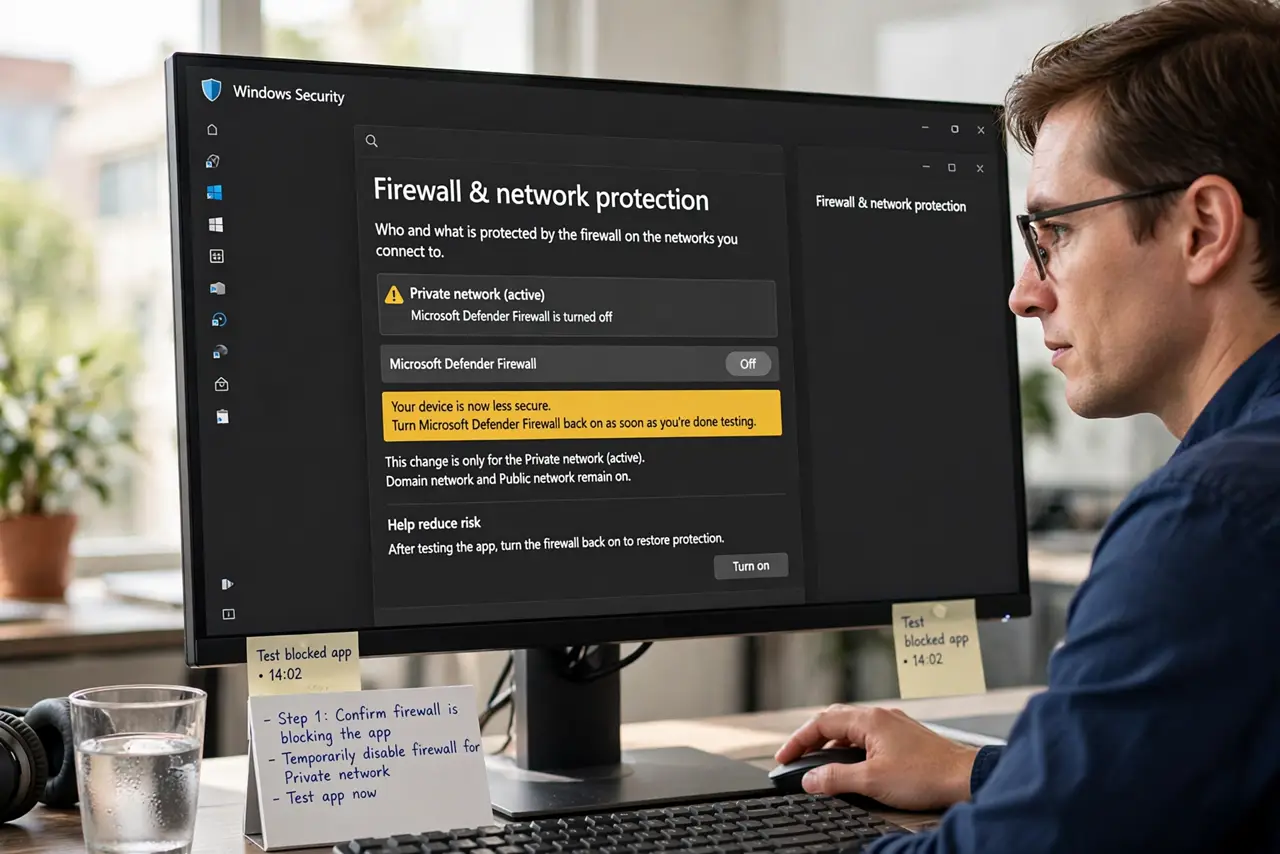
- Confirm the firewall is the suspect. If the app works with the firewall temporarily off but not on, you have your culprit. Test this briefly — and turn the firewall back on immediately after the test. Diagnosis, not a lifestyle.
- Open the allowed-apps list. Go to Windows Security, Firewall & network protection, 'Allow an app through firewall.' This list is the firewall's memory of every program it has judged — find your app here.
- Allow the app on private networks. Tick the app's checkbox for Private (home/work networks). Leave Public unticked unless you genuinely need the app on cafe Wi-Fi — the printer block case shows the same fix for printers.
- Add it manually if missing. Click 'Allow another app,' browse to the program's .exe, and add it. Some apps install helpers with different names — allow the actual executable that needs network access.
- Check both inbound and outbound. Most blocks are inbound (others reaching the app). If an app still fails, check whether a third-party security suite added its own firewall rules on top of Windows'.
- Keep the firewall enabled. The fix is allowing one app, not disabling protection. A disabled firewall 'fixes' everything the way removing the front door fixes sticking locks.
What NOT to do
- Do not turn off the firewall to fix one app. Allow the specific program instead — disabling the whole firewall trades a small problem for a large one.
- Do not allow apps on public networks casually. Private-only is the safe default; public access is for apps you truly need on untrusted Wi-Fi.
- Do not allow programs you do not recognize. If mystery software asks for firewall access, investigate first — the firewall's suspicion may be correct.
- Do not stack two firewalls unknowingly. A third-party security suite plus Windows Firewall means two block lists — check both when an app will not connect.
Frequently asked questions
How do I know if the firewall is blocking my app?
Temporarily disable it for a minute and test. If the app springs to life, the firewall was the blocker — re-enable it and add the proper exception.
Is it safe to allow an app through?
For software you trust, yes — you are permitting that one program's network traffic, not opening the floodgates. For unknown software, investigate first.
The app is allowed but still blocked. Why?
Check for a second firewall (security suite), wrong network profile (public vs private), or the app's own settings — the block may live elsewhere.