Folders Show Generic Icons, Not Previews
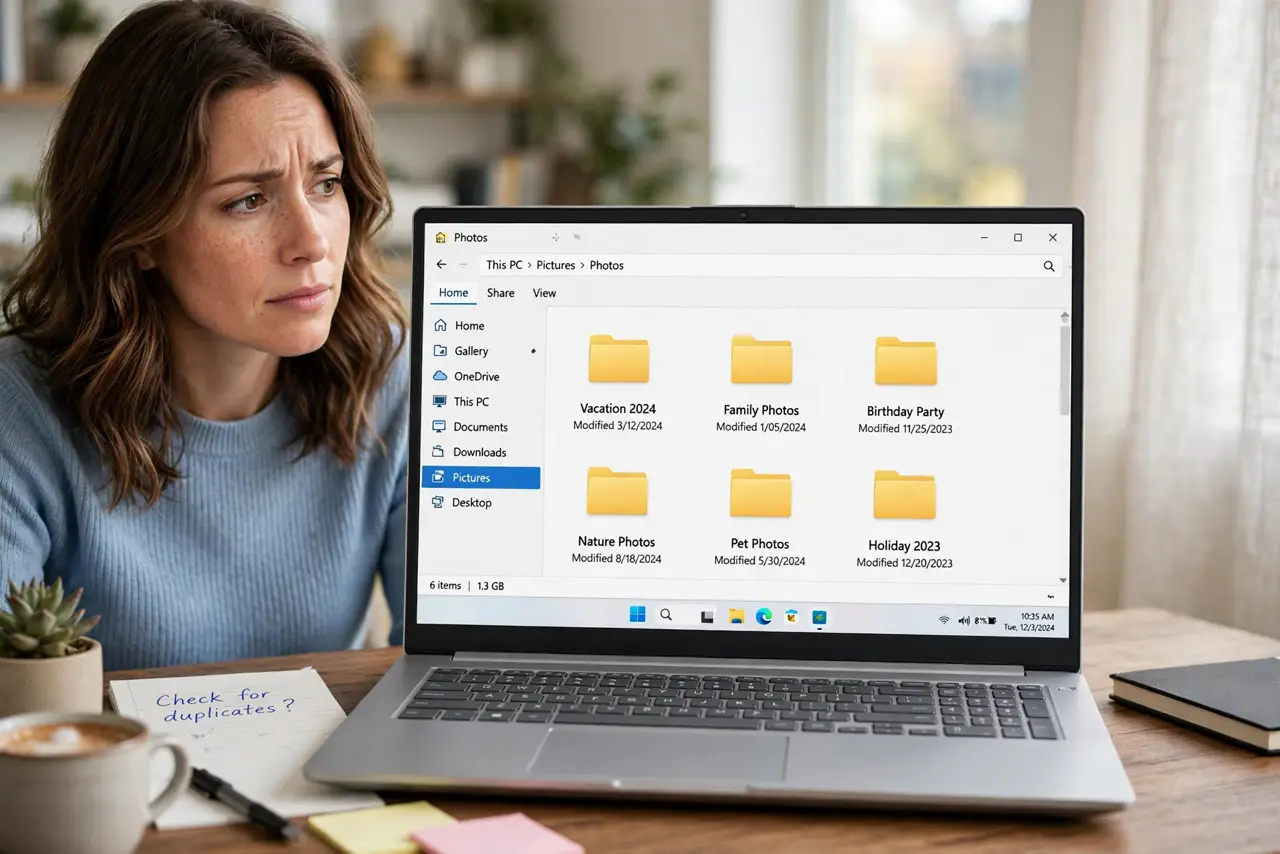
Folders full of photos show plain yellow folder icons instead of little picture previews. The folder's type optimization and the thumbnail setting together decide whether you see previews, and one of them is usually wrong. The fix is two settings deep — a folder-level sibling of the blank video thumbnails problem.
TL;DR / Quick Fix
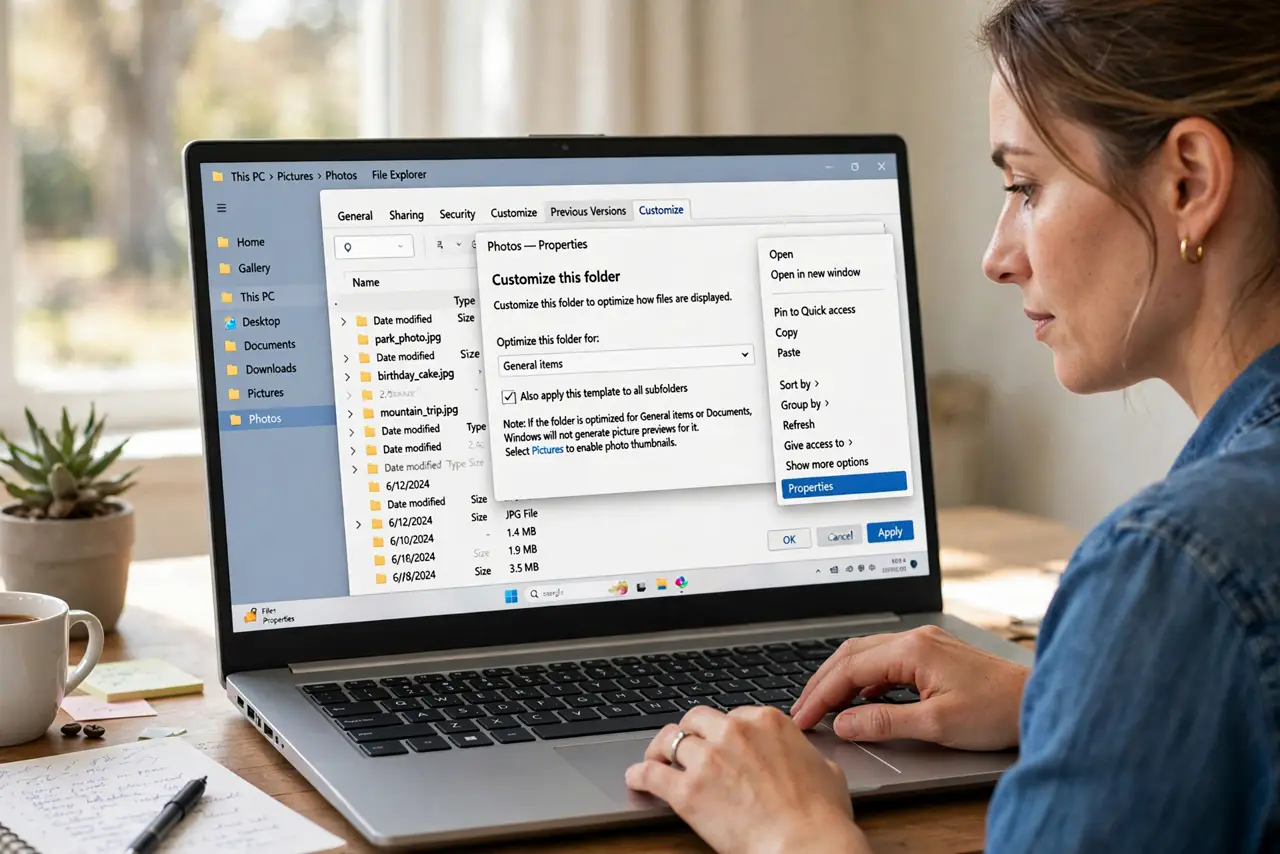
Quick fix: right-click the folder, open Properties, and on the Customize tab set Optimize this folder for Pictures. Then confirm the show-thumbnails setting in Folder Options is on. Reopen the folder and the picture previews appear on the folder icons themselves.
Follow these steps
- Check the folder's optimization type. Right-click the folder, open Properties, and look at the Customize tab. If it is optimized for General items or Documents, Windows will not bother generating picture previews for it.
- Set it to optimize for Pictures. Change the optimization to Pictures and apply to subfolders if asked. This tells Windows the folder holds images worth previewing.
- Confirm thumbnails are enabled globally. In Folder Options on the View tab, make sure Always show icons, never thumbnails is unchecked. The folder setting cannot work while the global switch is off.
- Refresh the folder view. Close and reopen the folder, or press F5. Windows generates folder previews on view, so a refresh triggers the new previews.
- Check the photos inside have thumbnails. Open the folder and confirm the individual photos show their own thumbnails. If the photos themselves are blank, fix that first with the video and image thumbnail steps.
- Give it a moment on big folders. Folders with hundreds of photos take a while to preview. Browse away and come back rather than assuming the fix failed.
What NOT to do
- Do not expect previews on system folders. Windows skips thumbnail work on folders it considers structural, and that is by design.
- Do not confuse the folder icon with its contents. The preview on the icon is generated from the photos inside; empty or corrupt photos mean no preview.
- Do not change the optimization on every folder manually. Set it on the top photo folder and apply to subfolders in one step.
- Do not disable thumbnails to speed up browsing. You lose the previews everywhere to save seconds on huge folders; fix the specific folder instead.
Frequently asked questions
Why do only some photo folders show previews?
Because each folder has its own optimization type. Folders created by cameras usually get Pictures; folders you made by hand often get General items.
Will this work for folders on a network drive?
Sometimes slowly. Network folders can show previews, but generation over a slow connection may lag or time out.
Do I need to do this for every subfolder?
No. The Customize tab offers to apply the setting to all subfolders in one click.