Forget a Wi-Fi Network
Your laptop clings to the weak coffee-shop Wi-Fi instead of your phone's hotspot, or it auto-joins a network you never want to touch again. Windows remembers every network it has joined — forgetting one wipes its saved password and auto-join, cleanly and instantly. Two clicks, problem gone.
TL;DR / Quick Fix
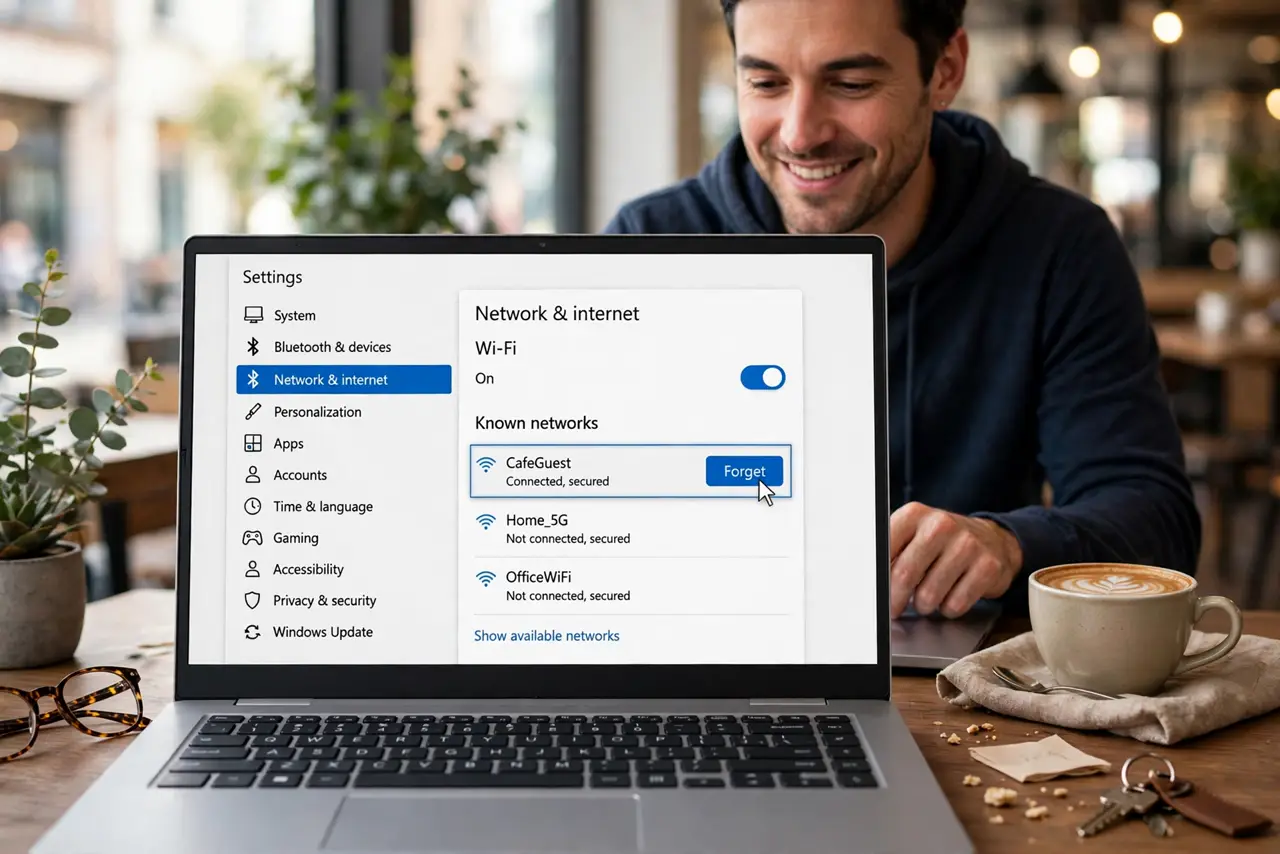
Quick fix: open Settings, go to Network and internet, then Wi-Fi, then 'Manage known networks' — click the network and choose Forget. Windows deletes its saved password and stops auto-joining. If the network is currently connected, disconnect first, then forget it from the same list.
Follow these steps
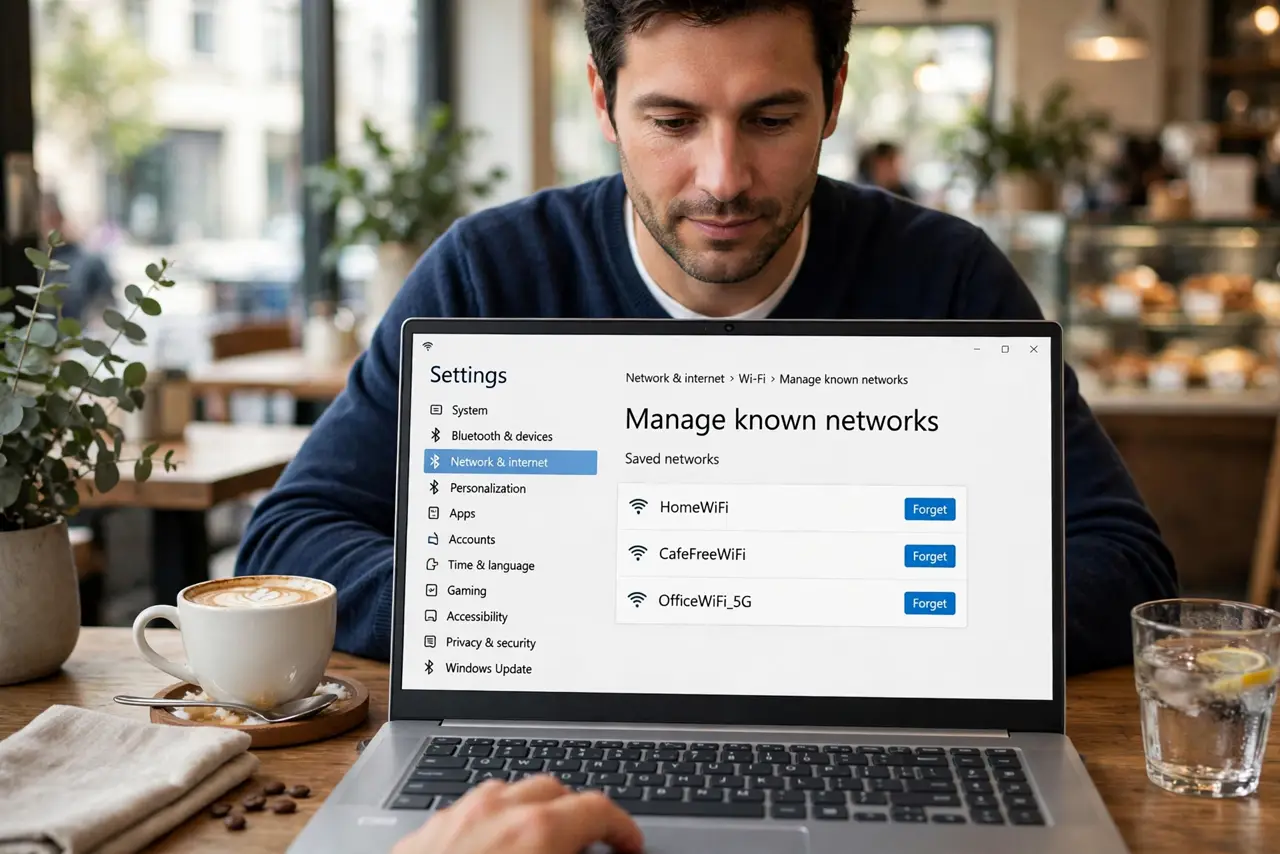
- Open Manage known networks. Go to Settings > Network & internet > Wi-Fi > Manage known networks. Every network the PC remembers lists here with its details.
- Find the troublemaker. Scroll to the network that keeps hijacking your connection — the weak one, the sketchy one, the ex's one. Recognition is instant.
- Click Forget. Select it and hit Forget. The saved password and auto-join setting vanish immediately — no confirmation drama.
- Disconnect first if currently joined. If you are on the network right now, disconnect, then forget it. Forgetting while connected sometimes leaves the session hanging.
- Rejoin deliberately if needed. Forgetting is not banning — you can rejoin anytime by picking the network and typing the password fresh. Useful for forcing a clean reconnect.
- Forget stale networks periodically. Old hotel and airport networks accumulate. A yearly purge keeps the list short and stops surprise auto-joins to distant weak signals.
What NOT to do
- Do not forget your home network by accident. Rejoining needs the password — have it handy before purging the one you actually use.
- Do not confuse forgetting with blocking. Forgetting removes the saved credentials; the network still appears in range and can be rejoined.
- Do not expect forgetting to fix a bad connection. If your own Wi-Fi misbehaves, the network is not the problem — troubleshoot it instead.
- Do not forget networks on a work PC against policy. Some workplaces require specific networks; check before purging.
Frequently asked questions
Will forgetting delete anything else?
No — just that network's saved password and auto-join preference. Files, settings, and other networks are untouched.
The network keeps reappearing — why?
It is in range, so Windows lists it. Forgetting stops auto-join; it cannot hide a broadcasting network.
Can I forget a network I am not near?
Yes — Manage known networks lists every remembered network regardless of range. Purge away from anywhere.
What to read next
- Set Wi-Fi as Metered
- Share Wi-Fi as a Hotspot