Set Wi-Fi as Metered
On hotel Wi-Fi, a phone hotspot, or any capped connection, Windows happily downloads gigabytes of updates in the background — burning your data allowance. Marking the connection as metered tells Windows to treat data as precious: updates pause, store downloads wait, and apps throttle themselves. One toggle, real savings.
TL;DR / Quick Fix
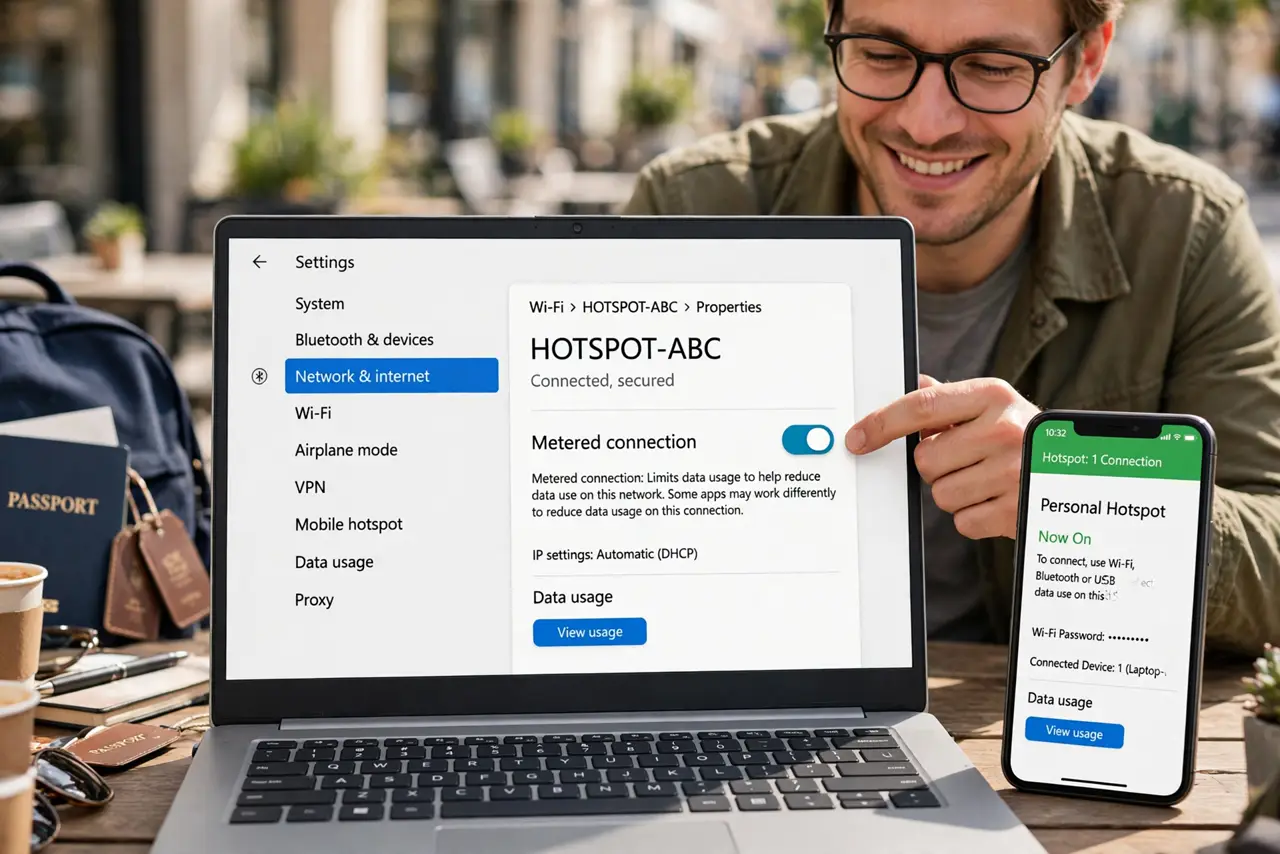
Quick fix: open Settings, go to Network and internet, then Wi-Fi, click your connected network, and turn on 'Metered connection.' Windows then holds back automatic updates and trims background data. Turn it off when you are back on unlimited Wi-Fi so updates flow normally again.
Follow these steps
- Open the network's properties. Go to Settings > Network & internet > Wi-Fi, then click your connected network's name or info icon to open its properties.
- Turn on Metered connection. Flip the toggle. Windows immediately treats this network as data-capped — the change applies to this network only, remembered for next time.
- Know what it pauses. Automatic Windows updates hold back, Store apps wait, and many apps reduce background syncing. Your browsing and calls work exactly as before.
- Manually check updates when ready. Metered does not mean never — open Windows Update and click Download when you are on good Wi-Fi or choose to spend the data.
- Turn it off on unlimited networks. Back home, flip the toggle off so updates resume normally. A metered home network silently starves your PC of updates.
- Pair it with pausing for trips. For short trips, also pause updates outright. Metered plus paused is the belt-and-suspenders approach to data saving.
What NOT to do
- Do not leave home Wi-Fi marked as metered. Forgotten metered flags are a top cause of mysteriously missing updates months later.
- Do not expect metered to block everything. Some critical updates and your own active downloads still go through — it trims, not seals.
- Do not mark Ethernet as metered casually. The setting exists for Ethernet too, but a capped wired connection is rare — check before toggling.
- Do not confuse metered with a data cap setting. Windows also lets you set an actual data limit nearby — related but separate.
Frequently asked questions
Will metered stop my video calls?
No. Calls, browsing, and streaming work normally — metered only restrains background system downloads, not what you deliberately do.
Does it affect OneDrive syncing?
OneDrive pauses syncing on metered connections by default. Change that in OneDrive settings if you need sync on capped data.
Why are updates still downloading on metered?
Critical security updates can override the metered flag. Everything optional waits — the system prioritizes safety over savings.
What to read next
- Pause Windows Updates Temporarily
- Share Wi-Fi as a Hotspot